Excel’s Latest Innovations
Recent Excel Game-Changers
Dynamic Arrays
Functions like FILTER, SORT, and UNIQUE spill results into a range automatically.
XLOOKUP
The replacement for VLOOKUP — bidirectional, with built-in defaults for missing values.
LAMBDA
Define your own reusable functions in a workbook without VBA.
Power Query
Repeatable data import and cleanup that runs every time you refresh.
Noble Desktop's Excel Bootcamp covers formulas, pivot tables, data analysis, VBA, and the full analytics workflow used by finance and ops teams.
If you subscribe to Office 365, every time you fire up one of the applications, you’re getting the latest version of the software. While we used to have to buy an upgrade every year or so, now the upgrades keep coming, continuously. All you have to do is be logged in to your Microsoft Office account at the time—and, of course, keep paying for your subscription. There’s always a catch, right?
Luckily for Excel users, our favorite application in the suite is also the most often to be updated. These ongoing updates can be a little annoying for teachers like me, because it creates another layer of prep before class—“What’s this new button do?”—knowing a student will notice and ask, even if whatever that button does wouldn’t typically be covered in that particular class. For my online classes, this means having to reshoot videos and update the instructions more often, and I live in fear of missing something and confusing my students when the course material becomes out of date. But for users, however, and when I’m in user mode myself, the steady flow of new and improved functionality is very exciting—and I thought I’d share some of the more important updates we’ve seen over the last year.
First, Things Got Faster
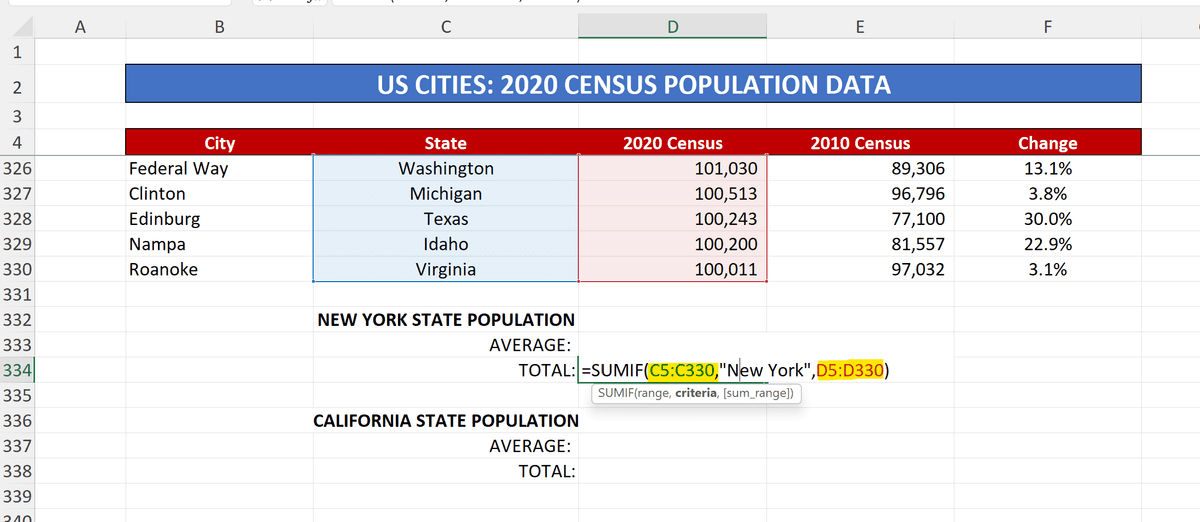
Several Popular Calculations Go Faster Now, Especially Good News for Fans of the IF and IFS Functions Such As SUMIF/SUMIFS, AVERAGEIF/AVERAGEIFS, and COUNTIF/COUNTIFS. These Particular Functions Are Required to Make Decisions Before Their Final Calculation is Performed, and That Process Makes Them Happen More Slowly Than Functions That Don’t Have That Extra Step in the Process.
How Did Excel’s Designers Manage to Speed Things Up? For Functions That Refer to a Range of Cells—in the Case of IF and IFS Functions, Those Being the Ranges Being Searched for a Given Value and the Ranges to Be Calculated Based on Finding That Value—the Re-visiting of Those Ranges Each Time the Calculations Were Performed Was Both Time and Resource-consuming. by Placing These Ranges in an Internal Cached Index, Which Allows the Cached Index to Be Referenced, Rather Than Going Back Directly to the Referenced Cells, Each Time the Calculations Are Repeated, the Results Appear Much Faster.
The Average User, Referring to Relatively Small Ranges in These Functions, May Not Notice the Impact, but the Effect is Significant. Benchmarking Demonstrated That When Calculating 1200 SUMIFS, AVERAGEIFS, and COUNTIFS Formulas, Pulling Data from 1 Million Cells, It Took up to 20 Seconds Before the Enhancement. Now? It Only Takes 8 Seconds. That’s More Than Twice As Fast, so Even If Your IF or IFS Function Was Taking Just a Couple of Seconds, You Should Notice That It Happens Nearly Immediately Now.
New X Functions
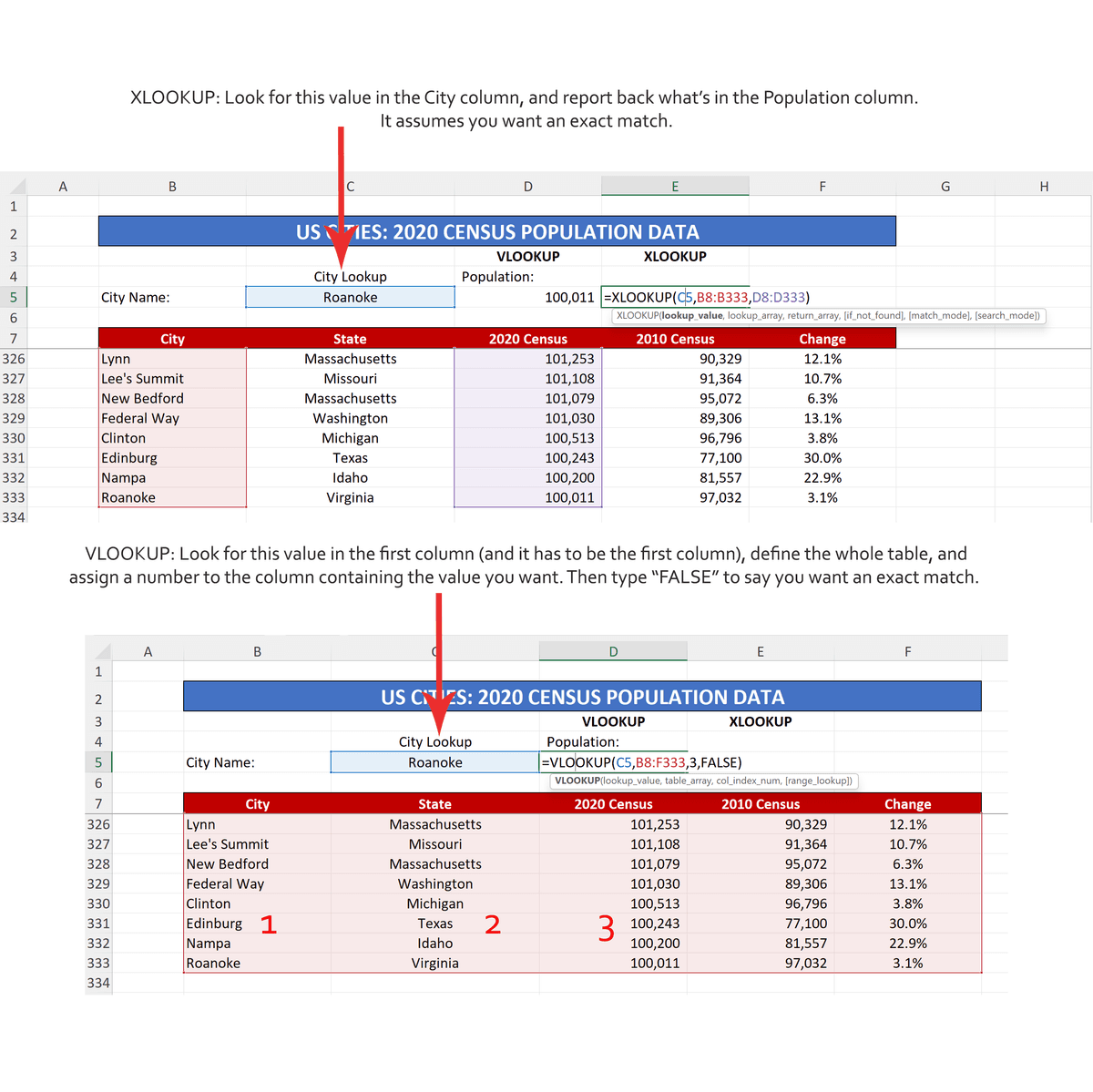
Sounding a bit like superheroes, the X functions I refer to are the X versions of functions you may already know. For example, XLOOKUP essentially replaces VLOOKUP and HLOOKUP, and XMATCH takes MATCH to new heights. Dare I say they leap tall spreadsheets in a single bound?
In the case of XLOOKUP, the function is a much simpler, yet more powerful version of VLOOKUP and HLOOKUP. If you’re not familiar with the VLOOKUP and HLOOKUP functions, their purpose is to find a value you specify—like the price of a given item in your inventory or the phone number of a particular client. This is executed by the function looking in a range of cells you also specify, based on values in yet another range you specify—but the latter range is referred to by the chronological number of the column or row to look in, rather than the addresses of the cells in that range. Confusing, right? Right—and a needless complication, as the much smoother operation of XLOOKUP shows us.
We also no longer have the need to use a different function depending on whether the search—the lookup—would involve a series of cells in a column (a vertical lookup) or across a row (a horizontal lookup). And, it’s no longer required that you decide if an exact match to the sought value is needed, an argument that didn’t really work in the older LOOKUP functions, anyway. So good riddance.
Want to see XLOOKUP in action? Click here to watch our video:
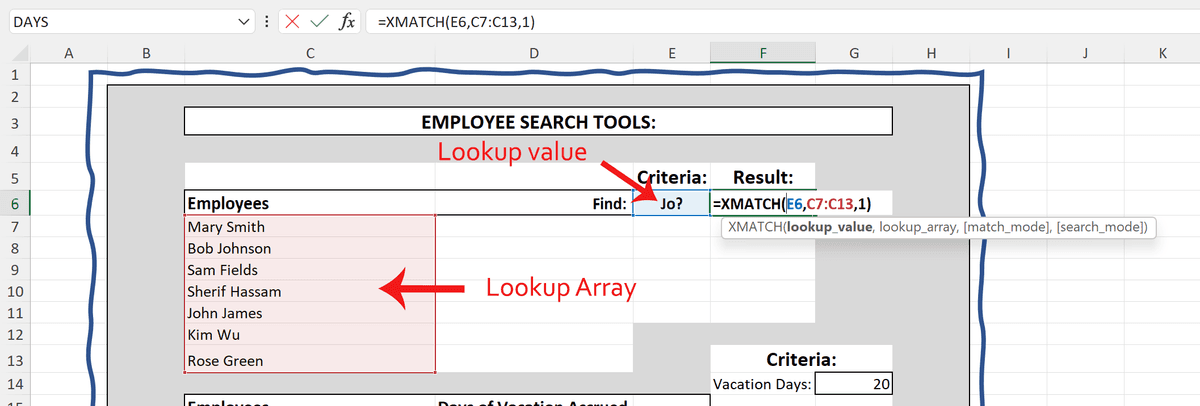
XMATCH is also concerned with finding things in your workbooks—searching an array of cells you specify and then reporting back a location, rather than a value. You can use a portion of a cell’s value such as part of a name or mailing address as the value to be matched, inserting a question mark to represent the portion of the value that’s unknown or unnecessary. As shown in the following image, seeking the employee whose name begins with Jo finds the location of the name John in the list, and reports back that he’s the 5th person in the list.
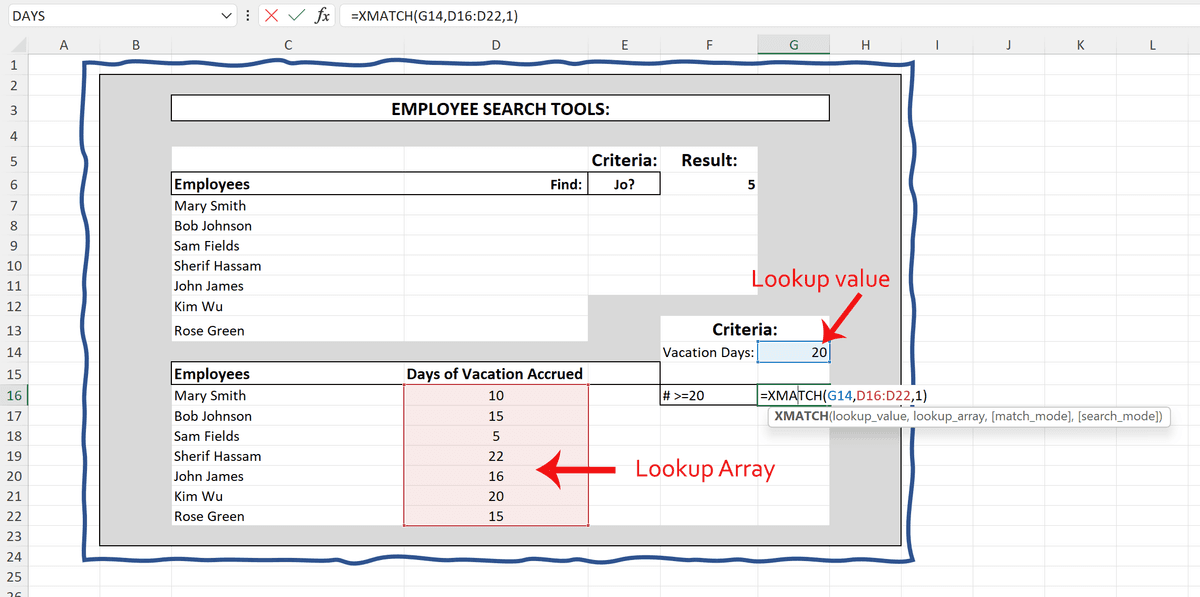
You can also use XMATCH to determine how many items in a list meet or exceed (or are exceeded by) a value you specify. In the same list of employees, the XMATCH tells us how many of them have more than 20 days of vacation saved.
The workbook I used to create the samples shown here can be found at this link [insert link here]. You can download and experiment with it yourself, a great way to learn this new function.
Who Goes There?
Excel assumes no user is an island, and gives us great tools to work with our colleagues, each contributing to the life of a workbook. Excel also now lets us know when one of those collaborators is logged in and potentially editing the workbook, explaining why that cell just changed and you know you didn’t change it. And to encourage more conversation between collaborators, a better, more modernized commenting tool has been added.
Speaking of conversation, as you may know, commenting is—and always has been—a simple way to converse about any aspect of a workbook’s contents. Found on the Review tab, the Comments group contains a simple series of buttons—to add and delete comments and to move through a series of comments in the same worksheet. You can also turn visibility on and off with the Show Comments button.
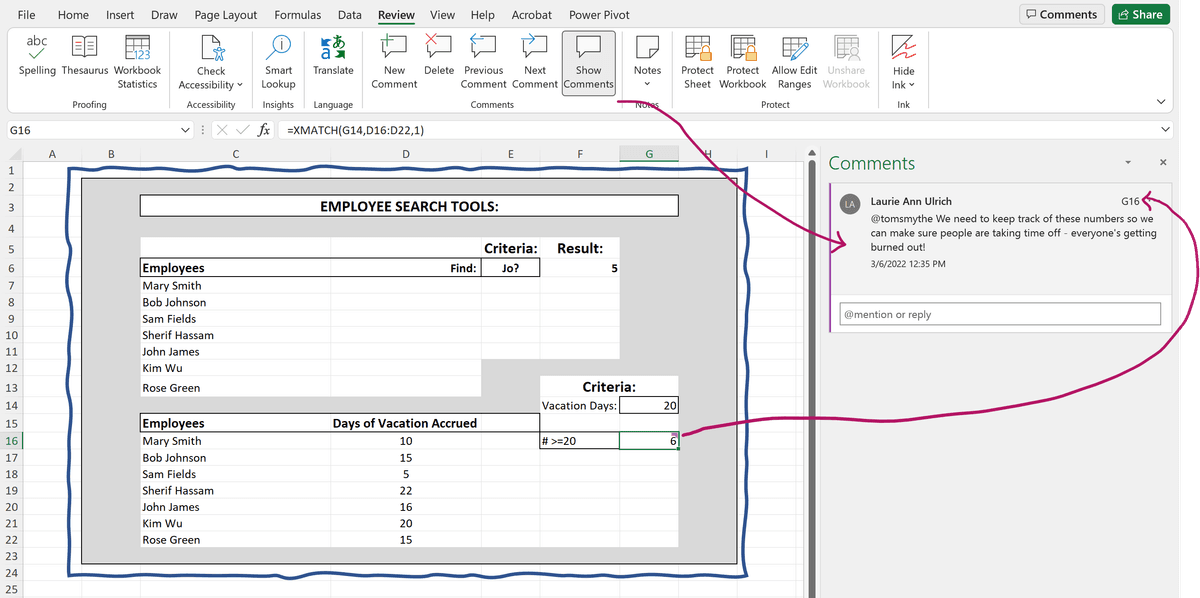
What’s changed is the ability to use the @ sign to mention people in your organization (based on your Outlook address book and/or your Teams colleagues), so people will be alerted to a comment that refers to them. You can also see an entire string of comments simply by clicking on a cell containing a comment, as indicated by the purple triangle in the upper right corner of the cell. You can edit a comment you’ve previously made, too—and if the cell containing the comment also contains a formula, press the F2 key to see the cells referenced in that formula highlighted.
Co-authoring your workbooks has never been easier, either. Just click that Share button in the upper right, and after determining whether the share will give people the ability to both view and edit the workbook—or to just look around—you can either invite them to work with you by email or copy a Share link to your clipboard and send it to whomever you like, via any means that will accept the pasted link. That means you can paste the link into a Teams chat or into any texting application you prefer.
TIP! You’ll notice a Comments button next to that Share button in the upper right corner. That’s a handy way to open the Comments panel, showing all the conversations currently going on in the active worksheet, enhancing all forms of collaboration going on.
As people are logged in and working in your workbook with you, you’ll see their initials or picture (if they’ve added one to their Office profile) just below the title bar. If you’re seeing changes happening and you aren’t making them, the people logged in at the time are the most likely suspects.

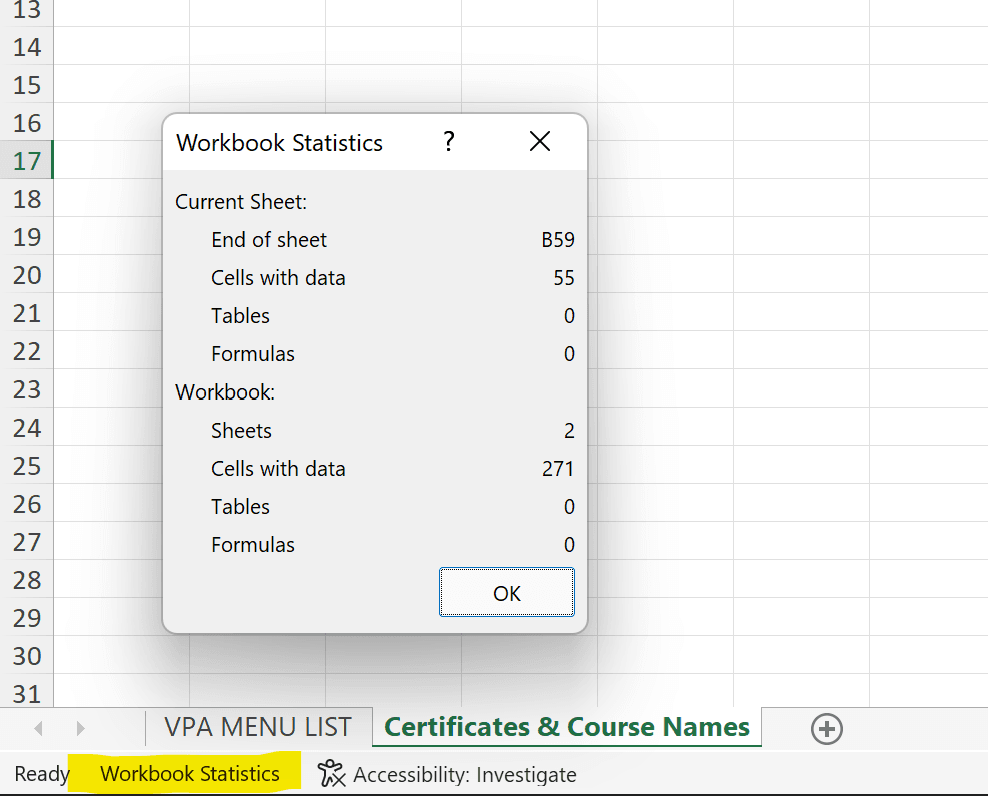
And speaking of those changes, you can get a quick Workbook status by clicking the Workbook Statistics button on the Review tab, or the same-named link in the lower left of your worksheet, on the Status bar. See how many sheets your workbook contains and how many of your workbook’s millions of cells are in use—including how many of them contain data, tables, and formulas.
Now You See ‘Em, Now You Don’t
When you share your workbooks, even if you apply protection (via the Review tab’s Protect group tools), one way to essentially say “Keep Out” is to hide any worksheets you’d rather people not see or touch. Of course, it’s not new that you can hide your worksheets—one at a time—but it is new that you can hide or unhide them all in one fell swoop.
First, to make sure you know how to hide worksheets in the first place, just right-click any sheet tab and choose Hide from the pop-up menu. Wasn’t that easy?
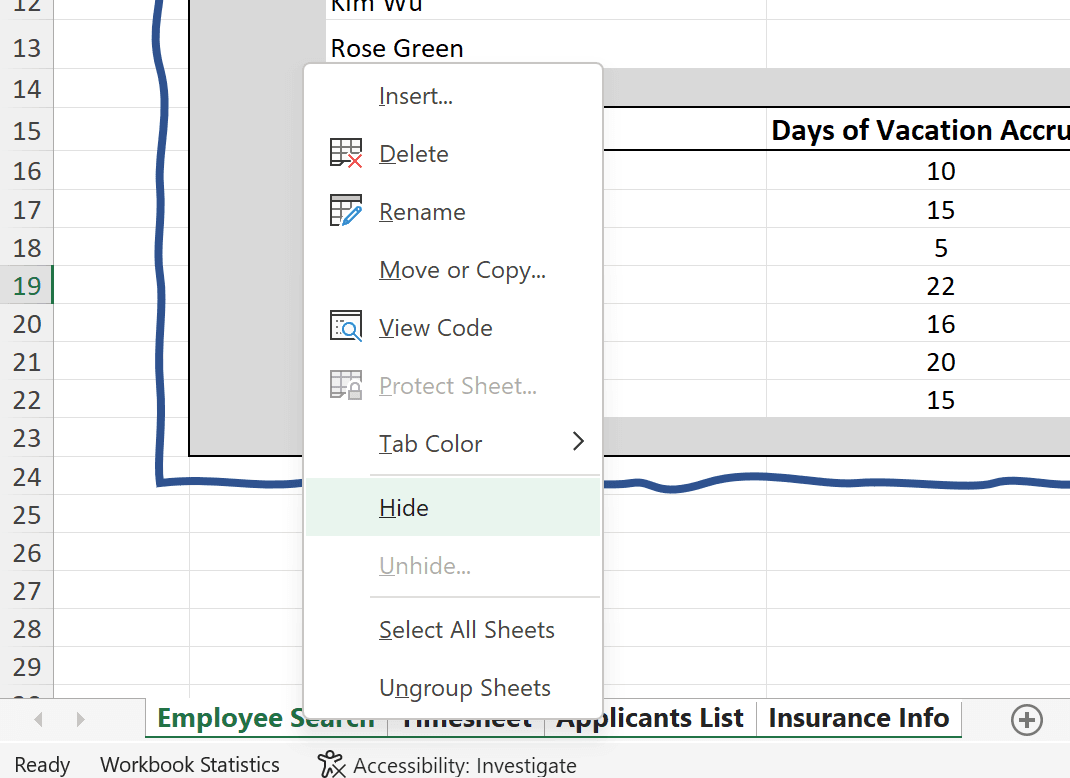
You can repeat that for as many sheets as you want, of course, but it’s now much easier to hide multiple worksheets. Just select the sheets you want to hide (by holding the CTRL key as you click their tabs), and then choose that same Hide command after right-clicking any of the selected sheets, and they all become invisible.
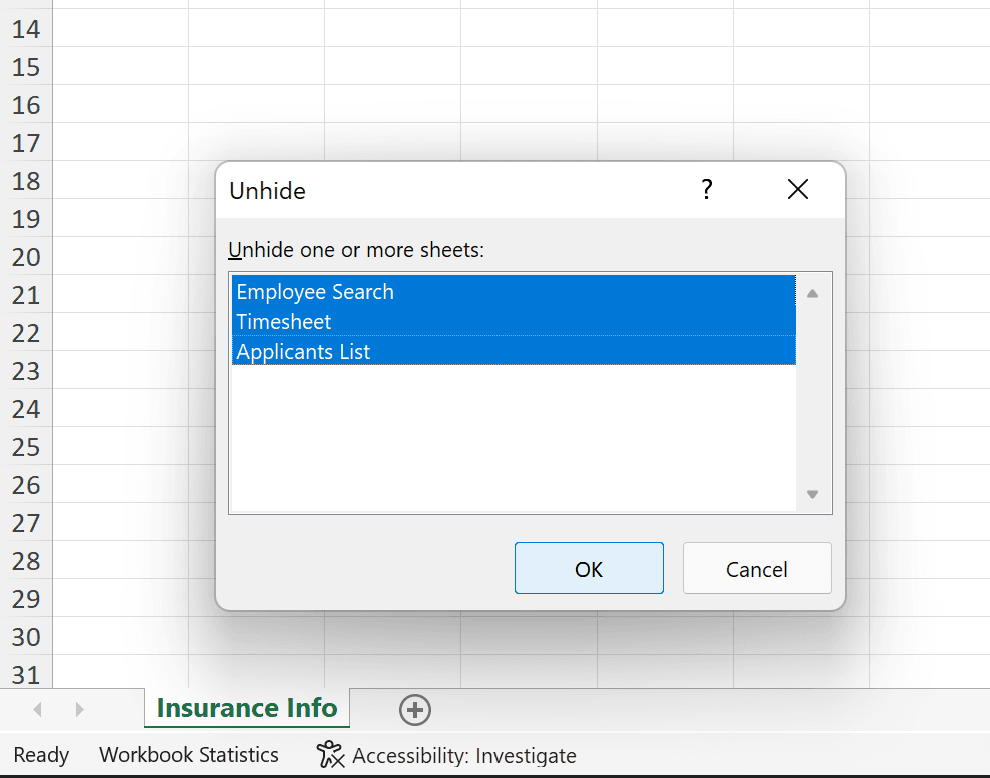
To bring them back, right-click any still-visible sheet tab and choose Unhide. Note that ellipsis that follows the command, which means a dialog box will follow—and so it does. Just use the CTRL key to select the sheets you want to unhide, and click OK. Boom! They all reappear.
This Seems a Bit Sketchy
You probably already know how to add shapes to your worksheets—and that you can type inside them, for a more interesting visual twist on the text box. What’s new is that you can apply a Sketch outline to those shapes, creating a hand-drawn look.
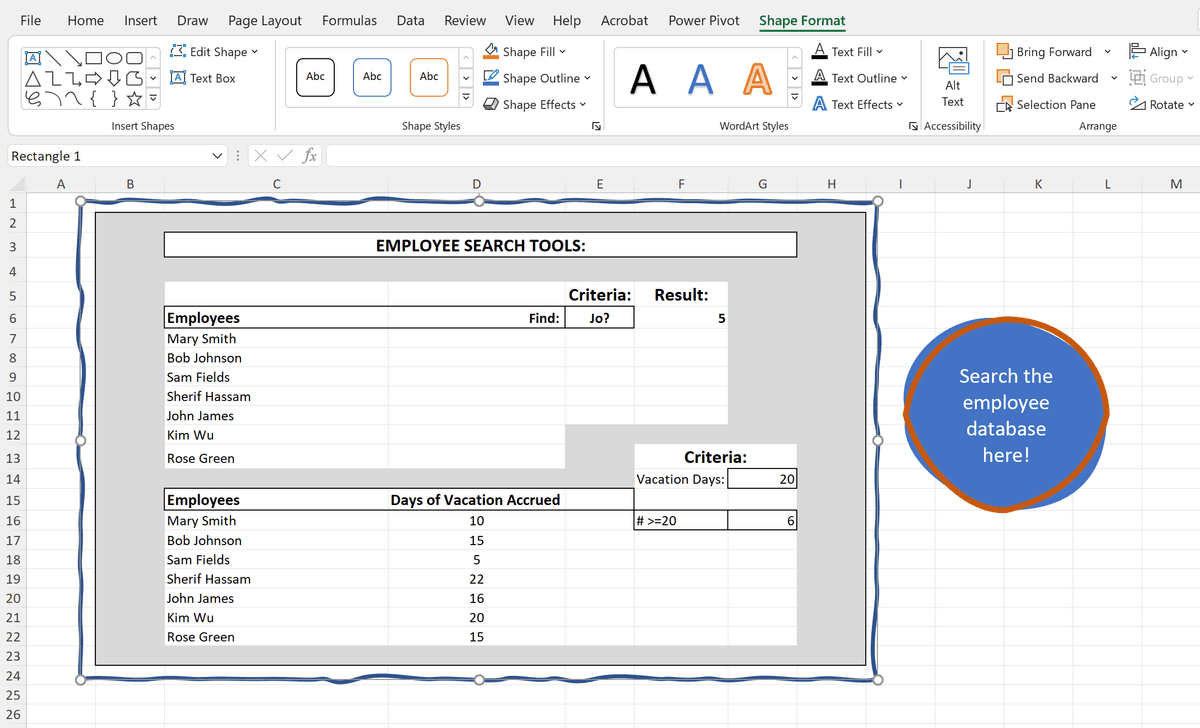
To apply this border to your shapes, drawn with the Shapes tool (found on the Insert tab, under Illustrations), select the shape and then click the Shape Outline button on the Shape Format ribbon. From the list of outline options, choose Sketched, and see the variety of choices available—a simple curved line, a slightly wavy line, or a jagged line. You’ll know which look is appropriate for your shape, in context. It’s an easy way to create a more eye-catching shape for instructions, explanations, a question posed to other worksheet users, or supplemental information pertaining to the data in the worksheet itself.
Enhance Color-Selection Tools
When it comes to the shapes, lines, arrows, and other graphical elements you add to your worksheets, Excel has added a long-requested tool. You can now enter in a hexadecimal value for the color you want to use for a fill or outline—which means you can match your organization’s branding guidelines for text, images, and to coordinate with your logo and other graphics that may also be used on the worksheet.
To access this tool, select the shape, line, chart element (a column or pie slice, for example), or SmartArt shape, and then from the Shape Fill or Shape Outline buttons’ menu, choose More Fill Colors. In the resulting dialog box, you can enter a value into the Hex field and click OK. The same dialog box also displays the hexadecimal value of any selected objects’ current fills/outlines, so you can match existing colors, even if branding isn’t an issue, but consistency is.
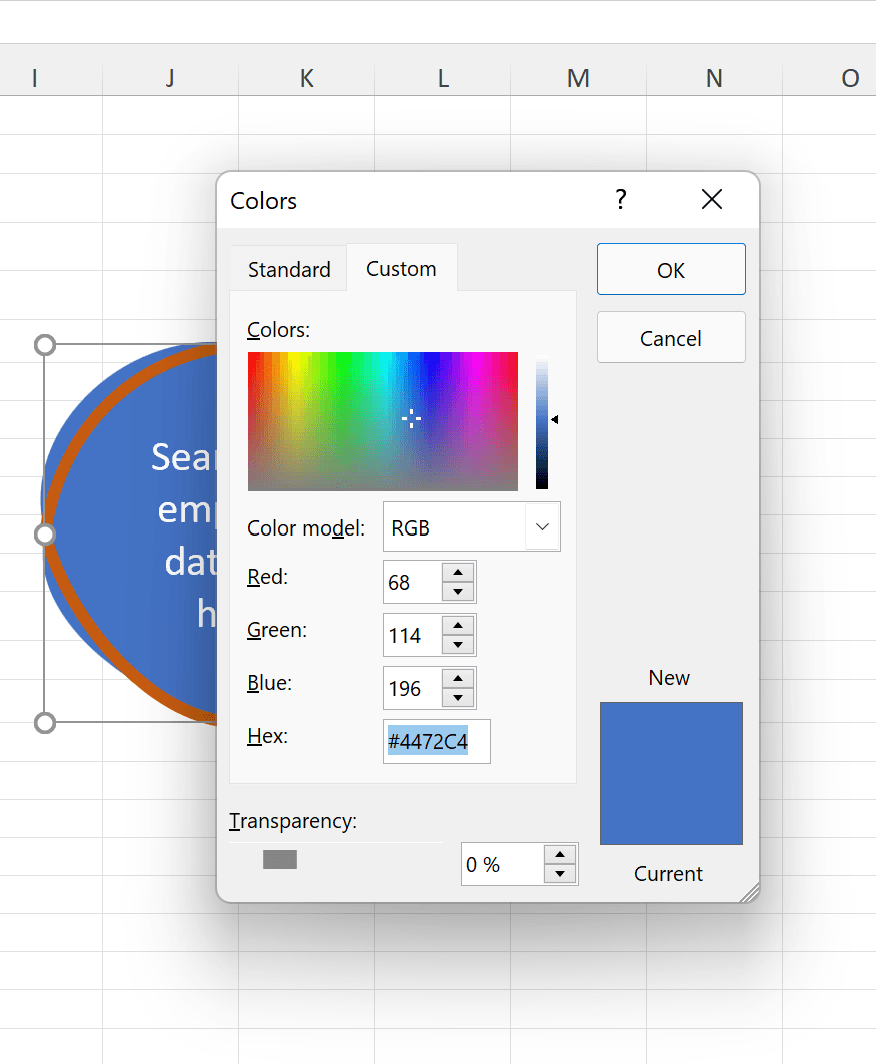
You can also access this setting by clicking either of the Color buttons in the Format Shape panel, and choosing More Colors from the resulting pop-up. The same Colors dialog box appears, offering that same Hex field.