Conditional Formatting in Excel
What This Tutorial Covers
Cell Rules
Highlight values above, below, or between thresholds.
Data Bars & Scales
Visual gradients reveal patterns at a glance.
Custom Formulas
Format rows based on any logic you can write.
Noble Desktop's Excel Bootcamp covers formulas, PivotTables, Power Query, and VBA so you can move from spreadsheets to professional data analysis.
Explore the wide-ranging capabilities of Excel's conditional formatting, including the ability to format cells based on specific conditions, highlight cells with certain values, utilize various shortcuts, and even use complex formulas to specify conditions.
This is a pretty large topic, with much to discuss. First, what is it? It’s the ability to format cells, but based on a condition. A simple example might be to turn a cell red if it contains the word “tiger”. Conditional formatting is found on the Home tab of the ribbon:
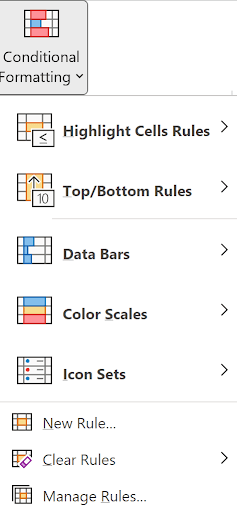
As you can see, there are a lot of options here. They can all be accessed from the New Rule… option, but Excel supplies these various shortcuts. We’ll examine them all here, and focus on the New Rule later in the article. Let’s look at the top option, Highlight Cells Rules >.
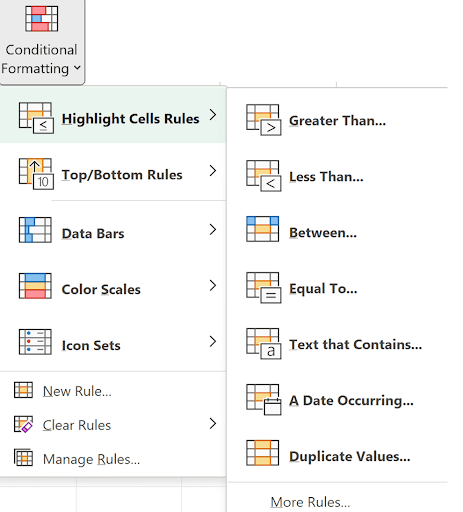
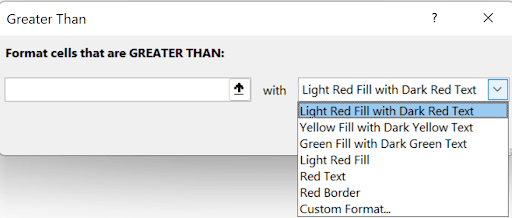
If I select Greater Than…, I see this:
The default is to highlight the selected cells with a light red fill and dark red text (if its value is greater than the value entered in the left box. Other options are:
And the last one brings up this dialog:
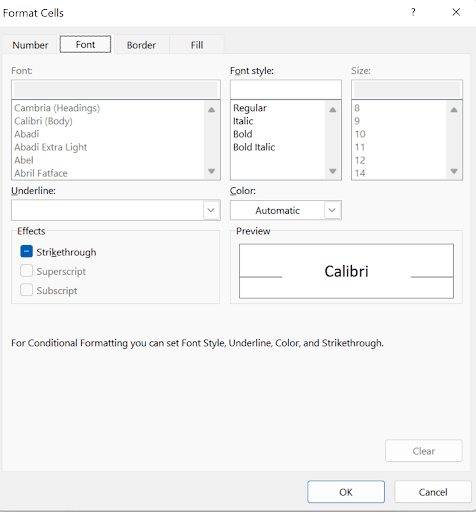
Notice you can change the number format, border, and fill, as well as the font (the default page shown).
We’re just getting started and you can see the myriad of possibilities.
Let’s look at a simple example. Suppose you want to highlight cells containing values over,000, accepting the default light red fill and dark red text:
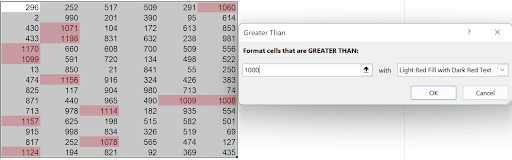
As you enter the value in the left box, you see the cells highlight in real-time. You don’t have to click OK to commit until you’re finished entering the number.
The Less Than choice is the same logic. The Between shows a different dialog:
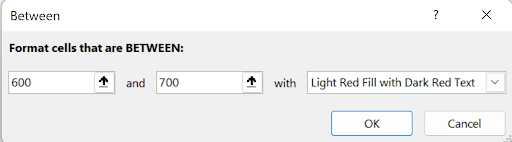
Equal To is obvious, and here’s Text that contains:
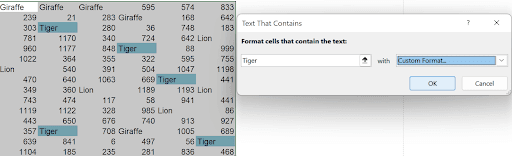
I picked a Custom Format and chose a fill color of the one shown.
Here’s the A Date Occurring… dialog:
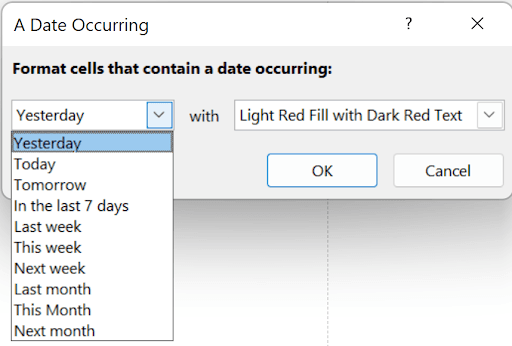
If you choose “Tomorrow”, the cells highlighted will be different when you open the file the next day!
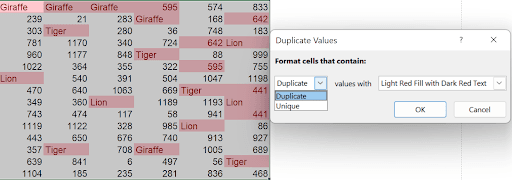
The last feature in Highlight Cell Rules, Duplicate Values, actually can highlight Unique values instead of Duplicate, as you can see here:
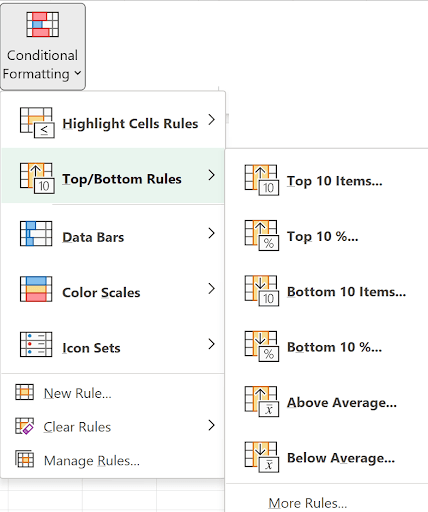
Let’s now take a look at the second option, Top/Bottom Rules:
The Top 10 items… brings up this dialog:
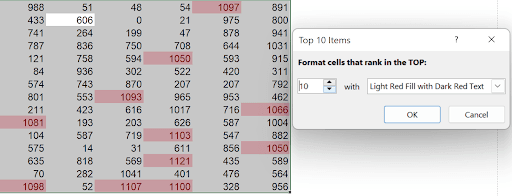
Notice that the 10 can be changed to any other number.
This is similar to the Top 10% (the 10 can be changed), the Bottom 10 items, and the Bottom 10% features.
The Above Average shows this
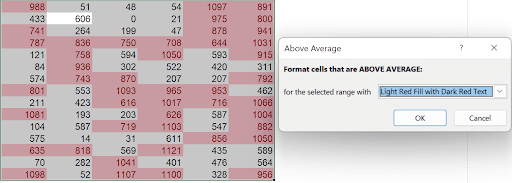
And similar for the Below Average. (One would think there’d be one dialog with the ability to choose Above or Below.)
Next is the Data Bars:
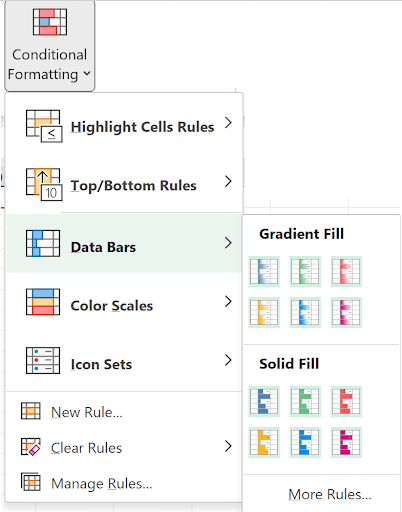
These are tiny bar charts inside the cells. You have really 2 choices: Gradient fill or Solid fill. The 6 colors shown for each are pretty much a starting point. Once chosen, you can still choose from the over 16 million colors!
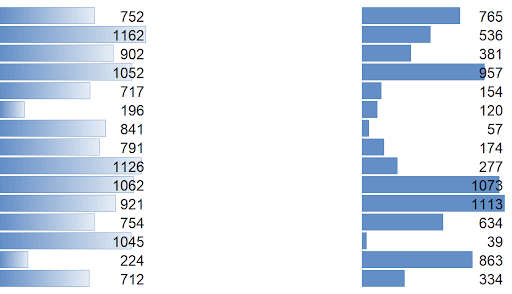
Here’s an example of gradient fill on the left, and solid fill on the right:
Next is Color Scales:
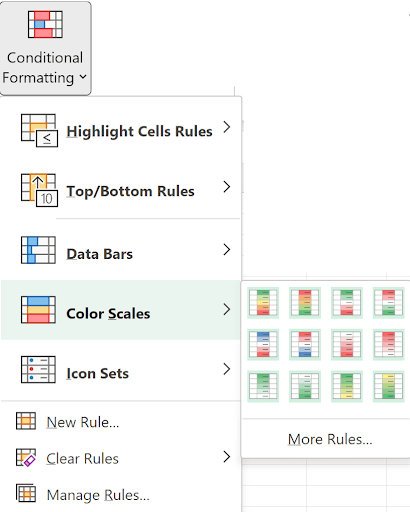
The flyout shows 12 icons. The top 2 rows are 3 color gradients and the bottom row is for 2-color gradients. For example, the top left one is “Green – Yellow – Red” and here’s a simple example using that color scale:
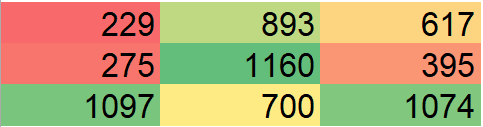
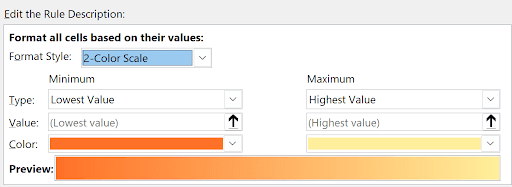
The higher the number, the greener the color; the lower the number, the redder the color. The middle cells are yellowish. If you click the “More Rules…” at the bottom of the flyout, you see where you can choose between 2-color (or 3 or other options) and then select the low/high colors.
Under Color Scales is Icon Sets:
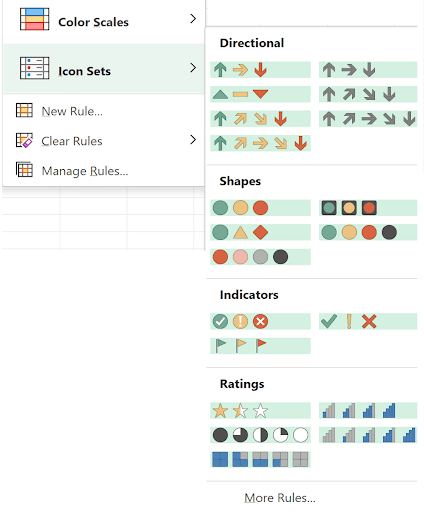
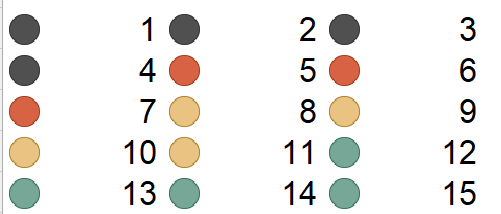
Here, you can pick various icons to split the data into 3,4, or 5 groupings, and assign various icons to them. Using the numbers 1 through 15 and applying the top left icon set, you’d see:
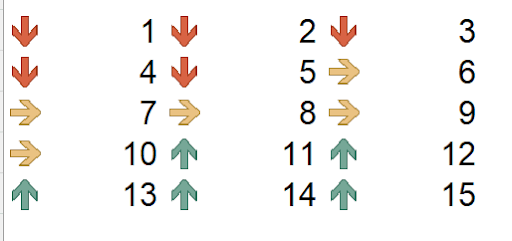
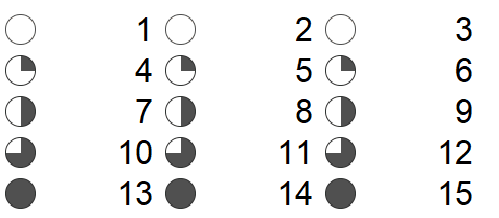
Notice the icon is to the left of the cell, while the value is to the right. (Of course, the value can be moved to the center or left). Here’s the same with a choice of 4 (on the left) and 5 (on the right) icons:
Finally, there’s the feature to select New Rule…, from which you can select any of the other features as well as make up the rule you want. This is the most powerful choice! Let’s get started. Suppose you want to highlight cells over 100 with a green fill. Certainly this can be done with the very first example we examined in this article, but we’ll look at a simple one for using a formula:
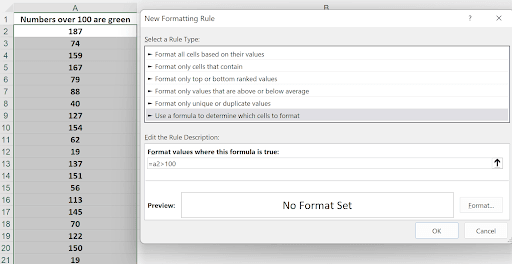
The first thing you do is select the cells to which you want conditional formatting applied. You then select New Rule from the Conditional Formatting dropdown, and you see the above, after selecting “Use a formula to determine which cells to format”, highlighted in the illustration. The formula you enter is based on the active cell. So in the above, the formula is =A2>100. Since this was entered as a relative reference to the active cell, it will apply to every cell in the selection. From here, you click the Format… button and then click on the “Fill” tab in the next dialog, the standard formatting dialog. Click OK, then click OK again, and you will see:
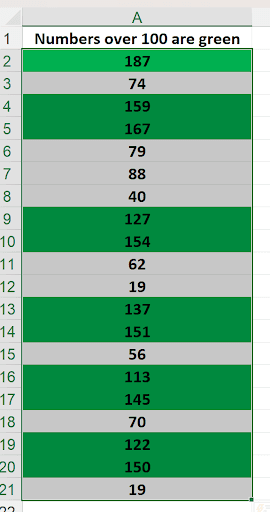
If you wanted to change this, you can select the cells again or select just one cell from the formatted cells, and use Conditional Formatting/Manage Rules… and you’ll see:
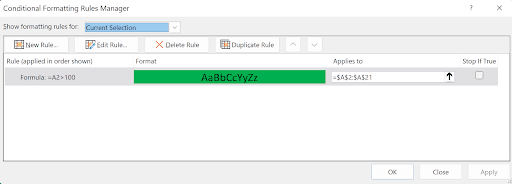
From here, notice in the dialog, it has the cells to which this formatting applies (“=$A$2:$A$21”). To make a change, click the Edit Rule… button and you’ll be brought back to the Formatting Rule dialog you saw previously. From here, you can click the Format button again and make your changes. It’s possible that there is more than one rule in the above dialog. To change a particular rule, select it first, then click Edit Rule:
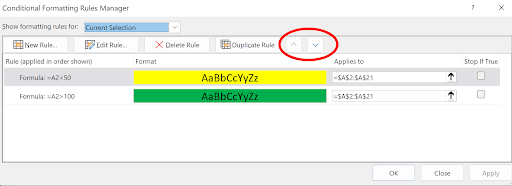
The red circle, which is not normally there, indicates that you can apply rules in a particular order by selecting a rule and clicking on the up or down arrow to change its order. In this case, the 2 rules do not conflict, so the order is unimportant.
Let’s look at something a bit trickier. Suppose you wanted to highlight the largest value in each row, like this:
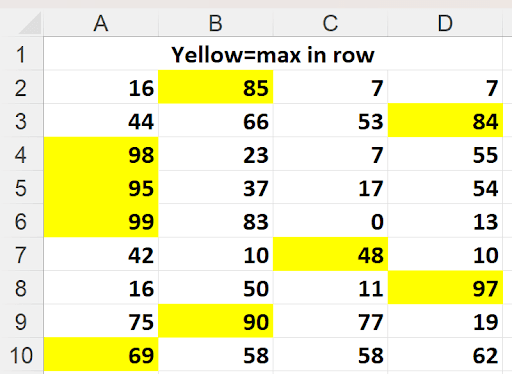
Think about what formula you might use. If you select A2:D10 and try the formula =A2=MAX(A2:D2), you’d see this:
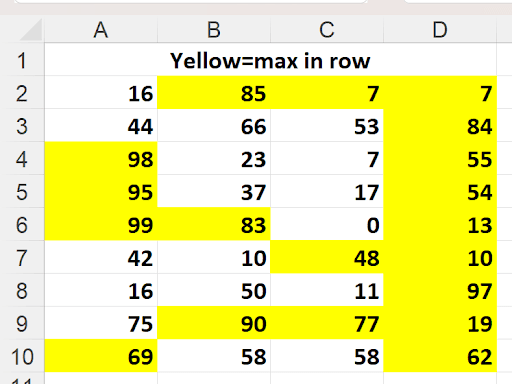
Clearly, not right. But why? From A2’s “point of view”, it’s fine, but from B2’s it would be looking at =B2=MAX(B2:E2)! Because it’s all relative references. And from D2’s point of view, it would be looking at =D2=MAX(D2:G2)! So all of column D is yellow because each cell is looking at the largest from column D:G, and, assuming E:F is blank, that’s true, so it get’s formatted as the largest.
The correct formula for the conditional formatting is =A2=MAX($A2:$D2). Note carefully the mixed references. Columns A:D are absolute; row 2 is relative. So from C7’s point of view, for example, it’s looking at =C7=MAX($A7:$D7).
A few more examples. Here, cells are highlighted if they contain text:
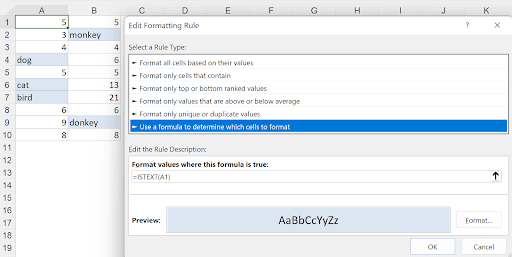
There is a function, ISTEXT, which is used on cell A1 and applies to A1:B10.
Here’s one which highlights weekends and needs a bit more explanation:
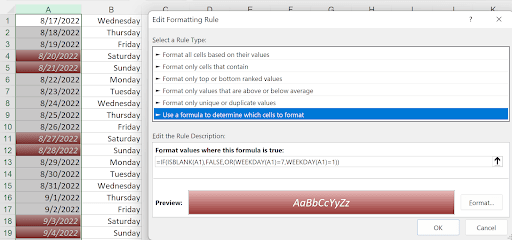
The formula is =IF(ISBLANK(A1), FALSE, OR(WEEKDAY(A1)=7, WEEKDAY(A1)=1))
The first part tests for a blank cell. This needs to be done because the WEEKDAY of a blank cell (treated as zero) is Saturday, and that would get formatted! If it’s blank, this will give a FALSE, and the formatting rule says “Format values where this formula is true”.
You can use conditional formatting to color every other row:
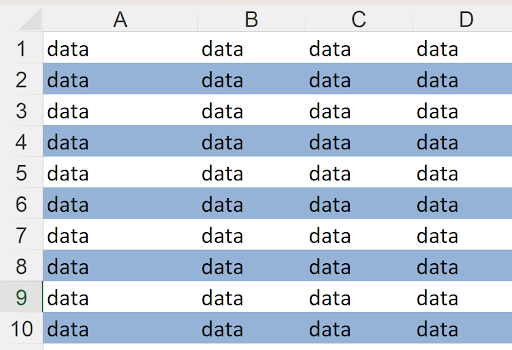
If you manually colored every other row, then if a row gets deleted, you have 2 successive rows with the same color. Here, all cells were selected and the formula used is =MOD(ROW(),2)=0.
The MOD function returns the remainder when dividing a number by another. So, the ROW() function returns the row the formula is used in, and the “,2” is returning the remainder by dividing the row by 2. So you get 1,0,1,0,1,0, … and only the ones where the 0 is returned is colored.
Look at this example:
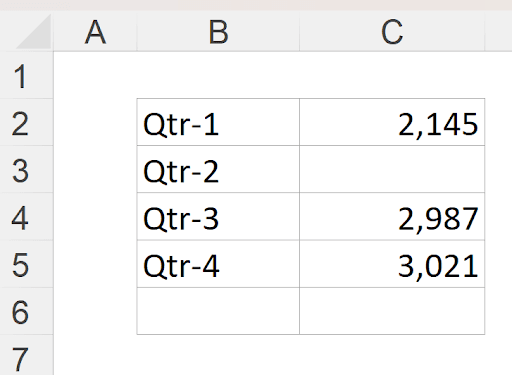
Row 6 will show only when all quarter values are entered:
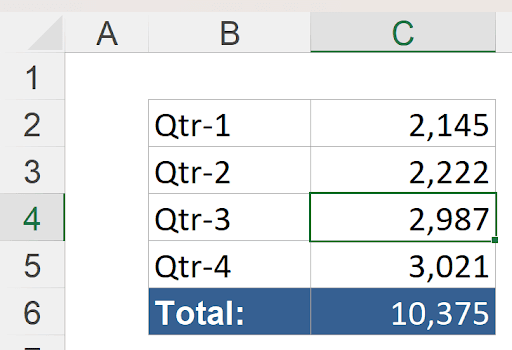
The conditional formatting in B6:C6 is =COUNT($C$2:$C$5)=4. So only when all 4 values are entered will this show, and the formatting is to color the cells blue. Without the 4 values, you see nothing in row 6 because the font for the values is white!
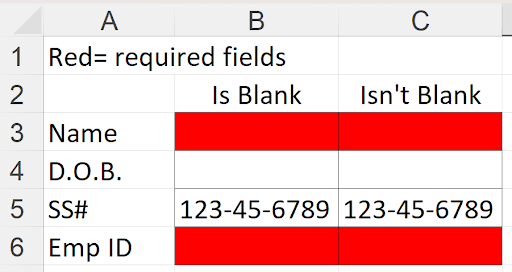
In this last example,
B3:C3 and B5:C6 are conditionally formatted. Column C red cells are already formatted with a red fill (unrelated to conditional formatting) and column B cells are red only because of conditional formatting. Look at the rules here:
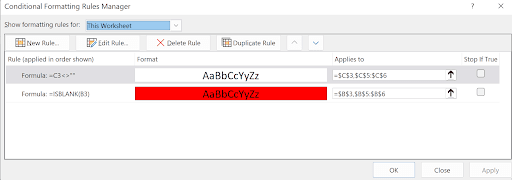
The first rule applies to C3 and C5:C6 and formats the cell white when the cell is not blank.
The second rule applies to B3 and B5:B6 and formats the cell red when the cell isblank (which it starts off being).
If data is entered into B5:C5, we see this:
Either method works. Red indicates the field needs filling!