April 1, 2026Dan Rodney/8 min read

Vector Drawing & Graphics Tips & Tricks

Master Vector Drawing Techniques in Sketch

Core Vector Drawing Skills

Shape Creation

Learn to draw custom vector shapes using Sketch's built-in tools. Master the fundamentals of creating precise geometric forms.

Border Styling

Explore advanced border options including end caps, joins, and multiple border effects. Add professional finishing touches to your vectors.

Layer Management

Efficiently copy and paste layer styles between shapes. Streamline your workflow with smart style management techniques.

Topics Covered in This Sketch Tutorial:

Master the fundamentals of vector design with Drawing Custom Vector Shapes, advanced Borders including End & Join Options, Multiple Borders for sophisticated styling, Multiple Ways to Rotate for precise positioning, efficient Copying & Pasting Layer Style workflows, and the precision technique of Rounding Specific Vector Corners.

Exercise Preview

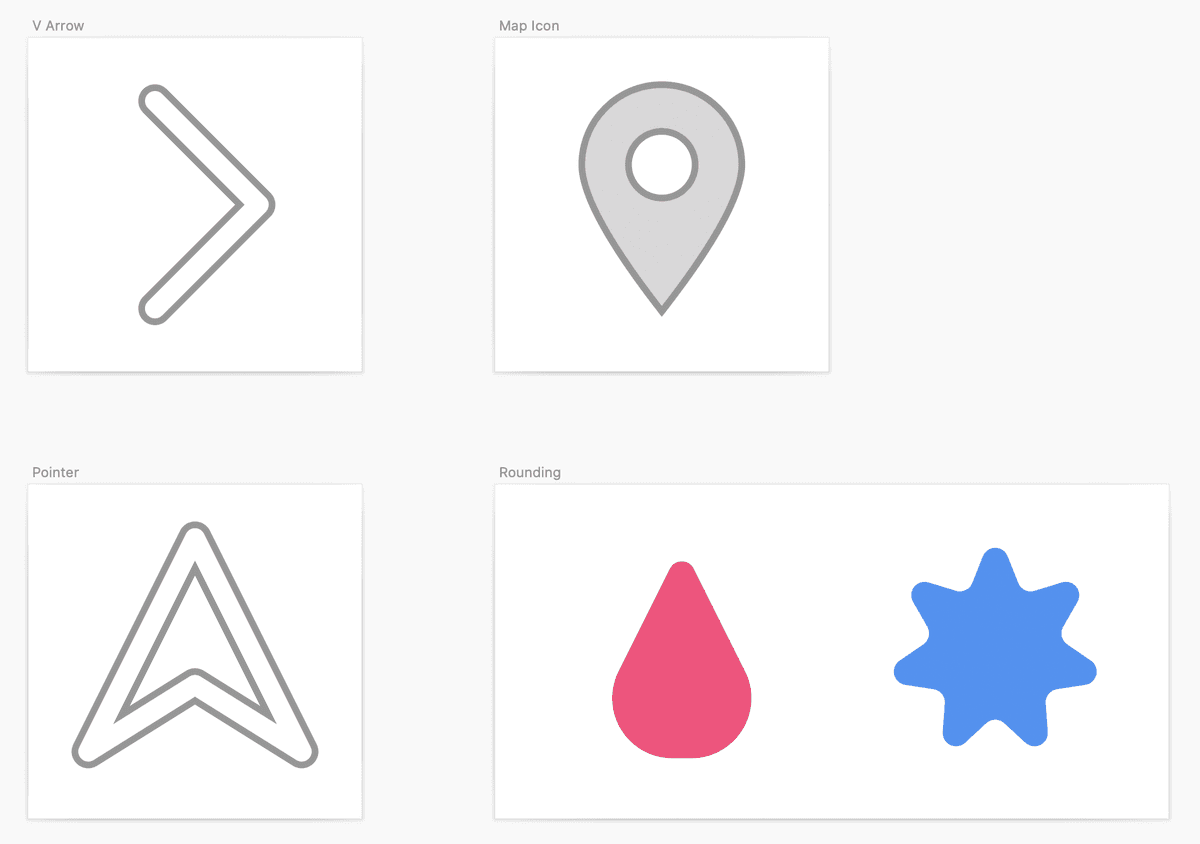
preview drawing

Exercise Overview

In this comprehensive exercise, you'll master Sketch's powerful vector drawing tools. These techniques form the foundation of professional UI design and icon creation, skills that remain essential in 2026's design landscape. By the end of this tutorial, you'll confidently create custom shapes, apply sophisticated styling, and manipulate vectors with precision.

Exercise Setup

You'll be working with the Drawing.sketch file located in Desktop > Class Files > Sketch Class. Make sure to download and access this file before beginning the exercises.

Drawing a Simple V Shaped Arrow

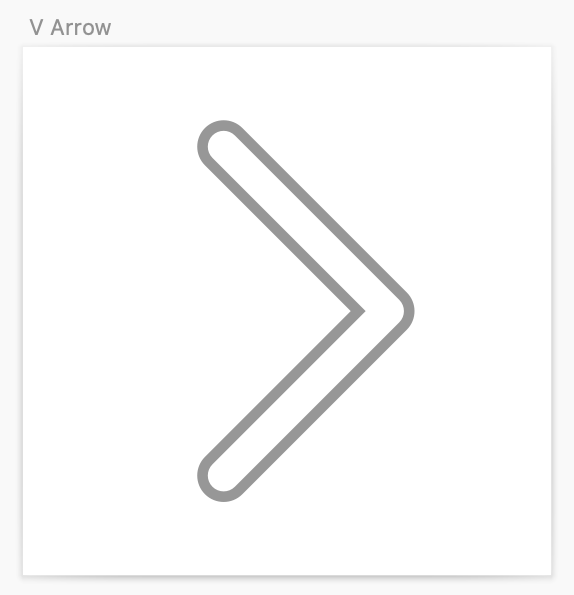
We'll start by creating a clean, professional arrow shape that demonstrates fundamental vector manipulation techniques:

v arrow done

  1. Launch Sketch and navigate to File > Open Local Document.
  2. Browse to Desktop > Class Files > Sketch Class and double–click Drawing.sketch to open your workspace.

  3. In the Toolbar, click the Insert button insert button and select Shape > Rectangle.
  4. On the V Arrow artboard, hold Shift to constrain proportions and drag to create a perfect square. Size it similarly to the reference shapes on the Rounding artboard—precision isn't critical at this stage.
  5. In the Inspector panel, set the Borders width to 5 pixels for optimal visibility.
  6. Access the powerful Scissors tool via Layer > Path > Scissors.
  7. Hover over the left edge of your square. When the line transforms to a dashed appearance, click once to remove this segment.
  8. Repeat this process on the bottom edge, clicking to delete it.
  9. Press Esc to deactivate the Scissors tool.
  10. You now have your desired V-shape border, but notice the unwanted fill remains. In the Inspector's Fills section, uncheck the Color checkbox to remove it.

    PRO TIP: Streamline your workflow by adding frequently-used tools to your Toolbar. Right–click (or Control–click) on the Toolbar, choose Customize Toolbar, then drag the Scissors tool to your preferred location. This customization can significantly speed up complex vector work.

Creating Your First Vector Shape

1

Insert Rectangle

Use Insert > Shape > Rectangle and hold Shift while dragging to create a perfect square

2

Apply Border

Set the border width to 5 pixels in the Inspector panel

3

Use Scissors Tool

Access Layer > Path > Scissors to remove unwanted sides of the square

4

Remove Fill

Uncheck the fill color checkbox in the Inspector to create a clean arrow outline

Toolbar Customization

Speed up your workflow by adding the Scissors tool to your toolbar. Right-click the toolbar, choose Customize Toolbar, and drag the Scissors icon to your preferred location.

Borders: End & Join Options

Now we'll refine our arrow with professional-grade border styling options that distinguish amateur work from polished design:

  1. With your V-shaped arrow selected, locate the Borders section in the Inspector. If the Ends and Joins options aren't visible, click the gear icon beside Borders to reveal advanced settings.
  2. The current sharp edges appear harsh and dated. Set Ends to Rounded (the center icon of the three options) for a more contemporary appearance.

    Notice how the two terminal ends now feature smooth, rounded caps while the junction point remains angular.

  3. Complete the refinement by setting Joins to Rounded (again, the middle icon).

    Your arrow now exhibits consistent, professional rounded styling throughout—a hallmark of modern interface design.

Border End and Join Options

FeatureSharp EdgesRounded Edges
Arrow TipsPointy and harshSmooth and rounded
Professional LookBasic appearancePolished finish
Visual ImpactAggressive styleFriendly aesthetic
Recommended: Use rounded ends and joins for a more professional, polished appearance in most design contexts.

Multiple Borders

Multiple borders enable sophisticated visual effects that would require complex workarounds in other applications. This technique is particularly valuable for creating depth and hierarchy in icon systems:

  1. In the Inspector's Borders section, click the + button on the far right to add a secondary border.
  2. When the color picker appears for your new border, select white and press Esc to close the picker.
  3. Set the top border's width to 3 pixels to create a visible contrast with the underlying border.

    IMPORTANT: Sketch layers borders with the topmost border rendered in front. You can reorder borders by dragging their text labels up or down in the Inspector. Remember that top borders must always be narrower than bottom borders—otherwise, larger top borders will completely obscure smaller ones beneath.

Border Layering Rules

Top borders must always be smaller than bottom borders, otherwise the larger top border will completely cover and obscure the smaller bottom borders underneath.

Adding Multiple Borders

1

Add New Border

Click the + button next to Borders in the Inspector panel

2

Choose Color

Select white from the color picker that automatically opens

3

Adjust Width

Set the top border width to 3 pixels for better visibility

Multiple Ways to Rotate

Mastering various rotation methods gives you flexibility for different scenarios—from precise numerical input to intuitive visual manipulation:

  1. With your V-shape selected, locate the rotation field at the top of the Inspector (to the right of the X & Y position fields). Enter 45° and press Return to apply the rotation.
  2. Perfect! But let's explore alternative methods. Undo this rotation with Cmd-Z or Edit > Undo.
  3. To access visual rotation controls:

    • In macOS Big Sur and later: Click the Tools button tools button in the Toolbar, then select Rotate (also available via Layer > Transform > Rotate).
    • In earlier macOS versions: Click the dedicated Rotate button rotate button in the Toolbar.
  4. Hold Shift to snap to 15° increments and drag your shape to the desired position—this constraint is essential for maintaining visual alignment in professional work.
  5. Press Return to finalize the rotation.
  6. Let's explore keyboard-based rotation. First, undo the previous rotation.
  7. Activate the Rotate tool again via Toolbar or Layer > Transform > Rotate.
  8. Hold Shift and press the Down Arrow key four times to reach 40° rotation (Shift enables 10° jumps).
  9. Release Shift and tap Down Arrow five more times to reach exactly 45°.

    While this isn't the fastest route to 45°, these keyboard controls excel during experimental design phases when you're exploring subtle rotational adjustments.

  10. For our final rotation technique, undo back to 0° rotation.
  11. Select your V-shape and hover over any corner point—you'll see the standard resize cursor.
  12. Hold Cmd and watch the cursor transform into a rotation handle.
  13. While maintaining Cmd, drag to rotate your arrow. Add Shift to snap precisely to 45°—this modifier combination is crucial for maintaining professional alignment standards.

Rotation Methods in Sketch

Inspector Input

Enter precise degree values directly in the Inspector panel. Most accurate method for specific angles.

Rotate Tool

Use the dedicated Rotate tool from the toolbar. Hold Shift to snap to 15-degree increments for precision.

Corner Drag Method

Hold Cmd while hovering over corner points to access rotation cursor. Quick and intuitive for visual adjustments.

Keyboard Shortcuts for Rotation

When using the Rotate tool, hold Shift and use arrow keys to jump in 10-degree increments. This is perfect for experimenting with different angles.

Drawing a Map Icon

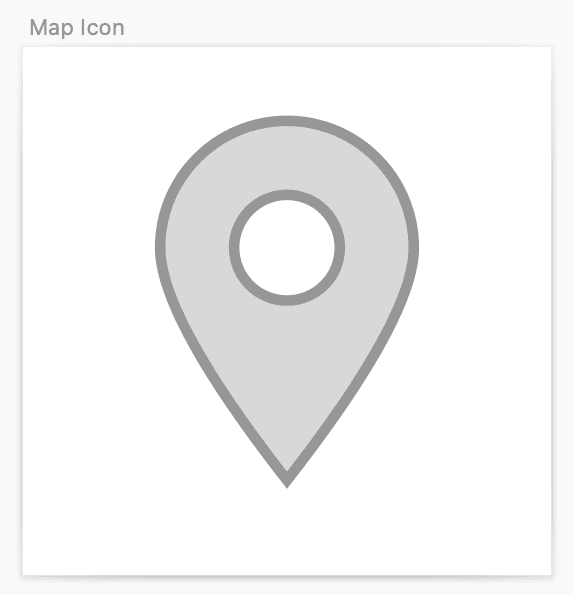
Next, we'll create a location pin icon using Boolean operations—a fundamental technique for complex shape construction:

map icon done

  1. Click the Insert button insert button and choose Shape > Oval.
  2. On the Map Icon artboard, hold Shift to maintain perfect circular proportions and create a circle occupying roughly the upper half of the artboard. Release your mouse or trackpad before releasing Shift to preserve the constraint.
  3. For the interior cutout, insert another oval using Insert > Shape > Oval.
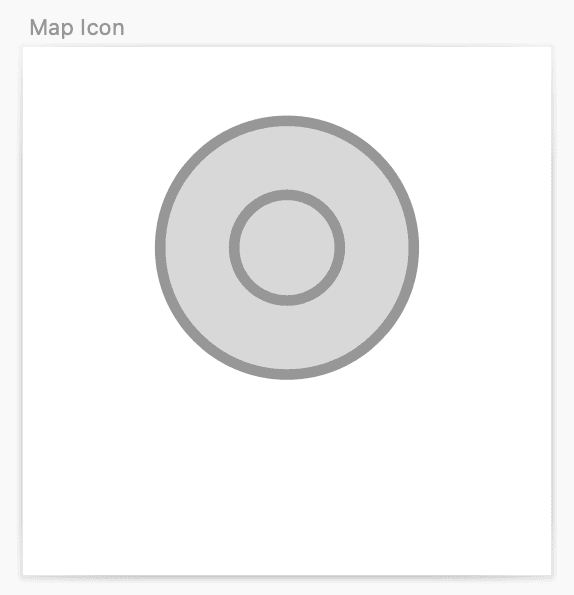
  4. Position your cursor over the existing circle's center. When Sketch's intelligent red guides confirm perfect centering, hold Option–Shift and drag outward to create a concentric circle similar to this:

    map icon 2circles

  5. If the circles don't align perfectly, ensure both circles have matching width parity—either both odd numbers (13 and 23) or both even numbers (14 and 24). Mixed parity prevents pixel-perfect alignment, a critical detail in high-DPI design work.

    After correcting the widths, the smaller circle should snap naturally to the larger circle's center when dragged.

  6. Select both circles using either a drag selection or click-then-Shift-click method.
  7. Create the hollow effect using the Subtract button subtract button in the Toolbar (alternatively, Layer > Combine > Subtract).
  8. Now we'll create the characteristic pointed bottom. With your combined shape selected, press Return to enter vector editing mode and reveal anchor points.

    PRO TIP: Double-clicking also activates vector editing mode, though combined shapes may require multiple double-clicks to drill down through the group hierarchy to individual paths.

  9. Double-click the bottom anchor point to convert it from a curved to a sharp point—this fundamental vector operation is essential for creating precise geometric forms.

    ALTERNATIVE: Select any point and use the Point Type buttons in the Inspector for complete control over point characteristics.

  10. With the bottom point selected, use multiple presses of the Down Arrow key to extend the point downward. Add Shift for larger increments when fine-tuning the proportions.
  11. Click outside the artboards to deselect all objects and complete the icon.

Creating Complex Shapes with Boolean Operations

1

Create Base Circle

Insert an oval and hold Shift to create a perfect circle filling the top half of the artboard

2

Add Center Hole

Create a smaller circle in the center using Option-Shift while dragging for perfect centering

3

Subtract Shapes

Select both circles and use the Subtract button to punch a hole through the larger circle

4

Create Point

Enter vector edit mode and double-click the bottom point to make it straight, then move it down

Circle Alignment Issue

For perfect center alignment, ensure both circles have widths that are either both odd numbers or both even numbers. Mixed odd/even widths prevent perfect alignment.

Drawing a Pointer Arrow

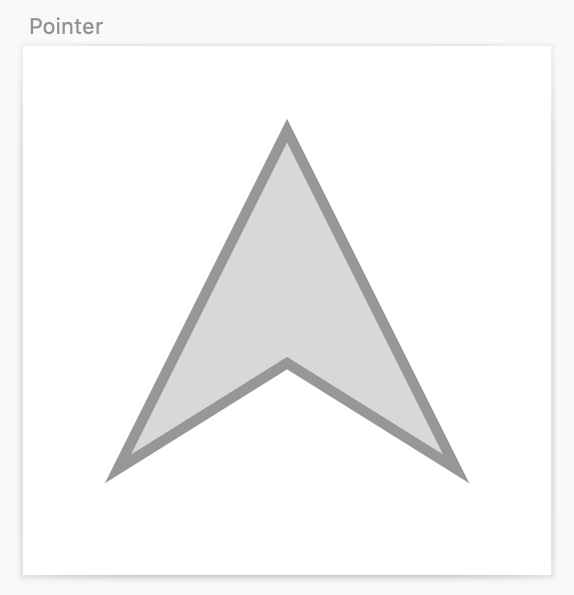
We'll conclude our shape-building exercises with a directional pointer that demonstrates point manipulation techniques:

pointer arrow done

  1. Click on the Pointer artboard to ensure clean selection states.
  2. Insert a triangle via Insert button insert button > Shape > Triangle.
  3. Hold Shift while dragging to create a proportional triangle filling approximately 75% of the artboard area.
  4. Press Return to enter vector editing mode, then:

    • Hover over the bottom edge until it highlights.
    • Hold Shift to engage center-snapping.
    • Click once to add a new anchor point at the edge's midpoint.
  5. With the new point active, press the Up Arrow key repeatedly to create the arrow's characteristic notched tail. Use Shift combined with arrow keys for accelerated movement when achieving the desired proportions.

Modifying Vector Points

1

Create Triangle Base

Insert a triangle shape holding Shift for proportion, filling about 75% of the artboard

2

Add Midpoint

In vector edit mode, hold Shift and click the bottom line to add a centered point

3

Adjust Point Position

Use the Up Arrow key to move the new point upward, creating the arrow notch effect

Copying & Pasting Layer Style

Efficient style management distinguishes professional workflows from amateur approaches. While layer styles offer systematic reusability, copy-paste styling provides immediate flexibility for one-off applications:

  1. Select your completed V-shaped arrow.
  2. Copy the entire object with Cmd–C or navigate to Edit > Copy > Copy.

    NOTE: Cmd–Option–C or Edit > Copy > Copy Style achieves identical results when you only need styling attributes.

  3. Select your pointer arrow shape.
  4. Apply the copied styling using Cmd–Option–V or Edit > Paste > Paste Style. This technique maintains design consistency across multiple elements without creating formal style systems.

Style Transfer vs Layer Styles

FeatureCopy/Paste StyleLayer Styles
SpeedVery fastSetup required
ReusabilityOne-time transferUnlimited reuse
MaintenanceManual updatesAutomatic sync
Recommended: Use copy/paste style for quick one-off transfers. Create layer styles for frequently reused appearances.
Style Copy Shortcuts

Both Cmd-C (Copy) and Cmd-Option-C (Copy Style) work the same way. Use Cmd-Option-V to paste only the styling without duplicating the shape.

Rounding Specific Vector Corners

Selective corner rounding provides nuanced control over your shapes' personality—a technique particularly valuable in icon design and UI element creation:

  1. Navigate to the Rounding artboard and select the triangle shape.
  2. Enter vector editing mode by pressing Return (double-clicking the shape works equally well).
  3. Drag a selection rectangle over the triangle's bottom two points—selected points appear darker, confirming your selection.
  4. In the Inspector, manipulate the Radius slider to apply rounding exclusively to your selected points. This selective approach creates sophisticated shape variations impossible with global rounding controls.
  5. Complete your edits by clicking outside the shape or pressing Return to exit vector editing mode.

Selective Corner Rounding

1

Enter Vector Mode

Hit Return or double-click the shape to access individual vector points

2

Select Target Points

Drag a selection over the specific points you want to round (they'll appear darker when selected)

3

Apply Radius

Use the Radius slider in the Inspector to add roundness only to selected points

Precision Control

Selective corner rounding gives you fine control over your design aesthetic. You can create shapes with mixed sharp and rounded corners for unique visual effects.

Key Takeaways

1Master the Scissors tool to efficiently remove unwanted portions of vector shapes and create custom forms
2Use rounded ends and joins in border settings to achieve professional, polished-looking vector graphics
3Layer multiple borders with decreasing widths to create complex visual effects and depth in your designs
4Learn multiple rotation methods including Inspector input, Rotate tool, and corner dragging for different workflow needs
5Utilize Boolean operations like Subtract to create complex shapes by combining and cutting simple geometric forms
6Maintain proper circle alignment by ensuring consistent odd or even width values for perfect centering
7Copy and paste layer styles for quick styling transfers without creating formal layer style definitions
8Apply selective corner rounding to specific vector points for precise control over your shape aesthetics

RELATED ARTICLES