April 1, 2026Dan Rodney/10 min read

Shared Libraries (Symbols, Styles, & Color Variables)

Master Design System Consistency with Shared Libraries

Library Asset Types

Symbols

Reusable interface components like navigation bars, buttons, and icons that maintain consistency across designs.

Text Styles

Typography definitions including font families, weights, and sizes for headings, body text, and other elements.

Color Variables

Centralized color swatches that can be updated globally across all connected design files.

Layer Styles

Visual effects and styling properties that can be applied consistently to design elements.

Topics Covered in This Sketch Tutorial:

Creating & Using Shared Libraries, Color Variables

Exercise Preview

preview libraries

Exercise Overview

In this comprehensive exercise, you'll master Sketch Libraries—a powerful feature that enables seamless reuse and synchronization of design assets including symbols, text styles, layer styles, and colors across multiple Sketch files and team environments. This workflow is essential for maintaining design consistency at scale, whether you're working solo or collaborating with distributed teams.

Key Concept

Sketch Libraries are not a special kind of file. They are regular Sketch files that contain assets you want to share and re-use across multiple Sketch files and computers.

Adding a Library

The foundation of effective design systems begins with properly establishing your library files. Let's start by setting up a shared library that will serve as your single source of truth for design assets.

  1. In Sketch, navigate to File > Open Local Document.
  2. Browse to Desktop > Class Files > Sketch Class > Libraries and double-click Pulse Library.sketch to open it.

    Understanding this crucial concept: Sketch Libraries aren't specialized file formats—they're standard Sketch files that contain reusable assets (symbols, text styles, layer styles, and colors) designed for sharing across multiple documents and team members. This approach ensures version control and consistency without requiring complex infrastructure.

  3. In the left sidebar, click Components at the top to access your asset library.
  4. Examine the four icons representing Symbols, Text, Layer, and Colors. Click each icon to familiarize yourself with the pre-built assets we've prepared for this exercise.
  5. Select File > Add as Library to register this file as a shared resource.
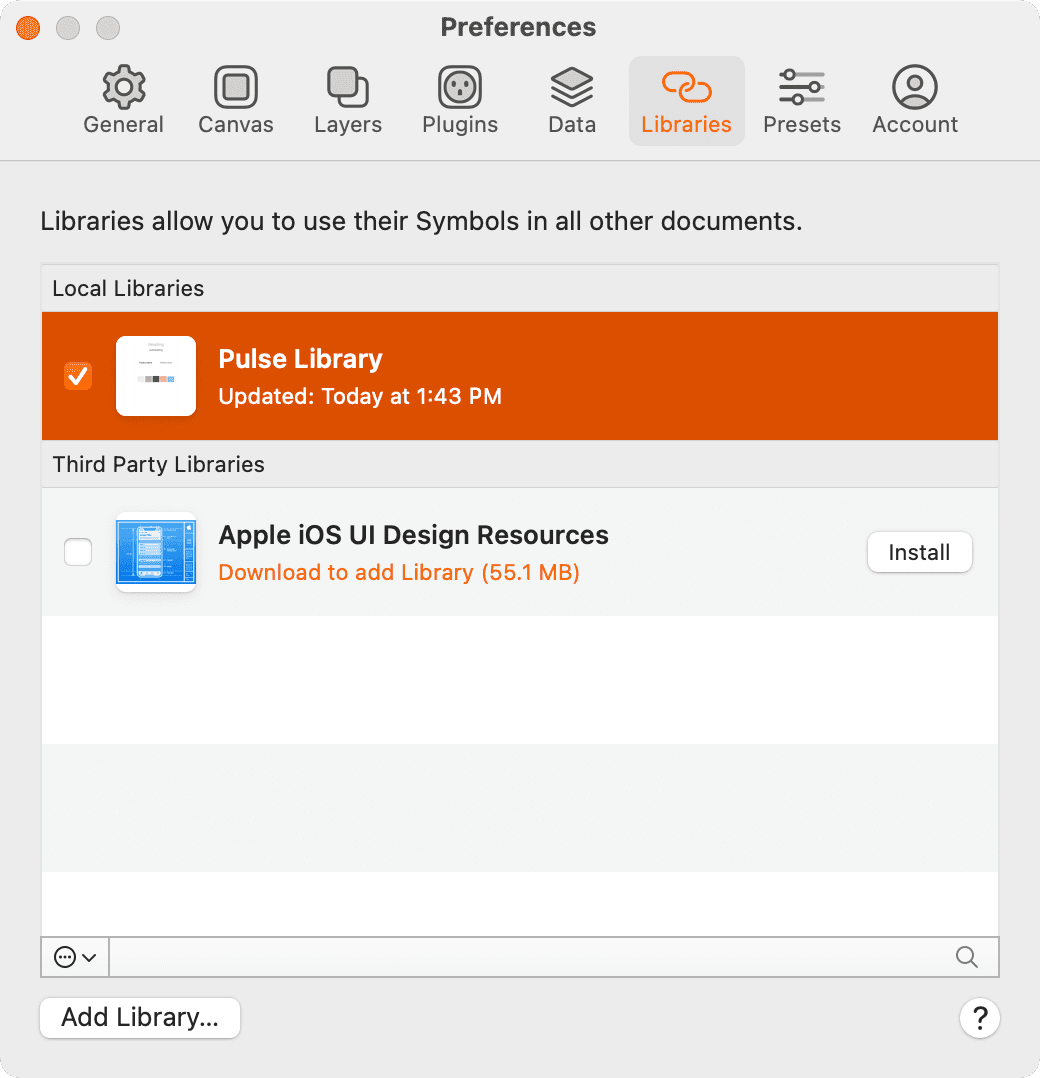
  6. The Preferences window will open, confirming the file's new library status. Close this window—your library is now active and ready for use across all your Sketch projects.

Adding a Library to Sketch

1

Open Library File

Navigate to File > Open Local Document and select your library file (e.g., Pulse Library.sketch)

2

Review Assets

Click Components in the sidebar and explore the 4 asset types: Symbols, Text, Layer styles, and Colors

3

Add as Library

Choose File > Add as Library to register the file as a reusable library in Sketch preferences

Using Text Styles from a Library

Now we'll demonstrate the practical application of library assets by implementing consistent typography across multiple design files—a workflow that saves hours and ensures brand compliance.

  1. Open a new document by selecting File > Open Local Document.
  2. Navigate to Desktop > Class Files > Sketch Class > Libraries and double-click Men.sketch.
  3. Select the Men's Fall Fashion heading text element.
  4. In the Inspector panel, click the No Text Style dropdown and navigate to Pulse Library > main text, then select heading.
  5. Now select the fresh men's styles for the fall season subheading.
  6. Apply the library style by clicking No Text Style and selecting Pulse Library > main text > subheading.
  7. Save your work with File > Save.

  8. Let's replicate this workflow in another file to demonstrate library consistency. Go to File > Open Local Document.
  9. Open Women.sketch from the same Libraries folder.
  10. Select the New Autumn Attire heading.
  11. Apply the same heading style: Inspector > No Text Style > Pulse Library > main text > heading.
  12. Select the cozy women's styles for the fall season text.
  13. Apply the subheading style: Inspector > No Text Style > Pulse Library > main text > subheading.

Applying Library Text Styles

0/5

Updating Text Styles in a Library

Here's where Sketch Libraries truly shine: making universal changes that propagate across all connected files instantly. This feature is invaluable for brand updates, seasonal refreshes, or design system evolution.

  1. With the New Autumn Attire heading selected, we'll edit the source style.
  2. In the Inspector's Appearance section, click the ... More button next to the text style and select Edit Style in Library.
  3. Sketch automatically opens the source Pulse Library.sketch file.
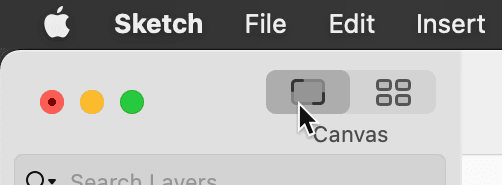
  4. Click the Canvas button show canvas button in the top-left toolbar to reveal the design workspace.

    show canvas location

    You'll see our organized Style Guide artboard—a best practice for library management that provides visual reference and easy editing access for all text styles and colors. This systematic approach ensures designers can quickly locate and modify assets without hunting through multiple artboards.

  5. Select the Heading text element with a single click.
  6. In the Inspector, change the font weight from Arial Regular to Bold for improved hierarchy and readability.
  7. Under Fills in the Inspector, click the color box to open the color picker interface.
  8. In the This Document color section at the bottom of the picker, select the third color swatch (dark brown).

    Professional tip: Consistent color usage like this prevents the common design problem of color drift, where similar but slightly different colors accumulate over time.

  9. The layer appearance has changed, but we need to update the shared style. Click the Update button layer style update below the heading menu in the Inspector.
  10. Save your changes with File > Save.
  11. Switch back to Women.sketch (find it in the Window menu's file list).
  12. To apply library updates:

    • In macOS Big Sur & later: Click the Notifications button notifications at the top-right of the window and select Library Updates Available.
    • Prior to macOS Big Sur: Click the Library Updates Available button in the top-right corner.
  13. The update dialog shows a before-and-after comparison of changed assets—a crucial feature for design review and quality control.

    Click Update Components to apply the changes.

  14. Notice how the heading text immediately reflects your library changes (bold weight and darker brown color).
  15. Switch to the Men.sketch file to complete the update process.
  16. Apply the same update process:

    • macOS Big Sur & later: Notifications button notifications > Library Updates Available
    • Earlier macOS versions: Click Library Updates Available
  17. Click Update Components in the dialog.
  18. Confirm that the heading styling has updated consistently across both files.

Library Update Workflow

Step 1

Edit Style in Library

Click the More button (...) next to text style and choose Edit Style in Library

Step 2

Modify Properties

Change font weight, color, or other properties in the original library file

Step 3

Update Style

Click the Update button in Inspector to sync changes to the library

Step 4

Save Library

Save the library file to make changes available to other documents

Step 5

Accept Updates

Use Notifications button or Library Updates Available to sync changes

Using Symbols from a Library

Symbols represent the most powerful aspect of Sketch Libraries—reusable interface components that maintain consistency while allowing for efficient iteration and updates across your entire design system.

  1. Click the Insert button insert button in the toolbar and navigate to Symbols > Pulse Library > navbar.
  2. Position the navbar component at the top of your artboard for proper hierarchy.
  3. With the navbar selected, copy it using Cmd-C.
  4. Switch to the Women.sketch file.
  5. Paste the navbar with Cmd-V to maintain identical navigation across both designs.
Symbol Insertion

Use the Insert button in Toolbar and navigate to Symbols > [Library Name] to access shared components like navigation bars across multiple design files.

Updating Symbols in a Library

Symbol updates follow the same powerful workflow as text styles, allowing comprehensive design changes to propagate instantly across all implementations—essential for maintaining design systems at enterprise scale.

  1. Double-click the navbar on your artboard to enter edit mode.

    Alternative methods: Select the navbar and press Return, or use the Edit in Library button in the Inspector panel.

  2. In the confirmation dialog, click Open in Library.
  3. Sketch opens the source Pulse Library.sketch file, maintaining the connection to your original asset.
  4. Click in an empty area to deselect all elements.
  5. Select the navbar's background element.
  6. In the Inspector's Fills section, click the color box to access the color picker.
  7. If you see Migrated Global Colors instead of This Document colors, click the dropdown menu and select This Document.
  8. Select the third color swatch (dark brown) from the This Document colors.
  9. Save your changes with File > Save.
  10. Return to the Women.sketch file.
  11. Apply the symbol updates:

    • macOS Big Sur & later: Notifications button notifications > Library Updates Available
    • Earlier versions: Click Library Updates Available
  12. Click Update Components to apply the changes.
  13. Observe how the navbar background has changed from black to brown.
  14. Switch to Men.sketch and repeat the update process.
  15. Complete the update with the same steps:

    • Access library updates through the notifications system
    • Click Update Components
  16. Confirm the navbar has updated consistently.

Professional note: If your original library file becomes unavailable (due to network issues or file deletion), you can unlink symbols from their library source, converting them to local symbols while preserving their appearance and functionality.

Symbol Editing Methods

FeatureMethodAction
Double-click symbolDirect editOpens library file
Select + Return keyKeyboard shortcutOpens library file
Edit in Library buttonInspector optionOpens library file
Recommended: All methods open the original library file for consistent editing

Using a Color Variable (Color Swatch) from a Library

Color variables represent the most efficient method for maintaining brand consistency across design systems. Unlike static color values, these dynamic references ensure that brand updates propagate automatically throughout your entire design ecosystem.

  1. In the toolbar, click Insert insert button and select Shape > Rectangle.

  2. Draw a rectangle below your text content—size and exact position aren't critical for this demonstration.
  3. In the Inspector's Fills section, click the color box to open the color picker.
  4. At the bottom of the color picker, locate the library colors. If you see This Document instead of Pulse Library, click the dropdown menu and select Pulse Library.
  5. Select the second color swatch (medium brown) to apply the library color.

    Key advantage: Color variables update globally when modified in the source library, ensuring brand consistency without manual find-and-replace operations across multiple files.

Color Variable Impact

If you edit a color variable it will update all colors throughout a file! This powerful feature ensures design consistency but requires careful consideration.

Updating Colors in a Library

Managing color variables centrally provides unprecedented control over brand consistency and enables rapid brand evolution across entire design systems.

  1. Switch back to Pulse Library.sketch using the Window menu's file list.
  2. We'll now add a new color that wasn't previously available to other files, demonstrating how to expand your shared color palette.
  3. Click Style Guide in the sidebar to access your organized color reference.
  4. On the Style Guide artboard, select the blue box on the right end of the color row.
  5. In the Inspector's Fills section, click the color box color selector to open the color picker.
  6. Click Create Color Variable near the bottom to add this color to your shared library palette.
  7. Name the new variable complement and press Return to confirm.
  8. Save the library file with File > Save.
  9. Close the library file—your updates are now ready for use.
  10. Return to the Men.sketch file where you should see your brown rectangle.
  11. Ensure the rectangle is selected.
  12. In the Inspector's Fills section, click the color box to access the picker.
  13. You should immediately see the new blue swatch available. If the menu shows This Document or Migrated Global Colors, change it to Pulse Library to access the new color.

    Important distinction: Color variables are stored directly in the library file, making them instantly available without requiring the update process that symbols and text styles need. This streamlined workflow accelerates color experimentation and brand development.

Creating New Color Variables

1

Select Color Element

Choose a colored object on your Style Guide artboard

2

Open Color Picker

Click the color box in Inspector under Fills section

3

Create Variable

Click Create Color Variable to add the new color swatch

4

Name and Save

Provide a descriptive name (e.g., 'complement') and save the library file

Find & Replace Color

While color variables provide excellent global control, Sketch's Find and Replace Color feature offers additional flexibility for comprehensive color transformations, including switching between different color variables or updating legacy colors to new brand standards.

  1. Navigate to Edit > Find and Replace Color.
  2. Click the color swatch next to Find.

    Sketch displays all colors currently used in your file, making it easy to identify the specific color you want to change.

  3. Click the color swatch next to Replace with.

    You can create a custom color or select from your Global, Document, or Library color collections—perfect for migrating to updated brand colors or design system tokens.

  4. Click Replace to execute the global color change.

Global Color Replacement Process

0/4

Removing a Library

When libraries are no longer needed for active projects, removing them from Sketch's interface helps maintain a clean workspace while preserving the original files for potential future use.

  1. Access Sketch > Preferences from the application menu.
  2. Select the Libraries tab to view all connected library files.
  3. Right-click (or Control-click) on Pulse Library.sketch and select Remove Library.
  4. Confirm your choice by clicking Remove Library again in the confirmation dialog.
  5. Close the Preferences window to complete the process.
Safe Removal

Removing a library only removes it from Sketch's interface. The original library file remains intact and can be re-added later if needed.

Local Vs. Cloud (Workspace) Libraries

As design teams evolve and remote collaboration becomes standard practice, understanding the distinction between local and cloud libraries becomes crucial for choosing the right workflow for your organization.

In upcoming exercises, you'll explore Sketch Cloud integration, where documents can function as regular files or cloud-based libraries accessible to distributed teams with appropriate permissions.

Cloud library files automatically appear in Sketch's Preferences > Libraries tab for team members, streamlining the adoption process. With a Sketch subscription, workspace libraries enable seamless collaboration across geographic boundaries and organizational structures.

Key differences in 2026: Local libraries excel for individual work or small, co-located teams with shared network access. They offer complete control and don't require internet connectivity for updates. However, they can create bottlenecks when team members work remotely or across different time zones.

Cloud libraries solve modern collaboration challenges by providing internet-based access to shared design systems. Team members can access libraries from anywhere, receive automatic notifications about updates, and maintain consistency without requiring VPN connections or specific network configurations. This approach has become essential for distributed teams and organizations embracing flexible work arrangements.

Library Types Comparison

FeatureLocal LibrariesCloud Libraries
File AccessComputer or network driveInternet-based access
Team SharingRequires shared network driveEasy internet sharing
Remote WorkLimited by network accessAccessible from anywhere
SubscriptionNo subscription neededRequires Sketch subscription
Update MethodManual file accessAutomatic via internet
Recommended: Cloud libraries are better for distributed teams, local libraries work well for single users or co-located teams

Key Takeaways

1Sketch Libraries are regular Sketch files containing reusable assets like symbols, text styles, layer styles, and colors that can be shared across multiple design files.
2Libraries enable design consistency by allowing global updates to text styles, symbols, and colors that automatically propagate to all connected documents.
3The library update system uses notifications to alert designers when changes are available, ensuring all team members work with the latest design assets.
4Color variables in libraries provide powerful global color management, allowing one change to update all instances throughout connected design files.
5Symbols from libraries can be edited by double-clicking or using the Edit in Library button, which opens the original library file for modifications.
6Local libraries require file system access and work well for individual designers or co-located teams with shared network drives.
7Cloud libraries require a Sketch subscription but enable seamless collaboration for distributed teams by providing internet-based access to shared design assets.
8The Find & Replace Color feature allows global color changes beyond variable updates, enabling designers to swap one color for another across entire documents.

RELATED ARTICLES