April 1, 2026Dan Rodney/6 min read

Sharing Native Prototypes & Workspace Documents

Master Sketch collaboration and prototype sharing workflows

Core Sketch Collaboration Features

Prototype Sharing

Share interactive prototypes with clients and stakeholders for feedback and testing. Enable real-time collaboration through cloud-based workspace documents.

Workspace Management

Store and organize design files in the cloud with version control. Manage access permissions and track document updates across team members.

Developer Handoff

Provide developers with code snippets, measurements, and asset exports through the Cloud Inspector. Streamline the design-to-development workflow.

Topics Covered in This Sketch Tutorial:

Sharing a Prototype with Others, Workspace Documents

Exercise Preview

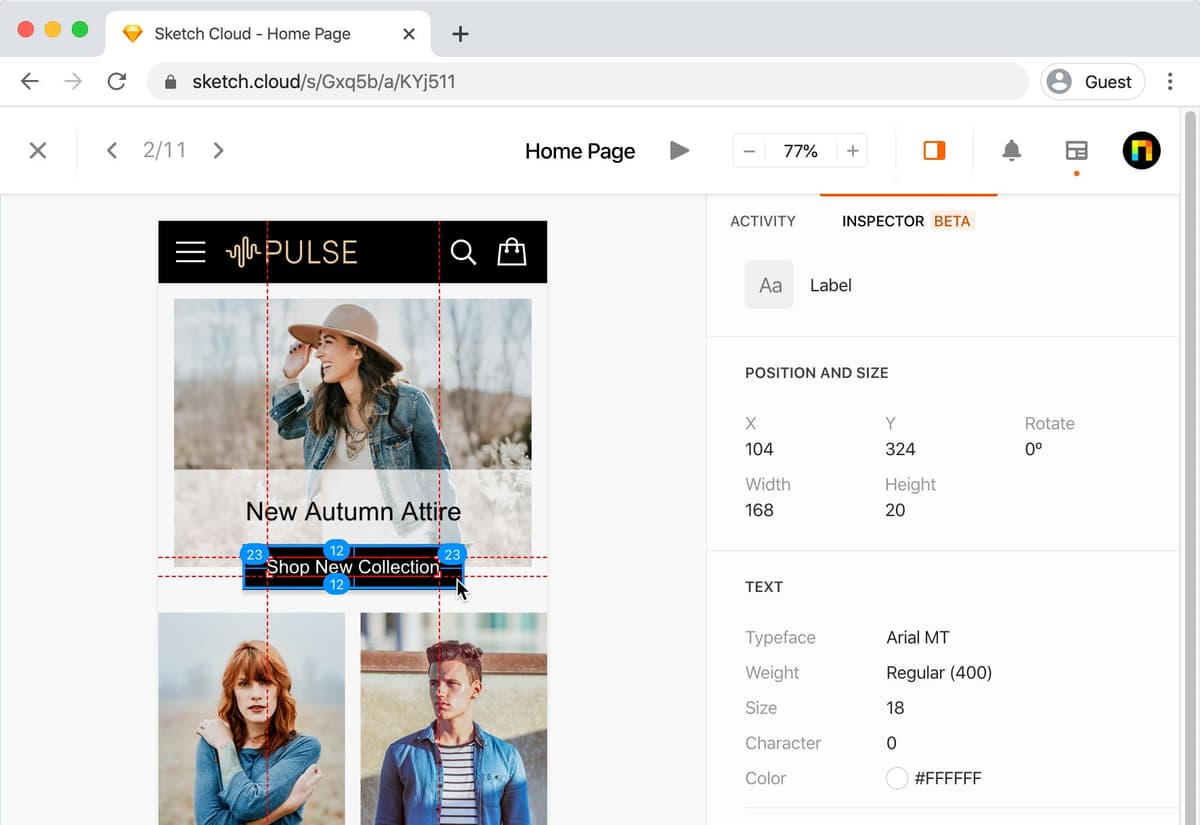
preview sketch cloud

Exercise Overview

In this exercise, you'll master the essential workflow of sharing Sketch documents and prototypes with stakeholders—whether you're presenting to clients, collaborating with developers, conducting user testing, or gathering feedback from team members. This collaborative capability transforms Sketch from a design tool into a powerful communication platform that bridges the gap between design and implementation.

Learning Objectives

This exercise teaches essential skills for sharing Sketch documents and prototypes with various stakeholders including clients, developers, and user testing participants through workspace collaboration features.

Sketch Accounts

Sketch's freemium model makes collaboration accessible to everyone. Anyone can create a free Sketch account at sketch.com/signup to view shared files, add comments, and access the Cloud Inspector for design specifications. This democratized access means your entire team can participate in the design process without additional licensing costs.

However, to upload and save documents to a workspace, you'll need an active paid Sketch subscription. This tiered approach ensures that while creation requires investment, consumption and feedback remain barrier-free for all stakeholders.

Sketch Account Types Comparison

FeatureFree AccountPaid Account
View shared filesYesYes
Comment on designsYesYes
Cloud Inspector accessYesYes
Upload to workspaceNoYes
Save workspace documentsNoYes
Recommended: Paid accounts are required for creators who need to upload and save documents to workspaces, while free accounts work well for reviewers and developers.

Sharing a Prototype with Others

The process of sharing prototypes has become increasingly streamlined as remote collaboration has become the industry standard. Here's how to get your designs into the hands of stakeholders quickly and professionally:

  1. In Sketch, go to File > Open Local Document.
  2. Navigate into Desktop > Class Files > Sketch Class > Pulse and double–click on Prototyping Done.sketch to open it.
  3. Access your account settings by going into the Sketch menu and choosing Preferences.
  4. Click on the Account tab to verify your workspace connection.
  5. If you're not already signed into Workspaces, click Get Started and sign in to establish your cloud connection.
  6. Once authenticated, close the Preferences window to return to your workspace.
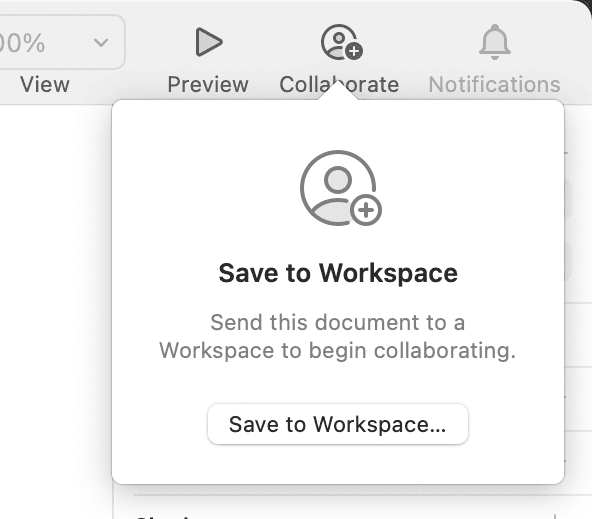
  7. Locate the Collaborate button collaborate button in the top right of the Toolbar—this is your gateway to cloud-based sharing.

    sketch cloud upload

  8. Click Save to Workspace to begin the upload process.

    Professional Tip: Saving to Workspace functions identically to File > Save As with the To a Workspace tab selected, but the Collaborate button provides faster access during iterative design sessions.

    Font Management: This particular design uses Arial, a standard system font that displays consistently across platforms. However, when working with custom typography, you'll need to embed fonts for accurate rendering. Navigate to File > Document Settings, select the Fonts tab, and change each font's setting to Embedded. This ensures your design intent is preserved regardless of the viewer's system fonts.

  9. With your settings configured properly, click Save to initiate the upload.
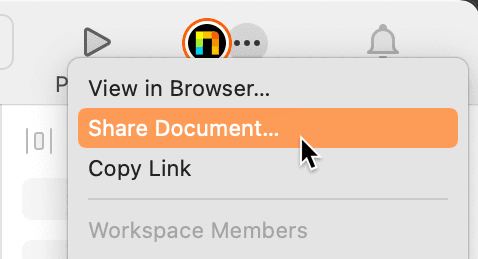
  10. Once the upload completes, click the ••• portion of the Collaborate button and select Share Document. Note that this option only appears after the file has finished uploading.

    sketch collaborate file options

  11. Your default web browser will launch automatically. If you're not already logged into your Sketch account, complete the authentication process now.
  12. The Document Settings dialog provides granular control over collaboration permissions—a critical consideration for client work and intellectual property protection:

    • Navigate to the Sharing tab to configure access levels.
    • Click the permissions dropdown (likely displaying No Access initially) and select Inspect. This grants viewers the ability to examine design specifications without editing capabilities.
    • Enable the Enable comments option to facilitate structured feedback collection.
  13. Click Done to apply your sharing settings.
  14. If the system displays Processing document, allow the conversion to complete—this process optimizes your design for web viewing.
  15. Upon completion, you'll see three distinct views: Prototypes, Screens, and Symbols. Click Prototype to experience the interactive version.
  16. Test the prototype's functionality by clicking Shop New Collection—it should behave identically to the Sketch preview.
  17. Click View Artboard at the bottom right to examine individual screens in detail.
  18. The Activity panel on the right side enables contextual commenting—essential for design reviews and stakeholder feedback. If this panel isn't visible, click the sketch cloud show sidebar button in the top right corner.
  19. Switch to the Inspector view at the top right to access the developer-focused features.
  20. Click on any design element to reveal its specifications: typography details, color values, dimensions, and spacing measurements.
  21. The Inspector's hover-to-copy functionality streamlines the developer handoff process—simply hover over any property (like a hex color value) and click to copy it to your clipboard.
  22. Select any element and hover over adjacent elements to display precise spacing measurements—invaluable for accurate implementation.
  23. Keep this browser tab active as we'll return to observe real-time updates in the next section.

Prototype Sharing Workflow

1

Open Document

Navigate to File > Open Local Document and select your prototype file from the designated folder structure

2

Sign In to Workspace

Access Sketch Preferences, click Account tab, and sign in to your workspace if not already authenticated

3

Save to Workspace

Click the Collaborate button in the toolbar and select Save to Workspace to upload your design file

4

Configure Sharing

Set document permissions through the Share Document option, choosing appropriate access levels and enabling comments

Font Embedding Best Practice

When using custom fonts, embed them through File > Document Settings > Fonts tab and change each font to Embedded to ensure proper display for all viewers.

Making Changes

One of Sketch's most powerful collaborative features is real-time synchronization. When you update a design, stakeholders see changes immediately without needing to download new files or refresh links manually.

  1. In your Sketch document, navigate to the Autumn Collection artboard and double-click the text New Autumn Attire. Change this to New Fall Fashion to reflect updated messaging.
  2. Save your changes using File > Save or the standard keyboard shortcut.
  3. Return to your browser tab with the Sketch website. If you've closed it, click the ••• portion of the Collaborate button in Sketch and select View in Browser to reopen it.
  4. To view the document overview, click the Prototyping Done filename at the top of the webpage.

    The right sidebar now displays an Updates panel showing your revision history. Click on the most recent version to see your changes reflected immediately.

    Live Update Process

    1

    Edit Content

    Make changes directly in your Sketch document, such as modifying text or design elements

    2

    Save Changes

    Use File > Save to push updates to the workspace and sync with the cloud version

    3

    View Updates

    Collaborators can see changes in real-time through the web browser interface Updates panel

Starred Updates

Professional design workflows require careful version control, especially when multiple stakeholders are monitoring your progress. Sketch's starring system gives you editorial control over which updates your audience sees.

  • Use File > Save and Star within Sketch to mark significant milestones that stakeholders should review.
  • If no updates are starred, viewers automatically see the most recent version—ideal for close collaborative relationships.
  • When starred updates exist, viewers only see starred versions by default, with the most recent starred update displayed first.

This system allows you to iterate freely while controlling the narrative of your design evolution. You can save frequently during exploration phases, then star updates when they're ready for stakeholder review. You can manage stars directly on sketch.com in the Updates section of the sidebar.

  • Click on the Autumn Collection artboard to verify your text change has propagated to the shared version.

  • Version Control Strategy

    Use starred updates to control which versions collaborators see. Save frequently but only star updates when ready to share, giving you complete control over the review process.

    Update Visibility Logic

    FeatureNo Starred UpdatesStarred Updates Present
    Visible VersionMost recentMost recent starred
    Save Frequency ImpactHigh - all saves visibleLow - only starred visible
    Review ControlLimitedFull control
    Recommended: Always use starred updates for client work to maintain professional presentation and avoid showing work-in-progress versions.

    Deleting a Workspace Document

    Workspace management becomes increasingly important as project volume grows. Here's how to maintain a clean, organized workspace by removing outdated or unnecessary documents:

    1. Click the sketch cloud go to workspace icon button in the top left corner, then select All Documents to view your complete workspace inventory.
    2. Hover over the document you wish to remove—a sketch cloud document menu icon button will appear, providing access to document management options.

    3. Select Delete from the dropdown menu and confirm the deletion. Note that this action is permanent and will revoke access for all shared stakeholders.

    Document Cleanup Process

    1

    Navigate to All Documents

    Click the menu button at top left and select All Documents to view your workspace file list

    2

    Locate Target File

    Hover over the specific file you want to remove to reveal the action menu button

    3

    Confirm Deletion

    Click the menu button, select Delete, and confirm the permanent removal of the document

    Opening a Workspace Document

    Understanding the distinction between local and workspace files is crucial for efficient workflow management. Workspace files exist in the cloud rather than on your local machine, which means they're accessible from any device but require internet connectivity.

    To reopen a workspace file you've previously closed, use File > Open Workspace Document in Sketch. Browse your available workspace files and double-click to open. This cloud-based approach ensures your work is backed up automatically and accessible from multiple machines—particularly valuable for designers who work across different locations or devices.

    Cloud-Based File System

    Workspace files are stored on the internet, not locally on your Mac. Access them through File > Open Workspace Document when you need to reopen cloud-based design files.

    Key Takeaways

    1Free Sketch accounts allow viewing and commenting on shared files, but paid accounts are required to upload and save documents to workspaces
    2The Collaborate button in Sketch's toolbar provides quick access to workspace saving and sharing functionality for streamlined collaboration
    3Custom fonts must be embedded through Document Settings to ensure proper display for all collaborators and stakeholders
    4Document sharing permissions can be configured to control access levels, including inspection capabilities and commenting features
    5The Cloud Inspector allows developers to extract code snippets, measurements, and design specifications directly from shared prototypes
    6Starred updates provide version control by allowing designers to save frequently while only sharing specific approved versions with collaborators
    7Real-time updates sync automatically between Sketch and the web browser, enabling live collaboration and immediate feedback
    8Workspace documents are cloud-based files that must be accessed through File > Open Workspace Document rather than local file system navigation

    RELATED ARTICLES