April 1, 2026Dan Rodney/9 min read

Exporting Assets: SVG & PNG

Master SVG and PNG Export Techniques in Sketch

File Formats for Web Export

SVG

Vector-based format that scales perfectly on all screen resolutions. Best for logos, icons, and simple graphics with crisp edges.

PNG

Pixel-based format that supports transparency. Ideal for photos and complex graphics that need transparent backgrounds.

Topics Covered in This Sketch Tutorial:

Exporting Artboards, Exporting for Web As SVG & PNG, Exporting into Folders

Exercise Preview

exporting svg png preview

Export Workflow Overview

1

Prepare Assets

Select artboards or individual elements and make them exportable through the Inspector panel

2

Choose Format

Select SVG for vector graphics or PNG for pixel-based images with transparency needs

3

Configure Settings

Set appropriate resolution, background options, and file naming conventions

4

Export Files

Use File > Export to save assets with web-optimized settings to designated folders

Exercise Overview

In this comprehensive exercise, you'll master the critical skill of exporting production-ready SVG and PNG files from Sketch. These optimized assets form the bridge between design and development, ensuring your creative vision translates flawlessly to web implementations. Understanding proper export workflows is essential for maintaining design fidelity and optimizing web performance.

Exporting Artboards

Before diving into individual asset export, professional workflows typically begin with sharing complete artboard mockups with clients and development teams. This full-page export serves as a visual reference and approval checkpoint, establishing the design foundation before asset handoff begins.

  1. In Sketch, go to File > Open Local Document.
  2. Navigate into Desktop > Class Files > Sketch Class > iTastify and double–click on iTastify Ready for Export SVG & PNG.sketch to open it.
  3. In the Sidebar, click on the Desktop artboard to select it.
  4. In the Inspector, click Make Exportable. If you don't see it, scroll down to the bottom!
  5. Make sure the export Format is set to PNG.

    PNG remains the gold standard for high-fidelity design mockups due to its lossless compression and transparency support. While file sizes are larger than JPEG alternatives, the pristine quality ensures stakeholders see your design exactly as intended. For bandwidth-conscious sharing scenarios, JPEG can serve as an acceptable compromise, though you'll sacrifice some visual precision.

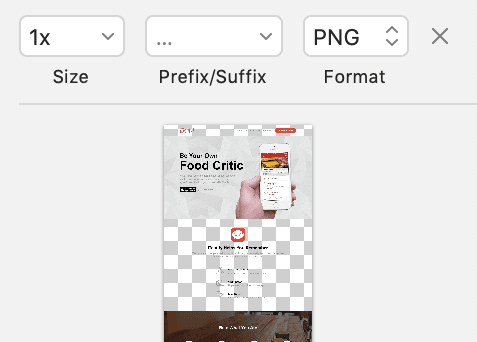
  6. In the Inspector, notice that some sections of the preview have a transparent background, indicated by the white and gray checkerboard:
    checkerboard export

  7. In the Inspector, check on Background color. (Include in Export should also be checked.)
  8. In the preview, notice that the transparent background has now changed to white, which is how our design is supposed to look.
  9. Go to File > Export.

    NOTE: Sketch automatically uses the artboard name as the filename. Since our artboard is called Desktop, the exported file will be named Desktop.png. This naming convention helps maintain organization across multiple breakpoint exports.

  10. In the dialog that appears, click Export.
  11. Make sure Save for web is checked. This critical setting optimizes the color space for web display and strips unnecessary metadata that can bloat file sizes—a professional requirement for web-ready assets.
  12. Navigate into Desktop > Class Files > Sketch Class > iTastify > assets-for-developer.
  13. Click Save.

    Your PNG mockup is now ready for client review or developer reference, providing a pixel-perfect representation of your design intent.

With your complete artboard exported, the next phase involves extracting individual UI components for development implementation. This granular asset creation requires careful attention to web standards and performance optimization.

Background Transparency Matters

Always check the background color option when exporting artboards. The transparent checkerboard pattern in the preview indicates areas that will be transparent in the final export, which may not match your intended design.

Artboard Export Checklist

0/5

Exporting for Web As SVG

Modern web development prioritizes scalable vector graphics for icons and interface elements. SVG files deliver crisp rendering across all device densities while maintaining smaller file sizes than their raster counterparts—making them indispensable for contemporary responsive design.

  1. Click on a blank area of the canvas to deselect the artboard.
  2. Select the iTastify logo on the top left of the artboard.
  3. The layer's name will be used as the file name. In the Sidebar, notice the layer is named iTastify Logo.

    Web development follows strict filename conventions that differ from design layer naming. Spaces are forbidden in web filenames (replaced with underscores or hyphens), and lowercase naming prevents server case-sensitivity issues. These conventions aren't merely preferences—they're requirements for reliable cross-platform web deployment.

  4. With the logo still selected, hit Cmd–R to rename the layer.
  5. Type in itastify-logo and hit Return to apply it.
  6. In the Inspector, click Make Exportable.
  7. This is a vector graphic, so the best web format is SVG (Scalable Vector Graphics). Set the Format to SVG.

    SVG represents the future of web graphics for vector-based assets. Unlike pixel-based formats that require multiple resolution versions, SVG files scale infinitely without quality degradation. This single-file solution eliminates the complexity of managing 1x, 2x, and 3x variants while ensuring perfect clarity on everything from standard displays to high-DPI Retina screens. The result: faster loading times and simplified asset management.

  8. Let's make a few other things exportable. On the artboard, select the black App Store download button.
  9. In the Sidebar, notice that the layer name is not ideal for web. Hit Cmd–R.
  10. Type in download-app-button and hit Return to apply it.
  11. On the artboard, select the iTastify app icon (the red rounded rectangle icon).
  12. In the Sidebar, notice it's appropriately named.
  13. We want to make both icons exportable. With the iTastify app icon still selected, Shift–click on the App Store download button so both are selected.
  14. In the Inspector, click Make Exportable to make them both exportable.
  15. Set the Format to SVG.
  16. Click on a blank area of the canvas to deselect both icons.
  17. Go to File > Export.
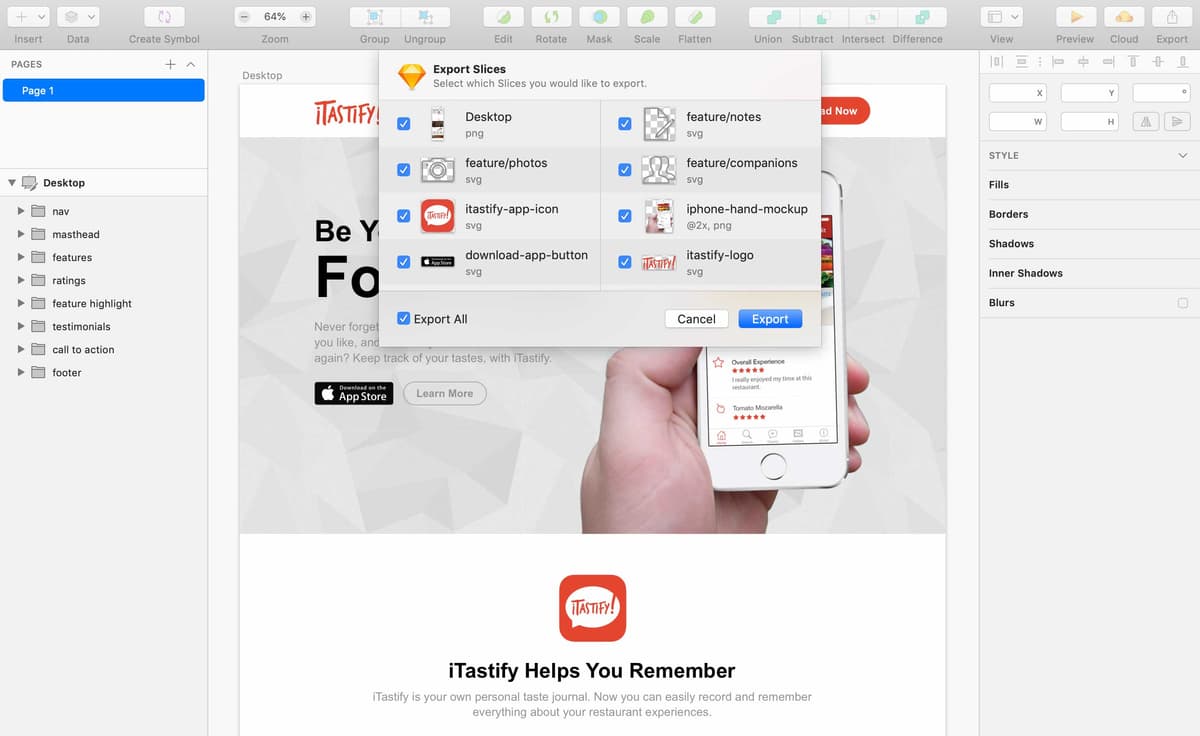
  18. In the dialog that appears we can choose what we want to export. We want to export everything, so check Export All.
  19. Click Export.
  20. Make sure you're still in the assets-for-developer folder. If not, navigate into Desktop > Class Files > Sketch Class > iTastify > assets-for-developer.
  21. Click Export once more.
  22. Hide or minimize Sketch, so you can see the Desktop (Finder).
  23. Navigate to Class Files > Sketch Class > iTastify > assets-for-developer.
  24. You should see four files (and two folders that we created). To preview the files, select a file and hit Spacebar.
  25. While the preview is open, switch between files using the Arrow keys.

    NOTE: When previewing SVG files in the Finder, you may notice extra whitespace around the graphics. This is a quirk of macOS's preview system and doesn't reflect the actual SVG file content—your exported assets remain properly cropped.

  26. To close the preview, hit the Spacebar again.
  27. We'll be coming back to this folder again in this exercise, so leave this Finder window open and switch back to Sketch.

While SVG handles vector graphics beautifully, photographic content requires a different approach. Let's explore PNG export for complex imagery that needs transparency support.

Web-Safe Naming Convention

Web graphics cannot use spaces in filenames. Use lowercase letters with dashes or underscores instead. The layer name becomes the filename, so rename layers before exporting.

SVG vs Pixel-Based Formats

Pros
Scales perfectly on all screen resolutions
Single file works for both hi-res and low-res displays
Can be resized in webpages without quality loss
Always renders crisp and clean
Smaller file sizes for simple graphics
Cons
Not suitable for complex photographs
Limited browser support for advanced features
Can become large with very complex vector graphics

Exporting for Web As PNG

Photographic elements with transparency requirements present unique challenges in web optimization. While JPEG excels at photo compression, its lack of transparency support makes PNG the necessary choice for composited imagery—despite the larger file sizes.

  1. Hover over the photo of the hand holding an iPhone, but do not click.
  2. Notice there is a blue outline surrounding the pattern filled gray rectangle, indicating it would be selected if we click. We only want to select the photo though.
  3. Hold Cmd and hover over the photo of the hand.
  4. Now only the hand part should have the blue outline, so click to select it!
  5. In the Sidebar, notice the iphone-hand-mockup layer is selected. That name is good for exporting, so we don't need to change it.
  6. In the Inspector, click Make Exportable.
  7. Set the Format to PNG.
  8. PNG is a pixel-based format, so we need to create two sizes. One will be for low-res screens (called 1x) and one will be for hi-res or Retina screens (called 2x). In the Inspector's Export section, to the far right of Presets click the plus button to add a new export size.
  9. Notice the new export format is sized as 2x (200%), and the filename will automatically get an @2x added at the end. That's perfect.

Effective asset organization becomes crucial as projects scale. Sketch's folder export feature streamlines the handoff process by automatically creating logical directory structures that mirror your design organization.

PNG vs JPEG for Photos

FeaturePNGJPEG
Transparency SupportYesNo
Photo CompressionGoodExcellent
File SizeLargerSmaller
Web CompatibilityUniversalUniversal
Recommended: Use PNG when transparency is required, JPEG for photos without transparency needs

Resolution Requirements

1x Resolution

Standard resolution for regular displays. Base size for your design elements and standard web viewing.

2x Resolution

Double resolution for Retina and hi-res screens. Automatically adds @2x suffix to filename for proper web implementation.

Exporting into Folders

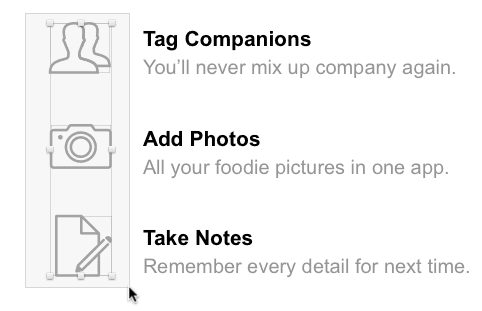
  1. Scroll down to see the three icons below the iTastify Helps You Remember heading.
  2. Drag a selection box over the three icons:
    feature icons drag

  3. In the Sidebar, notice the three highlighted layer groups start with feature- before their individual names.

    While prefix naming works for basic organization, professional asset management benefits from hierarchical folder structures. Sketch's powerful folderName/fileName convention automatically generates organized directory structures during export, creating a more maintainable asset library that scales with project complexity.

  4. Let's rename them to put all of these icons into a feature folder. Double–click feature-companions and rename to: feature/companions
  5. For the other two feature layer names, change the - to a / so you end up with:

    • Feature/photos
    • Feature/notes
  6. Make sure all three icons are selected before moving on.
  7. In the Inspector, click Make Exportable.
  8. Set the Format to SVG.

    The beauty of SVG becomes apparent in multi-resolution workflows—no need to manage 1x, 2x, and 3x variants. Modern browsers intelligently render vectors at optimal resolution regardless of display density, simplifying both your export process and the developer's implementation.

  9. Click on a blank area of the canvas to deselect.
  10. Go to File > Export.
  11. In the dialog that appears, check Export All.
  12. Click Export.
  13. Make sure you're still in the assets-for-developer folder. If not, navigate into Desktop > Class Files > Sketch Class > iTastify > assets-for-developer.
  14. Click Export.
  15. Switch back to the Finder (your Desktop).
  16. You should still have a window open for the assets-for-developer folder and the new assets have been added here. Notice the new feature folder was created and it contains the three SVG icons.
  17. Feel free to preview any of the assets if you wish.

Automatic Folder Creation

Use the folderName/fileName convention when naming layers. Sketch will automatically create folders during export, helping organize your assets efficiently.

Folder Organization Process

1

Select Multiple Assets

Use drag selection or Shift-click to select related graphics that should be grouped together

2

Rename with Folder Convention

Change layer names from feature-name to feature/name format for automatic folder creation

3

Make Exportable

Set all selected items as exportable and choose appropriate format (SVG for vectors)

4

Export All Assets

Use Export All option to process all prepared assets and create folder structure

Optional Challenge: More Practice Exporting

Export the four rating icons as SVG (just the circle icons, not the text). Export just them into a rate folder (so you'll have to rename the layers).

Reducing the Size of PNGs Exported from Sketch

Sketch exports as PNG-24 (with transparency). A PNG-24 contains millions of colors, and the file size can be quite large. When you don't need that many colors, there are a couple things you can do to reduce the file size:

  • You can use a free app called ImageAlpha to reduce the PNG-24 down to a PNG-8. It will maintain the transparency, but uses fewer colors so the file size will be much smaller. For more info, read the Image Optimization Tools reference near the end of this workbook.
  • You can also use Photoshop's File > Export > Export As to export as PNG-8 (requires Photoshop CC 2015 or later). Note that as of 2026, newer compression tools like Squoosh.app and modern build processes often provide superior optimization results with minimal quality loss.

PNG Format Comparison

FeaturePNG-24PNG-8
Colors SupportedMillions256
File SizeLargeSmall
TransparencyYesYes
QualityHighestGood
Recommended: Use PNG-8 when you don't need millions of colors to significantly reduce file size

File Size Reduction Tools

ImageAlpha

Free application that converts PNG-24 to PNG-8 while maintaining transparency. Significantly reduces file sizes for web use.

Photoshop Export As

Built-in Photoshop feature (CC 2015+) that allows direct export as PNG-8 format with transparency support.

Key Takeaways

1SVG format is superior for vector graphics like logos and icons because it scales perfectly across all screen resolutions without quality loss
2PNG format is essential when transparency is required, but JPEG is better for photos without transparency needs due to superior compression
3Web-safe filenames require lowercase letters with dashes or underscores instead of spaces, and layer names become the exported filenames
4Always export PNG assets in both 1x and 2x resolutions to support both standard and high-resolution displays properly
5Use the folderName/fileName naming convention in Sketch layers to automatically create organized folder structures during export
6Enable 'Save for web' option to optimize color space and remove unnecessary metadata that increases file size
7PNG-24 exports from Sketch can be reduced to PNG-8 using tools like ImageAlpha or Photoshop to significantly decrease file sizes
8The 'Background color' option must be checked when exporting artboards to prevent unwanted transparency in the final design files

RELATED ARTICLES