April 1, 2026Dan Rodney/10 min read

Symbols: Overrides & Custom Data

Master Sketch symbols with custom data overrides

Core Symbol Features

Symbol Overrides

Control which elements can be customized while maintaining global consistency across instances.

Custom Data Sources

Define your own text and image data sets for rapid content population and prototyping.

Image Handling

Switch between masks and image fills to optimize how photos display within symbol instances.

Topics Covered in This Sketch Tutorial:

Controlling Symbol Overrides, Overriding Images Within a Symbol, Custom Data Sources, Masks Vs. Image Fills

Exercise Preview

preview custom data

Exercise Overview

Symbols are the backbone of efficient design systems—they let you create reusable components that maintain global consistency while allowing customized content for each instance. Mastering symbol overrides is essential for professional design workflows, especially when working on complex projects with multiple product variations or content types.

In this hands-on exercise, you'll discover how to define and implement custom data sources for both text and images, enabling you to populate content across multiple symbol instances with remarkable speed and precision. This technique is invaluable for rapid prototyping and client presentations, allowing you to demonstrate concepts with realistic content rather than placeholder text and generic images.

Exercise Goal

Create a reusable product symbol with customizable content using a 2x2 grid layout with 15px horizontal and 30px vertical spacing.

Getting Started

We'll begin by setting up our workspace and creating the foundational symbol structure that will demonstrate the power of symbol overrides.

  1. In Sketch, go to File > Open Local Document.
  2. Navigate into Desktop > Class Files > Sketch Class > Pulse and double–click on Symbol Overrides.sketch to open it.
  3. On the Autumn Collection artboard, you'll find the core elements needed for each product. These components work together to create a cohesive product card. Select the following items:

    • Photo
    • Product
    • Price
    • Add to Bag button
  4. In the Toolbar, click the Create Symbol button symbol button (or choose Layer > Create Symbol).
  5. In the dialog that appears, configure your symbol for optimal layout behavior:

    • Name it Product
    • Set the menu below the name to Top to Bottom Layout.
    • Check on Send Symbol to "Symbols" Page.
    • Click Create.
  6. We need 4 products arranged in a 2 × 2 grid to demonstrate how overrides work across multiple instances. Go into the Arrange menu and choose Make Grid.
  7. In the Inspector, configure the grid spacing for visual balance:

    • Cells: 2 and 2
    • Spacing: 15 and 30

    Click Finish when done.

  8. The top left instance of our new Product symbol should still be selected. In the Inspector on the right, take note of the current override options—this reveals some areas we'll want to optimize:

    • There's an option to override the text in Add to Bag. Since this button text should remain consistent across all instances, we'll remove this option to prevent accidental changes.
    • There's an option to override the photo, which we'll explore in detail shortly.
    • The Price override appears above Product in the Inspector, which contradicts the visual hierarchy in our layout. We'll fix this ordering to create a more intuitive workflow.

Initial Setup Process

1

Select Elements

Choose Photo, Product, Price, and Add to Bag button components

2

Create Symbol

Name it Product, set Top to Bottom Layout, send to Symbols page

3

Make Grid

Configure 2x2 cells with 15px horizontal and 30px vertical spacing

Controlling Symbol Overrides

Smart override management is crucial for maintaining design consistency while providing the flexibility designers need. Let's configure our symbol to expose only the overrides that make sense for this component.

  1. With the symbol's instance still selected, hit Return to edit the symbol (you could also double–click on it, as long as you aren't double–clicking on text).
  2. The symbol's artboard should already be selected, so in the Inspector on the right, find the Manage Overrides section.
  3. Under Add to Bag, uncheck Text Value. This prevents designers from accidentally changing button text that should remain consistent across the entire interface.
  4. The top-to-bottom layer order directly affects how overrides appear in the Inspector. In the Sidebar on the left, drag Price down below Product to match the visual hierarchy.
  5. At the top left of the canvas, click the Back to Instance button.
  6. In the Inspector, verify that our changes have improved the user experience:

    • You should no longer see an override for Add to Bag, protecting this element from unintended modifications.
    • The override order for Photo, Product, and Price now follows the visual hierarchy on the artboard, creating a more intuitive editing experience.
  7. Select all 4 products on the artboard (drag a selection over them) to demonstrate bulk override functionality.
  8. In the Inspector on the right, under Price type $79 and hit Return to apply it. Notice how this change propagates to all selected instances simultaneously—a powerful time-saver for batch updates.
  9. Click somewhere outside the artboard so nothing is selected.
  10. On the canvas select the top right product to demonstrate individual instance customization.
  11. In the Inspector on the right, change the Price to $89 and hit Return to apply it. This shows how individual instances can maintain unique content while inheriting the overall symbol structure.

Override Management Tasks

0/3

Overriding an Image Within a Symbol

Image overrides provide flexibility for content variation, though they come with certain limitations that are important to understand in professional workflows.

  1. Click once on the top left product to select that instance of the symbol.
  2. In the Inspector, under Photo click Choose Image.
  3. Navigate into Desktop > Class Files > Sketch Class > Pulse > Clothing Photos—Women and double–click on blue-top.jpg to choose it.

    NOTE: Image overrides have inherent limitations—you cannot adjust the size, cropping, or positioning of images within their masks through the override system. This makes the technique excellent for rapid prototyping and preliminary design exploration, but it's not suitable for production-ready image workflows. For final image preparation, you'll typically want to prepare assets in Photoshop at the exact dimensions required, or rely on your content management system to handle dynamic image sizing and cropping.

Image Override Limitation

You cannot change size, cropping, or position of images within masks. This technique is useful for rapid prototyping but not suitable for production-ready image work.

Data Sources for Text & Images

Custom data sources transform how quickly you can populate designs with realistic content. Instead of manually entering each piece of information, you can leverage Sketch's data functionality to instantly populate multiple instances with appropriate content.

  1. Let's add product names efficiently rather than entering them manually. Select all 4 products on the artboard (drag a selection over them).
  2. In the Inspector on the right, to the right of Product, click on the Override with Data button override with data button and from the menu choose Sketch Data > Names.

    override with data location

  3. Notice that we now have random people's names instead of product names—clearly not ideal for an e-commerce interface.

    While Sketch includes basic data examples, the real power comes from creating custom data sources tailored to your specific project needs. We can define custom data by creating a plain text file (.txt) with one piece of data on each line. This approach gives you complete control over the content that populates your designs.

  4. To define our own data source, go into the Sketch menu and choose Preferences.
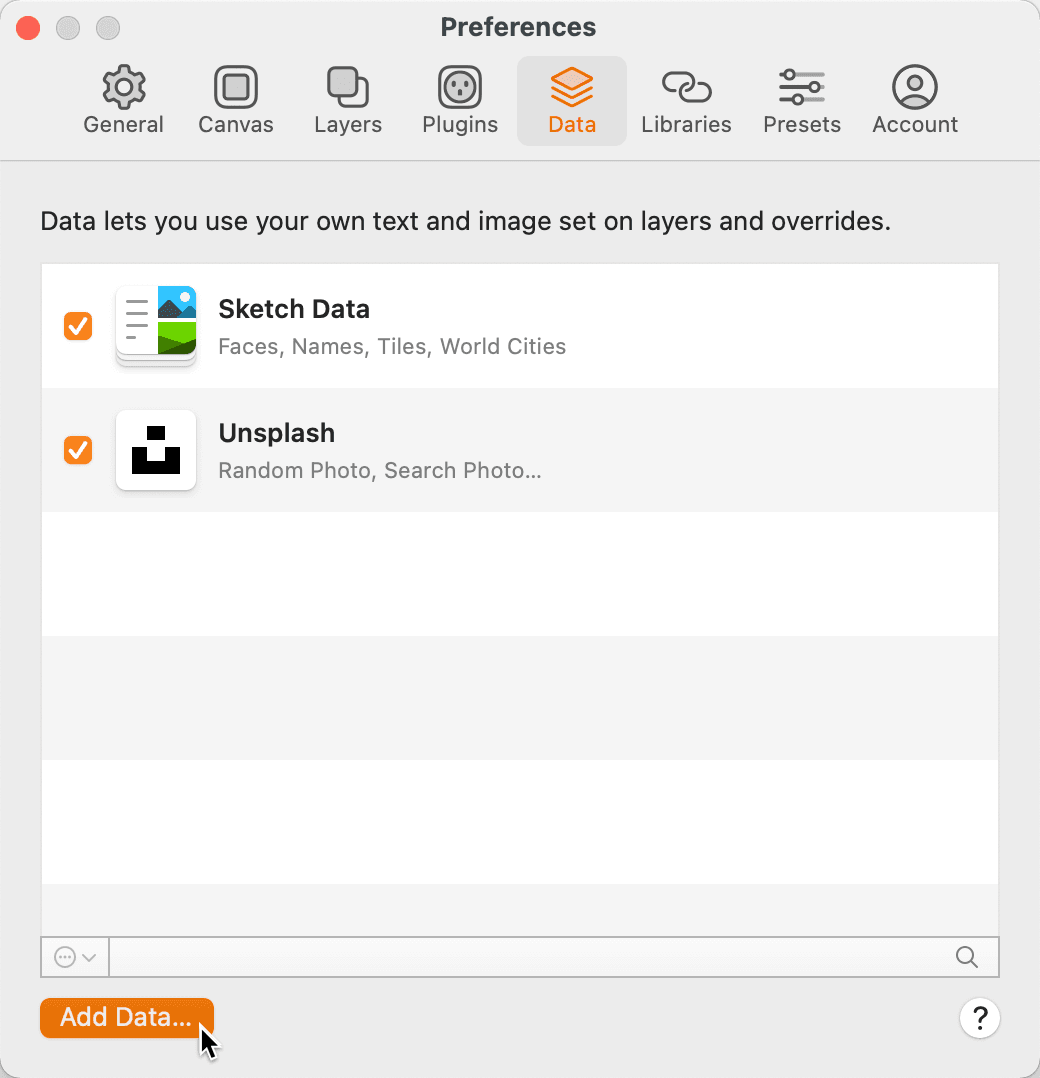
  5. Switch to the Data tab.
  6. At the bottom click Add Data.
  7. Navigate to Desktop > Class Files > Sketch Class > Pulse and double–click on Clothing Titles—Women.txt to choose it.
  8. Close the preferences window.
  9. In the Inspector on the right, to the right of Product, click on the Override with Data button override with data button and configure it properly:

    • Uncheck Insert Data at Random to maintain consistent results.
    • In the menu choose Clothing Titles—Women.

    Now we have contextually appropriate product names that enhance the realism of our prototype.

  10. Click somewhere outside the artboard so nothing is selected.
  11. In the top left product, double–click on the product placeholder name and type in Denim Jacket.

    NOTE: You can enter override text directly on the artboard or through the Inspector panel—both methods produce identical results. Choose the approach that feels most natural for your workflow.

  12. Select all 4 products on the artboard (drag a selection over them) to demonstrate image data functionality.
  13. In the Inspector on the right, to the right of Photo, click on the Override with Data button override with data button and choose Unsplash > Search Photo.

    NOTE: Unsplash's integration provides free, high-quality images for commercial use directly within Sketch. This seamless integration eliminates the need to leave your design environment to source placeholder images, dramatically speeding up the prototyping process. However, always verify licensing requirements for client work and final production.

  14. In the dialog that appears, type in ladies fashion and click OK.

    • Allow time for the images to download—speed depends on your internet connection.
    • You may notice some images appear stretched or compressed. This occurs when downloaded images don't match your symbol's aspect ratio. For better image fitting, we can use custom image data sources or switch to image fills instead of masks, which we'll explore next.

Setting Up Custom Data Sources

1

Create Text File

Make a .txt file with one piece of data per line for custom content

2

Add to Sketch

Go to Preferences > Data tab and click Add Data to import your file

3

Apply Data

Use Override with Data button and uncheck Insert Data at Random for sequential application

Switching from a Mask to an Image Fill

When working with dynamic content, image fills often provide better results than masks because they automatically scale images to fit the container while maintaining visual quality.

  1. Click somewhere outside the artboard so nothing is selected.
  2. Double–click on the photo of the top left product to edit the symbol.
  3. In the Sidebar on the left, expand the Product Photo group.
  4. Right–click (or Control–click) on the Mask layer and at the bottom of the menu choose Mask (to uncheck it).
  5. Above the Mask layer click on Photo.
  6. Hit the Delete key to delete it.
  7. Click on the Product Photo group.
  8. Hit Cmd–Shift–G to ungroup it (you could also choose Arrange > Ungroup or click the Ungroup button ungroup button in the Toolbar).
  9. In the Sidebar double–click on Mask and rename it Photo for clarity.
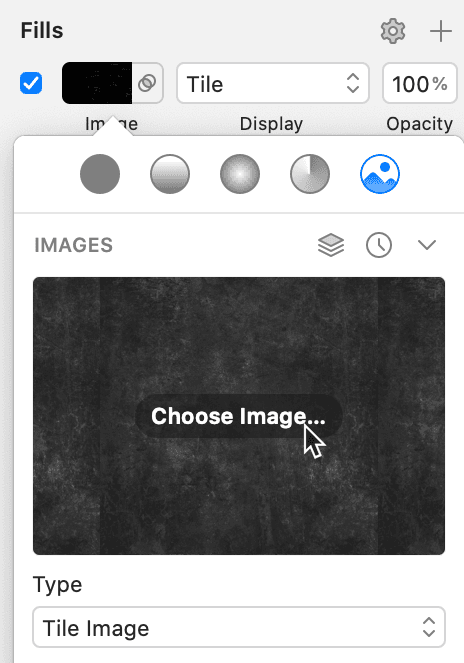
  10. With the Photo shape still selected, in the Inspector under Fills, click on the color box color selector to open the color picker.
  11. At the top of the color picker click the right-most icon for Pattern Fill pattern fill.
  12. Below the top row of icons, if the Images section is collapsed, click the arrow at the far right to expand that section.
  13. As shown below, in the Images section hover over the thumbnail and click the Choose Image button that appears.
    pattern fill choose image

  14. Navigate into Desktop > Class Files > Sketch Class > Pulse > Clothing Photos—Women and double–click on blue-top.jpg to choose it.
  15. Below the thumbnail set Type to Fill Image.
  16. On the artboard you should see the image displaying with proper proportions and visual quality.

    NOTE: While this technique doesn't allow custom cropping, sizing, or positioning—the same limitation that exists with symbol overrides generally—it provides better automatic scaling behavior for dynamic content scenarios.

  17. At the top left of the canvas, click the Back to Instance button.
  18. Select all 4 products on the artboard (drag a selection over them).
  19. In the Inspector on the right, to the right of Photo, click on the Override with Data button override with data button and from the menu choose Unsplash > Search Photo.
  20. In the dialog that appears, type in ladies fashion and click OK.
  21. The photos should now display without distortion because the fill automatically scales images to fit the shape regardless of their original aspect ratio.

Mask vs Image Fill Comparison

Pros
Image fills automatically adapt to any aspect ratio
No distortion when using different image sources
Better compatibility with data override features
Maintains shape boundaries regardless of source image
Cons
Cannot customize crop, size, or position
Less precise control over image display
May not work for all design requirements

Custom Data Sources for Images

Creating custom image data sources gives you complete control over the visual content in your prototypes, ensuring brand consistency and appropriate imagery for your specific use case.

  1. Let's define a custom data source using our curated product images. Go into the Sketch menu and choose Preferences.
  2. Switch to the Data tab.
  3. At the bottom click Add Data.
  4. Navigate to Desktop > Class Files > Sketch Class > Pulse, select the folder Clothing Photos—Women and click Open to choose it.
  5. Close the preferences window.
  6. With the 4 products still selected on the artboard, in the Inspector on the right, to the right of Photo, click on the Override with Data button and configure the source:

    • Make sure Insert Data at Random is unchecked for predictable results.
    • In the menu choose Clothing Photos—Women.

    Now your designs populate with brand-appropriate imagery that's been specifically chosen and prepared for this project context.

Folder-Based Image Data

Select entire folders as data sources to automatically populate multiple images from your custom photography or asset collections.

Removing Custom Data Sources

Maintaining a clean workspace includes managing your data sources. Let's remove the custom sources we created for this exercise.

  1. Go into the Sketch menu and choose Preferences.
  2. Switch to the Data tab.
  3. Right–click (or Control–click) on Clothing Photos—Women and choose Remove "Clothing Photos—Women".
  4. When it confirms, click Remove.
  5. Right–click (or Control–click) on Clothing Titles—Women and choose Remove "Clothing Titles—Women".
  6. When it confirms, click Remove.
  7. Close the preferences window.

  8. Save the file and close it. You've now mastered the essential techniques for creating flexible, data-driven symbol systems that will dramatically improve your design efficiency and prototype quality.

Cleanup Process

0/3

Key Takeaways

1Symbol overrides allow global updates while maintaining instance-specific customizations for scalable design systems
2Layer order in the sidebar directly affects the order of override options in the Inspector panel
3Custom data sources can be created from plain text files with one data item per line for rapid content population
4Image fills provide better aspect ratio handling than masks when working with diverse image sources
5The Manage Overrides section lets you control which symbol elements can be customized by unchecking unwanted options
6Unsplash integration provides free commercial-use placeholder images directly within Sketch for prototyping
7Grid layouts with symbols enable consistent spacing and alignment across multiple instances automatically
8Data override features work best for preliminary design and prototyping rather than final production artwork

RELATED ARTICLES