April 1, 2026Dan Rodney/12 min read

Inserting Vector Graphics, Fills, Shadows, & More

Master Vector Graphics and Visual Design in Sketch

Essential Skills You'll Master

Vector Import & Modification

Learn to import SVG and PDF files while maintaining quality and layer structure. Understand the differences between file formats and when to use each.

Layer Management & Organization

Master grouping strategies, opacity controls, and selection techniques that make complex designs manageable and maintainable.

Visual Effects & Styling

Apply professional touches like drop shadows, transparency effects, and appearance copying to create polished interface designs.

Topics Covered in This Sketch Tutorial:

Importing & Modifying Vector Graphics, Making Grouped Objects Easily Selectable, Layer Opacity Vs. Fill Opacity, Aligning & Distributing Layers, Copying & Pasting Appearance, Adding a Drop Shadow

Exercise Preview

preview vector graphics

Exercise Overview

In this comprehensive exercise, you'll master the fundamentals of vector graphics in Sketch—from importing and modifying scalable assets to creating professional visual hierarchies. These skills form the backbone of modern interface design, where crisp, scalable graphics are essential for multi-device experiences.

Project Focus

This exercise builds upon previous work to complete a navigation design by adding logos, backgrounds, and professional styling techniques.

Getting Started

  1. In Sketch, navigate to File > Open Local Document.
  2. Browse to Desktop > Class Files > Sketch Class > NYC and double–click About Page—Ready for Graphics.sketch to launch the file.

    This design builds on our previous work, featuring a more refined layout that's ready for vector graphics integration. Our primary objectives are to enhance the navigation with a distinctive logo and create visual separation through a semi-transparent background—key techniques for establishing clear information hierarchy.

  3. Before we begin adding elements, let's protect our existing work. Select the cab photo either directly on the artboard or through the Sidebar navigation.
  4. Navigate to Arrange > Lock Layer to prevent accidental modifications.

    TIP: For quicker workflow, use the Sidebar method: hover over any layer, hold Option, and click the lock icon lock icon that appears. This technique becomes invaluable in complex designs with multiple overlapping elements.

  5. To ensure proper layer stacking, select the top layer (RESOURCES) in the Sidebar before importing. This ensures new assets appear at the front of your design stack—a crucial habit for maintaining organized layer hierarchies.

Setup Process

1

Open Project File

Navigate to Desktop > Class Files > Sketch Class > NYC and open About Page—Ready for Graphics.sketch

2

Lock Background Elements

Select the cab photo and use Arrange > Lock Layer or Option-click the lock icon in the Sidebar

3

Prepare Layer Stack

Select the top RESOURCES layer in the Sidebar to ensure new elements are added on top

Importing & Modifying Vector Graphics

Vector graphics are the foundation of scalable design systems. Unlike raster images, vectors maintain perfect clarity at any size—essential for responsive interfaces and high-resolution displays. Let's explore the nuances of different vector formats and their practical implications.

  1. Access the Insert button insert button in the Toolbar and select Image.
  2. Navigate to Desktop > Class Files > Sketch Class > NYC to examine the available logo formats.

    Notice the three NYC Logo variations available. The Adobe Illustrator file (NYC Logo.ai) appears grayed out—Sketch cannot directly import AI files through this method. However, you can copy vectors from Illustrator and paste directly into Sketch while preserving full editability. Avoid drag-and-drop with AI files, as this converts vectors to pixels, defeating the purpose of scalable graphics.

  3. Observe the .pdf and .svg versions—both excellent vector formats with distinct advantages. Let's examine the PDF format first by double–clicking NYC Logo.pdf.
  4. Expand the NYC Logo group in the Sidebar to reveal its structure: three separate vector shapes representing each letter. Notice the generic names like Fill 3—these non-descriptive labels can complicate workflow in complex projects.
  5. Press Cmd–Z to undo the import and compare with the SVG format.
  6. Return to the Insert button insert button and select Image again.
  7. Double–click NYC Logo.svg to import the SVG version.
  8. Expand the imported NYC Logo group to examine the layer structure. Notice the superior layer naming (N, Y, C) compared to the PDF version.

    NOTE: SVG files exported from Illustrator CC 2015 and later typically preserve layer names effectively, though occasional quality variations may occur compared to PDF counterparts. Different applications produce varying SVG results, so always test multiple formats to determine optimal quality and compatibility. For this exercise, we'll use SVG due to its superior layer organization.

  9. Transform the logo to white for optimal contrast against our background. Click the N layer in the Sidebar.
  10. Hold Shift and click the C layer to select all three letter shapes simultaneously.
  11. In the Inspector panel, locate the Fills section, click the color box, and set the color to white.
  12. Press Esc to dismiss the color picker interface.
  13. Collapse the NYC Logo group in the Sidebar to maintain clean organization.

    TIP: Alternative color modification approaches include ungrouping elements, applying changes, then regrouping—though this risks losing existing group names and export settings. You can also hold Command while dragging selections on the artboard to directly access child layers within groups, bypassing the need for Sidebar navigation.

  14. Activate the layout grid with CTRL–L for precise positioning guidance.
  15. Position the logo strategically: drag it so the left edge aligns with the first column of the grid system. Allow modest spacing from the artboard's top edge—we'll fine-tune this positioning momentarily.

    nyc position logo on grid

  16. Optimize the logo size for the interface scale. Navigate to View > Zoom To > Actual Size (or use Cmd–0) to see true dimensions.
  17. Maintain proper proportions by holding Shift while dragging the bottom-right handle. Scale the logo to approximately 130px width—ideal for navbar hierarchy without overwhelming the navigation elements:

    nyc scale logo down

Vector File Format Comparison

FeaturePDFSVG
Layer NamesGeneric (Fill 3)Descriptive (N, Y, C)
QualityConsistentVariable (CC 2015+)
CompatibilityUniversalApp Dependent
Recommended UseQuality PriorityOrganization Priority
Recommended: Choose SVG for better layer organization, PDF for guaranteed quality consistency

Creating a Navbar Background

Effective navigation design requires clear visual separation from page content. We'll create a sophisticated semi-transparent overlay that enhances readability while maintaining visual connection to the underlying design.

  1. Gain full artboard perspective by navigating to View > Zoom To > Fit Canvas (keyboard shortcut: Cmd–1).
  2. Hide the layout grid with CTRL–L to focus on the visual design elements.
  3. Initiate rectangle creation by pressing the R key—the cursor will change to indicate drawing mode.
  4. Create a full-width navbar background by dragging across the entire top section. Extend slightly beyond the artboard edges to ensure complete coverage—this prevents edge gaps that can appear during responsive scaling:

    nyc draw navbar rectangle

  5. Establish precise dimensions in the Inspector panel:

    H (Height): 80
    Y (Position): 0
  6. Apply the background color by setting Hex to 6b4656 under the Fills section, then press Return to confirm.
  7. Add a subtle bottom border to define the navigation boundary. Configure the Border options as follows:

    Color: Click the color swatch and select White
    Position: Outside (third icon)
    Width: 1

    NOTE: The outside border position is crucial here—it creates a clean bottom edge while hiding the top, left, and right borders beyond the artboard boundaries. An inside border would create unwanted visual weight on all four edges.

  8. Rename the layer for better organization: with Rectangle selected in the Sidebar, press Cmd–R and type nav bg.
  9. Organize the layer stack by dragging nav bg below the EVENTS text layer in the Sidebar—this ensures proper rendering order while maintaining accessibility of navigation elements.

Navbar Background Creation

1

Create Rectangle

Press R key and drag across the top of artboard, extending slightly beyond edges

2

Set Dimensions

Configure Height: 80px, Y Position: 0, Fill Color: #6b4656

3

Add Border

Apply white border, 1px width, positioned outside to hide top/side borders

Making Grouped Objects Easily Selectable

Professional workflows demand efficient layer management. Sketch's grouping capabilities become powerful organizational tools when configured properly—let's optimize our selection workflow for complex interface elements.

  1. Begin organizing related elements by selecting the NYC Logo group in the Sidebar.
  2. Extend the selection by Shift–clicking the nav bg layer.
  3. Create a logical group with Cmd–G, or click the Group button group button in the Toolbar.
  4. Immediately rename the new group: press Cmd–R while selected.
  5. Type nav and press Return to confirm the descriptive name.
  6. Test the default group behavior by clicking any blank area to deselect, then clicking the navbar background on the artboard.
  7. Notice in the Sidebar that the entire nav group is selected rather than the specific nav bg element we intended to modify—this default behavior often disrupts efficient workflows.
  8. While double-clicking can access grouped elements, there's a superior approach. Select the nav group and locate Select group's content on click in the Inspector.
  9. Enable this option by checking the box—this transforms group interaction to prioritize individual elements over group selection.
  10. Deselect everything by clicking a blank canvas area, then test the improved functionality by clicking the navbar background.
  11. Observe the enhanced behavior: your click now directly selects the nav bg layer while automatically expanding the group in the Sidebar for easy navigation. This setting dramatically improves workflow efficiency in complex designs.

Pro Selection Technique

Enable 'Select group's content on click' in the Inspector to directly select grouped elements without double-clicking, streamlining your workflow significantly.

Layer Opacity Vs. Fill Opacity

Understanding opacity hierarchies is fundamental to sophisticated interface design. Sketch mirrors CSS capabilities by offering granular opacity control over different visual properties—a powerful tool for creating nuanced visual relationships without compromising individual element integrity.

  1. With the nav bg layer selected, locate the Opacity slider in the Inspector (positioned below the No Layer Style menu). Experiment by dragging the slider to observe how it affects both the fill color and white border simultaneously.
  2. This global approach often produces unintended results—in our case, we want the border to maintain strong contrast for clear content delineation. Return Opacity to 100%.
  3. For more precise control, locate the Opacity setting within the Fills section—this targets only the background color.
  4. Set the fill opacity to 50% to create the semi-transparent effect.
  5. Notice the refined result: the background now allows subtle visibility of underlying content while the white border maintains full opacity for clear visual separation.

    NOTE: Border opacity can be independently controlled through its color picker's Alpha setting, enabling precise control over every visual element. This granular approach enables sophisticated layering effects that enhance rather than compromise design clarity.

Opacity Controls Comparison

FeatureLayer OpacityFill Opacity
Affects FillYesYes
Affects BorderYesNo
Affects ShadowsYesNo
Use CaseEntire ElementBackground Only
Recommended: Use Fill Opacity when you want to maintain border visibility while making backgrounds transparent

Aligning & Distributing Layers

Precise alignment and distribution create the visual rhythm that distinguishes professional interfaces from amateur attempts. Sketch's alignment tools eliminate guesswork while ensuring pixel-perfect results across different screen densities.

  1. Switch to actual size view with Cmd–0 to assess true proportions and spacing relationships.
  2. Navigate to the navbar's text links in the top right area of the design.
  3. Identify the uneven spacing between navigation links—a common issue that undermines design credibility. Let's create consistent rhythm by selecting all three links with a drag selection starting above the artboard.
  4. Check the Sidebar selection results: you'll likely see the three target links plus the unwanted nav bg element. This occurs because drag selection includes any element touched by the selection area.
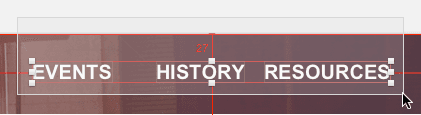
  5. Employ the more precise selection technique: hold Option while dragging to select only elements completely contained within the selection area. Create a selection box that fully encompasses the text links as shown:

    nyc option drag selection

  6. Confirm that only the three navigation text links are selected in the Sidebar.
  7. Apply even horizontal distribution by clicking the Distribute Horizontally icon distribute horizontally icon at the top left of the Inspector—this creates mathematically perfect spacing.
  8. Before proceeding with vertical alignment, verify that the NYC logo sits completely within the navbar background boundaries. Elements extending beyond the reference area will skew alignment calculations.
  9. Select all navbar elements through the Sidebar method for precise control:

    • Ensure the nav group is expanded with the NYC Logo group collapsed (to avoid selecting individual letter shapes).
    • Click the NYC Logo group, then Shift–click the nav bg layer to select all primary navigation elements.
  10. Achieve perfect vertical centering by clicking the Align Vertically icon align vertically icon (second icon from the right) in the Inspector. This creates harmonious baseline relationships across all navigation elements.

Selection Precision

Hold Option while dragging selections to only select elements completely inside the selection box, avoiding unwanted background elements.

Alignment Workflow

1

Select Target Elements

Use Option-drag to precisely select only the navigation text links

2

Distribute Horizontally

Click Distribute Horizontally icon in Inspector to evenly space elements

3

Center Vertically

Select all navbar elements and use Align Vertically icon to center

Copying & Pasting Appearance

Consistent visual language is the hallmark of professional design systems. Sketch's style copying capabilities enable rapid application of established visual patterns, ensuring design coherence while accelerating workflow efficiency.

  1. Clear all selections by clicking outside the canvas area.
  2. Select the navbar's background rectangle to access its styling properties.
  3. Capture the complete style definition with Edit > Copy > Copy Style—this preserves all visual attributes including fill, border, opacity, and effects.

    NOTE: While regular copy would also preserve styling information, Copy Style explicitly captures only visual properties, making your intent clear and avoiding potential confusion in complex workflows.

  4. Navigate to the bottom of the artboard to locate the footer's gray background rectangle—our target for style application.
  5. Select the footer rectangle by clicking directly on the artboard element.
  6. Apply the complete visual treatment with Edit > Paste > Paste Style.
  7. Observe the immediate transformation: the footer now inherits the navbar's exact fill color, border styling, and transparency settings.
  8. Customize for the footer context by adjusting the fill Opacity to 100 in the Inspector—footer elements typically require full opacity for optimal text contrast and visual grounding.

Style Transfer Process

1

Copy Style

Select source element and use Edit > Copy > Copy Style to capture all appearance properties

2

Apply to Target

Select destination element and use Edit > Paste > Paste Style to transfer all styling

3

Adjust as Needed

Modify specific properties like opacity while maintaining the overall appearance consistency

Adding a Drop Shadow

Strategic use of shadows creates depth hierarchy and improves legibility in complex layouts. When applied thoughtfully, shadows can separate foreground content from busy backgrounds while maintaining visual cohesion.

  1. Navigate to and select the prominent NEW YORK CITY heading in the design.
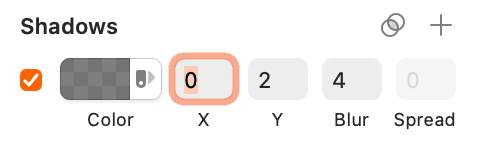
  2. Add a shadow effect by clicking the plus button adjacent to Shadows in the Inspector. This reveals comprehensive shadow controls:

    shadows options

  3. Experiment with the Blur setting by hovering over the label and dragging horizontally. Higher values create softer, more diffused shadows that feel more natural and less harsh.
  4. Set Blur to 25 for a subtle, professional effect that enhances rather than dominates the typography.
  5. Fine-tune the vertical shadow position by dragging over the Y value—this controls the apparent light direction and shadow placement.
  6. Establish the final Y position at 0 for a clean, evenly distributed glow effect.

    NOTE: For additional refinement, click the shadow's color box to access Alpha transparency controls. This enables precise shadow intensity adjustments that complement your overall design aesthetic without overwhelming the content.

Shadow Configuration Options

Blur Control

Hover over 'Blur' and drag to adjust softness. Higher values create more diffused shadows for subtle effects.

Position Control

Drag over X and Y values to position shadow offset. Zero Y value creates a glow effect rather than directional shadow.

Optional Bonus: Grouping Layers for Organization

Proper file organization becomes crucial as projects scale and team collaboration increases. Well-structured layer hierarchies reduce confusion, accelerate handoff processes, and maintain design system integrity across multiple contributors.

  1. Unlock the protected taxicab photo by clicking the lock icon lock icon next to the cab layer in the Sidebar.
  2. Create a logical hero section grouping: select the NEW YORK CITY text layer.
  3. Extend selection to include the cab layer with Shift–click.
  4. Form the group using Cmd–G or the Toolbar's Group button group button.
  5. Apply descriptive naming: press Cmd–R with the new group selected.
  6. Type hero and confirm with Return.
  7. Enable efficient interaction by checking Select group's content on click in the Inspector.
  8. Continue organizing the main content area: select the UNLIKE ANY OTHER CITY text layer in the Sidebar.
  9. Include the bridge group with Shift–click.
  10. Create the grouping with Cmd–G.
  11. Rename to main using Cmd–R.
  12. Activate the Select group's content on click option for consistent behavior.
  13. Complete the organization with the footer elements: select the Source: Wikipedia text layer.
  14. Add the footer bg element with Shift–click.
  15. Group with Cmd–G.
  16. Rename to footer with Cmd–R.
  17. Enable content-click selection for workflow consistency.
  18. Preserve your organized work with Cmd–S—you now have a professionally structured file where every element is intuitively accessible and clearly organized.
  19. Close the file to complete the exercise.

File Organization Best Practices

0/4
Clean File Structure Achieved

Proper grouping and naming conventions create maintainable files where elements are easy to select, edit, and manage throughout the design process.

Key Takeaways

1SVG files maintain better layer names than PDFs when imported from Illustrator CC 2015 and later, making them ideal for organized workflows
2Layer opacity affects all visual elements including borders and shadows, while fill opacity only affects the background color
3The 'Select group's content on click' option eliminates the need for double-clicking to reach grouped elements, significantly improving workflow efficiency
4Option-drag selections only capture elements completely within the selection area, providing precise control over multi-element selection
5Copy Style and Paste Style commands transfer all appearance properties between elements, ensuring visual consistency across designs
6Strategic grouping with descriptive names and proper selection settings creates maintainable file structures for complex designs
7Vector graphics can be imported as SVG, PDF, or copied from Illustrator, each with specific advantages for different use cases
8Alignment and distribution tools work best when elements are properly positioned within their container boundaries before application

RELATED ARTICLES