April 1, 2026Dan Rodney/10 min read

Inserting & Masking Photos

Master photo insertion and masking in Sketch

Core Skills You'll Master

Photo Import Methods

Learn both drag-and-drop and menu-based methods for importing images. Master working with different file formats including JPG, PSD, and TIFF.

Advanced Masking

Create custom rounded rectangles and use them as masks to crop photos. Fine-tune positioning and scaling within masks.

Layer Organization

Implement proper naming conventions and layer management techniques. Keep your Sketch files organized and professional.

Topics Covered in This Sketch Tutorial:

Importing Photos, Cropping a Photo (masking), Customizing the Amount of Rounding for Each Corner

Exercise Preview

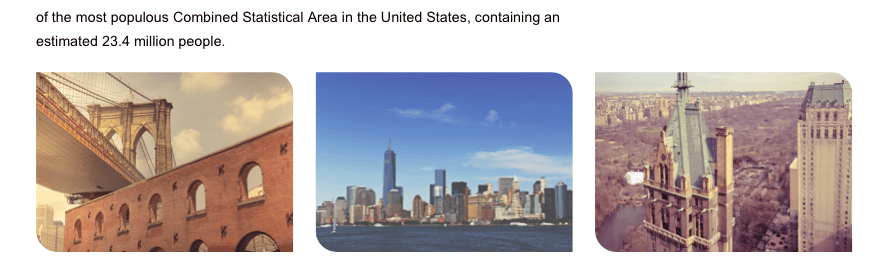
preview masking photos

File Structure Setup

This tutorial uses a pre-built NYC design file located in Desktop > Class Files > Sketch Class > NYC. Make sure you have the complete file structure before beginning.

Exercise Overview

In this exercise, you'll master one of Sketch's most powerful features: photo masking and cropping. These techniques form the foundation of professional interface design, allowing you to create polished, cohesive layouts that seamlessly integrate visual content. Whether you're designing for web, mobile, or desktop applications, understanding how to manipulate images within shapes will elevate your design work significantly.

Importing Photos

Let's begin by setting up our workspace and importing the images we'll be working with throughout this exercise.

  1. In Sketch, go to File > Open Local Document.
  2. Navigate into Desktop > Class Files > Sketch Class > NYC and double–click on About Page—Ready for Photos.sketch to open it.

    This is a more developed version of the desktop design you've been working on in previous exercises. Notice how the layout has been refined with proper spacing and typography. We'll now enhance it by placing compelling imagery into the designated spaces.

  3. Choose View > Zoom To > Fit Canvas to see the entire artboard and get a complete view of our design canvas.
  4. In the Toolbar at the top, click the Insert button insert button and select Image.
  5. Navigate into Desktop > Class Files > Sketch Class > NYC > NYC Photos and double–click on cab.jpg to choose it.
  6. Let's scale the photo to match our design specifications. In the Inspector on the right, set W (Width) to 1440 (matching the width of our artboard) and hit Return. This ensures pixel-perfect alignment with our grid system.
  7. Drag the image into position at the artboard's top-left corner, creating a dramatic hero image effect.
  8. The image is now covering the NEW YORK CITY heading. Choose Arrange > Send to Back to layer the image behind the text.
  9. Select the large NEW YORK CITY heading to prepare it for better visibility over the background image.
  10. In the Inspector, to the right of Paragraph, click on the color box color selector and choose white. This creates proper contrast against the dark background image.
  11. Hit Esc to close the color picker.
  12. Now let's add some photos at the bottom of the artboard. While we could use Insert > Image again, let's explore Sketch's drag-and-drop functionality—a faster workflow preferred by many professional designers. Keep Sketch open and switch to the Finder (your Desktop).
  13. Arrange the Finder window so you can see it alongside the bottom portion of the Sketch artboard. This split-screen approach streamlines your workflow.
  14. Navigate to Desktop > Class Files > Sketch Class > NYC > NYC Photos.
  15. Drag bridge.psd directly onto the empty bottom area of the Sketch artboard and watch as it imports seamlessly.

    NOTE: Sketch intelligently imports Photoshop files (.psd) as flattened pixel-based images, maintaining image quality while ensuring compatibility across design systems.

    TIP: The drag-and-drop method also works with multiple photos and graphics simultaneously—a real time-saver when working with extensive image libraries!

  16. If the entire photo isn't visible, reposition it on the artboard so you can see the complete image. Don't worry about precise positioning yet—we'll refine that in the next section.

Photo Import Methods Comparison

FeatureMenu MethodDrag & Drop
SpeedModerateFast
File SelectionSingle FileMultiple Files
File FormatsAll SupportedAll Supported
PrecisionHighModerate
Recommended: Use drag & drop for multiple files, menu method for precise single file selection
Photoshop File Import

Sketch imports PSD files as flattened pixel-based images. All layers and effects are merged into a single image upon import.

Cropping a Photo (Masking)

Now we'll explore Sketch's masking capabilities, which allow you to crop images into custom shapes while maintaining non-destructive editing flexibility—a crucial skill for modern interface design.

  1. To optimize our workspace, move the bridge photo to the right half of the artboard. This gives us clear visibility of the left side where we'll create our masking shape. Don't worry if parts of the photo extend beyond the visible area.
  2. Display the layout grid by pressing CTRL–L. This grid system is essential for maintaining consistent spacing and alignment in professional design work.
  3. In the Toolbar, click the Insert button insert button and select Shape > Rectangle.
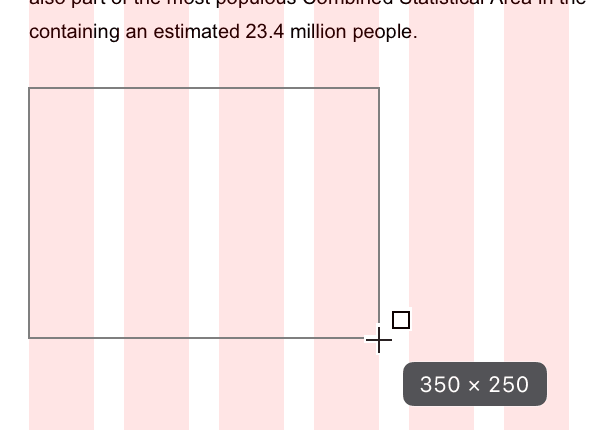
  4. We're creating a three-photo layout that will distribute evenly across our 12-column grid system. To achieve perfect proportions, create a rectangle that spans exactly 4 columns. As shown below, drag a rectangle that is 4 columns wide and approximately 250px tall:

    nyc create rounded rectangle

  5. Hide the layout grid by pressing CTRL–L to focus on the visual refinement process.
  6. Let's transform this rectangle into an elegant rounded rectangle—a popular design pattern in contemporary interfaces. In the Inspector, experiment with the Corners slider to adjust the corner roundness in real-time.

    • For precise control, hover over the rectangle on the artboard and observe the white dots that appear inside each corner. Drag any of these dots to interactively adjust corner roundness.
    • After experimenting with different values, set Corners to 45 in the inspector for a polished, modern appearance.

    NOTE: Here's a professional tip—while dragging any corner dot, hold Cmd to modify only that specific corner! This technique allows you to create asymmetrical corner treatments, adding sophisticated visual interest to your designs.

  7. Position the bridge photo behind the rounded rectangle by dragging it into place. Since we imported the photo first, it should naturally layer behind the shape we just created.
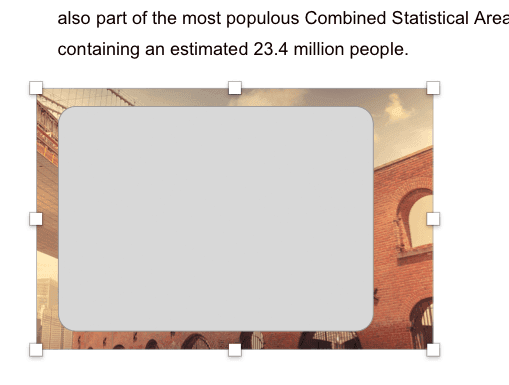
  8. Scale the photo to slightly exceed the rounded rectangle's boundaries by dragging any corner handle. This ensures complete coverage when we apply the mask. Note that Sketch automatically maintains the photo's aspect ratio, so there's no need to hold Shift:

    nyc scale bridge photo

  9. Select both elements by either dragging a selection box around them or clicking on one element, then Shift–clicking the other.
  10. Create the mask using your system's appropriate method:

    • In macOS Big Sur & later: In the Toolbar, click the Tools button tools button and then choose Mask.
    • Prior to macOS Big Sur: In the Toolbar, click the Mask button mask button old.

    NOTE: The layering order doesn't affect the masking operation—Sketch intelligently handles this. Alternatively, you can access this function through Layer > Mask > Mask with Selected Shape from the menu bar.

  11. Click on an empty area of the artboard to deselect and admire your masked photo.
  12. Fine-tune your composition using Sketch's non-destructive editing capabilities:

    • Double–click the photo to select it independently. You can now scale or reposition it within the mask without affecting the mask shape itself.
    • To modify the mask shape, select Mask in the Sidebar. You can then adjust dimensions or corner roundness in the Inspector while maintaining the current width for grid alignment.

    TIP: Once you've selected the photo within a mask group, press Tab to quickly toggle between the photo and its mask—a workflow optimization that seasoned designers rely on daily.

  13. When satisfied with your adjustments, click an empty area to deselect all elements.
  14. Since we've invested effort in perfecting this masked photo's dimensions and styling, we'll duplicate it for efficiency rather than recreating similar elements from scratch. First, press CTRL–L to reveal the column guides.
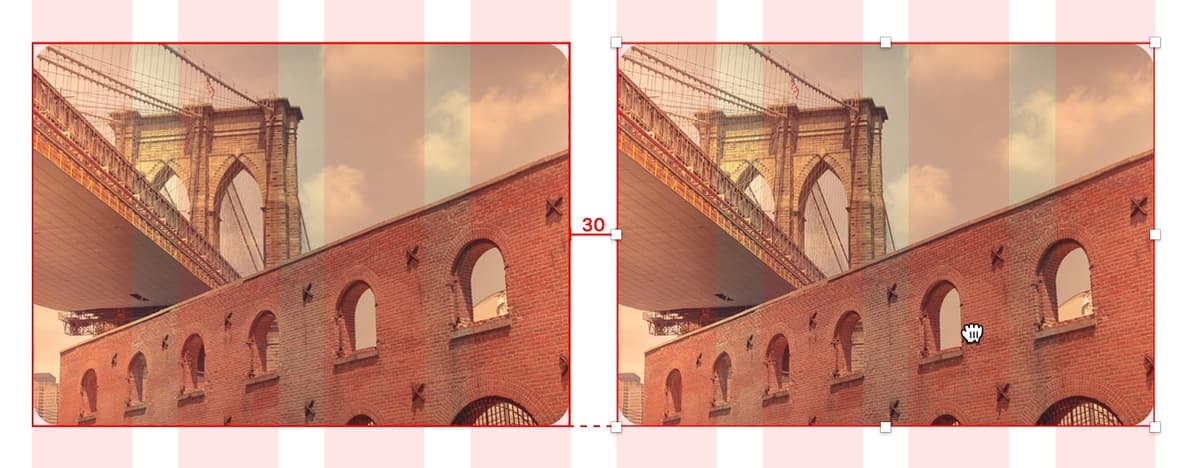
  15. Create the second photo by holding Option–Shift and dragging the masked photo to the right. Release when the left edge aligns precisely with the 5th column, as illustrated below:

    nyc drag to duplicate bridge photo

    NOTE: The Option key creates the duplicate, while Shift constrains movement to a straight line, ensuring perfect horizontal alignment.

  16. With the second photo still selected, press Cmd–D (Edit > Duplicate) to repeat the transformation. Sketch remembers the previous spacing and automatically positions the third photo in the remaining columns.
  17. Press CTRL–L to hide the layout grid and focus on the visual content.
  18. Now let's replace the duplicate bridge images with unique content. Double–click the second photo to select it directly.
  19. Right–click (or Control–click) on the selected photo and choose Replace Image—a non-destructive method that maintains all your masking and sizing work.
  20. If you're not already in the NYC Photos folder, navigate to Desktop > Class Files > Sketch Class > NYC > NYC Photos.
  21. Double–click on skyline.tif. Notice how Sketch seamlessly supports TIFF files alongside other standard formats—perfect for high-quality imagery workflows.
  22. Fine-tune the skyline photo's position and scale within the rounded mask to achieve optimal composition.
  23. Complete the photo series by updating the third image:

    • Double–click on the third photo to select it.
    • Right–click (or Control–click) and choose Replace Image.
    • In the NYC Photos folder, double–click on Central Park.jpg.
    • Adjust positioning and scale to create a cohesive visual narrative across all three images.

Creating the Perfect Mask

1

Set Up Grid Layout

Use CTRL-L to show the layout grid and position your photo for optimal viewing while creating the mask shape.

2

Create Rectangle Shape

Insert a rectangle spanning 4 columns of the 12-column grid, approximately 250px tall for proper proportions.

3

Apply Corner Rounding

Set corner roundness to 45 using the inspector or by dragging the white corner dots that appear on hover.

4

Position and Scale Photo

Scale the photo slightly larger than the rectangle shape to ensure full coverage within the mask area.

5

Create the Mask

Select both elements and use Tools > Mask in Big Sur or the Mask button in earlier versions.

Single Corner Adjustment

Hold Cmd while dragging corner dots to adjust only that specific corner. Each corner can have different roundness values for unique design effects.

Masking vs Cropping

Pros
Non-destructive editing preserves original image
Easy to reposition and rescale within mask
Consistent shape across multiple images
Professional rounded corner effects
Cons
Requires additional layer management
Slightly more complex than simple cropping
Can increase file size with unused image data

Customizing the Amount of Rounding for Each Corner

With our photo layout complete, let's explore advanced corner customization—a technique that adds sophisticated visual hierarchy and modern polish to interface designs.

  1. In the Sidebar, expand the 3 bridge groups to access their individual components.
  2. Under the first bridge group, select the Mask layer.
  3. Hold Command and click on the other 2 Mask layers to select all three simultaneously.
  4. In the Inspector, experiment with the Corners slider and watch all three masks update in real-time—a powerful feature for maintaining design consistency across multiple elements.
  5. Modern web developers frequently implement varying corner radii for sophisticated visual effects, and Sketch enables this same flexibility. In the Inspector's Corners section, click the individual corners button individual corners located to the right of the Rounded menu.
  6. You'll now see four input boxes representing each corner. Apply these values for a contemporary asymmetrical design:

    custom rounded corner amounts

  7. Observe how the top-left and bottom-right corners now feature rounded treatments while the others remain sharp—a popular design pattern in modern interfaces.

    Feel free to experiment with alternative combinations, such as setting the top 2 values to 0 and the bottom 2 values to 30, creating a straight top edge with rounded bottom corners for a unique architectural feel.

Corner Rounding Configuration Example

Top Left
45
Top Right
0
Bottom Left
0
Bottom Right
45
Web Development Alignment

Individual corner rounding in Sketch mirrors CSS border-radius properties, making your designs developer-ready and technically accurate.

Optional Bonus: Renaming Layers

Professional designers understand that organized layer naming is crucial for project scalability and team collaboration. Let's implement a clear naming convention.

  1. To maintain project organization—essential for client work and team collaboration—let's establish a logical naming system. In the Sidebar, ensure all the bridge groups remain expanded.
  2. Double–click on the bridge copy 2 group to make the name editable.
  3. Rename it central-park and press Tab to automatically select the photo layer within the group.
  4. Rename the photo layer to photo for consistency.
  5. On the artboard, select the middle skyline photo.
  6. In the Sidebar, notice that the bridge copy group becomes selected automatically.
  7. Press Cmd–R to quickly rename the selected layer.
  8. Type skyline and press Tab to jump directly to the photo layer within that group.
  9. Rename this photo to photo to maintain naming consistency across all elements.
  10. Collapse all groups in the Sidebar to create a clean, organized layer structure that any team member can navigate efficiently.
  11. Press Cmd–S to save your work—always a critical habit in professional design workflows.
  12. Close the file when you're ready to move on to your next design challenge.

Layer Organization Best Practices

0/4

How to Remove an Unwanted Mask

Sometimes design requirements change, and you'll need to remove masking effects. Here's the clean, professional approach:

  1. In the Sidebar, expand the group containing the mask and select the Mask shape layer.
  2. Press the Delete key to remove the mask while preserving the original image.
  3. The photo remains within a group that's no longer necessary for the design structure. In the Sidebar, select that group.
  4. Press Cmd–Shift–G to ungroup it, returning the photo to its original state.

    NOTE: This operation can also be accessed through Arrange > Ungroup or by clicking the Ungroup button ungroup button in the Toolbar.

Clean Mask Removal Process

1

Select Mask Shape

Expand the group in the sidebar and specifically select the Mask shape element, not the entire group.

2

Delete the Mask

Press Delete key to remove only the mask shape while preserving the original photo.

3

Ungroup Elements

Select the remaining group and use Cmd-Shift-G or Arrange > Ungroup to release the photo from the group structure.

Key Takeaways

1Sketch supports multiple import methods including drag-and-drop for multiple files and menu selection for single files
2Photoshop PSD files import as flattened images, losing layer information but maintaining visual fidelity
3Masking provides non-destructive photo cropping that preserves original image data and allows repositioning
4Individual corner rounding can be customized using Cmd+drag or the four-box corner interface in the inspector
5The 12-column grid system helps create consistent layouts with proper proportions across design elements
6Layer naming conventions should follow web development standards using lowercase and hyphens
7Tab key navigation speeds up layer renaming and selection within mask groups
8Masks can be safely removed by deleting the mask shape and ungrouping the remaining elements

RELATED ARTICLES