April 1, 2026Jerron Smith/9 min read

The Interview: The Source Monitor & Adding B-Roll in Premiere Pro

Master Professional Video Editing with Source Monitor Techniques

Essential Premiere Pro Concepts

A-Roll vs B-Roll

A-roll is your primary footage like interviews, while B-roll provides supporting visuals that illustrate or explain the main content.

Three-Point Editing

Professional technique using three defined points between timeline and source clips to determine precise clip duration and placement.

Source Monitor Workflow

Trim and preview clips before adding to timeline, ensuring efficient editing and precise control over your footage.

Topics Covered in This Premiere Pro Tutorial:

Master essential editing techniques including trimming clips in the Source Monitor, integrating compelling B-Roll footage, working with high-frame-rate slow motion (slowmo) footage, and precise footage scaling for professional results.

Exercise Preview

preview b roll

Exercise Overview

In this exercise, you'll elevate your video content by strategically incorporating b-roll footage that enhances viewer engagement and narrative flow. You'll master the Source monitor's trimming capabilities, enabling you to efficiently prepare clips before placing them on the Timeline. These fundamental skills form the backbone of professional video editing workflows used in broadcast, corporate, and digital media production.

Project Preparation

Ensure you have completed exercises 1B-1C before starting. If not, use the provided backup project file 'The Interview—Ready for B-Roll.prproj' to catch up.

Getting Started

  1. You should still have Your Name—The Interview open in Premiere Pro. If you closed it, re-open it now by going to File > Open Project then Desktop > Class Files > Premiere Pro Class > The Interview. We strongly recommend completing the previous exercises (1B–1C) before starting this one, as they establish the foundational timeline structure you'll build upon. If you haven't finished them, follow the sidebar instructions below.

    Project Setup Process

    1

    Open Existing Project

    Navigate to File > Open Project, then locate Desktop > Class Files > Premiere Pro Class > The Interview

    2

    Verify Prerequisites

    Confirm you've completed previous exercises 1B-1C for proper project continuity

    3

    Save Project Copy

    Use File > Save As to create 'Your Name—The Interview.prproj' in the designated folder

If You Did Not Do the Previous Exercises (1B–1C)

  1. If a project is open in Premiere Pro, go to File > Save, then File > Close Project.
  2. Go to File > Open Project and navigate to Desktop > Class Files > Premiere Pro Class > The Interview.
  3. Double–click on The Interview—Ready for B-Roll.prproj.

  4. Go to File > Save As. Name the file Your Name—The Interview.prproj and save it to Desktop > Class Files > Premiere Pro Class > The Interview.

Trimming Clips in the Source Monitor: Adding B-Roll

A-roll constitutes your primary footage—the main content that drives your narrative forward. In our case, this is the interview footage that forms the spine of your story.

B-roll serves as supplementary footage that enriches your narrative through visual storytelling. When your speaker discusses college life or software functionality, b-roll provides the visual evidence that transforms abstract concepts into concrete, engaging content. Professional editors use b-roll strategically to maintain viewer attention, cover edit points, and add production value to their projects.

When working with extensive b-roll clips, you'll rarely want to use the entire duration. The Source monitor becomes your precision tool for trimming clips to optimal lengths and isolating the most compelling portions before they reach your Timeline. This workflow prevents timeline clutter and maintains editing efficiency.

We'll now employ a three-point edit—a fundamental editing technique that defines three temporal reference points between your Timeline and source clip. This method gives you precise control over clip duration and placement, making it the preferred approach for professional editors working under deadline pressure. The three-point system in video editing ensures consistent, predictable results while maintaining creative flexibility.

  1. In the Timeline, position the playhead at 16:09 (when the speaker finishes saying "books").

  2. Press I on the keyboard to set an In point on the timeline.

  3. Move the playhead to 21:01
  4. Press O to establish the Out point.

  5. In the Project panel, navigate to 01—Video > B-Roll.
  6. Double–click on Book Cover.mp4 to load it into the Source panel (located at the top left of your interface).

  7. In the Source panel, move the playhead to 4:25 (Note that the Source panel displays its own independent timecode, separate from the Timeline's master timecode.)

  8. Press I to mark an In point on the source clip. This completes your three-point edit setup with precise temporal boundaries.

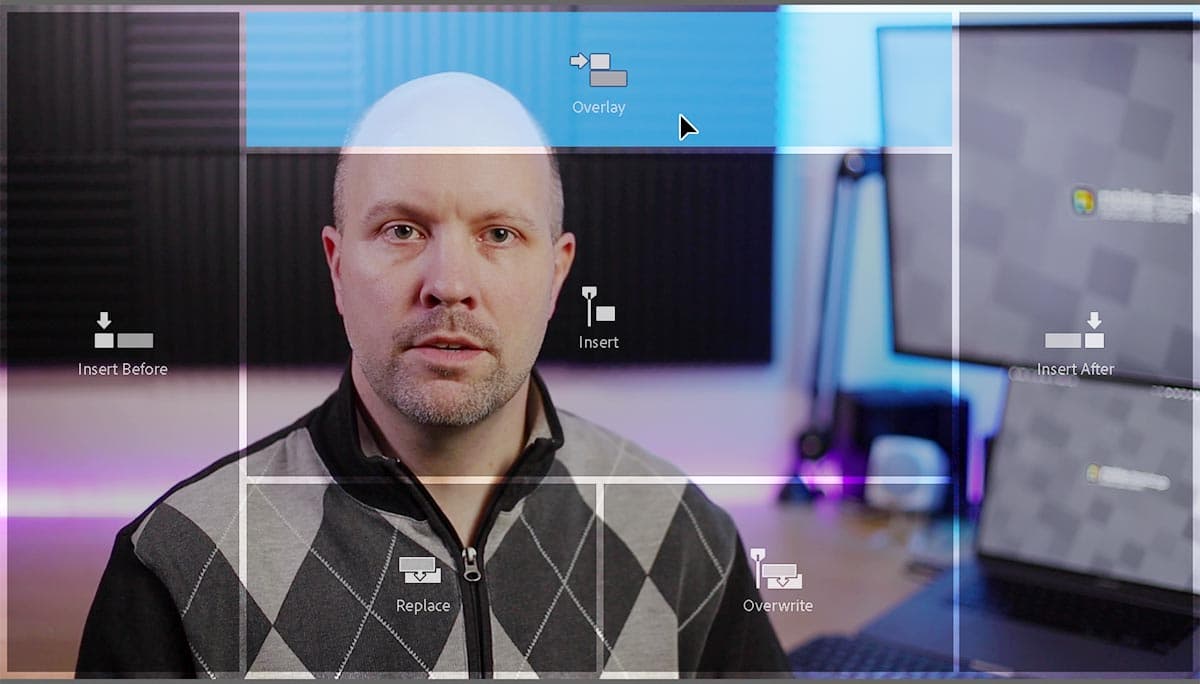
  9. As demonstrated below, drag the Drag Video Only icon drag_video_only from the Source panel to the Program panel and drop it on the Overlay option.
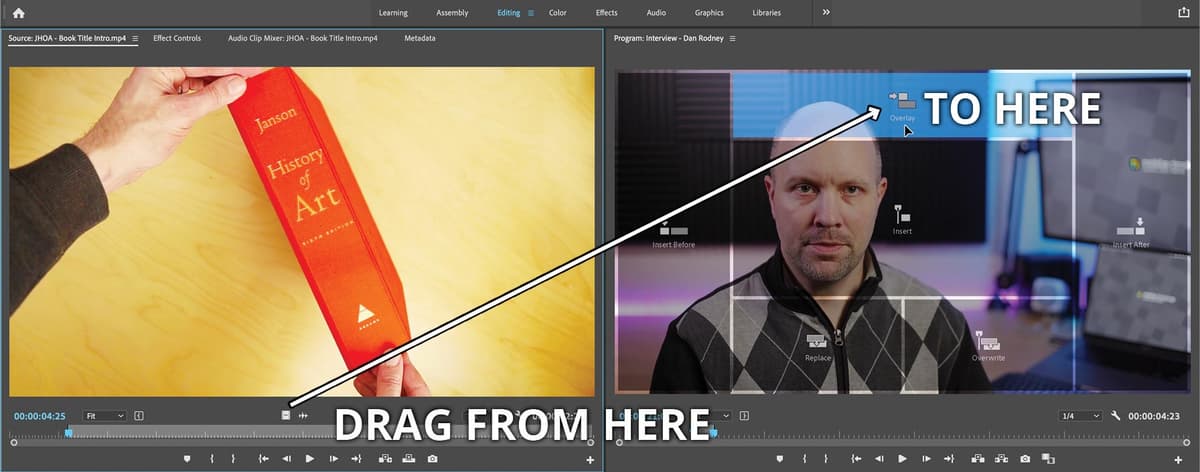
    drag JHOA from source to program overlay

  10. Play from the timeline's beginning through the newly added b-roll footage to review your edit.

    This clip would create stronger visual impact if it concluded on the book title. We can achieve this by reversing the playback direction—a simple but effective technique.

  11. CTRL–click (Mac) or Right–click (Windows) on the Book Cover.mp4 clip in the timeline and select Speed/Duration.

    • In the dialog that appears, check Reverse Speed.
    • Click OK.
  12. Position the playhead just before the Book Cover.mp4 clip and press Spacebar to preview the enhanced sequence.

  13. Save your progress with File > Save or Cmd–S (Mac) or CTRL–S (Windows).

Now that you've mastered basic b-roll integration, let's explore more advanced footage handling techniques, starting with high-frame-rate slow motion material.

Three-Point Edit Workflow

16:09

Set Timeline In Point

Position playhead at 16:09 and press I key

21:01

Set Timeline Out Point

Move to 21:01 and press O key

4:25

Set Source In Point

In Source panel at 4:25, press I key

Complete

Execute Edit

Drag Video Only icon to Program panel Overlay

Reverse Speed Technique

Right-click the Book Cover clip and select Speed/Duration, then check Reverse Speed to make the clip end on the book title for better visual storytelling.

Working with Slow Motion (Slowmo) Footage

Slow motion footage represents one of the most powerful tools in modern video production. This technique involves capturing video at frame rates significantly higher than your project's playback rate—often 120fps, 240fps, or even higher with current camera technology. When this high-frame-rate footage is interpreted at standard playback speeds (typically 24fps, 29.97fps, or 30fps), the result is silky-smooth slow motion that adds cinematic quality to your projects.

Professional filmmakers and content creators increasingly rely on slow motion to emphasize emotional moments, showcase product details, or simply add visual sophistication. However, slow motion footage requires proper interpretation in Premiere Pro to achieve optimal results.

  1. Let's establish our target In Point first. On the Timeline, move the playhead to 21:02 (immediately following the Book Cover clip).

  2. Press I to mark the In point.

  3. We'll now add compelling footage of book pages in motion. In the Project panel, locate the Book Page Flipping—Slomo.mov clip within the B-Roll bin.

  4. Notice that to the right of Book Page Flipping—Slomo.mov the Frame Rate reads 119.99 fps—significantly higher than our sequence's standard rate of 29.97fps.

    This footage was captured at high frame rates specifically to enable smooth slow motion playback. However, Premiere Pro needs explicit instruction to interpret this footage correctly for slow motion results.

  5. Double–click on Book Page Flipping—Slomo.mov to load it into the Source panel.

  6. Press Spacebar to preview the footage in the Source panel, noting it currently plays at normal speed.

  7. In the Project panel, CTRL–click (Mac) or Right–click (Windows) on the Book Page Flipping—Slomo.mov clip and choose Modify > Interpret Footage.

    • Check Assume this frame rate and set it to 29.97 fps.

    • Click OK.

  8. Return to the Source panel and press Spacebar to play the footage, observing the now dramatically slowed, yet perfectly smooth motion.

    NOTE: Attempting to create slow motion from standard frame rate footage (such as 29.97fps) will result in choppy, unprofessional-looking playback. Always shoot at higher frame rates when planning slow motion sequences.

  9. In the Source panel, move the playhead to 22:00

  10. Press I to set the In point.

  11. Still in the Source panel, advance the playhead to 25:29 and press O to mark the Out point.

  12. Drag the Drag Video Only icon drag_video_only to the Program panel and drop it onto Overlay.

  13. Play through the Timeline to review both b-roll segments and their combined narrative impact.

With your slow motion technique mastered, let's address another common challenge: working with footage of varying dimensions and aspect ratios.

Frame Rate Comparison

FeatureOriginal FootageSequence Setting
Frame Rate119.99 fps29.97 fps
Playback SpeedNormal (too fast)Slow Motion (smooth)
QualityHigh frame dataProfessional output
Recommended: Use Modify > Interpret Footage to set high frame rate clips to 29.97 fps for smooth slow motion

Slow Motion Setup Process

1

Identify High Frame Rate

Locate clip showing 119.99 fps in Project panel - much higher than sequence 29.97 fps

2

Interpret Footage

Right-click clip, choose Modify > Interpret Footage, set to 29.97 fps

3

Set Precise Timing

Mark In point at 22:00 and Out point at 25:29 in Source panel

Changing the Size of Footage (Scaling It)

Modern video production involves content from multiple sources—smartphones, professional cameras, screen recordings, and stock footage—each potentially shot at different resolutions and aspect ratios. Professional editors must seamlessly integrate these varied sources while maintaining visual consistency throughout their projects.

The Effect Controls panel provides precise control over your clips' transform properties, allowing you to scale, position, and rotate footage with mathematical precision. This capability proves essential when working with mixed media or when creative requirements demand specific framing adjustments.

  1. In the Timeline, move the playhead to 1:27:00 and press I to mark the In point.

    This marks the moment Dan begins discussing Premiere Pro—perfect timing for relevant software demonstration footage.

  2. Move the playhead to 1:31:13 and press O to set the Out point.

  3. In the Project panel, double–click on Premiere Demo.mp4 to load it into the Source panel.

  4. In the Source panel, navigate to 15:15

  5. Press I to mark the In point.

  6. Drag the Drag Video Only button (or the Source panel's video preview) to the Program panel and drop it onto Overlay.

  7. In the Timeline, navigate to 1:27:00 to review the beginning of your newly added clip.

  8. In the Program panel, observe that the new b-roll doesn't completely fill the frame—you'll notice the underlying video visible on the left and right edges. We'll scale this footage to eliminate these gaps and create seamless coverage.

  9. In the Timeline, click on the Premiere Demo clip to select it.

  10. Access the Effect Controls panel (located at the top left, adjacent to the Source panel tab).

  11. If necessary, click the arrow next to Motion to reveal the transform settings.

  12. Locate the Scale parameter and hover your cursor over the blue number displaying 100. Your cursor will transform into a hand icon.

  13. Drag to the right to increase the scale value while monitoring the Program panel to observe the real-time changes.

    NOTE: You can also click directly on the blue number and input a specific value for precise control. We recommend approximately 108 for this footage.

  14. Save your work using File > Save or Cmd–S (Mac) or CTRL–S (Windows).

You've now mastered the core techniques for professional b-roll integration. If time permits, the following optional section will reinforce these skills through additional practice.

Footage Size Mismatch

When B-roll doesn't fully cover the underlying video, use the Effect Controls panel to adjust the Scale property and eliminate visible gaps.

Scaling Workflow

1

Position Timeline

Set In point at 1:27:00 and Out point at 1:31:13 for Premiere Pro demo section

2

Add B-Roll Clip

Load Premiere Demo.mp4 in Source panel, set In point at 15:15, drag to timeline

3

Adjust Scale

Select clip, open Effect Controls, drag Scale value from 100 to 108 to fill gaps

Optional Bonus If You Have Time: Adding More B-Roll

  1. On the Timeline, move the playhead to 1:31:14 and press I to mark the In point.
  2. Move the playhead to 1:35:24 and press O to mark the Out point.
  3. In the Project panel, double–click After Effects Demo.mp4 to load it into the Source panel.
  4. In the Source panel, move the playhead to 0:10
  5. Press I to mark the In point.
  6. Drag the Drag Video Only button (or the Source panel's video preview) to the Program panel and drop it onto Overlay.
  7. Continue building your b-roll narrative using the following reference table. This systematic approach mirrors professional editing workflows where editors work from detailed shot lists and timing sheets:

    Timeline In Point Timeline Out Point Clip Name Clip In Point
    1:42:00 1:58:25 Dan Teaching.mp4 3:25
    1:07:21 1:15:14 Photoshop Demo.mp4 9:20
    1:15:15 1:21:22 Illustrator Demo.mp4 14:00
    1:21:23 1:26:29 InDesign Demo.mp4 49:25
  8. Complete your session by saving your project: File > Save or Cmd–S (Mac) or CTRL–S (Windows).

B-Roll Clips Distribution

After Effects Demo
4
Dan Teaching
16
Photoshop Demo
8
Illustrator Demo
6
InDesign Demo
5

Advanced B-Roll Implementation

0/4

Key Takeaways

1Three-point editing technique provides precise control over clip duration by defining three points between timeline and source footage
2B-roll footage enhances storytelling by providing visual context and supporting the primary A-roll interview content
3Source Monitor allows for efficient clip trimming and preview before adding to timeline, improving workflow efficiency
4High frame rate footage requires interpretation adjustment from 119.99 fps to 29.97 fps for smooth slow motion playback
5Effect Controls panel Scale property resolves footage size mismatches by adjusting clip dimensions to fill frame gaps
6Reverse speed technique can improve visual storytelling by changing clip direction to end on key visual elements
7Systematic approach to timeline positioning using keyboard shortcuts (I for In, O for Out) ensures precise editing
8Regular project saving after major edits prevents work loss and maintains project integrity throughout complex workflows

RELATED ARTICLES