April 1, 2026Jerron Smith/9 min read

The Interview: Intro to Premiere Pro

Master Professional Video Editing with Adobe Premiere Pro

Core Premiere Pro Concepts You'll Learn

Project Organization

Learn to structure your media files using bins and proper naming conventions for efficient workflow management.

Sequence Creation

Understand how to create sequences that match your footage settings and serve as your editing canvas.

Professional Editing

Master the fundamentals of A-roll and B-roll editing to create engaging interview content.

Topics Covered in This Premiere Pro Tutorial:

Importing Files, Organizing the Project, Creating a Sequence, the Editing Workspace, Timecode

Exercise Preview

preview interview intro

Exercise Overview

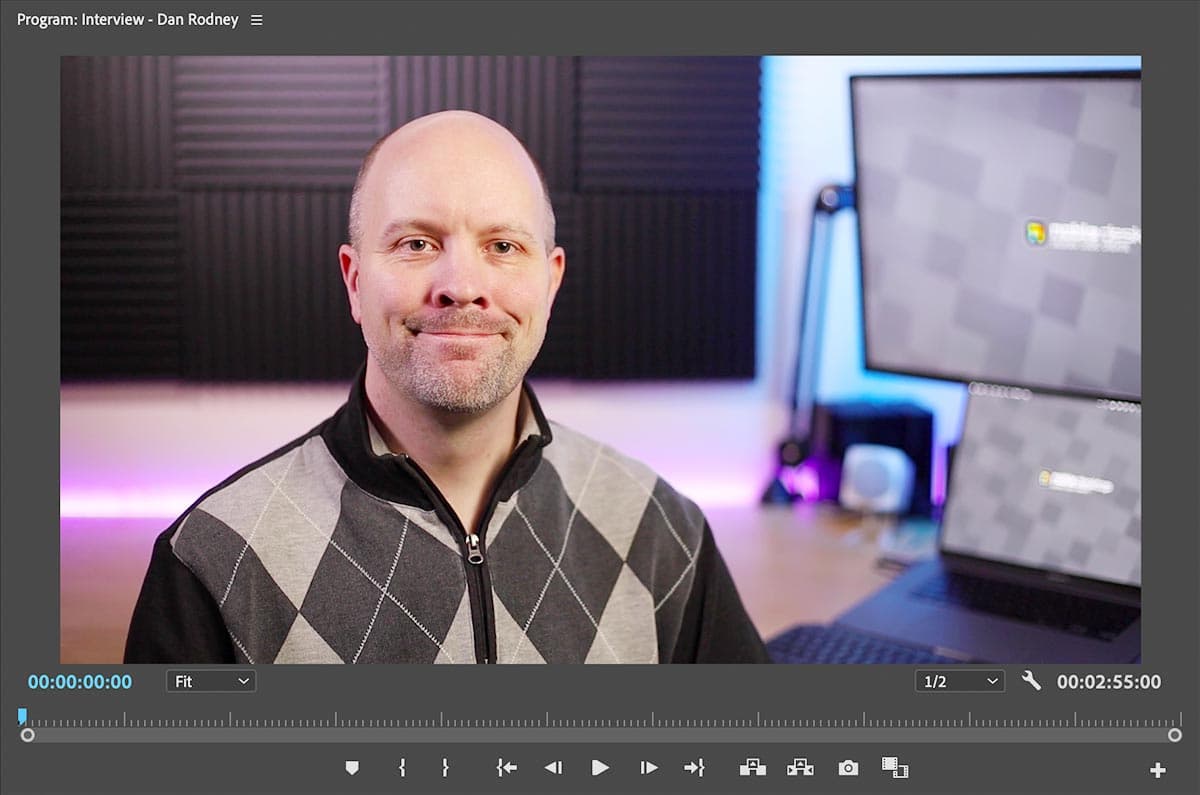
In this exercise, you'll tackle one of the most fundamental projects in professional video production: the single-subject interview. This format remains a cornerstone of corporate communications, documentaries, and digital content across industries. Our subject, Dan Rodney, provides insights into his design background, the evolving creative landscape, and the essential software tools that drive modern design workflows. This exercise will establish core competencies that every video editor needs to master, from efficient project organization to creating compelling interview-based content that holds viewer attention.

Project Focus

This tutorial centers on editing a documentary-style interview featuring Dan Rodney discussing design industry changes and software tools. You'll learn to combine talking head footage with supplementary B-roll footage.

Previewing the Final Video

  1. Before diving into the technical workflow, let's examine the polished result you'll be creating. If Premiere Pro is currently open, minimize it but keep it running in the background.

  2. Navigate to your project assets by opening Class Files > Premiere Pro Class > The Interview > Preview Movie and double-click Interview—Dan Rodney.mp4 to launch the preview.

  3. As you watch, pay attention to these key editorial techniques:

    • The foundation is a classic "talking head" interview setup—professional, clean, and focused on the subject's expertise.
    • Strategic cutaway shots break up the static interview format, illustrating the speaker's points and maintaining visual engagement—a technique essential for holding modern audiences' attention.
  4. Watch the preview multiple times to internalize the pacing and flow. We'll reconstruct this piece step-by-step across several exercises, building your technical skills while developing your editorial eye.

  5. Close the preview when you're ready to begin the hands-on work.

Getting Started

Now let's establish your project foundation with proper setup and organization—critical habits that distinguish professional editors from amateurs.

  1. Return to Premiere Pro. If you've closed the application, relaunch it now.

  2. Create your new project by selecting File > New > Project, or click the New Project button prominently displayed on the Home screen's left panel.

  3. In the Project Name field at the top left, enter Your Name—The Interview. This naming convention helps maintain project clarity in professional environments where multiple editors may access shared assets.

  4. Establish proper file organization by clicking the Project location dropdown and selecting Choose Location.

    • Navigate through Desktop > Class Files > Premiere Pro Class and select the The Interview folder as your project home.

    • Confirm your selection by clicking Choose (Mac) or Select Folder (Windows).

  5. Configure your project settings in the right panel by disabling these options:

    • Turn off Copy media (keeps file sizes manageable and prevents unnecessary duplication).
    • Turn off New bin (we'll create custom organizational bins manually).
    • Turn off Create new sequence (we'll build sequences based on our specific media requirements).

    NOTE: Premiere Pro remembers these preferences across sessions, so future projects will inherit these optimized settings.

  6. Click Create in the bottom right to initialize your project.

  7. Establish a consistent workspace by navigating to Window > Workspaces > Editing. This ensures you're working with the industry-standard panel layout optimized for editorial tasks.

  8. Complete your workspace setup with Window > Workspaces > Reset to Saved Layout. This command restores all panels to their default positions and proportions, eliminating any previous customizations that might interfere with this tutorial's instructions.

Project Setup Workflow

1

Create New Project

Name your project and select the correct location folder for organized file management

2

Configure Settings

Turn off Copy media, New bin, and Create new sequence for manual control over project structure

3

Reset Workspace

Use Window > Workspaces > Editing and Reset to Saved Layout for consistent interface

Importing Files

Effective media management begins with intelligent importing strategies. Premiere Pro's import system handles everything from individual assets to complex folder hierarchies, and mastering these techniques will streamline every project you tackle. The key is understanding how different import methods affect your project organization and workflow efficiency.

  1. Initiate the import process through File > Import. Professional editors often prefer the keyboard shortcut Cmd–I (Mac) or Ctrl–I (Windows) for speed. You can also double-click any empty area in the Project panel to open the Import dialog—a handy technique when working quickly.

  2. Navigate to Desktop > Class Files > Premiere Pro Class > The Interview and execute a folder-level import:

    • Click once on the Media folder to highlight it. Resist the urge to double-click into the folder—we want the entire folder structure.

    • Click Import (Mac) or Import Folder (Windows) to bring in all contents.

    NOTE: Folder importing is a powerful workflow accelerator. Premiere Pro automatically converts folder structures into bins (its organizational containers), preserving your file hierarchy. The system makes one intelligent exception: folders containing only a single item are flattened to avoid unnecessary nesting, though the file itself is still imported.

  3. Switch to list view by clicking the list view icon listview at the bottom left of the Project panel. List view dramatically improves bin management efficiency and provides better visibility into your media metadata.

  4. Expand the Media bin by clicking the disclosure arrow arrow expand bin to reveal the imported folder structure.

  5. Create a dedicated audio bin by dragging interview_audio.wav to the New Bin button new_bin in the bottom right of the Project panel.

    • Rename this bin 02—Audio. The numbering system ensures logical sorting and quick navigation.
  6. Rename the Video bin for consistency: click to select it, then press Return (Mac) or Enter (Windows) to enable editing mode.

    • Change the name to 01—Video, maintaining our numerical organization system.
  7. Apply the same renaming process to the Images bin: select it and press Return (Mac) or Enter (Windows).

    • Rename it 03—Images to complete your organized structure.
  8. Expand the 01—Video bin using the disclosure arrow arrow expand bin to access the video assets within.

  9. Create a specialized bin for your primary interview footage: Ctrl–click (Mac) or Right–click (Windows) on Main Interview.mp4 and select New Bin From Selection.

    • Name this new bin A—Roll, establishing the foundation of your editorial structure.
  10. Clean up your project hierarchy by collapsing the 01—Video and 02—Audio bins, then:

    • Drag all three organized bins (01—Video, 02—Audio, and 03—Images) out of the Media parent bin to the root level of your project.
    • Select the now-empty Media bin and delete it using Delete (Mac) or Backspace (Windows).
  11. Optimize your project view by clicking the Name column header to sort alphabetically, making asset location predictable and efficient.

  12. Improve readability by dragging the divider between the Name and Frame Rate column headers to the right, expanding the Name column width. This adjustment accommodates longer, more descriptive clip names that are common in professional projects.

  13. Save your organized project structure with File > Save or the keyboard shortcut Cmd–S (Mac) / Ctrl–S (Windows). Regular saving prevents work loss and is essential professional practice.

Efficient Import Method

Import entire folders instead of individual files. Premiere Pro automatically converts folders into bins, preserving your file structure and saving time.

File Organization Checklist

0/4

A-roll and B-roll

Understanding A-roll and B-roll is fundamental to professional video editing and remains as relevant in 2026 as ever, despite evolving content formats and platforms. A-roll represents your primary narrative footage—the main interview, key dialogue, or central action that drives your story forward. This is typically your most important content, shot with careful attention to audio quality, lighting, and framing. B-roll serves as supplementary footage that enhances, illustrates, and provides visual variety to your primary narrative. This includes establishing shots, cutaways to relevant imagery, hands-on demonstrations, or environmental context that supports your subject's statements. The strategic integration of B-roll transforms static interviews into dynamic, engaging content that holds viewer attention across all platforms, from traditional broadcast to social media and streaming services. Modern audiences, conditioned by rapid-fire content consumption, expect this visual variety—making B-roll not just helpful, but essential for professional-quality productions.

A-roll vs B-roll Footage

FeatureA-rollB-roll
PurposePrimary contentSupplementary footage
Content TypeMain interview/talking headEstablishing shots, illustrations
Screen TimeMajority of videoStrategic cutaways
FunctionDelivers core messageBreaks monotony, enhances story
Recommended: Use B-roll strategically to create dynamic, engaging videos that maintain viewer attention throughout longer interview segments.

Creating a Sequence

Sequences are the creative workspace where your editorial vision comes to life. Think of a sequence as your digital cutting room—a timeline where video, audio, images, and effects combine to tell your story. Each sequence carries specific technical properties including dimensions, frame rate, and color space that must accommodate your source material while meeting your delivery requirements.

  1. Access your primary footage by expanding the 01—Video > A-Roll bin structure using the disclosure arrows arrow expand bin.

  2. Create your sequence foundation by dragging Main Interview.mp4 from the A-Roll bin directly into the empty Timeline panel. This technique automatically generates a new sequence optimized for your source footage's specifications—a time-saving approach that ensures technical compatibility from the start.

  3. Optimize your timeline visibility using Shift + Plus (+) to expand all track heights simultaneously. This keyboard shortcut provides better visual control over your audio waveforms and video thumbnails, essential for precise editing. Use Shift + Minus (-) to reduce track heights when you need more tracks visible, or fine-tune individual track heights by dragging the borders between track headers.

    You can also adjust track heights using the vertical scroll controls on the Timeline's right edge—useful when working with complex, multi-track projects.

  4. Organize your sequence at the project's root level by dragging the Main Interview sequence (the timeline icon, not the Main Interview.mp4 media file) out of the A-Roll bin and into the main project area. This placement makes your sequence easily accessible and prevents it from being buried in your media organization structure.

  5. Apply professional naming conventions by Ctrl–clicking (Mac) or Right–clicking (Windows) the Main Interview sequence and selecting Rename.

  6. Change the sequence name to Interview—Dan Rodney, matching your final deliverable and making project intent immediately clear to other collaborators.

  7. Test your sequence by clicking into the Timeline panel to ensure it's active, then pressing Spacebar to begin playback. The spacebar serves as your primary playback control throughout Premiere Pro—press it again to pause. This simple test confirms your sequence is properly configured and your media is correctly linked.

  8. Preserve your work with File > Save or Cmd–S (Mac) / Ctrl–S (Windows). Maintain this project file as it will serve as the foundation for subsequent exercises in this tutorial series.

Sequence Best Practice

Always create sequences from your primary footage clip. This ensures the sequence settings automatically match your main content, avoiding conforming issues later.

Sequence Creation Process

1

Drag Primary Clip

Drag Main Interview.mp4 from A-Roll bin directly into empty Timeline panel

2

Expand Track Heights

Use Shift + Plus key to expand all video and audio tracks for better visibility

3

Organize and Rename

Move sequence out of bin and rename to descriptive title for easy identification

Understanding Timecode

Timecode serves as the universal language of video production, providing frame-accurate navigation and synchronization across all professional workflows. The standard format reads as hours : minutes : seconds : frames, so 01:02:03:04 represents precisely 1 hour, 2 minutes, 3 seconds, and 4 frames into your content. This SMPTE (Society of Motion Picture and Television Engineers) standard remains unchanged in 2026, ensuring compatibility across all professional video editing applications and broadcast systems.

Timecode operates on a hierarchical counting system: frames accumulate to form seconds, seconds build into minutes, and minutes construct hours. The frame count per second depends on your project's frame rate (measured in FPS - Frames Per Second), with common rates including 24fps for film, 30fps for broadcast television, and variable rates for web content optimized for different platforms.

You'll encounter two timecode display formats that indicate different counting methods. Colons separating the numbers (01:02:03:04) indicate non-drop frame timecode, which counts every frame sequentially. Semi-colons (01:02:03;04) indicate drop frame timecode, which periodically skips frame numbers (but not actual frames) to maintain sync with real-world clock time. This distinction becomes crucial when delivering content for broadcast or when precise timing requirements matter for your project deliverables.

SMPTE Timecode Format

Professional timecode follows hours:minutes:seconds:frames format. Example: 01:02:03:04 represents 1 hour, 2 minutes, 3 seconds, and 4 frames.

Timecode Components

Frame Rate Dependency

The frames component depends on your project's FPS setting. Higher frame rates mean more frames per second.

Visual Indicators

Colons indicate non-drop frame timecode, while semi-colons indicate drop frame timecode for broadcast standards.

Navigation Tool

Timecode serves as your primary navigation method for precise editing and positioning in professional workflows.

Key Takeaways

1Proper project organization with numbered bins and clear naming conventions streamlines the entire editing workflow
2Importing entire folders preserves file structure and automatically creates corresponding bins in Premiere Pro
3A-roll serves as primary content while B-roll provides supplementary footage to break up monotonous talking head shots
4Creating sequences from your primary footage clip ensures automatic matching of sequence settings to your main content
5The Editing workspace provides the optimal panel layout for most video editing tasks and should be reset for consistency
6SMPTE timecode format enables precise navigation using hours:minutes:seconds:frames structure
7Track height adjustment using Shift+Plus/Minus keys improves visibility and editing precision in the Timeline
8Professional video editing requires understanding both technical aspects like timecode and creative concepts like A-roll/B-roll integration

RELATED ARTICLES