April 1, 2026Jerron Smith/10 min read

The Interview: Fixing Audio/Color & Making Edits in Premiere Pro

Master Professional Video Editing in Premiere Pro

What You'll Master in This Tutorial

Color Correction

Learn to fix common color issues like red tints using Lumetri Color panel. Master white balance adjustments for professional-looking footage.

Audio Enhancement

Remove background noise and hums using Essential Sound presets. Apply dynamics and AutoGate for crystal clear dialogue.

Timeline Editing

Cut, split, and arrange clips efficiently. Use Razor tool and ripple delete to create seamless edits.

Topics Covered in This Premiere Pro Tutorial:

Master essential post-production fundamentals: Color Correction, Audio Enhancement (Background Noise Removal), Timecode Navigation, Linked Audio-Video Management, and Advanced Timeline Editing Techniques

Exercise Preview

timeline_cutting

Exercise Overview

In this comprehensive exercise, you'll transform raw interview footage into professional-quality content by enhancing color accuracy and audio clarity, then strategically editing out unwanted segments. These foundational skills form the backbone of professional video post-production workflows used across the industry today.

Best Practice Order

Always perform global adjustments like color and audio fixes before cutting up clips on the timeline. This saves time and ensures consistency across all segments.

Getting Started

  1. Ensure you have Your Name—The Interview project open in Premiere Pro. If you've closed it, reopen by navigating to File > Open Project then Desktop > Class Files > Premiere Pro Class > The Interview. We strongly recommend completing the previous exercise (1B) before proceeding, as this exercise builds directly upon those foundations. If you haven't completed it, follow the sidebar instructions below.

    Project Setup Process

    1

    Open Existing Project

    Navigate to File > Open Project then locate The Interview project in your Class Files directory

    2

    Verify Previous Exercise

    Ensure Exercise 1B is completed or follow the alternative setup instructions

    3

    Save Your Version

    Use File > Save As to create your personalized project file

If You Did Not Complete the Previous Exercise (1B)

  1. If a project is currently open in Premiere Pro, save your work via File > Save, then close it using File > Close Project.
  2. Navigate to File > Open Project and locate Desktop > Class Files > Premiere Pro Class > The Interview.
  3. Double-click The Interview—Ready for Work.prproj to open the prepared project file.

    NOTE: If you encounter a Converting Project dialog (indicating an older version), consult the Fixing Version Compatibility Issues section in Exercise 1A. Should the Link Media dialog appear, refer to Locating Missing Media in Exercise 1A.

  4. Save your working copy by selecting File > Save As. Name it Your Name—The Interview.prproj and save it to Desktop > Class Files > Premiere Pro Class > The Interview.

Fixing Color

Before diving into editorial cuts, establishing proper color and audio baselines is crucial for maintaining consistency throughout your project. This interview footage exhibits a common issue: a subtle red color cast that affects skin tone accuracy. Additionally, there's persistent background hum—likely from HVAC systems or equipment fans—that degrades audio quality. These technical imperfections are typical in real-world production environments, but Premiere Pro's built-in correction tools can address them efficiently. Addressing these global issues first ensures that all subsequent edits maintain consistent technical standards.

  1. Position the playhead at the Timeline's beginning to establish your starting reference point.
  2. In the Tools panel, select the Selection tool tool_selection (or press V for quick access).
  3. Click the Main Interview clip in the Timeline to select it for color correction.
  4. Switch to the color correction workspace by choosing Window > Workspaces > Color. This optimizes your panel layout for color grading workflows.
  5. Reset your workspace to ensure consistent panel positioning by selecting Window > Workspaces > Reset to Saved Layout.
  6. In the Lumetri Color panel on the right, locate and expand the Basic Correction section if it's not already visible.
  7. Within the White Balance section, make these precise adjustments:

    • Temperature to -15 (reduces excessive warmth)
    • Tint to -1 (neutralizes magenta cast)

    These adjustments counteract the red color cast, resulting in more natural, broadcast-standard skin tones that will reproduce accurately across different viewing devices.

Before vs After Color Correction

FeatureBefore AdjustmentAfter Adjustment
Temperature SettingDefault (0)-15
Tint SettingDefault (0)-1
Red Tint IssueVisible in skin toneCorrected and natural
Recommended: These specific values reduce the red tint commonly found in indoor lighting conditions

Color Correction Workflow

0/4

Fixing Audio

Now we'll address the audio issues that can make even visually perfect content unwatchable. Professional audio quality is non-negotiable in today's content landscape—viewers will tolerate minor visual imperfections but will quickly abandon content with poor audio.

  1. Click within the Timeline panel to ensure it has focus for playback controls.
  2. Press the Spacebar to play the footage and listen carefully—you'll detect a persistent low-frequency hum characteristic of HVAC interference.
  3. Switch to the audio-optimized workspace by selecting Window > Workspaces > Audio. This configuration provides dedicated panels for audio editing and monitoring.
  4. Ensure optimal panel arrangement by choosing Window > Workspaces > Reset to Saved Layout.
  5. Select the Main Interview clip in the Timeline to target it for audio processing.
  6. In the Essential Sound panel, verify you're on the Edit tab for access to audio enhancement tools.
  7. Navigate to the Preset menu and select Dialogue > Clean Up Noisy Dialog.

    This intelligent preset applies multiple audio processors specifically calibrated for dialogue enhancement, including noise reduction, dynamic range optimization, and spectral cleaning algorithms.

  8. Return the playhead to the Timeline's beginning for consistent reference.
  9. Press Spacebar to audition the processed audio. You'll immediately notice the background hum is significantly reduced while the speaker's voice is clearer and more present.

    While the improvement is substantial, some residual background noise and occasional breath sounds remain audible. Let's refine this further with additional processing.

  10. Access the Effects panel on the left side of your interface.
  11. Type Dynamics in the Effects panel's search field to quickly locate this essential audio processor.
  12. Drag the Dynamics effect directly onto the Timeline clip to apply advanced audio control.

  13. Open the Effect Controls panel via Window > Effect Controls to access detailed parameter adjustment.

  14. Scroll to locate the Dynamics effect in the Effect Controls panel.

    NOTE: Click the disclosure arrow beside Dynamics if the parameters aren't visible.

  15. Click the Edit button adjacent to Custom Setup to access the advanced audio processing interface.

  16. In the Clip FX Editor, activate the AutoGate switch to enable intelligent noise gating.

  17. Set the AutoGate's Threshold to -30 dB.

    This threshold setting ensures that low-level background noise is automatically suppressed during pauses while preserving natural speech dynamics. For complex audio post-production projects requiring more sophisticated processing, consider using Adobe Audition, Adobe's dedicated audio editing application that integrates seamlessly with Premiere Pro workflows.

  18. Close the Clip FX Editor interface.

    NOTE: Click the red close button (macOS) or the X button (Windows) in the panel's upper corner.

  19. Navigate the playhead to the Timeline's beginning.

    PRO TIP: Use Home and End keys on extended keyboards for instant playhead positioning at timeline boundaries.

  20. Press Spacebar to evaluate your enhanced audio—the combination of preset processing and custom gating delivers broadcast-quality dialogue.
  21. Save your progress with File > Save or the keyboard shortcut Cmd–S (Mac) / Ctrl–S (Windows).

Audio Enhancement Tools

Clean Up Noisy Dialog Preset

Automatically reduces background noise and boosts dialogue volume. Perfect for fixing fan noise and air conditioning hums.

Dynamics Effect with AutoGate

Advanced noise reduction tool. Set threshold to -30db to eliminate breathing sounds and remaining background hum.

Professional Audio Cleanup Process

1

Apply Dialog Preset

Use Essential Sound panel to select Clean Up Noisy Dialog preset for initial noise reduction

2

Add Dynamics Effect

Drag Dynamics from Effects panel to clip for advanced control over audio levels

3

Configure AutoGate

Set AutoGate threshold to -30db to eliminate breath sounds and residual noise

Professional Audio Tip

For advanced audio editing needs, consider using Adobe Audition which provides specialized tools for professional audio post-production.

Cutting up Clips on the Timeline

With your technical foundation established through color correction and audio enhancement, we now move into the creative editorial phase. Effective interview editing requires strategic content removal while maintaining narrative flow and natural pacing. You'll master three essential cutting tools: the Razor tool for precise cuts, the Ripple Edit tool for gap-free trimming, and the Add Edit command for keyboard-driven efficiency. These techniques form the foundation of all professional editing workflows.

  1. Return to the general editing workspace by selecting Window > Workspaces > Editing. This interface provides optimal access to video editing tools and timeline navigation.

  2. Position the playhead at the Timeline's beginning to start your edit from the content's natural starting point.

  3. Increase timeline magnification by pressing the + (plus) key twice—this enhanced view reveals audio waveforms that guide your editorial decisions.
  4. Play the footage by pressing Spacebar and observe the dead air before the speaker begins. This pre-roll silence, while useful during recording, creates unprofessional pacing in the final edit.

    NOTE: The Audio 1 track's waveform visualization clearly shows this inactive audio region as a flat line—use this visual reference to identify optimal cut points.

  5. Navigate the playhead precisely to the 2:00 timecode position.

    NOTE: For efficiency, we'll abbreviate timecode notation by omitting leading zeros (e.g., "2:00" rather than "00:00:02:00") to focus on the most relevant temporal information.

  6. Select the Ripple Edit tool tool_ripple_edit from the Tools panel.

    NOTE: Press B for instant Ripple Edit tool access—mastering keyboard shortcuts significantly accelerates your editing workflow.

  7. Position your cursor over the Main Interview clip's beginning. When the right-facing bracket cursor left yellow bracket appears, drag the clip's start point to align with the playhead.

    The Ripple Edit automatically eliminates gaps by sliding subsequent content leftward—this maintains continuous timeline flow while removing unwanted material.

  8. Return the playhead to the Timeline's beginning to evaluate your edit.
  9. Press Spacebar to confirm the improved pacing—the speaker now begins speaking immediately, creating more engaging content flow.
  10. Reduce timeline magnification by pressing – (minus) twice to expand your view for broader editorial perspective.
  11. Navigate to timecode 17:05—this position precedes a problematic pause and verbal error that disrupts the interview's flow.

  12. Select the Razor tool tool_razor for precise clip division.

  13. Click directly where the blue playhead intersects the clip to create your first cut point.

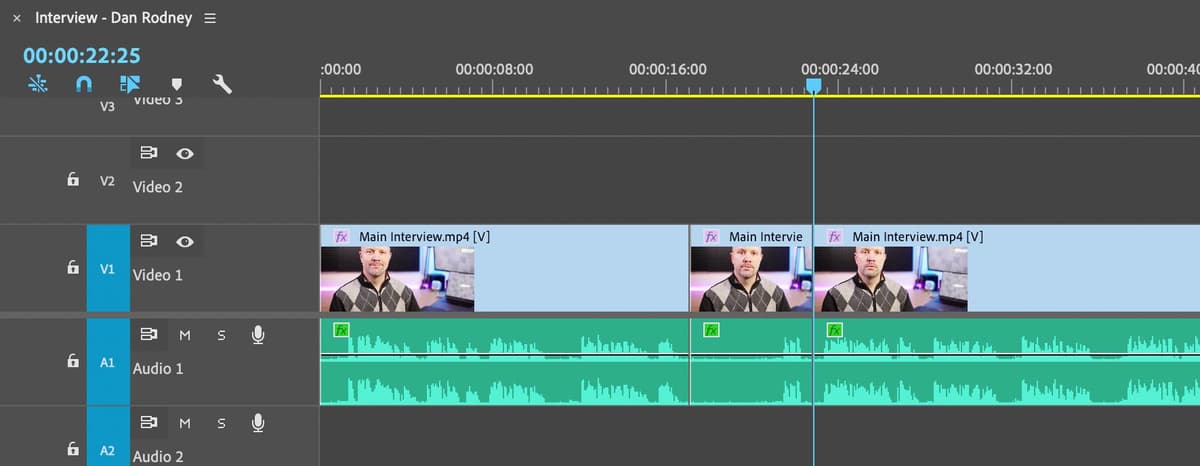
  14. Move to timecode 22:25 to establish the problematic section's end point.

  15. Make your second Razor cut at this position, creating three distinct clips on your timeline.

    timeline_cutting

  16. Ctrl-click (Mac) or Right-click (Windows) the middle clip containing the unwanted pause and error, then select Ripple Delete.

    This command removes the selected content while automatically closing the resulting gap—maintaining timeline continuity without manual adjustment.

  17. Press Shift–K to execute the Play Around command, which previews several seconds before and after your current position.

    NOTE: This edit creates a "jump cut"—an abrupt visual discontinuity that can distract viewers. While we're prioritizing content flow in this exercise, professional projects typically address these jumps with cutaway shots, graphics, or alternative coverage. You'll learn jump cut solutions in subsequent exercises.

  18. Navigate to timecode 22:05 to demonstrate an alternative cutting method.
  19. Press Cmd–K (Mac) or Ctrl–K (Windows) to execute the Add Edit command—this keyboard-driven approach enables rapid cutting without tool switching.
  20. Move to 26:00 and repeat the Add Edit command.
  21. Return to the Selection tool tool_selection (press V) for standard selection operations.
  22. Click the short clip segment to the left of your playhead position.
  23. Execute a keyboard-driven Ripple Delete using Opt–Delete (Mac) or Alt–Backspace (Windows) to remove the selected content seamlessly.
  24. Press Shift–K to preview your latest edit and confirm smooth content flow.
  25. Remove the tangential discussion about Adobe XD that disrupts the interview's focus:

    • Position playhead at 1:27:00 and cut using Cmd–K (Mac) or Ctrl–K (Windows).

    • Move to 1:37:20 and make your second cut.

    • Select and Ripple Delete the unwanted segment using Opt–Delete (Mac) or Alt–Backspace (Windows).

  26. Eliminate the confusing "one type of design" reference that lacks context:

    • Cut at 1:42:00 using Cmd–K (Mac) or Ctrl–K (Windows).

    • Cut at 1:45:10 and Ripple Delete the middle segment.

  27. Remove the vague "new things" discussion that doesn't advance the narrative:

    • Cut at 1:51:10 using the Add Edit command.

    • Cut at 2:05:15 and remove the intervening content via Ripple Delete.

  28. Delete the redundant take on "what type of design are you interested in" to eliminate repetition:

    • Cut at 1:58:25 and 2:12:00.

    • Ripple Delete the duplicate content between these points.

  29. Press the \ (backslash) key to fit the entire Timeline in your program monitor—this overview reveals your edit's overall structure and pacing.
  30. Return the playhead to the beginning for a comprehensive review.
  31. Press Spacebar to play through your complete edited sequence.

    Your strategic editing has removed approximately one minute of extraneous content while preserving the interview's essential information and natural conversational flow. The audio quality is now broadcast-ready, and the pacing maintains viewer engagement. The visible jump cuts represent typical challenges in single-camera interview editing—these visual discontinuities will be addressed through advanced techniques in upcoming exercises, including the use of cutaways, graphics, and alternative coverage strategies.

  32. Save your project using File > Save or Cmd–S (Mac) / Ctrl–S (Windows).

    Maintain this project in an open state—the next exercise builds directly upon these editorial foundations.

Timeline Editing Tools Comparison

FeatureRazor ToolRipple Edit Tool
Primary FunctionSplit clips at playheadTrim clip edges
Keyboard ShortcutC keyB key
Best Use CaseCreating edit pointsRemoving unwanted sections
Recommended: Use Razor tool for precision cuts, Ripple Edit tool for trimming unwanted content

Content Removed During Editing

Initial silence
2
Pause and error
5
Adobe XD section
10
Design type mistake
3
New things segment
14
Jump Cut Consideration

The cutting process creates jump cuts where the speaker's position changes abruptly. While distracting, these will be addressed in future exercises with proper transition techniques.

Essential Keyboard Shortcuts

0/4

Key Takeaways

1Always perform global color and audio adjustments before cutting clips to ensure consistency across all segments
2White balance adjustments of Temperature -15 and Tint -1 effectively correct common red tint issues in indoor footage
3The Clean Up Noisy Dialog preset in Essential Sound panel provides quick automatic fixes for background noise
4Dynamics effect with AutoGate threshold set to -30db eliminates breathing sounds and residual background hum
5Ripple Edit tool allows efficient trimming of clip beginnings while maintaining timeline continuity
6Keyboard shortcuts like Cmd/Ctrl+K for adding edits and Shift+K for previewing significantly speed up editing workflow
7Jump cuts created during dialogue editing are common and acceptable during rough cut phase but should be addressed in later stages
8Approximately one minute of extraneous content was removed through strategic cutting of pauses, errors, and off-topic segments

RELATED ARTICLES