April 1, 2026Jerron Smith/9 min read

The Interview: Editing Clips in Premiere Pro

Master Essential Premiere Pro Timeline Editing Techniques

Core Editing Skills You'll Master

Clip Manipulation

Learn to move, trim, and organize clips on the timeline efficiently. Master the fundamental skills of video editing workflow.

Advanced Edit Tools

Explore specialized tools like Rolling Edit and Slip Edit for precise control over your footage and transitions.

Professional Transitions

Apply default transitions seamlessly and understand how to create smooth cuts between different video segments.

Topics Covered in This Premiere Pro Tutorial:

Moving & Trimming Clips, Ripple Edit Tool, Rolling Edit Tool, Slip Edit Tool

Exercise Preview

use_SlipTool

Exercise Overview

In this exercise, you'll master advanced video editing techniques that form the backbone of professional post-production workflows. These precision editing tools will transform your ability to craft compelling narratives and maintain seamless timing throughout your projects.

Getting Started

  1. You should still have Your Name—The Interview version 2 open in Premiere Pro. If you closed it, re-open it now by going to File > Open Project then Desktop > Class Files > Premiere Pro Class > The Interview. We strongly recommend completing the previous exercise (2A) before starting this one, as it establishes the foundation for these advanced techniques. If you haven't finished it, follow the steps in the sidebar below.

    Project Continuity

    This exercise builds directly on Exercise 2A. Having the previous work completed ensures proper timeline setup and clip organization for the advanced techniques you'll learn.

If You Did Not Do the Previous Exercise (2A)

  1. If a project is open in Premiere Pro, go to File > Save, then File > Close Project.
  2. Go to File > Open Project and navigate to Desktop > Class Files > Premiere Pro Class > The Interview.
  3. Double–click on The Interview—Ready for Editing.prproj.

  4. Go to File > Save As. Name the file Your Name—The Interview version 2.prproj and save it to Desktop > Class Files > Premiere Pro Class > The Interview.

Quick Setup for New Users

1

Close Current Project

Save any open work, then close the current project to start fresh with the provided exercise files.

2

Open Exercise Template

Navigate to the Class Files and open 'The Interview—Ready for Editing.prproj' to access the pre-configured timeline.

3

Save Personal Version

Immediately save as your own version to preserve the original template and track your progress.

Editing Clips on the Timeline

Adding clips to the Timeline is merely the foundation of professional video editing. The real artistry begins when you start refining your story through precise adjustments—reordering clips, fine-tuning durations, or adjusting edit points between adjacent clips. In today's fast-paced content creation environment, mastering these Timeline tools is what separates amateur editors from professionals who can deliver polished results under deadline pressure.

  1. There's excessive dead time before the speaker begins talking at the video's opening—a common issue that immediately signals amateur editing. Move the Timeline playhead to 1:00 to establish our trim point.

    TIP: When entering timecode, you can add a period (.) to mean second. So typing either 1. or 100 will take you to 1 second.

  2. Press the + (plus) key a couple times to zoom closer in on the Timeline for precision editing.
  3. In the Tools panel, select the Ripple Edit tool tool_ripple_edit (or press B on the keyboard). This tool is essential for maintaining sync when removing content.

  4. We want to eliminate the awkward pause before the playhead. On the Video 1 track, drag the beginning of the clip to the playhead line.

    Notice that all subsequent clips automatically shift left by the amount you trimmed. This automatic adjustment maintains perfect sync across all tracks—a crucial advantage of the Ripple Edit tool in professional workflows.

Timeline Organization

The more clips you add, the more important timeline organization becomes. Professional editors rely on systematic approaches to manage complex projects efficiently.

Essential Timeline Tools

Ripple Edit Tool

Automatically moves adjacent clips when you trim, maintaining sync across all timeline elements without gaps.

Timecode Navigation

Use period shortcuts for quick navigation. Type '1.' or '100' to jump to exactly 1 second on the timeline.

Moving & Trimming Clips

The Selection tool is your primary instrument for repositioning and adjusting clip boundaries. Understanding its behavior is fundamental to efficient editing workflows.

  1. Move the Timeline playhead to 16:05—this will serve as our alignment reference point.

  2. In the Tools panel, choose the Selection tool tool_selection (or press V on the keyboard).

  3. Click on the Book Cover clip to select it.

  4. Hold Shift and click on the Book Page Flipping—Slomo to add it to your selection. This multi-selection technique allows you to move related clips as a unit.

  5. Drag the highlighted clips to the right until the first clip aligns precisely with the playhead.

  6. Move the playhead to 14:20 to establish our new trim point.

  7. With the Selection tool tool_selection, drag the beginning of the first book clip (Book Cover) to the playhead line. This technique reveals more of the source media's beginning, giving you access to additional footage that might enhance your story.

Multi-Clip Selection Workflow

1

Select First Clip

Click on the Book Cover clip to select it, ensuring the Selection tool is active for proper clip manipulation.

2

Add to Selection

Hold Shift and click additional clips to select multiple elements simultaneously for batch operations.

3

Move as Group

Drag the selected clips together to maintain their relative timing while repositioning on the timeline.

Rolling Edit Tool

Now we'll explore the Rolling Edit tool, which allows you to adjust the cut point between two adjacent clips without affecting the overall timeline duration—perfect for fine-tuning edit timing while maintaining sync.

  1. Move the playhead to 20:02 (the speaker's about to say "thousand page book"). This precise timing will create a more impactful visual transition.

  2. In the Tools panel, click and hold on the Ripple Edit tool tool_ripple_edit and select the Rolling Edit tool tool_roll_edit.

    NOTE: You can also press N on the keyboard to switch to the Rolling Edit tool tool_roll_edit.

  3. Drag the edit line between the 2 book clips to the playhead. Watch how this simultaneously trims the end of the first clip and the beginning of the second clip, creating a seamless transition that maintains the overall sequence timing.

Precise Edit Timing

The Rolling Edit Tool allows you to adjust the cut point between two clips without changing the overall duration of your sequence. Perfect for fine-tuning dialogue timing.

Applying Default Transitions

Professional video often benefits from subtle transitions that smooth harsh cuts and enhance visual flow. Premiere Pro's default transition feature provides a quick way to apply consistent transitions across multiple edit points.

  1. In the Tools panel, choose the Selection tool tool_selection (or press V on the keyboard).
  2. Select the Book Cover clip.
  3. Hold Shift and click on Book Page Flipping—Slomo so both clips are selected.
  4. Press Cmd–D (Mac) or CTRL–D (Windows) to apply the default video transition to the beginning, middle, and end of the clip pair. This creates professional-looking dissolves that enhance the visual storytelling.

    NOTE: The Video Transition Default Duration determines how long these transitions are by default. You can customize this timing to match your project's pacing requirements:

    • Mac: Go into the Premiere Pro menu and choose Settings > Timeline (instead of Settings it will be Preferences on older versions of macOS).
    • Windows: Go into the Edit menu and choose Preferences > Timeline.
  5. Play through the book clips to see the final edit and transitions. Notice how the dissolves create a more polished, cinematic feel compared to hard cuts.

Transition Application Methods

Keyboard Shortcut

Use Cmd-D (Mac) or Ctrl-D (Windows) to instantly apply default transitions to selected clips. Works on multiple clips simultaneously.

Duration Control

Customize default transition length in Timeline preferences. Access through Premiere Pro menu settings for consistent timing.

Slip Edit Tool

The Slip Edit tool is one of Premiere Pro's most powerful yet underutilized features. It allows you to change which portion of your source footage appears in the timeline without affecting the clip's duration or position—essential for optimizing B-roll footage and screen captures.

  1. Move the playhead to 1:14:15, the start of the Adobe Illustrator screen capture.
  2. Play through the Illustrator screen capture to evaluate its content. You'll notice it's not particularly engaging—a common issue with screen recordings that capture mundane setup rather than compelling action.
  3. Move the playhead back to 1:14:15
  4. Double-click on the Illustrator clip to view it in the Source panel, which gives you access to the entire source media.
  5. With a blue outline around the Source panel (indicating it's the active panel), press the – (minus) key several times to zoom out and see the entire clip's timeline in the Source panel.
  6. In the Source panel's timeline, observe the gray area bordered by blue lines (the in and out points) as shown below. This represents the footage portion currently used in your timeline—understanding this relationship is crucial for effective slip editing.

    in to out area source panel

    • In the middle of the gray section, hover over the grab handle (3 vertical black lines) and the cursor should change to a hand.
    • Drag to the right to choose a different section of the footage (select any section for now—we'll refine this in the next step).

    As you drag, the left side of the Source panel shows the in point (beginning) and the right side shows the out point (end), giving you real-time feedback on your selection.

  7. While the Source panel method works, the Slip tool offers more precision and control directly on the timeline. In the Tools panel, select the Slip tool tool_slip (or press Y on the keyboard).

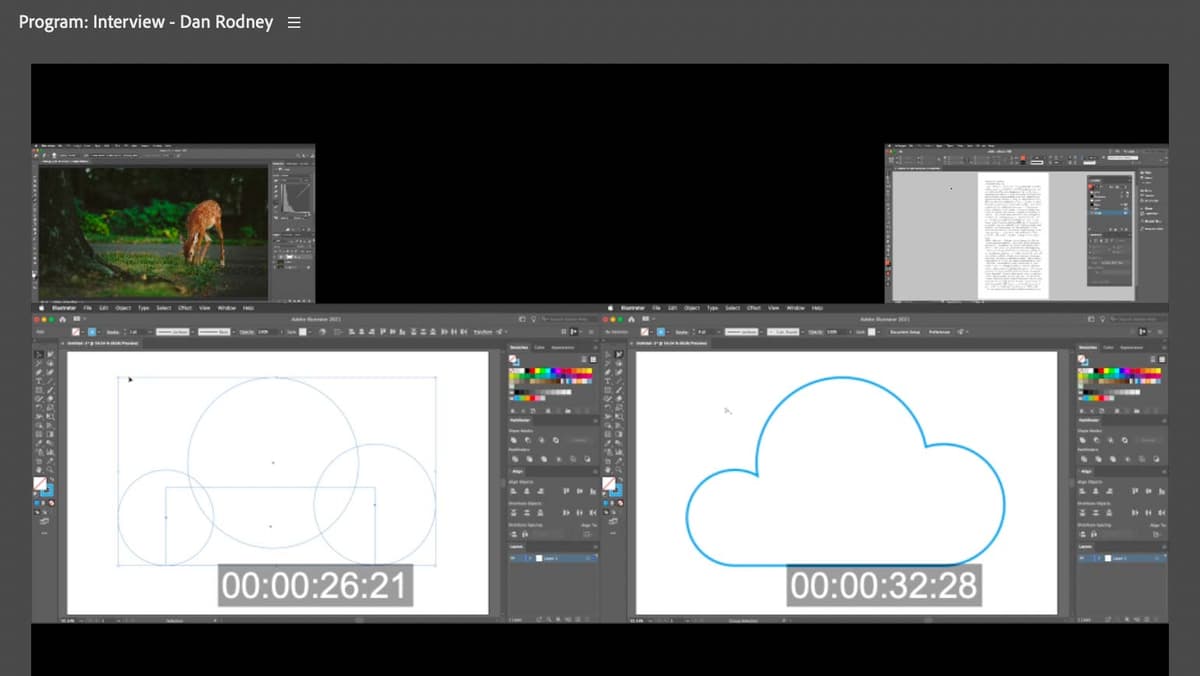
  8. With the Slip tool tool_slip, hover the cursor over the Illustrator clip in the Timeline panel (NOT the Source panel) and drag left/right until the preview on the left reads 26:21. The dual preview windows show you exactly what frames will appear at the beginning and end of your adjusted clip.

    use_SlipTool

  9. Play through the Illustrator screen capture again to confirm this section offers more dynamic, engaging content that better supports your narrative.

  10. Move the playhead to 1:20:23 (the beginning of the InDesign screen capture).

  11. With the Slip tool tool_slip, hover the cursor over the InDesign clip and drag it to the left until the left preview reads 58:26. You may need to drag and release multiple times to reach the exact position—this is normal behavior for large adjustments.

  12. Move the playhead to 56:05

    This marks where the speaker begins to say "As video became more popular…"—we're going to create a strategic edit here to tighten the pacing and improve narrative flow.

  13. In the Tools panel, choose the Selection tool tool_selection (or press V on the keyboard).
  14. Click on the Main Interview clip on the Video 1 track to target it for editing.
  15. Press Cmd–K (Mac) or CTRL–K (Windows) or choose Sequence > Add Edit to cut the clip at the playhead's position, creating a precise edit point.
  16. Move the playhead to 1:03:20 (right after the end of the sentence about video) to establish the end of the section we want to remove.
  17. Click on the Main Interview clip under the playhead to select it.
  18. Again press Cmd–K (Mac) or CTRL–K (Windows) or choose Sequence > Add Edit to cut the clip at the playhead's position.
  19. CTRL–click (Mac) or Right–click (Windows) on the clip to the left of the playhead and choose Ripple Delete from the menu. This removes the unwanted section while automatically closing the gap.
  20. Press Shift–K to play around the edit you just made, allowing you to hear how the edit flows and make any necessary adjustments.
  21. We want to synchronize the Photoshop Demo clip on Video 2 with this new playhead position. Try dragging the beginning of the Photoshop Demo clip to the left and notice it won't extend. This limitation occurs when you've reached the source media boundaries.

    Notice the small white triangle at the top left of the Photoshop Demo clip.

    When you see a white triangle at the start or end of a clip, it indicates you've reached the source media limits—there's no additional footage available in that direction. This visual cue helps you understand your editing constraints and plan accordingly.

    For this clip we have additional source media at the end, so we'll reposition the entire clip and then extend its duration. This is a common workflow when working with screen recordings or longer source clips.

  22. Drag the entire Photoshop Demo clip so that it starts at the playhead position (56:05), aligning it with your newly tightened interview edit.
  23. Now there's available space after the Photoshop Demo clip. Drag the end of the Photoshop Demo clip to the right, extending it to fill the space until it touches the Illustrator clip, maximizing the visual coverage.
  24. Choose File > Save or hit Cmd–S (Mac) or CTRL–S (Windows) to preserve your professional editing work.

Slip Edit Methods Comparison

FeatureSource Panel MethodSlip Tool Method
PrecisionVisual preview of in/out pointsReal-time timeline preview
Workflow SpeedRequires panel switchingDirect timeline manipulation
Visual FeedbackDual preview windowsOverlay preview display
Recommended: Use Slip Tool for faster workflow when you need to quickly adjust visible content without changing clip duration.
Source Media Limitations

White triangles at clip edges indicate you've reached the limits of your source footage. You cannot extend clips beyond their original recorded duration.

Key Takeaways

1Timeline organization becomes critical as project complexity increases, requiring systematic approaches to clip management
2The Ripple Edit Tool automatically maintains sync by moving adjacent clips when trimming, preventing gaps in your timeline
3Multiple clip selection with Shift-click enables batch operations for efficient editing of related content
4Rolling Edit Tool adjusts cut points between clips without changing overall sequence duration, perfect for dialogue timing
5Default transitions can be applied instantly using Cmd-D/Ctrl-D keyboard shortcuts to multiple selected clips simultaneously
6Slip Edit Tool allows content adjustment within clips without changing duration, offering both Source panel and direct timeline methods
7Timecode navigation shortcuts like typing '1.' provide quick precision movement to specific timeline positions
8White triangles on clip edges indicate source media limits, preventing extension beyond original footage boundaries

RELATED ARTICLES