April 1, 2026Jerron Smith/7 min read

Donuts Ad: Adding Effects in Premiere Pro

Master Professional Video Effects in Premiere Pro

Core Skills You'll Master

Linear Wipe Effects

Learn to create smooth reveal animations that follow object movement. Control timing and direction with precision keyframing techniques.

Chroma Key Refinement

Master advanced keying techniques using masks to preserve important color details. Fix common green screen problems professionally.

Nested Sequence Management

Understand how to modify nested sequences and extend clips with freeze frames for perfect timing control.

Topics Covered in This Premiere Pro Tutorial:

Master essential video editing techniques including adding professional effects to clips, creating dynamic layer reveals with wipe effects, and implementing freeze frames for extended content duration.

Exercise Preview

preview track matte

Exercise Overview

In this comprehensive exercise, you'll create a sophisticated visual effect where a spinning coffee cup seamlessly reveals underlying text elements. This technique is commonly used in commercial advertising and motion graphics to create engaging transitions that guide viewer attention while maintaining visual continuity.

Project Goal

This exercise focuses on creating a reveal effect where a moving coffee cup appears to uncover text beneath it, combining multiple Premiere Pro techniques for a polished commercial look.

Previewing the Final Video

  1. Before diving into the technical implementation, let's examine the final result. On your Desktop, navigate to Class Files > Premiere Pro Intermediate > Donuts Ad—Chroma Keying > Preview Movie and double–click Donut Ad—Main.mp4.

  2. Observe how the cup's spinning motion creates a natural wipe reveal for the text block—this synchronized animation creates professional-grade visual storytelling. Study the timing and smoothness of the transition, as these elements are crucial for achieving polished results. Close the video when you've analyzed the effect.

Getting Started

With your reference point established, let's set up your working environment for this intermediate-level tutorial.

  1. You should have Your Name—Donuts Ad currently open in Premiere Pro. If you've closed the project, reopen it by navigating to File > Open Project, then locate Desktop > Class Files > Premiere Pro Intermediate > Donuts Ad—Chroma Keying. If you're joining this tutorial without completing the previous exercise, follow the instructions in the sidebar below.

    Pre-Flight Setup

    0/3

If You Did Not Do the Previous Exercise

  1. If a project is currently open in Premiere Pro, save your work with File > Save, then close it using File > Close Project.
  2. Choose File > Open Project and navigate to Desktop > Class Files > Premiere Pro Intermediate > Donuts Ad—Chroma Keying > Finished Projects.
  3. Double–click on Donuts Ad—Add Wipe.prproj to open the starting point for this exercise.

  4. Immediately save this as your working file by choosing File > Save As. Name it Your Name—Donuts Ad and save it to Desktop > Class Files > Premiere Pro Intermediate > Donuts Ad—Chroma Keying.

Project Recovery Steps

1

Close Current Project

Save any open work and close the current project to start fresh

2

Open Starting Point

Navigate to Finished Projects folder and open Donuts Ad—Add Wipe.prproj

3

Save As New Version

Rename and save to your designated working directory

Revealing a Clip with the Linear Wipe Effect

The Linear Wipe effect is one of Premiere Pro's most versatile transition tools, allowing you to create custom reveals that can be synchronized with moving elements in your footage. This technique transforms static text reveals into dynamic, motion-synchronized animations that feel organic and purposeful.

  1. Select the Selection tool tool_selection to ensure precise clip manipulation.

  2. Position the playhead at the beginning of your timeline to establish your starting reference point.

  3. Click on the clip located on Track 2 (DD Message.psd) to select it—this contains the text element that will be revealed.

  4. In the Effects panel, type linear into the Search field to quickly locate the appropriate effect.

    NOTE: Press Shift–7 on your keyboard to quickly access the Effects panel if it's not currently visible.

  5. Locate Linear Wipe under Video Effects > Transitions > Linear Wipe and drag it directly onto your selected clip. This effect will control how the text appears in relation to the cup's movement.

  6. In the Effect Controls panel, configure the Linear Wipe effect with these initial settings:

    • Transition Completion: 100%
    • Wipe Angle: -90

    These settings completely hide the text initially and establish a left-to-right reveal direction that matches the cup's rotational movement pattern.

  7. Navigate the playhead to 00;15 on the timeline and click the stopwatch button_toggleAnim next to Transition Completion to create your first keyframe.

    NOTE: Starting at 00;15 rather than the timeline beginning creates better synchronization—this timing coincides with when the cup begins overlapping the text area, making the animation feel more natural and purposeful.

  8. Move the playhead to 02;10 and change Transition Completion to 0 to create your second keyframe.

    NOTE: This endpoint corresponds to the final moment when the cup covers the text, ensuring the reveal completes at the optimal visual moment.

  9. Position the playhead approximately halfway between your two keyframes to check the animation progress.

  10. Fine-tune the Transition Completion value at this midpoint until the text appears properly hidden behind the cup, ensuring smooth visual continuity.

  11. Return the playhead to the timeline beginning and press Spacebar to preview your animated sequence.

  12. Save your progress using File > Save or the keyboard shortcut Cmd–S (Mac) or Ctrl–S (Windows).

Keyframe Timing Strategy

Starting the first keyframe at 00;15 instead of 00;00 aligns the animation with when the cup begins overlapping the text, creating more natural timing.

Critical Linear Wipe Settings

Transition Completion: 100%

Makes the text completely invisible at the start. This creates the foundation for the reveal effect.

Wipe Angle: -90 degrees

Ensures text reveals from left to right, matching the cup's movement direction across the screen.

Lengthening a Nested Sequence

Professional advertising content requires precise timing control. When source footage doesn't match your required duration, freeze frames provide an elegant solution that maintains visual consistency while extending content length.

  1. Double–click the Cup Spin—Keyed nested sequence in your Timeline to access its internal structure for editing.
  2. Ensure the Selection tool tool_selection is active for precise clip manipulation.
  3. Create a duplicate of your Cup Spin—Greenscreen clip by dragging it to the right while holding Opt (Mac) or Alt (Windows), positioning the duplicate so it snaps seamlessly to the original clip's end point.

  4. Ctrl–click (Mac) or Right–click (Windows) on your new duplicate clip and select Add Frame Hold from the context menu.

  5. Ctrl–click (Mac) or Right–click (Windows) on the same clip again and choose Frame Hold Options to access advanced settings.

  6. In the Frame Hold Options dialog, change the Hold On menu to Out Point—this ensures the freeze frame uses the final frame of motion, creating natural visual continuity.

  7. Return the playhead to the timeline beginning and press Spacebar to preview the extended sequence and verify smooth transitions.

  8. Save your work using File > Save or Cmd–S (Mac) or Ctrl–S (Windows).

Timeline Duration Issue

The cup spinning clip is only 7 seconds long but the ad needs to be 10 seconds. Adding a freeze frame solves this timing mismatch.

Freeze Frame Implementation

1

Duplicate the Clip

Hold Alt/Opt while dragging to create a copy that snaps to the original's end point

2

Add Frame Hold

Right-click the duplicate and select Add Frame Hold to freeze the last frame

3

Configure Hold Options

Set Hold On menu to Out Point to ensure the last frame is held

Refining the Keying Effect

Chroma key technology removes color uniformly across an entire clip, which can inadvertently affect subject elements that share the background color. Professional video editors address this challenge using targeted masking techniques to restore important visual details.

  1. While holding Opt (Mac) or Alt (Windows), drag the first Cup Spin—Greenscreen clip from Video 3 down to Video 2 to create a working duplicate.

  2. Select the newly duplicated clip on Video 2 to prepare it for modification.

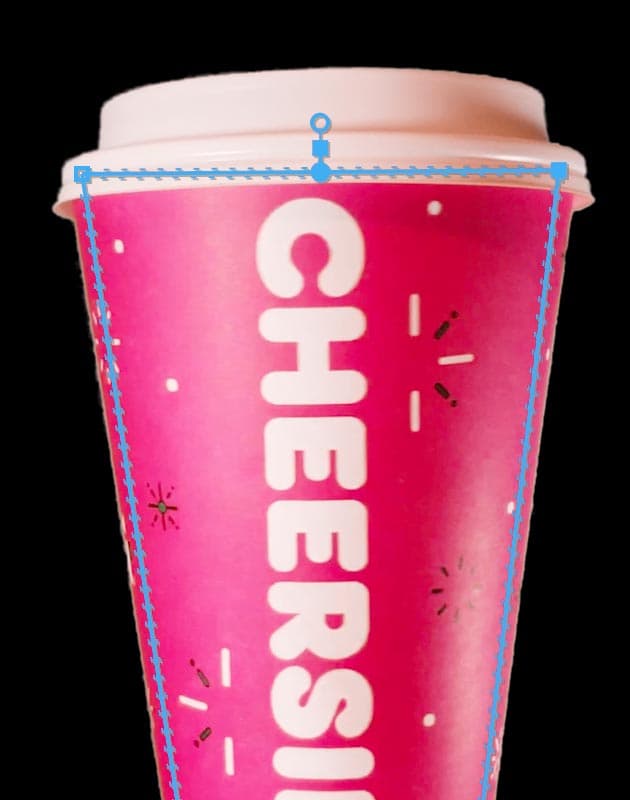
  3. In the Effect Controls panel, locate and select the Ultra Key effect, then delete it using Delete (Mac) or Backspace (Windows)—this preserves the original cup imagery including green design elements.

  4. Click on Mask 1 under the Opacity section to activate the masking tools.

  5. Carefully adjust the mask points to follow the interior edge of the coffee cup, preserving its green flourishes. If mask points extend beyond the visible frame, change the Program panel zoom from Fit to 50% at the bottom left for better visibility, then return to Fit when finished.

    cup masked2

  6. Apply the same restoration technique to the freeze frame section. Hold Opt (Mac) or Alt (Windows) while dragging the second Cup Spin—Greenscreen clip from Video 3 to Video 2.

  7. Select this new clip on Video 2 to prepare it for identical treatment.

  8. Delete the Ultra Key effect from the Effect Controls panel using Delete (Mac) or Backspace (Windows).

  9. Select Mask 1 under Opacity to access masking controls.

  10. Position the mask points along the coffee cup's interior edge to match your previous masking work, ensuring visual consistency.
  11. Close the Cup Spin—Keyed sequence by clicking the X next to its name at the top of the Timeline to return to your main sequence.
  12. Extend the Cup Spin—Keyed clip by dragging its end point until you reach the maximum available footage duration.
  13. Position the timeline playhead precisely at 10;00 to mark your desired sequence endpoint.
  14. Choose Sequence > Add Edit to All Tracks to create cut points across all timeline elements.
  15. Select all clips extending beyond the playhead position and delete them using Delete (Mac) or Backspace (Windows) to achieve your target 10-second duration.
  16. Return the playhead to the beginning of the Donut Ad—Main sequence and press Spacebar to preview your completed project.

  17. Save your final work using File > Save or Cmd–S (Mac) or Ctrl–S (Windows).

  18. With the project complete, choose File > Close Project to clean up your workspace.

Chroma Key Limitation

Chroma keying removes ALL instances of the key color, which can accidentally remove wanted elements like green design flourishes on the coffee cup.

Mask Refinement Approach

Pros
Preserves original cup design elements
Maintains clean green screen removal
Allows precise control over visible areas
Non-destructive editing workflow
Cons
Requires manual adjustment for each clip
More complex timeline structure
Additional render time for layered clips

Mask Application Process

1

Duplicate Original Clip

Alt/Opt-drag the clip to a lower video track to create a working copy

2

Remove Chroma Key

Delete the Ultra Key effect from the duplicate to show the original footage

3

Apply Opacity Mask

Adjust Mask 1 points to reveal only the cup areas that need color correction

Key Takeaways

1Linear Wipe effects create professional reveal animations when properly keyframed to match object movement timing
2Setting Transition Completion to 100% and Wipe Angle to -90 degrees ensures left-to-right text reveals
3Nested sequences can be extended using freeze frames to match required commercial durations
4Chroma keying removes all instances of a color, potentially affecting wanted design elements in your subject
5Duplicating clips and removing effects allows for selective masking to preserve original colors
6Strategic keyframe placement at action points rather than timeline start creates more natural animations
7Frame holds should be set to Out Point to freeze the final frame of a clip effectively
8Using masks on duplicate layers provides non-destructive solutions to common keying problems

RELATED ARTICLES