April 1, 2026Kalika Kharkar Sharma/13 min read

Handy Promo: Adjusting Audio Keyframes in Premiere Pro

Master Audio Keyframes in Adobe Premiere Pro

What You'll Master

Audio Editing Fundamentals

Learn to import, trim, and seamlessly blend multiple audio tracks for professional video production.

Mono to Stereo Conversion

Convert single-channel audio to dual-channel stereo format to prevent mixing issues and ensure compatibility.

Dynamic Audio Control

Use keyframes to create smooth volume transitions and balance voice-over with background music.

Topics Covered in This Premiere Pro Tutorial:

Advanced Audio Editing Techniques, Converting Mono Audio to Stereo, Mastering Audio Keyframes for Professional Results

Exercise Preview

ex prev handy audio

Exercise Overview

In this comprehensive exercise series, you'll create a professional promo video for Handy, a leading cleaning and handyman services company. This hands-on project will teach you essential audio post-production skills including precise timing of footage to voice-over narration and seamless integration with After Effects projects through Dynamic Link. You'll master the art of importing multiple audio tracks and learn professional techniques for adjusting audio levels using keyframes—skills that are fundamental to creating polished, broadcast-quality content in today's competitive media landscape.

Project Context

This tutorial is part of a comprehensive series creating a promotional video for Handy, a cleaning and handyman services company. You'll learn industry-standard techniques for audio post-production.

Previewing the Final Video

  1. Before diving into the technical work, let's examine the finished product to understand our creative objectives. Ensure your audio output is properly configured—use quality headphones or studio monitors for the most accurate representation of the final mix.

  2. Navigate to Class Files > Premiere Pro Class > Handy GFX Video > Finished Movie on your Desktop and double-click Handy-Promo.mp4 to launch the preview.

  3. Study the video carefully, paying particular attention to these professional techniques (repeat viewings will help you identify subtle details):

    • The opening features a sophisticated 180° logo rotation—notice how Handy's clever design reads identically both right-side up and inverted, creating visual continuity.
    • All text and visual elements are precisely synchronized with the voice-over script, demonstrating professional-grade timing that keeps viewers engaged.
    • A carefully balanced background music track maintains consistent presence throughout without overwhelming the narration.
    • Strategic logo wipes create smooth transitions between footage segments, reinforcing brand identity while maintaining visual flow.
    • The closing mirrors the opening with another logo rotation, creating bookend symmetry.
    • The first and final frames are identical, enabling seamless looping—a crucial technique for social media and digital advertising platforms.

With our creative vision established, let's begin building the technical foundation for this project.

Key Elements to Observe

0/4

Getting Started

  1. Launch Premiere Pro and ensure a clean workspace by selecting File > Close All Projects to close any active sessions.

  2. Initialize a new project by selecting File > New > Project from the main menu.

  3. In the New Project dialog, enter yourname-Handy-GFX in the Name field, using your actual name for proper file organization.

  4. Click the Browse button adjacent to Location to specify your project directory.

  5. Navigate to Desktop > Class Files > Premiere Pro Class > Handy GFX Video and confirm your selection with Choose (Mac) or Select Folder (Windows).

  6. Click OK at the bottom of the New Project window to create your project file.

  7. Optimize your workspace by selecting Window > Workspaces > Editing to access the most efficient panel layout for this project.

  8. Reset to factory defaults by selecting Window > Workspaces > Reset to Saved Layout, ensuring consistency across all user environments.

  9. Import your project assets efficiently by switching to the Desktop and navigating to Class Files > Premiere Pro Class > Handy GFX Video > Capture.

  10. Select all 4 media folders (audio, gfx, photos, and videos) simultaneously and drag them directly to the Project panel in Premiere Pro for batch import.

  11. Create your primary editing sequence by selecting File > New > Sequence.

  12. In the New Sequence dialog, navigate through Sequence Presets to Digital SLR > 1080p and select DSLR 1080p30 for optimal quality settings.

  13. Enter HandyPromo-v1 as your Sequence Name, following professional versioning conventions, but don't confirm yet.

  14. Switch to the Settings tab at the top of the New Sequence window to customize your output format.

  15. Modify the Frame Size to 1080 horizontal pixels—this square format is optimized for Instagram and other social media platforms where this content will primarily be distributed.

  16. Click OK to finalize your sequence creation.

  17. In the Sequence menu, verify that Selection Follows Playhead is disabled—this prevents unintended selection changes during playback and provides more precise editing control.

Now that your project infrastructure is established, let's begin crafting the audio foundation that will drive your entire edit.

Project Setup Workflow

1

Create New Project

Name it 'yourname-Handy-GFX' and save to the designated class files folder

2

Import Media Assets

Drag all 4 folders (audio, gfx, photos, videos) into the Project panel

3

Configure Sequence

Use DSLR 1080p30 preset with 1080 horizontal frame size for Instagram format

Editing Music

Professional video production relies on a well-structured audio foundation. For this promo, we'll implement a two-track audio architecture: one dedicated to voice-over narration and another for the musical underscore. This separation allows for independent processing and mixing of each element. We'll begin by establishing the music track, which will serve as the rhythmic backbone of our edit.

  1. In the Project panel, expand the audio folder and double-click Carpe Diem.mp3 to load it into the Source Monitor.

  2. Examine the duration in the Source Monitor—this music file runs nearly 5 minutes, far exceeding our target 20-second promo length. Strategic editing will be essential to extract the most impactful segments.

  3. The opening 18 seconds contain the ideal energy and pacing for our intro. Position the playhead precisely at 17;25 to capture this segment.

  4. Set your out point by clicking the Mark Out button out point icon, defining the end of your first music segment.

  5. Drag from the Drag Audio Only icon drag audio only icon to the Timeline, placing it at the beginning of track A1 for precise audio-only editing.

  6. Play through the ending sequence (starting around 14;24) in your Timeline. Notice the abrupt cutoff—this harsh ending lacks the professional polish we need for broadcast-quality work.

  7. Click into the Source Monitor to refocus the interface for additional editing.
  8. Clear your current markers by selecting Markers > Clear In and Out to prepare for the next edit.

  9. Navigate to the music file's conclusion and preview the audio from approximately 4;48;13. Listen for the natural ending—that final guitar strum provides the perfect resolution for our promo.

  10. Zoom into the Source Monitor timeline for frame-accurate editing and position the playhead at 4;49;29, capturing the beginning of that concluding musical flourish.

  11. Press I to set your in point at this position.

  12. Move the playhead to 4;51;26, allowing the guitar's natural resonance to complete before cutting.

  13. Press O to establish your out point, completing the selection of your ending segment.

  14. Drag from the Drag Audio Only icon drag audio only icon to track A1, aligning it with the conclusion of your first music section.

  15. Our goal is to synchronize the final flourish with the last beat of our main music section. Preview from around 17;05 to evaluate the current timing.

  16. The ending segment arrives slightly late, disrupting the musical flow. Move this clip to A2 and shift it leftward for better timing. Disable snapping by pressing S to allow for micro-adjustments.

    handy audio ending

  17. The key to professional audio editing is aligning rhythmic elements. Experiment with the positioning, listening carefully for the point where both musical beats synchronize naturally.

  18. Through testing, we've determined that 17;14 provides optimal alignment. Position your playhead at 17;14.
  19. Re-enable snapping by pressing S again for precise positioning.
  20. Snap the second clip's start point to the playhead position for accurate alignment.

    The audio glitch you hear is temporary—we'll resolve this in the next steps.

  21. Move the ending segment up to A1, creating an overlap with the first section—this overlap is essential for smooth crossfading.

  22. Create a seamless transition by Ctrl-clicking (Mac) or Right-clicking (Windows) on the edit point between sections, then select Apply Default Transitions.

  23. The default 1-second transition is excessive for this application. Double-click the transition, enter 11 frames, and click OK for a more subtle blend.

  24. Fine-tune the transition by clicking Effect Controls at the top of the Source Monitor panel.

  25. Change the Alignment setting to Start at Cut for optimal transition placement.

  26. Preview the transition area in your Timeline—the music should now flow seamlessly without any audible breaks.

  27. For better track organization, move the music to the second audio track. Select the Track Select Forward tool track select forward tool for efficient multi-clip selection.

  28. Click at the beginning of your timeline (far left) to select all audio elements simultaneously.

  29. Return to the Selection tool selection tool for standard editing operations.

  30. Drag the selected audio clips to track A2 to reserve A1 for voice-over work.

  31. Configure A1 as your target track by clicking in the empty space left of the A1 track label. Your Timeline should match this configuration:

    handy target track

With our musical foundation established, let's address the technical requirements for professional voice-over integration.

Music Editing Strategy

When working with long music tracks, extract the best opening section and ending flourish separately, then blend them using crossfade transitions for seamless audio flow.

Music Edit Timeline

0:00 - 17:25

Main Section

First 17 seconds and 25 frames of Carpe Diem.mp3

4:49:29 - 4:51:26

Ending Flourish

Extract final strum from 4:49:29 to 4:51:26

17:14

Transition Blend

11-frame crossfade aligned at 17:14 for beat matching

Converting Mono Audio to Stereo

  1. Import the voice-over element by dragging HandyVO.wav from the Project panel to the beginning of track A1.

  2. Increase the vertical height of both A1 and A2 tracks for better waveform visibility. Drag the dividing lines on the Timeline's left side between track labels to expand the display area.

  3. Observe the critical difference between your audio tracks: the voice-over displays as a single waveform while the music shows dual channels.

    This indicates your voice-over is recorded in mono (single-channel) format, while the music is stereo (dual-channel). Although Premiere Pro handles mono playback adequately, professional workflows demand stereo formatting for compatibility with broadcast standards and OMF exports to sound mixing facilities.

    Since this conversion requires modifying source media properties, delete the voice-over clip from A1 before proceeding.

  4. In the Project panel, Ctrl-click (Mac) or Right-click (Windows) on HandyVO.wav and select Modify > Audio Channels.

  5. In the Audio Channels dialog, change the Preset to Stereo to enable dual-channel output.

  6. Under Media Source Channel, activate the R (Right) checkbox so both Left (L) and Right (R) channels are enabled, ensuring full stereo compatibility.

  7. Notice that adding the Right channel automatically changes the Preset to Custom—this is expected behavior. Click OK to confirm the conversion.

  8. Re-import HandyVO.wav to the Timeline by dragging it to track A1.

    The Timeline now displays the voice-over as a proper 2-track stereo audio clip with identical left and right channels. This conversion ensures compatibility with professional audio workflows and prevents technical issues during final delivery or when collaborating with audio post-production facilities.

  9. Play the audio from the beginning while monitoring the Audio Levels meter on the Timeline's right side.

    You'll immediately notice the levels are dangerously high, likely peaking well above acceptable broadcast standards. Professional audio targets approximately –9 decibels for dialogue, so we'll need to implement proper level management in the next section.

Now let's implement professional audio level management using Premiere Pro's advanced keyframing system.

Mono vs Stereo Audio

FeatureMono AudioStereo Audio
Channel CountSingle channelDual channels (L/R)
Timeline DisplayOne waveformTwo identical waveforms
CompatibilityLimited mixing optionsFull mixing compatibility
OMF ExportPotential issuesProfessional standard
Recommended: Always convert mono voice-over to stereo for professional video production workflows

Using Audio Keyframes

  1. Press the plus (+) key on your keyboard's number row to zoom into the Timeline, revealing detailed waveform information essential for precise audio editing.

  2. Begin with voice-over level adjustment by selecting the clip on track A1. Professional dialogue editing requires individual attention to each audio element.

  3. Ensure the Effect Controls panel is visible in the upper left interface area—this is your primary tool for detailed audio manipulation.

  4. Expand the Volume section to reveal the available audio control parameters.

  5. The Effect Controls panel provides both global level adjustment and keyframe-based automation. For this voice-over, we need overall level reduction without keyframing complexity.

    Click the blue stopwatch stopwatch blue next to Level to disable automatic keyframing.

  6. Set the Level to –3.8dB, bringing the overall voice-over into a more manageable range while maintaining clarity and presence.

  7. Navigate to the Timeline position where the voice-over becomes particularly loud—move the playhead to 6;24 and play through this section. The dramatic level increase here requires targeted correction.

  8. Return the playhead to 6;24 to mark the beginning of the problematic audio section.

  9. Select the Razor tool razor tool to make surgical cuts in your audio track.

  10. Verify that snapping snap icon is enabled for precise cut placement.
  11. Make your first cut by clicking on the A1 track at the playhead position, creating a separation point for individual segment processing.

  12. Move the playhead to 12;08 and create a second cut, isolating the loud middle section for independent level adjustment.

  13. Return to the Selection tool selection tool and click on the middle segment to select it for processing.

  14. Enable Timeline-based audio adjustment by clicking the Timeline Display Settings button timeline settings button and selecting Show Audio Keyframes if not already active.

    This feature reveals the white audio level line directly on your clips, enabling real-time visual feedback and direct manipulation of audio levels within the Timeline interface.

  15. Position your cursor over the vertical center of the selected audio clip until the slider icon audio slider icon appears.
  16. Drag the audio level line downward in the Timeline. Notice how your adjustment immediately reflects in the Level value within the Effect Controls panel—both interfaces are dynamically linked.

  17. Using either the Timeline slider audio slider icon or Effect Controls panel, set this middle section's Level to –7.3dB, achieving appropriate dialogue levels for this louder passage.

  18. Address the background music levels by selecting the first clip on track A2. Music requires different treatment than dialogue in the mixing process.

  19. In Effect Controls, disable keyframing by clicking the Level stopwatch stopwatch blue to turn it off.

  20. Set the music Level to –2dB for the opening section where music plays solo.

  21. Preview from the beginning—the opening level works well, but professional mixing requires the music to duck beneath the voice-over when dialogue begins. This prevents frequency masking and maintains dialogue intelligibility.

  22. Position the playhead at 1;28, just before the voice-over begins. This timing allows for smooth level transitions that feel natural to the listener.

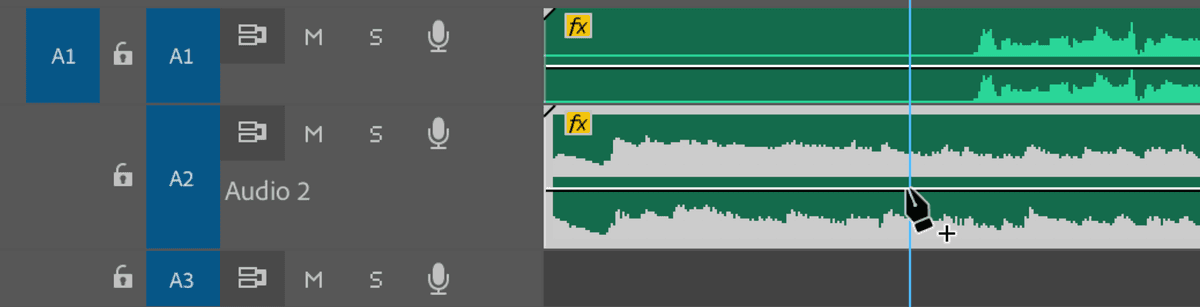
  23. For precise keyframe placement, select the Pen tool pen tool from the Tools panel—this provides more accuracy than dragging audio levels.

  24. Using the Pen tool pen tool, click precisely at the playhead position on the audio level line to create your first keyframe.

    handy audio track pen tool

    The blue keyframe audio keyframe blue indicator confirms successful placement on the waveform.

  25. Move the playhead to 2;09 to establish the endpoint of your level transition.

  26. Click on the audio level line at this new playhead position to create your second keyframe audio keyframe blue.

  27. Switch back to the Selection tool selection tool for keyframe manipulation.

  28. Drag the second keyframe downward while holding Shift to maintain horizontal alignment—this ensures your timing remains precise while adjusting levels. Target approximately –13.4dB as shown in the tooltip during dragging.

  29. Fine-tune the exact level to –13.4dB using the Effect Controls panel for professional precision—the numerical input provides more accuracy than Timeline dragging.

  30. Preview your audio mix to evaluate the balance. Notice that the third voice-over section still exhibits excessive levels requiring individual attention.

  31. Select the third voice-over segment on track A1 for targeted processing.
  32. Adjust this section's Level to –4.2dB to match the overall dialogue balance.

  33. Around the 10-second mark, the music features a prominent clarinet solo that cuts through the mix. This requires additional level management to maintain proper voice-over intelligibility. Move the playhead to 9;17.

  34. Reselect the music clip on track A2 for continued keyframe work.

  35. Switch back to the Pen tool pen tool for precise keyframe placement.
  36. Create a keyframe at the current playhead position on track A2 by clicking on the audio level line.

  37. Advance the playhead to 10;03 for the transition endpoint.
  38. Add your final keyframe at this position with another precise click.

  39. Return to the Selection tool selection tool for level adjustment.

  40. With the second keyframe selected (indicated by blue highlighting), reduce the audio Level to -21.7dB to properly duck the clarinet solo beneath the voice-over.

  41. After the voice-over concludes, we'll restore the music to full presence for a strong finish. Position the playhead at

Audio Level Adjustments

Voice-over Base Level
3.8
Loud VO Section
7.3
Music Base Level
2
Music Under VO
13.4
Music Under Clarinet
21.7

Keyframe Control Methods

Pros
Timeline pen tool allows visual precision
Effect Controls panel enables exact dB values
Real-time audio level monitoring
Smooth transitions between volume changes
Cons
Requires careful timing placement
Must balance multiple audio tracks
Complex projects need many adjustment points
Target Audio Level

Aim for -9 decibels as your target level to ensure professional audio quality without distortion or clipping in your final video output.

Key Takeaways

1Convert mono voice-over audio to stereo format to prevent mixing issues and ensure professional compatibility with OMF exports
2Extract and blend different sections of long music tracks using short crossfade transitions for seamless audio flow
3Use the pen tool in Timeline for visual keyframe placement and Effect Controls panel for precise decibel adjustments
4Target -9 decibels for optimal audio levels and monitor the audio meter constantly during playback
5Cut voice-over into sections when volume varies significantly rather than using excessive keyframes
6Balance background music levels dynamically, lowering volume during voice-over and raising during instrumental sections
7Disable keyframe stopwatch when making overall level adjustments that don't require animation
8Always preview your final audio mix from beginning to end to ensure smooth transitions and proper level balance

RELATED ARTICLES