April 1, 2026Dan Rodney/9 min read

Batch Processing Multiple Images

Streamline Your Web Design Image Processing Workflow

Core Batch Processing Techniques You'll Master

Image Processor Automation

Learn to batch process multiple images simultaneously for different resolutions. Perfect for creating 1x and 2x versions efficiently.

Custom Cropping Workflows

Master the Layers to Files technique for custom cropping and proportional adjustments. Ideal for creating square versions from landscape images.

Bridge File Management

Discover advanced file organization and batch renaming capabilities. Essential for maintaining clean, organized image libraries.

Topics Covered in This Photoshop for Web Design Tutorial:

Mastering Image Processor, Custom Cropping & Exporting Layers to Files, and Batch Renaming Files in Adobe Bridge

Exercise Preview

preview batch processing

Exercise Overview

Modern web development demands efficient image optimization workflows. Whether you're preparing high-resolution assets for Retina displays, generating responsive image sets, or creating thumbnail galleries, mastering Photoshop's batch processing capabilities is essential for maintaining quality while meeting tight deadlines. This exercise will teach you professional-grade techniques for automating repetitive image tasks, saving hours of manual work while ensuring consistent output quality across your entire project.

1x vs 2x Image Processing Requirements

Feature1x Images2x Images
Final Width400px800px
JPEG Quality85
File SizeSmallerLarger
CompressionLessMore
Display UseStandard screensHigh-density displays
Recommended: Use higher quality for 1x images since they display at full size, and more compression for 2x images since they appear at half size on web

Using Image Processor to Batch Process 1x Files

We'll start by processing a folder of images into optimized 1x and 2x files. For web display at 400px width, we need 400px standard resolution versions and 800px high-resolution versions for Retina screens. The Image Processor excels at this type of consistent, automated resizing and compression.

  1. In Photoshop, close any files you have open to ensure optimal processing performance.

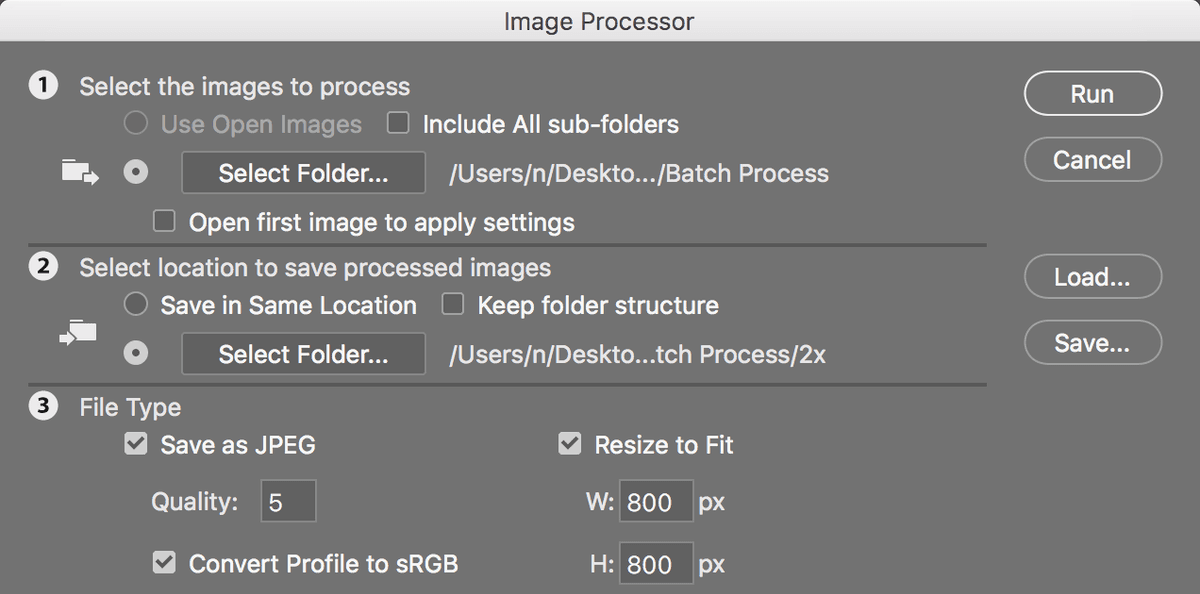
  2. Navigate to File > Scripts > Image Processor.

  3. Under 1: Select the images to process, click the Select Folder button.

  4. Navigate to Desktop > Class Files > yourname-Photoshop for Web Class > Batch Process.

  5. Click Open (Mac) or OK (Windows).

  6. Under 2: Select location to save processed images, select the circle next to Select Folder, then click the Select Folder button.

  7. Navigate to Desktop > Class Files > yourname-Photoshop for Web Class > Batch Process.

  8. Select the 1x folder.

  9. Click Open (Mac) or OK (Windows) to confirm your selection.

  10. Under File Type, check Save as JPEG.

  11. Set Quality to 8. This provides an optimal balance between file size and visual quality for standard resolution displays.

    PRO TIP: When uncertain about JPEG quality settings, use Save for Web to preview compression artifacts on a representative image before batch processing your entire set.

  12. Check Convert Profile to sRGB to ensure consistent color rendering across different devices and browsers.

  13. Check Resize to Fit.

  14. Set W to 400px.

  15. Set H to 400px.

    NOTE: Photoshop maintains the original aspect ratio, fitting images within these dimensions. For landscape images, the final height will be proportionally smaller than 400px, with Photoshop calculating the exact dimensions automatically.

  16. Ensure the following options remain unchecked for web optimization:

    • Save as PSD
    • Save as TIFF
    • Run Action
    • Include ICC Profile
  17. Click Run and monitor the batch processing progress.

With your 1x files processed, we'll now create the high-resolution versions for modern displays.

Image Processor Setup for 1x Files

1

Select Source Images

Navigate to File > Scripts > Image Processor and select your folder containing original images

2

Configure Output Location

Choose the 1x folder as your destination for processed files

3

Set JPEG Parameters

Enable Save as JPEG with Quality 8, Convert Profile to sRGB, and Resize to Fit 400px x 400px

4

Execute Processing

Ensure PSD, TIFF, Run Action, and Include ICC Profile are unchecked, then click Run

JPEG Quality Preview Tip

If you're unsure about JPEG quality settings, use Save for Web to preview quality on a single image before batch processing. This helps ensure optimal file size and visual quality balance.

Using Image Processor to Batch Process 2x Files

  1. After the first batch completes, return to File > Scripts > Image Processor.

  2. Most settings remain unchanged, but we need to modify the output destination and sizing parameters.

    Under 2: Select location to save processed images, click the Select Folder button.

  3. Navigate to Desktop > Class Files > yourname-Photoshop for Web Class > Batch Process.

  4. Select the 2x folder.

  5. Click Open (Mac) or OK (Windows) to confirm.

  6. Adjust Quality to 5. High-resolution files benefit from increased compression since they'll be displayed at half-size, making compression artifacts less visible.

  7. Set W to 800px.

  8. Set H to 800px.

  9. Click Run to process your high-resolution batch.

Now let's examine the results and understand how these files will perform in your web projects.

2x File Compression Strategy

2x files use Quality 5 instead of 8 because they appear at half size on webpages, making JPEG artifacts less noticeable while significantly reducing file size for better performance.

Viewing the Resulting Images in Adobe Bridge

  1. Launch Adobe Bridge to review your processed images: File > Browse in Bridge.

  2. When Bridge opens, locate the Favorites panel on the left. If it's not visible, access it via Window > Favorites Panel.

  3. In the Favorites panel, click Desktop.

  4. Navigate to Class Files > yourname-Photoshop for Web Class > Batch Process > 1x > JPEG.

    Here you'll find your optimized thumbnail files, ready for standard resolution displays.

  5. Select any image to view its metadata and dimensions.

  6. Press Spacebar for a fullscreen preview. Note the crisp quality and file dimensions—this preview helps you verify the processing results.

  7. Press Spacebar again to return to the thumbnail view.

  8. To compare with the high-resolution versions, click Batch Process in the breadcrumb navigation at the top of the window.

  9. Navigate into the 2x folder, then JPEG.

  10. Select an image and press Spacebar for fullscreen preview.

    Notice the increased resolution and file size. While you may observe some JPEG compression artifacts at full size, remember these images will display at 50% scale in responsive web layouts, where artifacts become imperceptible.

  11. Press Spacebar to close the preview.

  12. Return to your Photoshop workspace: File > Return to Adobe Photoshop.

The Image Processor works excellently for straightforward resizing, but what about more complex requirements? Let's explore how to handle custom cropping and aspect ratio changes.

Bridge Navigation and File Review

0/4

Custom Cropping & Batch Processing with Layers to Files

When you need to modify proportions, apply custom crops, or create entirely different compositions from your source images, the Layers to Files approach offers superior flexibility. Our landscape orientation photos need square versions for social media and mobile interfaces—a common requirement in modern web design.

  1. In Photoshop, go to File > Open.

  2. Navigate to Desktop > Class Files > yourname-Photoshop for Web Class > Layers to Files and double-click cropped-images.psd.

  3. Examine the Layers panel structure:

    • Layer names become the exported filenames—choose descriptive, web-friendly names without file extensions (Photoshop adds these automatically).
    • All layers are smart objects, preserving original image data and enabling non-destructive editing. This workflow supports easy revisions and quality adjustments.
  4. We need to fine-tune the cropping on the cityscape layer. Ensure it's selected in the Layers panel.

  5. Select the Move tool move tool.

  6. Drag the image leftward to feature more of the Sydney Opera House. For optimal composition, drag until the right edge of the photo aligns with the canvas boundary.

    This technique treats each layer as an individual export candidate. The unified file approach enables global sizing adjustments and consistent cropping decisions across your entire image set.

    PRO TIP: To isolate a single layer for detailed editing, hold Option (Mac) or Alt (Windows) while clicking its eye icon eye icon. This hides all other layers instantly. Repeat to restore full visibility.

  7. This file is sized at 800px square (2x resolution). We'll export high-resolution versions first, then generate standard resolution files.

    Choose File > Export > Layers to Files.

  8. Set your export destination by clicking Browse.

  9. Navigate to Desktop > Class Files > yourname-Photoshop for Web Class > Layers to Files.

  10. Select the 2x folder.

  11. Click Open (Mac) or OK (Windows).

  12. Leave File Name Prefix blank to use clean layer names.

  13. Ensure Visible Layers Only remains unchecked—we want all layers exported regardless of visibility.

  14. Set File Type to JPEG.

  15. Uncheck Include ICC Profile for smaller web-optimized files.

  16. Set Quality to 5 under JPEG Options. This aggressive compression works well for high-resolution files that display at reduced sizes.

  17. Click Run to begin the export process.

  18. When the success dialog appears, click OK.

  19. Save your cropping adjustments: File > Save.

With your high-resolution square images ready, let's create the standard resolution versions.

Image Processor vs Layers to Files

FeatureImage ProcessorLayers to Files
Best forReady-to-go filesCustom cropping needed
Source formatMultiple separate filesSingle PSD with layers
Cropping capabilityBasic resizing onlyFull custom cropping
Proportional changesMaintains original ratiosCan change aspect ratios
Recommended: Use Layers to Files when you need to crop images to different proportions, like converting landscape photos to square format
Layer Visibility Shortcut

Hold Option (Mac) or ALT (Windows) and click a layer's eye icon to hide all other layers instantly. This makes it easy to isolate and crop individual images within your composite file.

Making the 1x Versions

  1. Resize the entire document for 1x output: Image > Image Size.

  2. Change the unit dropdown next to Width to Percent.

  3. Enter 50 for Width. Photoshop automatically maintains proportions, scaling height accordingly.

  4. Click OK to apply the resize.

  5. Launch the export dialog again: File > Export > Layers to Files.

  6. Update the destination folder by clicking Browse.

  7. Navigate to Desktop > Class Files > yourname-Photoshop for Web Class > Layers to Files.

  8. Select the 1x folder.

  9. Click Open (Mac) or OK (Windows).

  10. Increase Quality to 8 under JPEG Options. Standard resolution files need higher quality settings since compression artifacts are more visible at full display size.

  11. Click Run to export your 1x versions.

  12. Confirm completion with OK.

  13. Close without saving changes: File > Close. This preserves your original high-resolution file for future use.

Your batch processing is complete, but the exported filenames need professional cleanup. Let's use Bridge's powerful renaming capabilities to prepare these files for production use.

Creating 1x Files from 2x Masters

1

Resize Master File

Go to Image > Image Size, set Width to 50 Percent to create half-size versions

2

Export with Higher Quality

Use File > Export > Layers to Files with JPEG Quality 8 for 1x versions

3

Save Without Changes

Close file without saving to preserve original 2x master file dimensions

Viewing the Results & Batch Renaming the Files

  1. Return to Bridge for file management: File > Browse in Bridge.

  2. Navigate to your project folder using the breadcrumb trail at the top. Click yourname-Photoshop for Web Class.

  3. Enter the Layers to Files folder.

  4. Open the 2x folder to inspect your high-resolution exports.

  5. Select any image for detailed examination.

  6. Press Spacebar for fullscreen preview mode.

    PRO TIP: Use Left/Right Arrow keys during fullscreen preview to efficiently review your entire batch.

  7. Exit fullscreen with Spacebar.

  8. Notice the problematic filenames with numeric prefixes and underscores—these aren't web-ready. Bridge's batch renaming will clean these up professionally.

  9. Select all files: Cmd–A (Mac) or Ctrl–A (Windows).

  10. Access the renaming tool: Tools > Batch Rename.

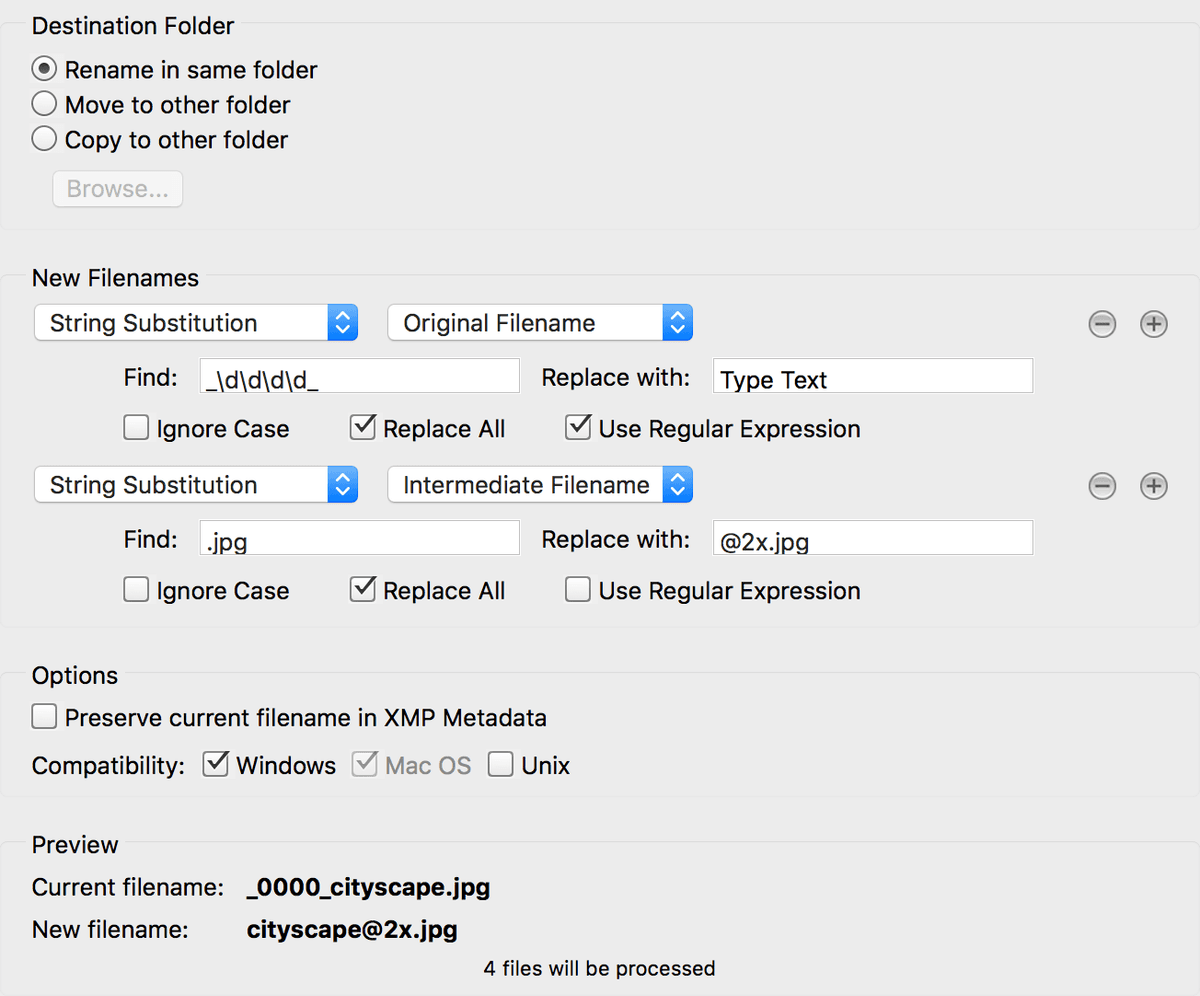
  11. Choose String Substitution from the Preset menu.

  12. Set Destination Folder to Rename in same folder.

  13. We'll use regular expressions (regex) to identify and remove the numeric prefixes. This powerful pattern-matching technique handles complex renaming scenarios that simple find-and-replace cannot.

    Check Use Regular Expression.

  14. In the Find field, enter an underscore: _

  15. The Preview section shows the initial underscore will be removed from filenames.

  16. Extend the pattern by adding \d after the underscore—this represents any single digit.

  17. The preview now shows the first numeric digit being removed.

  18. Complete the pattern by adding three more \d instances plus a trailing underscore, creating:

    _\d\d\d\d_

  19. The preview confirms that all prefixed numbers and underscores will be stripped from your filenames.

  20. For high-resolution files, append the standard @2x identifier. Click the Plus (+) button next to New Filenames.

  21. Change the new dropdown from Text to String Substitution.

  22. Set the adjacent dropdown from Original Filename to Intermediate Filename.

  23. Enter .jpg in the Find field.

  24. Enter @2x.jpg in the Replace with field.

  25. Enable cross-platform compatibility:

    • Mac users: check Windows
    • Windows users: check Mac OS
  26. Verify your settings match this configuration:

    bridge grep remove prefixes

  27. Save this configuration as a reusable preset for future projects:

    • Click Save at the top of the dialog
    • Name it Remove Layers to Files Prefix & Add @2x.jpg
    • Click OK
    • This preset will now appear in your Preset menu for instant access
  28. Execute the renaming operation by clicking Rename.

    Your files now have clean, professional names ready for web deployment, complete with high-resolution indicators that modern responsive frameworks recognize automatically.

File Naming Issue

Layers to Files exports include unwanted 4-digit number prefixes with underscores. Bridge's batch rename feature with regular expressions can clean these up automatically.

Regular Expression Batch Rename Setup

1

Select All Files

Use Cmd-A (Mac) or Ctrl-A (Windows) to select all files needing rename

2

Configure String Substitution

Choose Tools > Batch Rename, select String Substitution preset, enable Use Regular Expression

3

Set Find Pattern

Enter '_\d\d\d\d_' to match underscore-digit-digit-digit-digit-underscore pattern

4

Add @2x Suffix

Add second substitution to replace '.jpg' with '@2x.jpg' for proper 2x file naming

Save Your Rename Preset

Save your regular expression rename settings as a preset for future use. This eliminates the need to recreate complex find-and-replace patterns for similar batch operations.

Key Takeaways

1Image Processor is ideal for batch processing when files are ready-to-go, while Layers to Files works best when custom cropping and proportion changes are needed
2Use JPEG Quality 8 for 1x images and Quality 5 for 2x images, as 2x files appear at half size and can handle more compression
3Always convert profiles to sRGB and avoid including ICC profiles for web-optimized images to ensure consistent color display across browsers
4The Layers to Files workflow allows you to crop multiple images simultaneously while maintaining global size consistency across all exports
5Adobe Bridge provides powerful batch renaming capabilities with regular expressions to clean up automated file naming patterns
6Smart Objects in Photoshop preserve image quality when scaling and cropping, making them ideal for batch processing workflows
7Creating 2x masters first, then scaling to 1x versions maintains the highest quality workflow for responsive web images
8Proper file organization with separate 1x and 2x folders streamlines the development handoff process and maintains clean project structure

RELATED ARTICLES