April 1, 2026Dan Rodney/5 min read

Sharpening with High Pass

Master Professional Photo Sharpening with High Pass Filters

What You'll Learn

High Pass Filter Technique

Learn how to use High Pass filters with Hard Light blending mode for natural photo sharpening.

Smart Sharpen Comparison

Understand the differences between High Pass and Smart Sharpen methods for various image types.

Layered Document Workflow

Master advanced techniques for applying sharpening to complex multi-layered Photoshop documents.

Topics Covered in This Photoshop Tutorial:

Mastering the High Pass Filter for Professional Sharpening, Strategic Use of Hard Light Blending Mode, Comparative Analysis: High Pass vs. Smart Sharpen Techniques

Exercise Preview

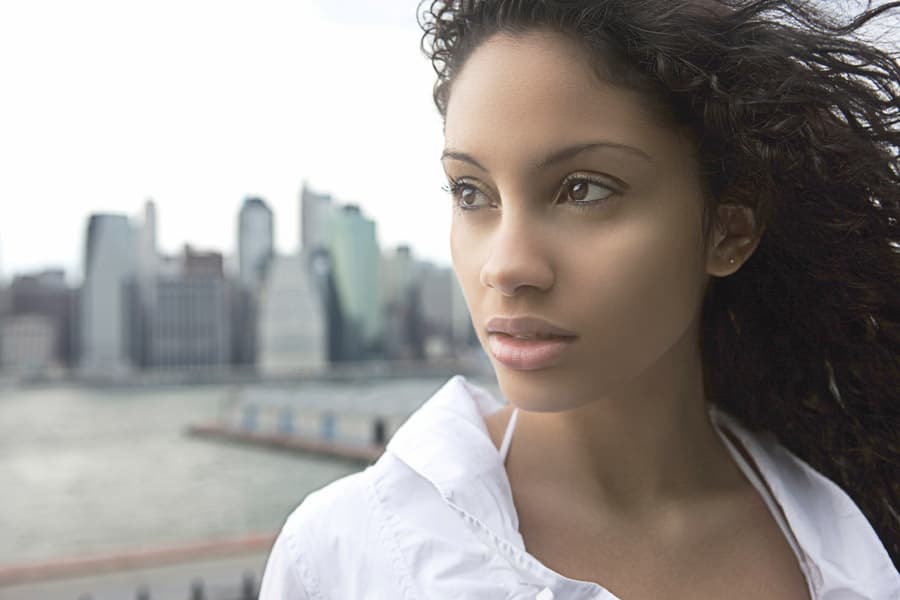
girl with city background done

Photo courtesy of istockphoto, © Quavondo, Photo #6405868

Exercise Overview

Professional image sharpening is both art and science—requiring technical precision while preserving the natural character of your image. In this comprehensive exercise, we'll conduct a detailed comparison between two powerful sharpening approaches: Adobe's Smart Sharpen filter and the more nuanced High Pass technique combined with blend modes.

While Smart Sharpen offers convenience and impressive computational power, it often applies uniform enhancement across all image details—including areas that may benefit from a lighter touch. The High Pass method, by contrast, provides superior control over which elements receive emphasis, typically yielding results that feel more organic and closer to natural vision. This technique excels at directing attention to genuine focal points while avoiding the artificial over-sharpening that can plague automated approaches, particularly in areas with complex tonal transitions or mixed textures.

Understanding both methods will elevate your post-processing workflow and help you make informed decisions based on your specific image requirements and client expectations.

High Pass vs Smart Sharpen Overview

FeatureHigh Pass FilterSmart Sharpen
Natural ResultsMore natural, closer to originalEnhances all details uniformly
Focus AreasBetter focuses on eyes, natural interest areasBrings attention to all details equally
Unwanted EffectsMinimal halos, preserves shirt detailsCan create halos, over-emphasizes features
Recommended: High Pass typically produces more natural sharpening results

Sharpening with a High Pass Filter

  1. Open girl with city background.jpg.
  2. Execute File > Save As to preserve your original file.
  3. From the Format menu (Mac) or Save as type menu (Windows) choose Photoshop and name it yourname-girl-sharpen.psd.
  4. Duplicate the Background layer using Cmd–J (Mac) or CTRL–J (Windows). This non-destructive approach preserves your original image data.
  5. Rename the duplicated layer high pass for clear workflow organization.
  6. Set the blend mode to Hard Light. This mode will interpret the neutral gray from the High Pass filter as transparent, while lighter and darker areas create the sharpening effect.
  7. Navigate to Filter > Other > High Pass.
  8. Set the Radius to 8 Pixels and click OK. This relatively high value works well for this resolution and subject matter, but remember that optimal radius varies with image size and content.
  9. Toggle the high pass layer visibility to evaluate the sharpening effect. The enhancement should feel natural and targeted. When satisfied with the results, ensure the high pass layer remains visible.

Now we'll create a direct comparison to understand the practical differences between these sharpening approaches.

High Pass Sharpening Workflow

1

Prepare the File

Open your image and save as PSD format with a descriptive name for version control

2

Create High Pass Layer

Duplicate background layer, rename to 'high pass', and set blending mode to Hard Light

3

Apply High Pass Filter

Go to Filter > Other > High Pass, set radius to 8 pixels, and apply the effect

4

Test Results

Toggle layer visibility to compare before and after results, adjust if needed

Hard Light Blending Mode

The Hard Light blending mode is essential for High Pass sharpening as it creates contrast enhancement based on the gray values in the High Pass filter output.

High Pass Vs. Smart Sharpen

  1. In the Layers panel, select the Background layer and duplicate it using Cmd–J (Mac) or CTRL–J (Windows).

  2. Rename this new layer smart sharpen to maintain clear layer organization.

  3. Drag this layer above the high pass layer in the layer stack.

  4. With the smart sharpen layer selected, navigate to Filter > Sharpen > Smart Sharpen.

  5. Configure the following settings before clicking OK:

    Amount: 100%
    Radius: 8 px
    Reduce Noise: 0% (We're disabling noise reduction for pure comparison purposes, though you should typically enable this feature in production work.)
    Remove: Gaussian Blur
  6. Toggle the smart sharpen layer visibility to compare it directly against the high pass technique.

    Examine the results critically: Notice how the high pass method enhances hair texture with greater subtlety and natural definition. The high pass approach also demonstrates superior selectivity—emphasizing the eyes as natural focal points while avoiding over-enhancement of the nose area. In contrast, Smart Sharpen creates excessive emphasis on the nose and generates problematic haloing along the left cheek where it intersects with the background buildings.

    The high pass technique produces more organic-looking results overall. For instance, the shirt strap becomes overly prominent with Smart Sharpen but maintains appropriate visual weight with high pass. This selective enhancement quality makes high pass sharpening particularly valuable for portrait work, where maintaining natural skin textures and avoiding artificial-looking results is paramount. The technique inherently respects the original image's tonal relationships while enhancing perceived sharpness.

  7. In professional workflows, we would typically employ layer masks to selectively remove unwanted sharpening from specific areas, but this comparison exercise demonstrates the core differences effectively. Save your work and close the file when you've fully analyzed both techniques.

For complex, multi-layered documents, you'll need a slightly different approach to apply High Pass sharpening effectively while preserving your editing workflow.

Smart Sharpen Comparison Setup

1

Create Smart Sharpen Layer

Duplicate background layer, name it 'smart sharpen', and position above high pass layer

2

Apply Smart Sharpen Filter

Use Filter > Sharpen > Smart Sharpen with 100% amount, 8px radius, 0% noise reduction

3

Compare Results

Toggle between layers to see differences in hair definition, eye focus, and background halos

High Pass Sharpening Analysis

Pros
More natural appearance closer to original image
Better definition in hair and fine details
Superior eye focus without over-emphasizing nose
Reduced halo effects on edges and backgrounds
Less prominent enhancement of unwanted elements
Cons
Requires understanding of blending modes
May need layer masks for selective application
Less automated than Smart Sharpen presets

Optional Bonus: Using High Pass on a Layered Document

Professional retouching workflows demand that sharpening be applied as the final step, after all color corrections, local adjustments, and creative enhancements are complete. This approach prevents sharpening artifacts from being amplified by subsequent adjustments and ensures optimal quality. Here's how to implement High Pass sharpening on complex, multi-layered documents while preserving your complete editing history.

  1. Open lifestyle color shirt-done.psd.

  2. When the Embedded Profile Mismatch dialog appears, note that this image uses ColorMatch RGB. This is a legitimate professional color space similar to Adobe RGB, commonly used in high-end publishing workflows. Leave Use the embedded profile selected and click OK to maintain color accuracy.

  3. Execute Select > All to select the entire canvas.

  4. Choose Edit > Copy Merged. This powerful command copies the composite appearance of all visible layers as a single merged layer, while leaving your original layers intact.

  5. Select the color shirt layer as your target location.

  6. Execute Edit > Paste to create your composite layer.

  7. Rename this new layer high pass sharpen to clearly identify its purpose in your layer stack.

  8. Set the blend mode to Hard Light to prepare for the High Pass effect.

  9. Navigate to Filter > Other > High Pass.

  10. Set the Radius to 1 Pixel and click OK. This conservative setting is appropriate for the detail level and resolution of this particular image.

    This workflow achievement is significant: you've successfully preserved your entire editing history while adding professional-grade sharpening as a separate, adjustable layer. Your next step in a production environment would be adding a layer mask to this sharpening layer, allowing you to paint out any areas where the effect is unwanted—such as smooth skin areas, out-of-focus backgrounds, or any regions where the sharpening creates unwanted artifacts. This non-destructive approach maintains maximum flexibility for client revisions and different output requirements.

Best Practice Timing

Always save sharpening for the very end of your retouching process to avoid compounding effects and maintain maximum image quality.

Layered Document Sharpening Workflow

1

Handle Color Profiles

When opening files with embedded profiles like ColorMatch RGB, use the embedded profile to maintain color accuracy

2

Create Merged Copy

Use Select All and Copy Merged to capture all visible layer information into a single sharpening layer

3

Apply High Pass Sharpening

Paste as new layer, set to Hard Light mode, and apply High Pass filter with 1 pixel radius for subtle enhancement

4

Preserve Layer Structure

All original editing layers remain intact while adding non-destructive sharpening on top

Layer Mask Recommendation

After applying High Pass sharpening, add a layer mask to selectively remove sharpening from areas that don't benefit, such as smooth skin or out-of-focus backgrounds.

Key Takeaways

1High Pass sharpening with Hard Light blending mode produces more natural results than Smart Sharpen
2High Pass better focuses on natural areas of interest like eyes while avoiding over-enhancement of unwanted details
3Smart Sharpen can create unwanted halos and emphasize all details equally, including noise and distractions
4Always save sharpening for the final step in your retouching workflow to maintain image quality
5For layered documents, use Select All and Copy Merged to create a composite sharpening layer that preserves all editing work
6Layer masks should be used with High Pass sharpening to selectively control where enhancement is applied
7A radius of 8 pixels works well for portraits, but complex layered documents may require lower values like 1 pixel
8Color profile management is important when working with images that use workspaces other than sRGB

RELATED ARTICLES