April 1, 2026Noble Desktop Publishing Team/7 min read

The Navigation Controller

Master iOS Navigation Controllers for Professional Apps

Core Navigation Controller Components

Navigation Controller

Manages the relationships and transitions between views in your app. Provides the framework for hierarchical navigation.

Root View Controller

The first controller instantiated by the Navigation Controller. Sets the foundation for your app's navigation flow.

Detail View Controller

Secondary controllers that display detailed information when users navigate deeper into the app hierarchy.

Topics Covered in This iOS Development Tutorial:

Setting up the Navigation Controller, Setting up the Initial View Controller, Setting up the Root View Controller, Adding the Detail View Controller

Exercise Preview

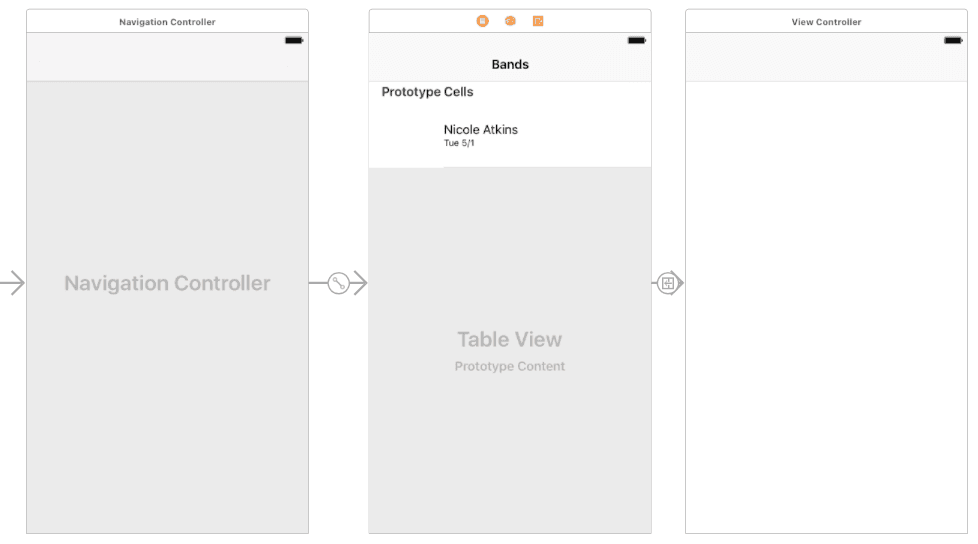
ex prev 3B

Exercise Overview

In this exercise, we'll implement one of iOS development's most fundamental navigation patterns: the master-detail view architecture. When users tap a band cell in our table view controller, they'll navigate to a dedicated detail view showcasing comprehensive band information. This functionality relies on the Navigation Controller—a cornerstone component that powers the hierarchical navigation experience users expect in professional iOS applications. Mastering this pattern is essential for any developer building content-rich apps that need to present information across multiple screens while maintaining intuitive user flow.

Navigation Pattern Benefits

Navigation Controllers provide easy navigation between hierarchical content with automatic title bars and back buttons, creating intuitive user experiences similar to the iOS Settings app.

Getting Started

  1. If you completed the previous exercise you can skip the following sidebar. We strongly recommend completing the previous exercises (1B–1C) before proceeding, as this exercise builds directly on the foundation established in those modules.

    If you completed the previous exercise, Jive Factory.xcodeproj should still be open in Xcode. If you closed it, navigate to yourname-iOS Dev Level 2 Class > Jive Factory and reopen the project file.

    Prerequisites Check

    0/3

If You Did Not Complete the Previous Exercises (1B–1C)

  1. Close any open files and switch to the Desktop.
  2. Navigate to Class Files > yourname-iOS Dev Level 2 Class.
  3. Duplicate the Jive Factory Ready for Navigation Controller folder.
  4. Rename the duplicated folder to Jive Factory.
  5. Open Jive Factory > Jive Factory.xcodeproj.

Project Setup Recovery

1

Navigate to Class Files

Close any open files and switch to Desktop, then navigate to Class Files > yourname-iOS Dev Level 2 Class

2

Duplicate Ready Folder

Duplicate the 'Jive Factory Ready for Navigation Controller' folder and rename it to 'Jive Factory'

3

Open Project File

Open Jive Factory > Jive Factory.xcodeproj to begin working with the navigation controller

Understanding the Navigation Controller Architecture

Before implementing the Navigation Controller in our storyboard, let's examine its fundamental architecture and behavior patterns. Understanding these concepts will help you make informed decisions about navigation design in your own applications.

  1. In Xcode, navigate to Help > Developer Documentation.
  2. Enter UINavigationController in the search field and allow the results to populate.
  3. Select the first result (which should be the UINavigationController class reference).
  4. Scroll down to locate Figure 1 A sample navigation interface.

    This diagram illustrates the hierarchical navigation interface we're building. The Navigation Controller excels at managing hierarchical content relationships, automatically providing navigation affordances that users intuitively understand. Each view controller in the stack receives a title bar that you can customize. In the example shown, the root controller displays "Settings." When users tap "General," they navigate to a new controller titled "General" that automatically includes a back button labeled with the previous screen's title—"Settings." This automatic back-button generation and title management significantly reduces development overhead while ensuring consistent user experience patterns.

  5. Now that you understand the navigation paradigm we're implementing, close the Documentation window and return to the project workspace.

Implementing the Navigation Controller

With our conceptual foundation established, let's integrate the Navigation Controller into our app's interface architecture.

  1. In the Project navigator, select Main.storyboard.
  2. Expand the Editor workspace for optimal visibility. If the Document Outline is visible, click the Hide Document Outline button show hide document outline icon at the bottom left of the Editor area.
  3. Access the Object library object library icon in the top right panel.
  4. Locate the Navigation Controller component.
  5. Drag the Navigation Controller into the storyboard canvas, positioning it away from the existing Bands Table View Controller. Minor overlap is acceptable—we'll optimize positioning in subsequent steps.
  6. If the Document Outline reopened automatically, click the Hide Document Outline button show hide document outline icon again to maximize workspace.
  7. Observe that Xcode automatically provides two interconnected scenes with the Navigation Controller:

    • Navigation Controller: The container that manages view controller relationships, transitions, and the navigation stack
    • Root View Controller: The initial view controller instantiated when the Navigation Controller loads
  8. Since our existing Bands Table View Controller should serve as the root controller, we need to remove the default Root View Controller. Click on any empty area of the storyboard to deselect all elements.
  9. Select the Root View Controller by clicking its top bar until it displays a blue outline.
  10. Press Delete to remove it.
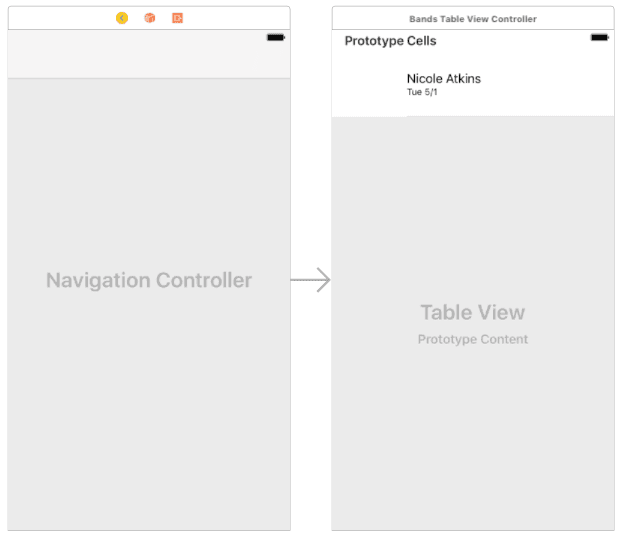
  11. Arrange the remaining controllers for optimal workflow: position the Navigation Controller on the left with the Bands Table View Controller aligned horizontally to its right, as demonstrated below.

    arrange navigation controllers

Configuring the Initial View Controller

The app's entry point must be properly configured to ensure users encounter the Navigation Controller first, which then presents our table view. Currently, the gray arrow indicates that our Bands Table View Controller serves as the initial view controller—we need to redirect this to the Navigation Controller.

  1. Select the Navigation Controller by clicking its top bar (it will display a blue selection outline).

    NOTE: If a controller is already selected and you click the top bar again, it will deselect. Simply click again to reselect.

  2. In the Utilities panel on the right, select the Attributes inspector tab attributes inspector icon.
  3. Within the View Controller section, enable Is Initial View Controller.
  4. Verify in the storyboard that the gray arrow now points to the Navigation Controller, confirming the configuration change.

Establishing the Root View Controller Connection

With the Navigation Controller designated as our app's entry point, we must establish the connection that makes our Bands Table View Controller the first screen users see. This relationship is configured through Xcode's Connections inspector.

  1. Ensure the Navigation Controller remains selected in the Editor (indicated by the blue outline).
  2. In the Utilities panel, switch to the Connections inspector tab connections inspector icon.
  3. Locate the Triggered Segues section and find root view controller.

    NOTE: If the Triggered Segues section appears collapsed, click its header to expand the content.

  4. Position your cursor over the circle adjacent to root view controller until it transforms into a + symbol.
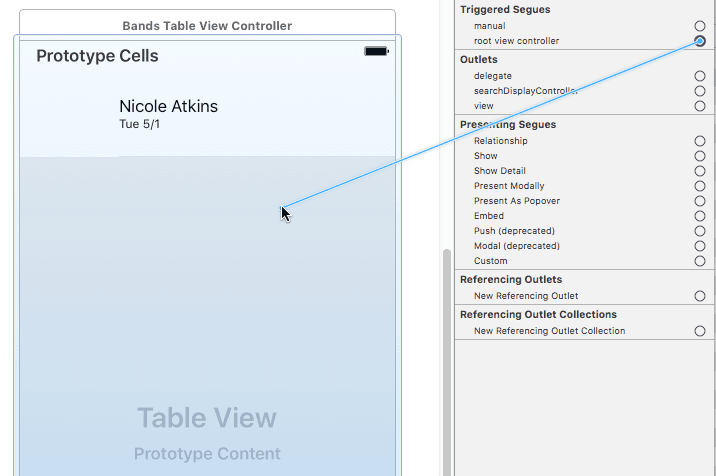
  5. Hold Control and drag from the circle to the Bands Table View Controller, then release to establish the connection, as illustrated below:

    rootview connection

  6. Confirm in the Connections inspector connections inspector icon that root view controller now shows a connection to Bands Table View Controller.

    This connection establishes the Table View Controller as the Navigation Controller's root view controller, creating the foundation for our hierarchical navigation structure.

Creating the Detail View Controller

Now we'll add the detail view controller that will display comprehensive band information and establish the navigation relationship between our table view and this new screen.

  1. We need a dedicated View Controller for displaying band details. In the Object library object library icon, locate the View Controller component.
  2. Drag the View Controller into the Editor and position it to the right of the Bands Table View Controller.
  3. Align it horizontally with the other controllers for a clean, organized storyboard layout.

    With our detail view controller in place, we need to create a segue connection between the table view cell and this new controller. This will enable users to tap any band cell and navigate to the detailed information screen.

  4. Reopen the Document Outline for precise element selection. Click the Show Document Outline button show hide document outline icon at the bottom left of the Editor.

  5. In the Document Outline, hold Control and drag from the bandCell to the View Controller positioned on the right.
  6. When the Segue menu appears, select Show under the Selection Segue section. This creates a push segue that's perfectly suited for hierarchical navigation patterns.
  7. Select the Navigation Item within the Bands Table View Controller.
  8. In the Utilities area, ensure the Attributes inspector tab attributes inspector icon is active.
  9. In the Title field, enter Bands and press Return.
  10. Notice how the title bar of the Bands Table View Controller immediately updates to reflect this change—this title will also appear on back buttons when users navigate deeper into the app.
  11. Click the Run button to test our navigation implementation.
  12. When the app launches in the Simulator, tap any band cell. You should smoothly navigate to the blank detail view controller, confirming that our segue connection is functioning correctly. In the next exercise, we'll populate this view with rich band information and interactive elements.
  13. Test the navigation flow by tapping the Bands button at the top left to return to the band list. This automatic back button generation exemplifies the user experience benefits of properly implemented Navigation Controller architecture.
  14. Return to Xcode and click the Stop button.
  15. Save your work with File > Save.
  16. Keep the project open—we'll continue building upon this navigation foundation in the next exercise, where we'll transform the blank detail view into a compelling, information-rich user interface.

Key Takeaways

1Navigation Controllers manage hierarchical content navigation with automatic title bars and back buttons
2The Initial View Controller should point to the Navigation Controller, not directly to your content controllers
3Root View Controller is the first controller instantiated by the Navigation Controller
4Segues connect table view cells to detail view controllers using Control-drag connections
5Apple's documentation provides essential reference material for understanding UINavigationController patterns
6Navigation titles are set through the Navigation Item's title property in the Attributes inspector
7Testing navigation flow in the Simulator ensures proper connections and user experience
8Proper controller arrangement and connections create intuitive iOS app navigation patterns

RELATED ARTICLES