April 1, 2026Noble Desktop Publishing Team/9 min read

Setting Up Firebase: Free iOS Development Tutorial

Master Firebase Integration for Professional iOS Apps

What You'll Learn

Firebase Integration

Set up and configure Firebase for your iOS application with proper dependency management.

Cloud Connectivity

Connect your app to web services and implement real-world data storage solutions.

MVC Architecture

Build upon existing MVC patterns to create scalable, maintainable iOS applications.

Topics Covered in This iOS Development Tutorial:

Creating a Firebase App, Adding Dependencies, Connecting to Firebase, Testing the SDK, Connecting the Model & View Controller with Firebase

Exercise Overview

In the previous exercise, we evolved our application to embrace the MVC design pattern and established a unified data source architecture. While this represents solid progress, there's one critical component missing from our real-world deployment strategy: seamless cloud integration. Modern iOS applications don't operate in isolation—they require robust backend connectivity to deliver the dynamic, data-driven experiences users expect.

This lesson will equip you with essential skills for production-ready iOS development. You'll master how to:

  • Architect reliable web service integrations that scale with your user base
  • Design and implement cloud-based data storage solutions
  • Parse and transform cloud data for optimal display within your application's interface

By the end of this exercise, your app will be capable of real-time data synchronization—a fundamental requirement for competitive mobile applications in today's market.

Building on Previous Work

This tutorial continues from the MVC design pattern implementation. You'll transform your local app into a cloud-connected application ready for real-world deployment.

Getting Started

  1. If you successfully completed the previous exercise, you can proceed directly to the Firebase setup section below. We strongly recommend completing the foundational exercises (1B–4A) before tackling this advanced integration, as they establish the architectural patterns essential for cloud connectivity.

    If you completed the previous exercise, Jive Factory.xcodeproj should remain open in Xcode. If you've closed it, navigate to yourname-iOS Dev Level 2 Class > Jive Factory and reopen the project file.

    Prerequisites Verification

    0/3

If You Did Not Complete the Previous Exercises (1B–4A)

  1. Close any open files and return to your Desktop workspace.
  2. Navigate to Class Files > yourname-iOS Dev Level 2 Class.
  3. Duplicate the Jive Factory-Real World Setup Done folder.
  4. Rename the duplicated folder to Jive Factory.
  5. Open Jive Factory > Jive Factory.xcodeproj to begin.

Creating a Firebase Account

Firebase represents Google's comprehensive Backend-as-a-Service (BaaS) platform, engineered to eliminate the complexity of server management and database administration from your development workflow. Rather than provisioning your own infrastructure, Firebase provides enterprise-grade web servers, real-time databases, and authentication systems through elegant, well-documented APIs.

For iOS developers, Firebase offers particular advantages: automatic data synchronization across devices, offline capability, and seamless integration with Apple's development ecosystem. These features make it an excellent choice for rapid prototyping and production applications alike, especially for teams who want to focus on user experience rather than backend architecture.

  1. Firebase requires authentication through a Google account for access to its developer console. If you don't have a Google account, visit accounts.google.com/signup to create one before proceeding. This account will serve as your developer identity across Google's suite of development tools.
  2. Navigate to firebase.google.com in your web browser.

    NOTE: The Firebase interface evolves regularly with feature updates. While the core workflow remains consistent, specific button locations or screen layouts may differ from these instructions.

  3. Click the SIGN IN button located in the top-right corner of the homepage.
  4. In the authentication dialog, enter the email address associated with your Google account and click Next.
  5. Enter your account password in the password field that appears.
  6. Click Sign in to access your Firebase dashboard.
  7. Once authenticated, click Go to Console in the top-right corner to access the Firebase project management interface.

Firebase Advantages

Firebase handles all backend infrastructure including web servers and databases, allowing you to focus on app development rather than server management.

Account Setup Process

1

Create Google Account

Visit accounts.Google.com/signup if you don't have a Google account, as Firebase requires Google authentication.

2

Access Firebase Console

Navigate to firebase.Google.com, sign in with your Google credentials, and click 'Go to Console'.

3

Prepare for Project Creation

You'll be ready to create your first Firebase project for the Jive Factory application.

Creating a Firebase App

Each Firebase project functions as an isolated data environment that can serve multiple client applications across iOS, Android, and web platforms. Think of it as your application's dedicated cloud infrastructure, complete with databases, authentication services, and analytics tools. Let's establish this foundation for your app.

  1. From the Firebase Console dashboard, click Add Project to initiate the project creation workflow.
  2. In the Project Name field, enter: Jive Factory. This name will identify your project across all Firebase services.
  3. Click Continue to proceed to the next configuration step.
  4. Firebase will prompt you to enable Google Analytics integration. For this tutorial, toggle the Analytics option to Disable to maintain focus on core database functionality, then click Create Project.
  5. Firebase will provision your project infrastructure, which typically takes 30-60 seconds. When the process completes, click Continue to access your project console.

    You'll be redirected to your project's main dashboard, which serves as the control center for all Firebase services.

  6. On the project homepage, locate and click the iOS button under the "Get started by adding Firebase to your app" section.
  7. The registration dialog requires your app's Bundle Identifier—a unique string that identifies your application to iOS and Apple's services. To retrieve this identifier:
    • Switch to Xcode using Cmd+Tab or by clicking the Xcode icon in your dock.
    • In the Project navigator (left sidebar), click on the Jive Factory project name (the blue icon, not the folder).
    • Select the General tab from the top navigation bar.
    • Locate the Bundle Identifier field and copy the entire text string (formatted as com.YourName.Jive-Factory) using Cmd+C.
    • Return to the Firebase browser tab and paste this identifier using Cmd+V.
  8. Click Register app to create the connection between your iOS project and Firebase backend.
  9. Firebase will generate a configuration file named GoogleService-Info.plist. This file contains essential connection parameters and security keys. Click the download button to save it to your computer.

    The downloaded GoogleService-Info.plist file contains encrypted credentials that enable your app to communicate securely with your Firebase project. Guard this file carefully—it should never be shared publicly or committed to version control systems.
  10. Locate the GoogleService-Info.plist file in your Downloads folder using Finder.
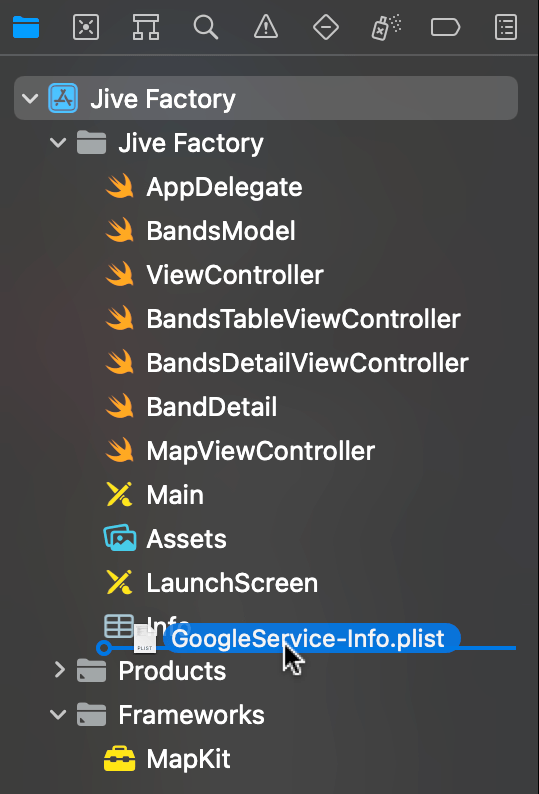
  11. With Xcode visible, drag the GoogleService-Info.plist file directly into the Project navigator sidebar, positioning it below the existing Info.plist file for organizational clarity.

    drag Google service plist

  12. In the file import dialog, ensure that Copy items if needed is checked—this creates a local copy within your project directory rather than linking to the Downloads folder. Click Finish to complete the import.

Firebase Project Setup

1

Initialize Project

Click 'Add Project' and name it 'Jive Factory'. This creates your dedicated dataset for the application.

2

Configure Analytics

Disable Google Analytics for now to keep the setup simple. You can enable it later if needed.

3

Add iOS Platform

Select the iOS button and enter your app's Bundle Identifier from Xcode's General settings.

4

Download Configuration

Download GoogleService-Info.plist and drag it into your Xcode project under the existing Info.plist file.

Bundle Identifier Location

Find your Bundle Identifier in Xcode by clicking the project name in Project navigator, then selecting General tab. Copy the text next to Bundle Identifier.

Adding Dependencies

Modern iOS development relies heavily on external libraries and frameworks to accelerate development and ensure reliability. Dependencies are pre-built code libraries that provide specific functionality—in this case, Firebase's iOS SDK handles all the complex networking, data synchronization, and security protocols required for cloud connectivity.

We'll use Swift Package Manager (SPM), Apple's official dependency management system introduced to streamline library integration. SPM automatically resolves dependency chains, manages version compatibility, and handles updates—eliminating the manual library management that once made iOS development cumbersome. This approach ensures your project remains maintainable as both your app and its dependencies evolve.

  1. In Xcode, navigate to File > Add Packages… to open the package manager interface. In the search field that appears at the top-right, enter the official Firebase iOS SDK repository URL: https://github.com/firebase/firebase-ios-sdk
  2. Xcode will fetch the available packages from the repository, which may take several moments depending on your internet connection. Once the package information loads, you'll see a list of available Firebase modules. Select FirebaseDatabase (we're focusing on real-time database functionality for this exercise) and click Add Package.
  3. Upon successful installation, you'll notice Package Dependencies appears in your Project navigator, containing the Firebase SDK and its associated dependencies.

    Your Xcode project now has access to Firebase's comprehensive iOS development toolkit, including real-time database capabilities, authentication services, and cloud storage options.

Dependencies are libraries of code that another library needs to run.
Understanding why Swift Package Manager is essential for Firebase integration and maintaining code libraries.

Swift Package Manager Setup

1

Access Package Manager

In Xcode, navigate to File > Add Packages to open the dependency management system.

2

Add Firebase SDK

Enter the Firebase iOS SDK URL: https://GitHub.com/firebase/firebase-iOS-sdk and wait for package retrieval.

3

Select Dependencies

Choose Firebase/Database from the available options and click Add Package to complete installation.

Connecting to Firebase

With dependencies installed and configuration files in place, we'll establish the actual connection between your iOS app and Firebase backend. This involves initializing the Firebase SDK and implementing basic read/write operations to verify functionality.

  1. In Xcode, open BandsTableViewController.swift (located in Jive Factory > Jive Factory) and add the Firebase import statement:

    import UIKit
    import FirebaseDatabase
    
    class BandsTableViewController: UITableViewController {
  2. Within the viewDidLoad method, add the Firebase initialization and connection code:

    override func viewDidLoad() {
       super.viewDidLoad()
       bandsModel.fetch() 
    
       FirebaseApp.configure()
       let myRootRef = Database.database().reference()
       // Write data to Firebase
       myRootRef.setValue("Firebase Data")
    
    }
  3. To verify bidirectional communication, add a data observer that will monitor changes in your Firebase database:

    myRootRef.setValue("Firebase Data")
    
       myRootRef.observe(.value, with: {
          snapshot in
          print("\(snapshot.key) -> \(String(describing: snapshot.value))")
      })
  4. Return to the Firebase Console in your web browser to configure your database.
  5. Click the Next button through any remaining setup screens until you see Continue to console, then select that option.
  6. From the left sidebar, click Realtime Database and then click the Create Database button to provision your data storage.
  7. In the Set up database dialog, leave the default Database Options selected and click Next.
  8. Choose Start in test mode for development purposes and click Enable. Note that test mode allows unrestricted read/write access—you'll want to implement proper security rules before deploying to production.

    Your Firebase Realtime Database is now active and ready to handle data operations.

Testing the SDK

Before integrating Firebase into your app's core functionality, it's essential to verify that all components are communicating correctly. We'll run a comprehensive test to ensure data flows properly between your iOS app and Firebase backend.

  1. Return to Xcode and ensure your project is ready for testing.
  2. In the Project navigator, select the Jive Factory project folder (the blue icon at the top).
  3. Although we haven't implemented Firebase Analytics in this exercise, let's prepare for potential future integration by adding Apple's AdSupport framework. Under Linked Frameworks and Libraries (located at the bottom of the project settings), click the Add items button add button.
  4. In the framework search field, type AdSupport.
  5. Double-click AdSupport.framework from the search results to add it to your project.
  6. With all components configured, we're ready to test the Firebase connection.
  7. Ensure iPhone 13 Pro (or a comparable simulator) is selected as your active scheme, then click the Run button run icon to launch your app.
  8. Open Xcode's console panel and look for output containing -> Optional(Firebase Data).

    This console output confirms that your app successfully wrote data to Firebase and received it back—indicating a functioning bidirectional connection.

  9. To verify data persistence, return to the Firebase Console in your browser.
  10. Navigate away from the Database section by clicking Authentication.
  11. Click back to Database to refresh the view.

    You should now see your test message "Firebase Data" stored under your app's unique identifier (something like jive-factory-d1ce2). This confirms that data persistence is working correctly across your cloud infrastructure.

  12. Clean up the test data by hovering over the message entry and clicking the X button that appears.
  13. Confirm the deletion by clicking Delete in the confirmation dialog.
  14. Return to Xcode to remove the test code from your project.
  15. In BandsTableViewController.swift, select and delete all the test code we added:

    FirebaseApp.configure()
     let myRootRef = Database.database().reference()
    
     // Write data to Firebase
     myRootRef.setValue("Firebase Data")
    
     myRootRef.observe(.value, with: {
        snapshot in
        print("\(snapshot.key) -> \(String(describing: snapshot.value))")
     })
  16. Save the file using Cmd+S and keep your Xcode project open—we'll build upon this foundation in subsequent exercises.

Congratulations! You've successfully established a secure, functional connection between your iOS application and Firebase's cloud infrastructure. Your app is now equipped with the backend capabilities necessary for real-world deployment, including real-time data synchronization and cloud storage. In the next exercise, we'll leverage this connection to implement dynamic data management features that will transform your static app into a fully interactive experience.

SDK Verification Process

1

Import Firebase

Add 'import FirebaseDatabase' to BandsTableViewController.swift alongside existing imports.

2

Configure Connection

Add FirebaseApp.configure() and database reference code in viewDidLoad method to establish connection.

3

Test Data Transfer

Write test data to Firebase and observe the response to verify successful connection.

4

Verify in Console

Check Firebase console to confirm data appears, then clean up test code for production readiness.

Connection Confirmed

When you see 'Optional(Firebase Data)' in the Xcode console and the data appears in your Firebase console, your integration is successful.

Key Takeaways

1Firebase provides a complete backend-as-a-service solution that eliminates the need to manage servers and databases manually
2Swift Package Manager simplifies dependency management by automatically handling library installations and updates
3Proper MVC architecture from previous exercises creates the foundation needed for effective Firebase integration
4The GoogleService-Info.plist file contains essential configuration data that connects your iOS app to your specific Firebase project
5Testing SDK connections with simple read/write operations ensures your Firebase setup is working before building complex features
6Firebase Realtime Database requires Google account authentication and provides instant data synchronization capabilities
7Bundle Identifier matching between Xcode and Firebase console is crucial for proper app-to-service communication
8Cleaning up test code after verification maintains professional code quality and prevents unnecessary data operations in production

RELATED ARTICLES