Setting the Video for Each Band
Per-Band Video Setup
Import All Band Footage
Organize each band's video files into separate bins for clarity.
Match the Duration
Trim each band's video to match its segment in the master timeline.
Sync to Audio Cues
Use audio waveforms to align video changes with musical hits.
Color Correct Each Source
Different cameras shoot differently — match the look across all bands.
Noble Desktop's Video Editing & Motion Graphics Certificate teaches Premiere Pro alongside After Effects.
Explore our comprehensive tutorial on iOS Development, covering topics such as defining video URL for band detail objects and making the URL a dynamic string.
Topics Covered in This IOS Development Tutorial:
Defining the Video URL for Band Detail Objects, Making the URL a Dynamic String
Exercise Preview
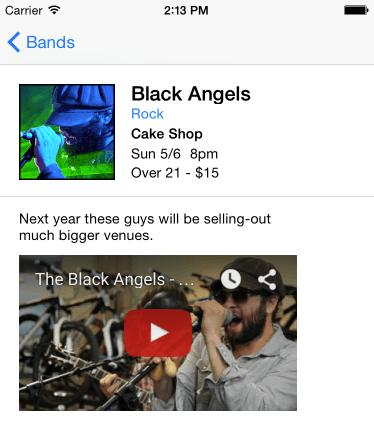
Exercise Overview
In the previous exercise we embedded a video into the detail view, but it’s the same video for each band! In this exercise, you’ll learn how to pass along the correct video URL, depending on the currently chosen band.
Getting Started
If you completed the previous exercise you can skip the following sidebar. We recommend you finish the previous exercises (1B–3B) before starting this one.
If you completed the previous exercise, Jive Factory.xcodeproj should still be open. If you closed it, re-open it (from yourname-iOS Dev Level 2 Class > Jive Factory).
If You Did Not Complete the Previous Exercises (1B–3B)
- Close any files you may have open and switch to the Desktop.
- Navigate to Class Files > yourname-iOS Dev Level 2 Class.
- Duplicate the Jive Factory Ready for Setting Band Videos folder.
- Rename the folder to Jive Factory.
- Open Jive Factory > Jive Factory.xcodeproj.
Getting Started
If you remember from a previous exercise, the details for the four bands are contained in objects of the BandDetail class we created. We want to pass along the correct youtube.com video URL for each of these bands. First we need to add a new property to our class to hold the video URL.
- In the Project navigator, click on BandDetail.swift.
After the last property declaration add the following code:
var showDetails:String?
var videoURL:String?

}
Hit Cmd–S to save.
Defining Video URL for BandDetail Objects
Now that the BandDetail class has a new property, we can add the correct video URL to the four BandDetail objects we created in a previous exercise.
- In the Project navigator, click on BandsTableViewController.swift.
- To save you the hassle of copying and pasting four different URLs, we’ve created a file for you with these four objects defined with the new videoURL code for you to copy and paste. Hit Cmd–O.
- Navigate to Class Files > yourname-iOS Dev Level 2 Class > Code Snippets and open objects-with-videoURL.txt.
- Press Cmd–A to select all the code.
- Press Cmd–C to copy it.
- Close the file.
Back in BandsTableViewController.swift, select all the code for the four BandDetail objects:
let nicoleAtkinsBandDetail = BandDetail()
nicoleAtkinsBandDetail.bandName = "Nicole Atkins"
nicoleAtkinsBandDetail.bandType = "Rock"
nicoleAtkinsBandDetail.bandDescription = "Nicole will knock your socks off."
Code Omitted To Save Space
blackAngelsDetails.nextShowDate = "Sun 5/6" blackAngelsDetails.nextShowTime = "8pm" blackAngelsDetails.venue = "Cake Shop" blackAngelsDetails.showDetails = "Over 21—$15"- Press Cmd–V to replace the code with the prepared code you copied.
Find the code where we define the videoURL for Nicole Atkins:
nicoleAtkinsBandDetail.videoURL = "http://www.youtube.com/embed/Go9k14yrxeQ?rel=0"Notice it’s the same as the other string definitions. The code you pasted is exactly the same as the previous code, except we added a unique videoURL for each band.
Hit Cmd–S to save.
Making the URL a Dynamic String
- Now we need to get it so that the correct video is being shown for each band. In the Project navigator, click on BandsDetailViewController.swift.
Find the code that defines the htmlString for the video.
let htmlString = "<html><body><iframe style=\"position:absolute; top:0; left:0; width:100%; height:100%;\" src=\"http://www.youtube.com/embed/Go9k14yrxeQ?rel=0\" frameborder=\"0\" allowfullscreen></iframe></body></html>"We are going to be replacing the current youtube.com link with the one that gets passed depending which band the user taps in the app. If you remember from a previous exercise, we use the currentBandDetail object to hold that info. There are a few steps we have to do to be able to add the videoURL property to our string. We’ll be using string interpolation to dynamically construct a new videoURL.
Select just the URL of the video (shown in bold):
let htmlString = "<html><body><iframe style=\"position:absolute; top:0; left:0; width:100%; height:100%;\" src=\"http://www.youtube.com/embed/Go9k14yrxeQ?rel=0\" frameborder=\"0\" allowfullscreen></iframe></body></html>"As shown below, replace the URL with the bold code to use the video URL variable within the htmlString constant:
let htmlString = "<html><body><iframe style=\"position:absolute; top:0; left:0; width:100%; height:100%;\" src=\"\(currentBandDetail!.videoURL!)\" frameborder=\"0\" allowfullscreen></iframe></body></html>"- Click the Run button.
- When the Simulator finishes loading, click on one of the band listings.
- Pay attention to which video loads in the detail view.
- Click the Bands button at the top left.
- Click on another band. Notice a different video loads. Awesome!
- Switch back to Xcode.
Save the file.