Linking to an External Webpage
What This Tutorial Covers
UIApplication.shared.open
Open URLs in Safari.
SFSafariViewController
In-app web view that uses Safari's engine.
Universal Links
Custom URL handling for app-specific deep links.
Noble Desktop's Full-Stack Web Development Certificate teaches programming fundamentals that transfer across mobile, web, and desktop development.
Dive into the world of iOS development with this comprehensive tutorial, covering topics such as coding a link to a webpage, adding a button, and updating NSAppTransportSecurity.
Exercise Preview
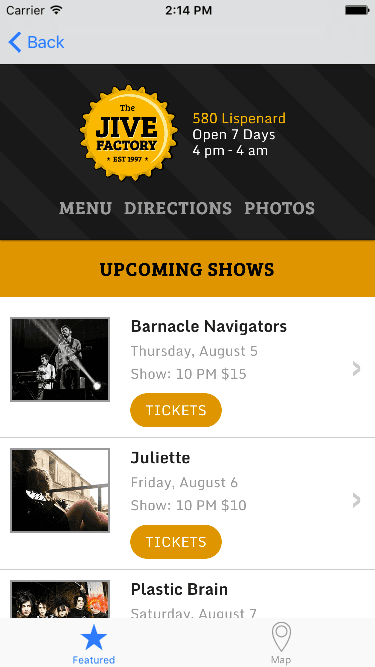
Creating the Web View Controller
We’re going to link to a webpage, so let’s make a view to display it.
- In the Project navigator, click on Main.storyboard.
- Delete any text in the search bar of the Object library
 , and scroll to the top.
 - Zoom out of the view until you are at 50%. Then scroll till you have Bands Detail View Controller in the center (it’s the rightmost view controller).
- From the Object library , drag View Controller onto the Editor below the Bands Detail View Controller.
- Position the new view controller nicely below the Bands Detail View Controller.
- We’re about to add a Web View. Make sure you are zoomed in 100% to the new View Controller so you can place it successfully.
- In the search bar of the Object library , type: web
- Drag WebKit View onto the empty view controller in the Editor.
Resize it so that it fills the View.
We should use Auto Layout to make sure the Web View fills all screen sizes.
- Make sure the Web View is still selected, then at the bottom right of the Editor, click the Add New Constraints button
 .
. - In the options that pop-up, uncheck Constrain to margins.
- At the top of the options pop up, under Add New Constraints, click all four red lines, making sure they are all set to 0.
At the bottom, click Add 4 Constraints.
Creating a Class
As we have done in a previous exercise, we need to create a class for the Web View Controller so we can add the code necessary to go to a webpage.
- In the Project navigator, select MapViewController.swift. (We want the file to be added after this file, that’s why we had you select it.)
- Hit Cmd–N to open a new file.
- Double–click Cocoa Touch Class to choose it.
- From the Subclass of menu, choose UIViewController (or start typing it and let Xcode autocomplete it for you).
For the name of the Class, add Web at the start, so the Class ends up being WebViewController.
NOTE: ViewController is the object we are currently using on the storyboard. By making this class a subclass of the UIViewController, it will have all the functionality it currently has, plus any additional functionality we add in the code to this new WebViewController class.
- Click Next.
- You should already be in the Jive Factory folder, so click Create.
- Notice a WebViewController.swift file has been added in the Project navigator. Now we need to link it to the view controller in the storyboard.
- In the Project navigator, click on Main.
- Select the View Controller with the Web View by clicking on its top bar. It will become outlined in blue to indicate it’s selected.
- In the Utilities area on the right, click on the Identity inspector tab
 .
. Next to Class, type W and it should autocomplete to WebViewController. (If it doesn’t autocomplete, just type it out.) Hit Return to apply it. Now it’s connected to our new class.
Coding the Link to the Webpage
- If the Document Outline is open, click Hide Document Outline
 .
. - Click the Adjust Editor Options icon
 on the top right of the window and choose the Assistant option.
 - You should now have the storyboard showing on the left and WebViewController.swift on the right. If WebViewController.swift isn’t showing on the right side, click the menu bar at the top of the file and choose it.
Below the import UIKit statement add the following bold code:
import UIKit import WebKit- We are going to create an outlet for the WebKit View. Hold Control and drag from the WebKit View in the Editor to the WebViewController.swift file below the class WebViewController: UIViewController line.
Set the following:
Connection: Outlet Name: siteWebView Type: WKWebView Storage: Weak - Click Connect.
Add a blank line above the new code so it appears as shown:
class WebViewController: UIViewController { @IBOutlet weak var siteWebView: WKWebView! override func viewDidLoad() {- In the Project navigator, select WebViewController.swift.
- Find the viewDidLoad method. Here is where we’ll write the code to go to the webpage. When this view controller loads up for the first time, we’re going to create an external webpage.
First we need to define the URL for the webpage. Inside the viewDidLoad method, add the following bold code:
override func viewDidLoad() {
   super.viewDidLoad()

   let jiveURL = URL(string: "http://www.thejivefactory.com")

   // Do any additional setup after loading the view.
}
NOTE: This code creates an instance of an URL object and initializes it with the web address. We now have a usable URL object for our webpage.
Next, we need to create an instance of a URLRequest object. Add the following bold code:
override func viewDidLoad() {
   super.viewDidLoad()

   let jiveURL = URL(string: "http://www.thejivefactory.com")
   let myRequest = URLRequest(url: jiveURL! as URL)

   // Do any additional setup after loading the view.
}
Now that we have the request, we can tell the Web View outlet to use this request object using the loadRequest method. Add the following bold code:
let myRequest = URLRequest(url: jiveURL! as URL)
siteWebView.load(myRequest as URLRequest)

// Do any additional setup after loading the view.
Hit Cmd–S to save.
Adding a Button
Now that we have programmed the web view to load the webpage, we need to add a button to the Bands Detail View Controller that will transition users to this view.
- In the Project navigator click on Main.
- Make sure you can see the Bands Detail View Controller, and that you’re zoomed into 100%. It has the placeholder info including Name of Band, Type of music, etc.
- In the search bar of the Object library , delete any existing text and type: button
- Drag a Button and drop it anywhere under the Description. We’ll position it in a moment.
- Click on the Attributes inspector tab
 .
. - Scroll down to the View options and set Background to Light Gray Color (click the arrows on the right side to open the options menu).
- Under the Button options further up, set the Text Color to White Color (click the menu that says Default).
- Click on the Size inspector tab
 .
. Next to the Content Insets options, set the following:
Left: 15 Top: 8 Bottom: 8 Right: 15 - Double–click the Button in the Editor, change the text to Jive Factory website and hit Return to apply it.
- Drag the button below Description, using the guides to align their left edges.
- We need to create a segue from the Bands Detail View Controller to the Web View Controller. Hold Control and drag from the Jive Factory website button to the Web View on the Web View Controller (which should be below it).
- In the menu that appears, click on Push (deprecated).
- Time for a preview. Set the active scheme to iPhone 13 Pro.
- Run it!
- When the Simulator finishes loading, click any of the band listings to go into the detail view.
Click the Jive Factory website button to open the Jive Factory website.
You won’t see anything except for a blank screen for now. We’ll get the website showing shortly.
Updating NSAppTransportSecurity
The Jive Factory website appears blank because we need to update NSAppTransportSecurity, a feature which was added in iOS 9. It’s essentially a way to secure which URLs can access the app. To do this, you “whitelist” URLs that the app is allowed to access.
- Switch back to Xcode.
- We need to add some key-value pairs to our Information property list. In the Project navigator, select Info.plist so we can add those commands.
- Hover over the last property (which should be Supported interface orientations).
- You should see a plus icon
 . Click it to add a new property.
 - In the new text box that appears, start typing App Transport Security Settings. Once it autocompletes, hit Return.
- Toggle it open by clicking the arrow to the left of App Transport Security Settings.
- Hover over the new property and click the plus icon .
- Choose Allow Arbitrary Loads and hit Return.
To the far right of Allow Arbitrary Loads, click the double triangles
 and from the menu select the Boolean value YES.
This allows any URL to pass through. You can either allow all URLs to be accessed by an application or pick out specific ones to grant access.
- Hit Cmd–S to save.
- Let’s try running again to see if this fixed the issue. Click the Run button.
- When the Simulator finishes loading, click any of the band listings to go into the detail view.
Click the Jive Factory website button. Now The Jive Factory website should be showing!