Lists: Programming the List Items View Controller
What This Tutorial Covers
Detail Views
Display selected list items in a child controller.
Segues
Storyboard transitions between list and detail screens.
Editing
Add, edit, and delete list items via the detail view.
Noble Desktop's Full-Stack Web Development Certificate teaches programming fundamentals that transfer across mobile, web, and desktop development.
Learn how to program a List Items View Controller for an iOS app with our interactive tutorial and discover how to work with implicitly unwrapped properties, change UI elements based on user interaction, and become comfortable navigating and working in Xcode.
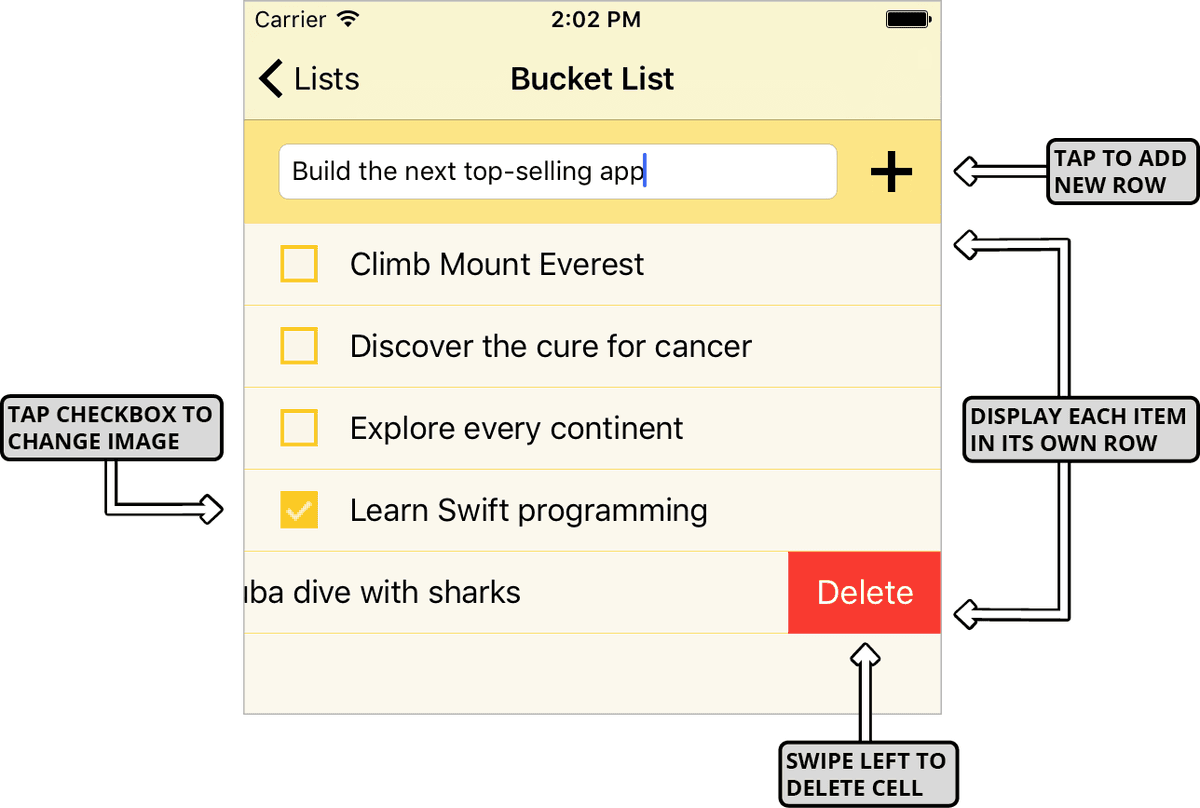
Exercise Preview
Implicitly Unwrapping Properties That Cannot Be Defined During Initialization
Before we copy some methods from the first View Controller and paste them in the second, let’s take a quick look at something from the previous exercise that may have been a bit puzzling.
If you aren’t in the second View Controller’s ListItemsVC.swift file, go to the top of Xcode and click on its tab to switch.
Near the middle of the code, find the list variable shown below:
var list: List!This property is optional, but it’s not declared with the usual question mark (?) syntax. This property is an implicitly unwrapped optional, as indicated by the exclamation mark (!). To get a handle on the difference between these two kinds of optional, let’s do some experimentation.
Whenever we declare an optional constant or variable, we’re actually using the Optional type. While Swift encourages us to use the question mark (?) as shorthand, we can use the longhand syntax Optional
<Type>as well. Declare a temporary variable as shown so we can see how optionals work behind the scenes:var list: List! var wrappedOptional: Optional<String> override func viewDidLoad() {This is the same as declaring var wrappedOptional: String?
CTRL–Cmd–click on the word Optional to see the Swift source code for this type.
You should see an enum called Optional
<Wrapped>. This enumeration is public so anything in Swift can access it.Notice there are two cases. The none case represents a nil value. The some(Wrapped) case stores the given value (which is NOT nil) in a wrapper. When the value is initialized, it is wrapped for safety reasons.
To return to ListItemsVC.swift, go to the area above the code but below the tabs and click the Go Back button
 .
.Delete the wrappedOptional you just declared. (You can press Cmd–Z to undo, until the entire line is gone.)
Now that we’ve taken a peek behind the scenes, let’s break down the difference between a wrapped optional and an implicitly unwrapped one:
- In the enumeration, you just saw that the actual value is stored in a wrapper. This wrapper is like a protective shell that ensures your app won’t crash if there’s no value. That’s why when we want to access the actual value later on, we would need to explicitly remove this protection. Using an exclamation mark (!) goes into the enumeration and pulls out the stored value from its wrapper.
- Implicitly unwrapped optionals are unwrapped immediately, ensuring we never need to explicitly remove the protection later on. When declaring a constant or variable as such, we’re saying that this variable will always have a value whenever we access it.
Implicitly unwrapped optionals are a risky proposition—your app will crash if this kind of optional has a nil value! To see why we’re so confident that our list variable will always have a value, switch to the first View Controller—the ListsVC.swift tab.
At the bottom, locate the prepare method shown below. (Do not add any code! The list variable is displayed in bold to indicate where it is used within this method.)
override func prepare(for segue: UIStoryboardSegue, sender: Any?) {
   let listItemsVC = segue.destination as! ListItemsVC
   listItemsVC.list = lists[(listsTableView.indexPathForSelectedRow?.row)!]
}
To transition to the second View Controller, the user must click on one of the list objects (one of the titles listed here on the first screen). If there’s nothing displayed in the Table View, the user will not be able to click on a row to segue to our second screen. This prevents the list variable from having a nil value.
So why did we need to declare the list variable as an optional? This is because this property cannot receive the value it needs when its containing class (ListItemsVC) is initialized. Look at the following line that initializes the ListItemsVC class:
let listItemsVC = segue.destination as! ListItemsVCNow look at the line immediately after that:
listItemsVC.list = lists[(listsTableView.indexPathForSelectedRow?.row)!]This is when the list property gets its value. Because the first line gets called right before this second line, there’s a tiny fraction of a second between the ListItemsVC class’s initialization and the list value’s assignment.
At the top, switch back to the ListItemsVC.swift tab.
To see more implicitly unwrapped optionals we’ll use in this exercise, find the following code near the top:
@IBOutlet weak var newItemNameTextField: UITextField!
@IBOutlet weak var itemsTableView: UITableView!
Notice that these outlet connections are listed before the viewDidLoad method. In a previous exercise, we dragged them there to remind us that these variables will not have a value until this method gets called. This is because a View Controller is instantiated before its view (and the objects on it) load.
Outlet connections are always implicitly unwrapped because if we set up our Storyboard correctly, these outlets will always have a value. This comes in handy when testing your app. If it crashes when you first test it, you’ll know that you probably made a mistake in the Storyboard.
Changing the Check Button’s Image When a User Taps It
The ListItem class in our data model has two attributes. In addition to the title property that gets filled in with whatever name the user inputs in the text field at the top of the UI, it has a boolean value called checked. This property models whether an item is complete or not. When a user adds a new list item, they likely have not finished that task. So it’s set to false by default.
We want to use this value to change the Check button image that gets displayed next to the item title. In order to do that, we’ll need to add a new variable.
In a previous exercise, we added an action to change the button image in the file for the Table View Cell. This means we need to declare the variable there. To open it in a new tab, press Cmd–T and in the Project navigator click on ListItemTVCell.swift.
Add the implicitly unwrapped optional item property as shown below:
@IBOutlet weak var checkButton: UIButton!
@IBOutlet weak var itemNameLabel: UILabel!

var item: ListItem!

@IBAction func checkButtonTapped(_ sender: Any) {
Let’s give this variable a value! Return to the ListItemsVC.swift tab.
In the Table View DataSource section’s cellForRowAt method, tell the item variable that it corresponds to its row number in the parent Table View. This is so it can display the title and whether the item is checked or not:
func tableView(_ tableView: UITableView, cellForRowAt indexPath: IndexPath) -> UITableViewCell {
   let listItemTVCell = tableView.dequeueReusableCell(withIdentifier: "ListItemTVCell", for: indexPath) as! ListItemTVCell
   listItemTVCell.item = list.items[indexPath.row]
   listItemTVCell.itemNameLabel.text = list.items[indexPath.row].title
   return listItemTVCell
}
Remember that implicitly unwrapped optional properties do not have a value when their containing class gets initialized. The first line with the let listItemTVCell declaration instantiates the class, then the item variable gets a value.
Now that we assigned the item to the value of list.items
[indexPath.row], the code right below the new line is pretty redundant. Make your code simpler and easier to understand by replacing it as shown in bold:listItemTVCell.item = list.items[indexPath.row] listItemTVCell.itemNameLabel.text = listItemTVCell.item.titleRemember that because we declared the item property in the Table View Cell file, we need to first go into that cell.
Now that the item variable has a value, let’s use it to set the row’s image! Return to the ListItemTVCell.swift tab.
The checkButtonTapped method will execute whenever the user taps on the Check button, which by default is not checked. Tell the method about this default:
@IBAction func checkButtonTapped(_ sender: UIButton) {
   item.checked =!item.checked
}
Use the predefined setImage method to assign an image to the checkButton (the outlet that corresponds to the button) as shown:
@IBAction func checkButtonTapped(_ sender: UIButton) {
   item.checked =!item.checked
   checkButton.setImage(UIImage(named: "Unchecked"), for:.normal)
}
NOTE: In the normal control state, the button is neither pressed nor selected.
We have two potential images, so we need to make this line into a conditional. Because we have a single condition to test and only two possible answers, we can use a ternary conditional operator. Add the condition as shown in bold:
checkButton.setImage(item.checked ? UIImage(named: "Unchecked"), for:.normal)We are asking if the item property is checked. The code we have specifies what will happen if it is NOT checked, so to get rid of the error we will need to add the other condition. Tell the setImage method which image to assign if it evaluates as true and the item property is checked:
checkButton.setImage(item.checked ? UIImage(named: "Checked") : UIImage(named: "Unchecked"), for:.normal)Remember that in a ternary conditional operator, there is a question mark (?) after the condition you’re testing, and a colon (:) between the if and else conditions.
Now that we’ve finished programming our second View Controller, our segue should work. To find out, go to the top left and click the Run button
 .
.On the first screen that appears, click in the Add new list text field. Type the name of a list (such as Groceries) and click the Plus (+) button to add it.
Now comes the moment of truth! Click on the name of your list.
Success, we can see the next screen—the one with yellow separators that corresponds to our List Items View Controller!
Click in the Add new item text field. Type the name of an item that’s appropriate for the list you clicked on (such as Ice cream or Kale for a list of groceries) and click the Plus (+) button to add it.
Add a few more items to the list.
Hover over an item name and drag to the left. Click the red Delete button to remove the list from the screen, after it’s been taken out of the data model.
Next to one of the items, click the Check button to see the image change to the Checked image
 . Click it again to see it change back to the Unchecked image
  .
.Feel free to check and uncheck more items to see their button images change.
Changing the Navigation Item’s Tint & Title
At the top of the screen underneath the Carrier, notice the
<Lists back button. Click it to return to the previous screen, then click back on your list name to return to the screen with List Items.This is the navigation item. We’re seeing this because we’re using a Navigation Controller. Because we set up our segue correctly, it’s working well. However, that color does not go well with our app’s color scheme. No worries—we can change it!
We also think the navigation item’s title in the middle of the navigation bar could use some improvement. Take a look at the following comparison:

By default, it will say List Items because that’s the title we gave the navigation item in the Storyboard. If this text stays static, the user may get confused and forget which list they are looking at! We think the user experience will be much better if the user sees the name of the list they tapped on, similar to the image on the right.
Back in Xcode, switch to the Main.storyboard tab so we can change the color of the navigation item.
Make sure the Document Outline is showing. Then go there and expand into Navigation Controller Scene > Navigation Controller > Navigation Bar.
Show the Utilities by going to the top right and clicking the button
 .
.In the Attributes inspector
 , scroll down to the View section’s Tint menu (not the Navigation Bar section’s Bar Tint menu!).
Remember that by default, buttons and other interactive elements such as our back button are tinted blue. Click on the word Default and choose Black Color.
To make the text in the navigation item’s title dynamic, we need to add a line of code to our segue’s method. That’s in the ListsVC.swift tab, so switch to it now.
In the prepare method at the bottom, set the title of the navigationItem:
override func prepare(for segue: UIStoryboardSegue, sender: Any?) {
   let listItemsVC = segue.destination as! ListItemsVC
   listItemsVC.list = lists[(listsTableView.indexPathForSelectedRow?.row)!]
   listItemsVC.navigationItem.title = listItemsVC.list.title
}
Remember that listItemsVC is our second View Controller (the segue’s destination). We’re setting the title of its navigationItem (the visual component) to be the same as the title of the current list—the one the user clicked on. (Remember that this list info comes from our model.)
Let’s take a look at our improved navigation item! Click the Run button
once more.Once the app loads, use the text field and Plus (+) button to add a few list names to the “list of lists” here on the first screen. In order to test the new dynamic titles that should appear on the next screen, make sure to add at least two.
Click on one of your lists to segue to the next screen.
The
<Lists back button is black! Additionally, you should see the name of the list you clicked on displayed to the right of the back button. Much better!Click the
<Lists button to return to the previous screen.Click on another list name to see the appropriate title displayed in the center of the navigation item. Nice and dynamic.
By now, you might be a bit miffed that you have to keep inputting new lists and list items every time you restart the Simulator. That’s why in the next exercise, we’ll explore a way to make the app store the data the user inputs so it maintains the same information between app launches.
Save the file and keep Xcode open so that we can continue with this project in the next exercise.