April 1, 2026Noble Desktop Publishing Team/4 min read

Fixing the iPad Layout

Master iPad Layout Design in iOS Development

Prerequisites Required

This tutorial assumes completion of previous exercises B1-B3. If you haven't completed them, follow the setup instructions carefully to ensure proper project configuration.

Topics Covered in This iOS Development Tutorial:

Fixing the Detail View for iPad, Optimizing Views for Tablet Interface

Key Learning Areas

iPad Detail View Optimization

Learn to fix layout issues specific to iPad screen dimensions and split view controllers.

View Element Positioning

Master precise positioning of UI elements using Size inspector tools and coordinate systems.

Exercise Preview

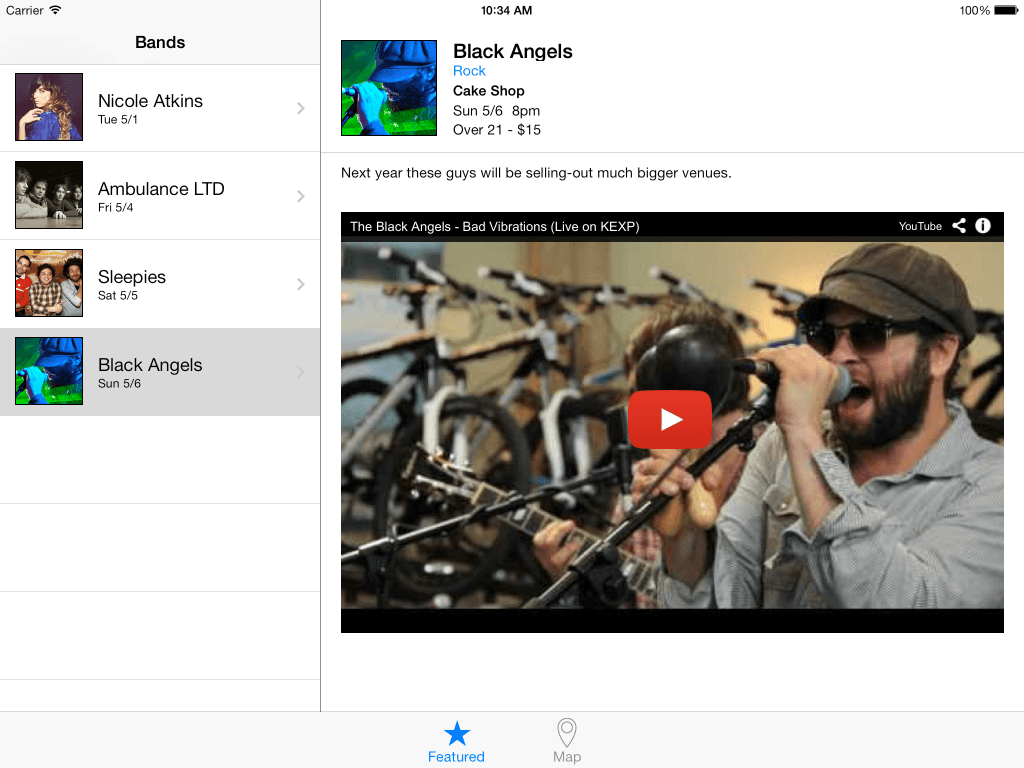
preview fixing ipad layout

Exercise Overview

In this exercise, we'll complete the iPad layout optimization process, ensuring your app delivers a polished, professional experience across all iOS devices. Understanding proper iPad layout techniques is crucial for modern iOS developers, as tablet users expect interfaces that take full advantage of the larger screen real estate rather than simply scaling up phone layouts.

Tutorial Workflow

1

Project Setup

Open existing workspace or duplicate the ready-to-use project folder

2

iPad Storyboard Configuration

Navigate to Main_iPad.storyboard and configure view elements

3

Element Positioning

Adjust coordinates and dimensions for optimal iPad layout

4

Testing and Validation

Run simulator to verify layout improvements and functionality

Getting Started

  1. If you completed the previous exercise, you can skip the following sidebar. We strongly recommend completing the previous exercises (B1–B3) before proceeding, as they establish the foundation for the layout fixes we'll implement here.

    If you completed the previous exercise, Jive Factory.xcworkspace should still be open. If you closed it, navigate to and re-open it from yourname-iOS Dev Level 2 Class > Jive Factory.

If You Did Not Complete the Previous Exercises (B1–B3)

  1. Close any open files and switch to the Desktop.
  2. Navigate to Class Files > yourname-iOS Dev Level 2 Class.
  3. Duplicate the Jive Factory Ready for Fixing the iPad Layout folder.
  4. Rename the duplicated folder to Jive Factory.
  5. Open Jive Factory > Jive Factory.xcworkspace.

Alternative Setup Process

0/4

Fixing the Detail View for iPad

Now we'll address the core iPad layout issues by properly positioning and sizing our UI elements. The key difference between iPhone and iPad layouts lies in optimizing for the larger screen space while maintaining visual hierarchy and usability.

  1. In the Project navigator, select Main_iPad.storyboard.
  2. Focus on the Bands Detail View Controller by CTRL–clicking or Right–clicking on a blank area of the Editor and choosing Zoom to 100% for optimal precision.
  3. If the Document Outline isn't visible, click the Show Document Outline button show hide document outline icon to access the view hierarchy more efficiently.
  4. In the Document Outline, navigate to Bands Detail View Controller Scene > Bands Detail View Controller > View and select Band Image.
  5. In the Utilities area, click the Size inspector tab size inspector icon.

  6. Configure the image positioning with these precise values:

    X: 20
    Y: 40
    Width: 96
    Height: 96

    Note the Y position differs from the iPhone layout because iPad's split view controller eliminates the extra space typically reserved under the status bar. This architectural difference is important to understand when designing universal apps.

  7. Next, we'll align the text labels with our repositioned image. Select the Band Name Label.

    NOTE: While you could drag labels into position visually, precision positioning ensures consistent results across different screen orientations and device configurations.

  8. In the Size inspector size inspector icon, set the Y position to 40.

  9. Apply the following Y positions to the remaining labels using the Size inspector:

    Band Type Label: 60
    Venue Label: 80
    Show Date Label: 100
    Show Time Label: 100
    Show Details Label: 119
    Band Description Label: 164
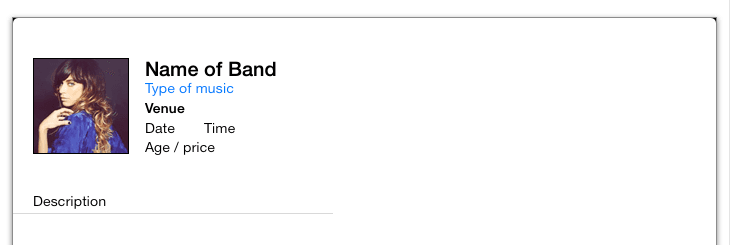
  10. Your layout should now match this configuration (the divider line will be addressed in the next section):

    ipad layout fixed

iPad Layout Differences

iPad layouts don't have the same status bar spacing as iPhone layouts because split view controllers handle navigation differently, eliminating the need for Back bar spacing.

Band Image Positioning Coordinates

X Position
20
Y Position
40
Width
96
Height
96

Fixing the Views

The basic positioning looks professional, but we need to optimize the divider line and video web view for iPad's expanded screen real estate. Using the Document Outline provides more precise control over nested view elements.

  1. In the Bands Detail View Controller section, locate the nested View element (positioned above Video Web View in the hierarchy). Select this view—it represents our divider line.

  2. In the Size inspector size inspector icon, apply these dimensions:

    Y: 152
    Width: 703

    This extends the divider line across the full content width, creating better visual separation on the larger iPad screen.

  3. Now select the Video Web View from the Document Outline (or click directly on it in the Editor).

  4. Configure the web view dimensions in the Size inspector size inspector icon:

    X: 20
    Y: 221
    Width: 663
    Height: 421
  5. Excellent progress. Let's test our optimizations in the Simulator by clicking Run.
  6. Once the Simulator loads, observe how the improved layout utilizes the iPad's screen space more effectively.
  7. Test the functionality by selecting different band rows to verify that the correct information loads dynamically for each selection. Notice how the band description text wraps onto multiple lines—we'll optimize this next to take advantage of the increased horizontal space.
  8. Return to Xcode to make the final refinement.
  9. Select the Band Description Label.
  10. In the Size inspector size inspector icon, set the Width to 663 to utilize the full available horizontal space.
  11. Switch to the Attributes inspector tab attributes inspector icon in the Utilities area.
  12. Set Lines to 1 to force single-line display, taking advantage of iPad's wider screen.
  13. Run the application to test the final optimization.
  14. When the Simulator loads, select various bands to confirm that all description text displays elegantly on a single line, creating a cleaner, more professional appearance.
  15. Return to Xcode and click the Stop button.
  16. Keep the project open as we'll build upon these optimizations in the next exercise, where we'll explore advanced iPad-specific interface patterns.

Element Size Adjustments for iPad

FeatureElementNew Dimensions
Divider Line WidthLine View703px
Video Web ViewWeb View663 x 421px
Band Description WidthDescription Label663px
Recommended: Utilize increased iPad screen real estate for better content presentation
Text Wrapping Optimization

Setting Lines to 1 for the Band Description Label prevents text wrapping and takes advantage of the iPad's wider screen to display full descriptions on a single line.

Key Takeaways

1iPad layouts require different positioning calculations due to split view controller behavior and lack of Back bar spacing
2The Size inspector is the primary tool for precise UI element positioning with specific X, Y coordinates and dimensions
3iPad's larger screen space allows for wider elements like divider lines (703px) and web views (663 x 421px)
4Text display can be optimized for iPad by preventing wrapping and utilizing the full width available
5Testing in Simulator is essential to verify layout changes work correctly across different band selections
6Document Outline navigation is more efficient than visual selection for nested view elements
7Proper project setup through workspace files ensures all dependencies and configurations are maintained
8Y-position adjustments must account for platform-specific navigation bar behaviors between iPhone and iPad

RELATED ARTICLES