April 1, 2026Noble Desktop Publishing Team/10 min read

Creating the Split View Controller

Master iPad Split View Controllers in iOS Development

Key Technologies in This Tutorial

Split View Controller

iPad-specific interface component that displays master-detail relationships with side-by-side views for enhanced user experience.

Storyboard Connections

Visual interface builder connections that define relationships between view controllers and manage navigation flow.

Tab Bar Integration

Navigation interface element that allows users to switch between different sections of the app efficiently.

Topics Covered in This iOS Development Tutorial:

Master the implementation of Split View Controllers by adding the controller, connecting and reordering view controllers strategically, and resolving common issues with tab bar icons and table view configurations.

Exercise Preview

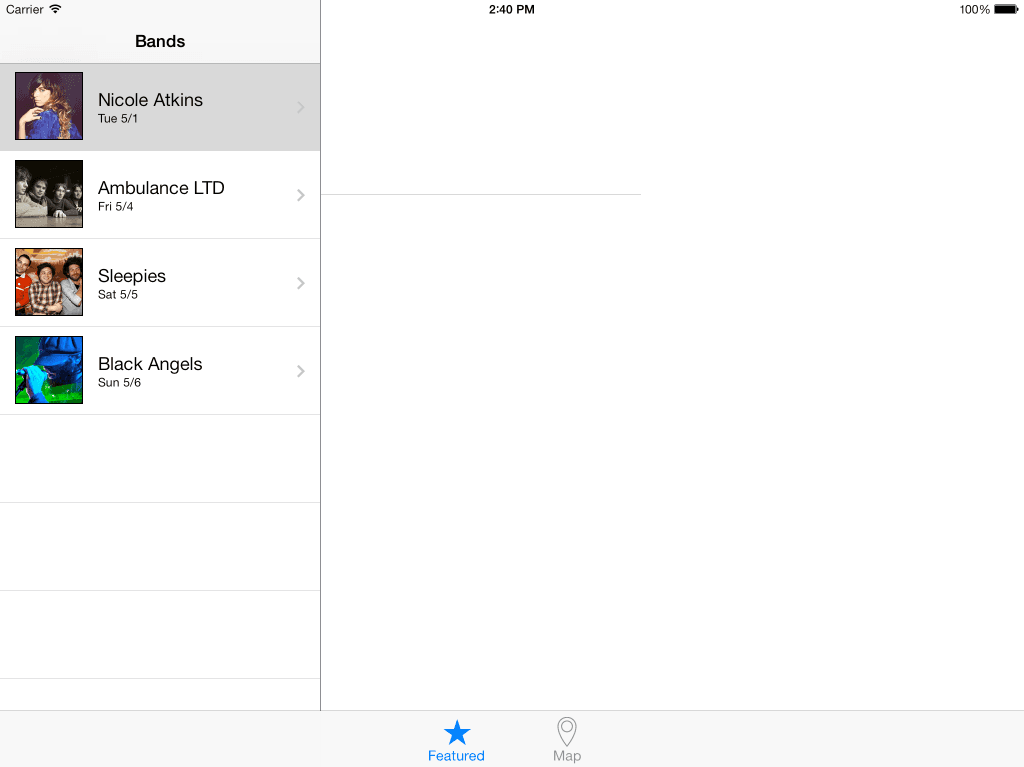
preview create split view

Exercise Overview

In this comprehensive exercise, you'll master one of iOS development's most sophisticated interface patterns: the Split View Controller. This powerful UI component is exclusively designed for iPad applications and provides an elegant solution for displaying master-detail relationships on larger screens. Split View Controllers are fundamental to creating professional iPad apps that take full advantage of the device's screen real estate, offering users simultaneous access to both navigation and content areas.

iPad-Specific Development

Split View Controllers only work in iPad apps and provide a sophisticated way to display master-detail relationships that take advantage of the larger screen real estate.

Getting Started

  1. Before proceeding, ensure you have your development environment properly configured. If you completed the previous exercise, you can skip the following sidebar. We strongly recommend finishing the previous exercise (B1) as it establishes the foundational project structure required for this implementation.

    If you completed the previous exercise successfully, Jive Factory.xcworkspace should still be open in Xcode. If you closed it, navigate to and re-open it from yourname-iOS Dev Level 2 Class > Jive Factory.

    Pre-Exercise Requirements

    0/3

If You Did Not Complete the Previous Exercise (B1)

  1. Close any files you may have open and switch to the Desktop.
  2. Navigate to Class Files > yourname-iOS Dev Level 2 Class.
  3. Duplicate the Jive Factory Ready for Split View Controller folder.
  4. Rename the folder to Jive Factory.
  5. Open Jive Factory > Jive Factory.xcworkspace.

Alternative Setup Process

1

Navigate to Project Files

Close current files and navigate to Desktop > Class Files > yourname-iOS Dev Level 2 Class

2

Duplicate Template

Duplicate the 'Jive Factory Ready for Split View Controller' folder

3

Rename and Open

Rename duplicated folder to 'Jive Factory' and open the .xcworkspace file

Adding a Split View Controller

Now we'll implement the core Split View Controller, which serves as the architectural foundation for your iPad interface. This controller manages the relationship between master and detail views, automatically handling size class changes and orientation transitions.

  1. In the Project navigator, click on Main_iPad.storyboard to access your iPad-specific interface design.
  2. If the Document Outline is open, click Hide Document Outline show hide document outline icon to maximize your workspace.
  3. CTRL–click or Right–click on a blank area of the Editor and choose Zoom to 25% to get a comprehensive view of your storyboard layout.
  4. In the Object library object library icon search for: split
  5. From the Object library object library icon, drag a Split View Controller onto the Editor area above the Tab Bar Controller (which should be the leftmost controller). This positioning will help maintain visual hierarchy in your storyboard.
  6. Click Hide Document Outline show hide document outline icon if it appeared automatically during the drag operation.
  7. Zoom in on the Split View Controller you just added to examine its default configuration.
  8. Notice it comes with a complete hierarchy: a main Split View Controller as well as a Master View (Navigation Controller and Table View Controller) along with a Detail View Controller. This is Apple's standard template, but we'll customize it for our specific needs.
  9. For this implementation, we only need the main Split View Controller (which is on the left). Click on a blank area of the Editor to deselect all elements.
  10. We need to remove the default template views to connect our existing controllers. Click on the top of the Navigation Controller to select it.
  11. Hold Shift and click on the top of the Root View Controller to add it to your selection.
  12. Hold Shift and click on the top of the View Controller. All three views should now be outlined in blue, indicating they're selected.
  13. With those three views selected, hit Delete to remove the template components.
  14. Drag the Split View Controller so it's positioned clearly above the Tab Bar Controller, maintaining a clean visual hierarchy.

Split View Controller Setup

1

Access Storyboard

Click Main_iPad.storyboard in Project navigator and set zoom to 25%

2

Add Split View Controller

Search for 'split' in Object library and drag Split View Controller above Tab Bar Controller

3

Clean Up Default Views

Delete the three default views (Navigation Controller, Root View Controller, and View Controller) that come with the Split View Controller

Default Components

Split View Controllers come with default master and detail views, but you'll often need to customize or replace these components to match your app's specific requirements.

Connecting & Reordering the View Controllers

The next critical step involves establishing the proper relationships between your Split View Controller and existing view controllers. This configuration determines how your master-detail interface will function and which controllers appear in each pane.

  1. In the Editor, ensure you can see both the Navigation Controller (with the Featured icon on its tab bar) and the new Split View Controller. Proper visibility is essential for accurate connections.
  2. Click on a blank area of the Editor to deselect everything and start with a clean selection state.
  3. Select the Split View Controller. It should currently have no connections, as we removed the template components.
  4. In the Utilities area, click on the Connections inspector tab connections inspector icon to access the connection interface.
  5. Under Triggered Segues, hover over the circle to the far right of master view controller. A + sign will appear, indicating you can create a new connection.
  6. Drag from the + to the Navigation Controller (with the Featured icon on its tab bar) in the Editor area. This establishes the master pane relationship.
  7. Scroll over in the Editor so you can see that the Bands Table View Controller and the Bands Detail View Controller have resized. This visual feedback indicates they will be displayed on the left side of the Split View Controller. Don't worry about repositioning them in the Editor yet—we'll organize the layout later for clarity.
  8. In the Editor make sure you can see the Bands Detail View Controller. It contains the Name of Band and other detailed information, and should be positioned as the rightmost controller in your current layout.
  9. We need to correct the display configuration. The Bands Detail View Controller shouldn't be displayed on the left side of the Split View Controller—it belongs on the right side as the detail pane. With the Split View Controller still selected, under Triggered Segues, hover over the circle to the far right of detail view controller. A + sign will appear in the circle.
  10. Drag from the + to the Bands Detail View Controller in the Editor area. The Triggered Segues should now display the correct master-detail relationship:

    split view triggered segues

  11. Select the Tab Bar Controller, which should be positioned to the far left, under the Split View Controller in your storyboard hierarchy.
  12. In the Connections inspector connections inspector icon examine the current configuration. Under Triggered Segues, view controllers is connected to two controllers: Navigation Controller and Map.
  13. We need to integrate the new Split View Controller into the tab structure, but order matters significantly for user experience. Since we want the Split View Controller to appear as the first tab, we must delete the existing connections and recreate them in the correct sequence. Click the X to the left of both connections to delete them:

    • Navigation Controller
    • Map
  14. With the Tab Bar Controller still selected, under Triggered Segues, hover over the circle to the far right of view controllers. A + sign will appear in the circle.
  15. Drag from the + to the Split View Controller to establish it as the first tab.
  16. Locate the Map View Controller, which should be positioned to the lower right of the Tab Bar Controller in your current layout.
  17. With the Tab Bar Controller still selected, under Triggered Segues, hover over the circle to the far right of view controllers. A + sign will appear in the circle.
  18. Drag from the + to the Map View Controller to establish it as the second tab.

    NOTE: We don't need to reconnect the Navigation Controller separately because it's now integrated as part of the Split View Controller hierarchy.

  19. Verify your configuration. The Triggered Segues section in the Connections inspector should now display the proper tab sequence:

    triggered segues tab bar controller

Master View Connection

1

Select Split View Controller

Click on Split View Controller and access Connections inspector in Utilities area

2

Connect Master View

Under Triggered Segues, drag from master view controller to Navigation Controller with Featured icon

3

Connect Detail View

Drag from detail view controller to Bands Detail View Controller for right-side display

Tab Order Matters

When reconnecting view controllers to the Tab Bar Controller, the connection order determines the tab appearance order. Delete all connections first, then reconnect in the desired sequence.

Fixing the Tab Bar Icon

Visual consistency is crucial for professional iOS applications. We need to configure the appropriate tab bar icon for our Split View Controller to maintain the interface's visual coherence and user expectations.

  1. Zoom in on the Split View Controller in the Editor for precise selection. CTRL–click or Right–click on a blank area of the Editor and choose Zoom to 100% for optimal visibility.

  2. Click on the tab bar icon (solid gray rectangle) at the bottom of the Split View Controller so it becomes highlighted in blue, indicating selection.

NOTE: Depending on your Interface Builder settings, you may see a gray box with Item text partially hidden behind it, as shown below. Regardless of this visual variation, clicking on the bottom of the gray box should allow you to proceed to the next step successfully.

Gray box

  1. In the Utilities area, click on the Attributes inspector tab attributes inspector icon to access the visual configuration options.
  2. From the System Item menu, choose Featured. Notice how the Split View Controller immediately displays the new Featured tab bar icon, maintaining visual consistency with your app's design language.
  3. In the Project navigator, navigate to BandsDetailViewController.swift to address some code compatibility issues.
  4. To ensure proper functionality during this transition phase, we'll temporarily comment out specific code in the viewDidLoad method. Select the entire ViewDidLoad method content, as shown in bold:

    override func viewDidLoad() {
       super.viewDidLoad()
    
       // Do any additional setup after loading the view.
       bandNameLabel.text = currentBandDetail?.bandName
       bandTypeLabel.text = currentBandDetail?.bandType
       venueLabel.text = currentBandDetail?.venue

    Code Omitted To Save Space

    videoWebView.loadHTMLString(htmlString, baseURL: nil)
    }
  5. Hit Cmd–/ to comment out the selected code, temporarily disabling this functionality.
  6. Click the Run button to build and test your implementation. Hit Stop if any warnings appear during the build process.
  7. When the Simulator finishes loading, you should now see the Split View Controller successfully integrated into your app! Notice how the Table View appears on the left side, while the Detail View placeholders display on the right. This is the classic master-detail interface that Split View Controllers provide. We'll implement proper band details display in the next exercise.
  8. Click on one of the band entries and observe that the Detail View loads within the Table View area instead of the designated detail pane. This occurs because we still have an existing segue in the project that's overriding our Split View Controller configuration.

Tab Bar Icon Configuration

1

Select Tab Bar Icon

Zoom to 100% and click on the gray rectangle tab bar icon at bottom of Split View Controller

2

Apply System Icon

In Attributes inspector, choose 'Featured' from System Item menu to apply the icon

Fixing the Table View

To complete our Split View Controller implementation, we need to remove the conflicting segue that's interfering with the proper master-detail relationship. This step ensures that user interactions flow correctly through the Split View Controller's architecture.

  1. Switch back to Xcode to modify the storyboard configuration.
  2. In the Project navigator, return to Main_iPad.storyboard to access the interface design.
  3. Click on a blank area of the Editor to ensure no elements are currently selected, providing a clean working state.
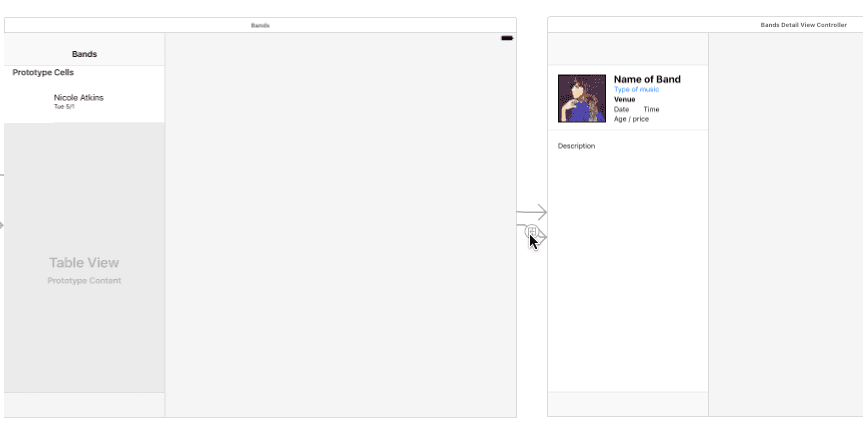
  4. Locate and select the segue (gray arrow with circle) that connects the Bands Table View Controller and the Bands Detail View Controller, as shown below. Be careful to select the correct segue—avoid selecting the arrow from the Split View Controller, as that's part of our desired configuration.

    split view delete segue

  5. Hit Delete to remove the conflicting segue, allowing the Split View Controller to manage the master-detail relationship properly.
  6. Click the Run button to test the corrected implementation.
  7. When the Simulator finishes loading, click on one of the band rows. Notice that we no longer transition away from our Split View Controller interface—the selection now properly respects the Split View Controller architecture. In the next exercise, we'll implement the functionality to display detailed band information in the right pane.
  8. Switch back to Xcode to complete the exercise.
  9. Click the Stop button to halt the simulator session.

Code Modifications

1

Comment Out ViewDidLoad

In BandsDetailViewController.swift, select entire ViewDidLoad method and use Cmd+/ to comment out

2

Test Initial Setup

Run the app to verify Split View Controller displays with Table View on left and Detail View on right

3

Remove Conflicting Segue

Delete the segue between Bands Table View Controller and Bands Detail View Controller in storyboard

Temporary Code Changes

The ViewDidLoad method is commented out temporarily to prevent runtime errors. This will be properly implemented in subsequent exercises when the detail view functionality is fully configured.

Cleaning up the Layout of the Controllers

Professional storyboard organization is essential for maintaining code readability and team collaboration. A well-organized visual layout makes it easier to understand relationships and troubleshoot issues during development.

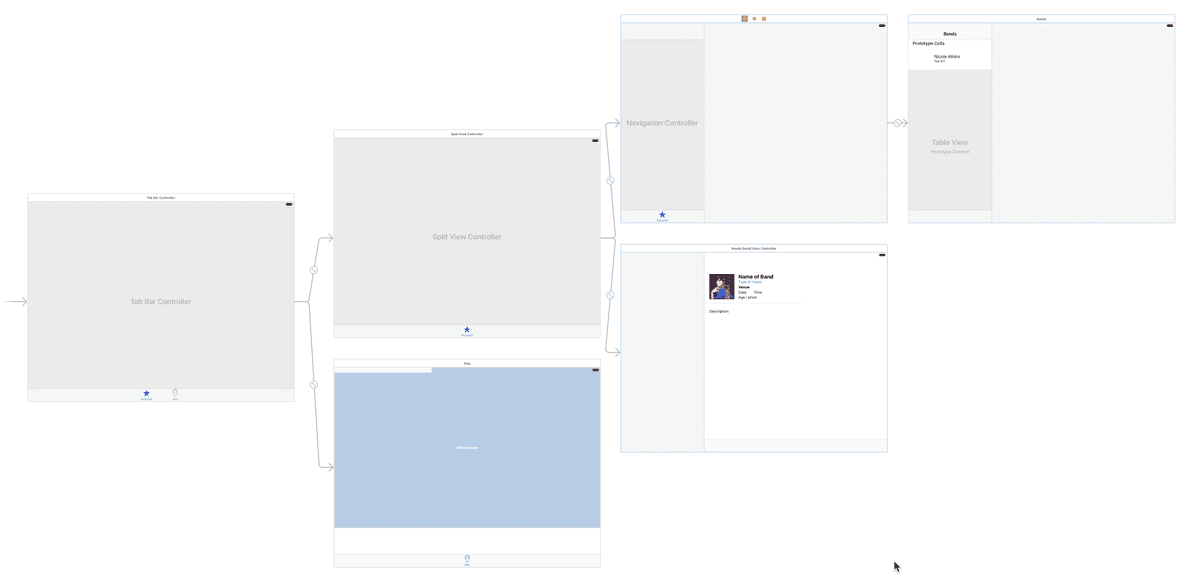
  1. As we've been working through the implementation, the layout of the controllers in the Editor may have become disorganized. Rearrange the controllers into a logical, clean layout that clearly shows the relationships and hierarchy. We recommend organizing them similar to the layout shown below, which provides clear visual flow and makes the connections easy to follow.

    split view controllers final layout

  2. When you're satisfied with the organization, go to File > Save to preserve your work.
  3. Leave the project open—we'll continue building upon this Split View Controller foundation in the next exercise, where we'll implement the detailed content display functionality.

Final Organization Steps

0/3

Key Takeaways

1Split View Controllers are iPad-specific interface components that provide master-detail relationships with side-by-side view presentation
2Proper storyboard organization requires systematic connection of view controllers through the Connections inspector's Triggered Segues section
3Tab Bar Controller connection order directly determines the sequence of tabs in the final application interface
4Default Split View Controller components often need customization or replacement to match specific application requirements
5Conflicting segues between view controllers must be identified and removed to prevent unexpected navigation behavior
6Temporary code commenting allows for incremental development and testing of interface components before full functionality implementation
7System-provided tab bar icons offer consistent user interface elements that follow iOS design guidelines
8Storyboard layout organization improves project maintainability and developer understanding of application structure

RELATED ARTICLES