April 1, 2026Noble Desktop Publishing Team/6 min read

Editing the UI to Improve the UX

Master iOS UX with Professional Loading States

Essential UX Components for iOS Apps

Loading Indicators

Visual feedback during data loading prevents user frustration. Apple's UIActivityIndicatorView provides a familiar spinning animation that users expect to see.

Pull-to-Refresh

Standard iOS gesture allowing users to manually refresh data. This empowers users to control their experience when content seems outdated.

Topics Covered in This iOS Development Tutorial:

Adding a Loader, Adding Refresh

Exercise Preview

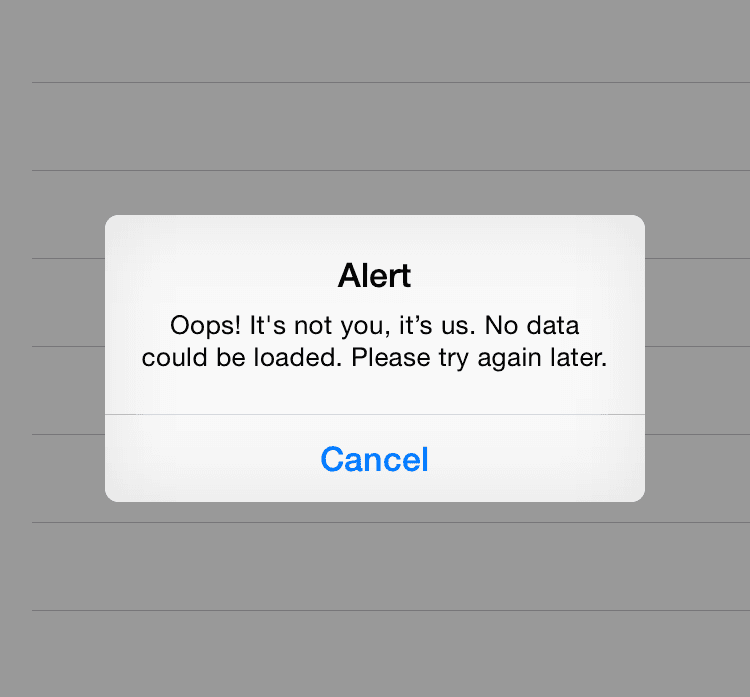
ex prev alert

Exercise Overview

Now that you've successfully integrated web services into your application, it's time to implement industry-standard UX patterns that users expect from professional iOS apps. Apple has established rigorous standards for user experience design, and meeting these expectations is crucial for app store success and user retention.

When your app fetches data from external sources—whether APIs, databases, or cloud services—network latency and potential failures are inevitable. Users today expect transparent communication about loading states and the ability to recover from failed requests. Without proper feedback mechanisms, users will abandon apps that leave them guessing about what's happening behind the scenes.

Consider the psychological impact: a user tapping refresh and seeing nothing happen for even three seconds will assume the app is broken. In our hyper-connected world of 2026, patience for unresponsive interfaces has virtually disappeared. Professional iOS applications must implement these two fundamental UX patterns:

  • UI that provides clear visual feedback when data is loading
  • UI that empowers users to refresh their data on demand

These aren't just nice-to-have features—they're essential components that separate amateur projects from professional applications ready for the App Store.

Apple's UX Standards

Apple has defined the concept of good user experience and certain things are expected by users. Failing to meet these expectations causes frustration and leads to users abandoning your app.

Impact of Poor vs Good Loading UX

Pros
Clear loading states keep users informed
Refresh capability gives users control
Familiar UI patterns meet user expectations
Professional feel increases app credibility
Cons
No loading feedback creates confusion
Users left waiting without indication
Frustration leads to app abandonment
Poor UX reflects badly on app quality

Getting Started

Before diving into the UX improvements, let's ensure your development environment is properly configured.

  1. If you completed the previous exercise, you can skip the following sidebar. We strongly recommend completing exercises 1B–4C sequentially, as each builds upon the previous implementation.

    If you completed the previous exercise, Jive Factory.xcworkspace should still be open. If you closed it, navigate to yourname-iOS Dev Level 2 Class > Jive Factory and reopen the workspace file.

    Prerequisites

    Complete exercises 1B through 4C before starting this tutorial. These foundational exercises set up the necessary project structure and data models.

If You Did Not Complete the Previous Exercises (1B–4C)

  1. Close any files you may have open and switch to the Desktop.
  2. Navigate to Class Files > yourname-iOS Dev Level 2 Class.
  3. Duplicate the Jive Factory Ready for Improving the UX folder.
  4. Rename the folder to Jive Factory.
  5. Open Jive Factory > Jive Factory.xcworkspace.

Project Setup for New Participants

1

Navigate to Class Files

Close any open files and go to Desktop > Class Files > yourname-iOS Dev Level 2 Class

2

Duplicate Project Folder

Find 'Jive Factory Ready for Improving the UX' folder and create a duplicate copy

3

Rename and Open

Rename the duplicated folder to 'Jive Factory' and open Jive Factory.xcworkspace

Adding a Loader

The first UX enhancement involves implementing a loading indicator using Apple's UIActivityIndicatorView. This native component provides consistent visual feedback that users immediately recognize across iOS applications.

  1. In the Project navigator, open BandsTableViewController.swift.
  2. In the viewDidLoad method, add the following code to instantiate a loader:

    override func viewDidLoad() {
       super.viewDidLoad()
    
       let loader = UIActivityIndicatorView(activityIndicatorStyle: UIActivityIndicatorViewStyle.gray)
    
       FirebaseApp.configure()
       bandsModel.fetch {[weak self] () -> () in
          if let strongSelf = self {
             strongSelf.tableView.reloadData()
          }

    This creates an instance of Apple's standard activity indicator—the familiar spinning wheel that users expect to see during loading operations. The gray style provides optimal visibility against most backgrounds.

  3. Configure the loader's position to center it perfectly within the view by adding the frame calculation:

    override func viewDidLoad() {
       super.viewDidLoad()
    
       let loader = UIActivityIndicatorView(activityIndicatorStyle: UIActivityIndicatorViewStyle.gray)
       loader.frame = CGRect(X: (self.view.frame.size.width-40)/2, y: (self.view.frame.size.height-40)/2, width: 40.0, height: 40.0)
    
       FirebaseApp.configure()
       bandsModel.fetch {[weak self] () -> () in
          if let strongSelf = self {
             strongSelf.tableView.reloadData()
          }

    This mathematical approach ensures the 40x40 point loader appears exactly centered regardless of device screen size—crucial for supporting the full range of iPhone and iPad displays.

  4. Add the loader to the view hierarchy so it becomes visible:

    let loader = UIActivityIndicatorView(activityIndicatorStyle: UIActivityIndicatorViewStyle.gray)
    loader.frame = CGRect(X: (self.view.frame.size.width-40)/2, y: (self.view.frame.size.height-40)/2, width: 40.0, height: 40.0)
    self.view.addSubview(loader)
    
    FirebaseApp.configure()
  5. Initiate the spinning animation to indicate active loading:

    let loader = UIActivityIndicatorView(activityIndicatorStyle: UIActivityIndicatorViewStyle.gray)
    loader.frame = CGRect(X: (self.view.frame.size.width-40)/2, y: (self.view.frame.size.height-40)/2, width: 40.0, height: 40.0)
    self.view.addSubview(loader)
    loader.startAnimating()
    
    FirebaseApp.configure()
  6. Implement proper cleanup by stopping the animation when data loading completes. Add the stop command within the fetch completion handler:

    FirebaseApp.configure()
    bandsModel.fetch {[weak self] () -> () in
       if let strongSelf = self {
          loader.stopAnimating()
          strongSelf.tableView.reloadData()
       }
    }

    This ensures the loader disappears the moment data becomes available, providing immediate feedback about the successful completion of the network operation.

  7. Run the application to observe the loading behavior. The spinner will be brief but visible—watch carefully as it appears during the initial data fetch. Even milliseconds of visual feedback significantly improve perceived performance.

UIActivityIndicatorView Implementation

Spinner Creation

UIActivityIndicatorView with gray style provides a standard Apple loading indicator. Users immediately recognize this familiar interface element.

Positioning Logic

Frame calculation centers the 40x40 pixel loader using view dimensions. Mathematical centering ensures consistent placement across device sizes.

Animation Control

startAnimating begins the spinner, stopAnimating ends it when data loads. Proper timing prevents unnecessary animation overhead.

Loader Implementation Process

1

Create Loader Instance

Initialize UIActivityIndicatorView with gray style in viewDidLoad method

2

Set Frame Position

Calculate center position using view dimensions and set 40x40 pixel frame

3

Add to View Hierarchy

Use addSubview to make loader visible on screen

4

Start Animation

Call startAnimating to begin the spinning animation

5

Stop on Completion

Call stopAnimating within fetch completion handler when data loads

Testing the Loader

The spinner will only flash for a second before data loads. Pay close attention to the Simulator to catch the loading animation in action.

Adding Refresh

Now let's implement pull-to-refresh functionality, a gesture-based pattern that has become fundamental to iOS app interaction. This feature gives users control over when to fetch fresh data, which is particularly valuable for apps displaying dynamic content.

  1. Return to Xcode and open the Interface Builder.
  2. In the Project navigator, select Main.storyboard.
  3. Ensure the Document Outline is visible by clicking the Show Document Outline button show hide document outline icon at the bottom left of the Editor area.
  4. In the Document Outline, locate and select Bands within the Bands Scene hierarchy.
  5. Access the properties panel by clicking the Attributes inspector tab attributes inspector icon in the Utilities area.
  6. In the Table View Controller section, locate Refreshing and set the dropdown menu to Enabled. This single setting activates the entire pull-to-refresh infrastructure.
  7. Return to BandsTableViewController.swift and connect the refresh control to your custom handler by adding this target-action pattern to viewDidLoad:

    self.view.addSubview(loader)
       loader.startAnimating()
    
       self.refreshControl?.addTarget(self, action: #selector(BandsTableViewController.refresh), for: UIControlEvents.valueChanged)
    
       FirebaseApp.configure()

    This establishes the connection between the user's pull gesture and your refresh logic. Don't worry about the temporary error message—we'll resolve it in the next step.

  8. Create the refresh method that will handle the pull-to-refresh action. Add this below your viewDidLoad method:

    }
    
    @objc func refresh() {
    
    }

    The @objc annotation is required because this method will be called by Objective-C runtime components within UIKit.

  9. Clear the existing data to ensure fresh content loads. Add this line to reset the model state:

    func refresh() {
       bandsModel.bandDetails.removeAll(keepingCapacity: false)
    }

    This complete data reset prevents stale information from mixing with fresh data during the refresh operation.

  10. Copy the existing fetch logic to reuse in the refresh method. Select and copy (Cmd–C) this code block:

    bandsModel.fetch {[weak self] () -> () in
       if let strongSelf = self {
          loader.stopAnimating()   
          strongSelf.tableView.reloadData()
       }
    }
  11. Paste (Cmd–V) the fetch logic into your refresh method:

    func refresh() {
       bandsModel.bandDetails.removeAll(keepCapacity: false)
       bandsModel.fetch {[weak self] () -> () in
          if let strongSelf = self {
             loader.stopAnimating()
             strongSelf.tableView.reloadData()
          }
       }
    }
  12. Modify the completion handler to properly dismiss the refresh control instead of stopping the main loader:

    func refresh() {
       bandsModel.bandDetails.removeAll(keepCapacity: false)
       bandsModel.fetch {[weak self] () -> () in
          if let strongSelf = self {
             strongSelf.refreshControl?.endRefreshing()    
             strongSelf.tableView.reloadData()
          }

    This change ensures the refresh control animation properly concludes, signaling to users that the refresh operation has completed successfully.

  13. Verify your internet connection is active before testing—the refresh functionality requires network access to fetch updated data.
  14. Launch the app using Run.
  15. Once the table loads completely, test the pull-to-refresh gesture by clicking and dragging downward from the top of the table view until the refresh indicator appears. This interaction should feel natural and responsive.
  16. If you have additional time available, consider exploring the bonus exercises that demonstrate how to optimize this interface for iPad's larger screen real estate and different interaction patterns.

Pull-to-Refresh Implementation

1

Enable in Storyboard

Select Bands scene in Main.storyboard and set Refreshing to Enabled in Attributes inspector

2

Add Target Action

Connect refreshControl to refresh method using addTarget for UIControlEvents.valueChanged

3

Create Refresh Method

Implement refresh function that clears existing data using removeAll

4

Fetch New Data

Call bandsModel.fetch again to reload fresh data from the server

5

End Refresh Animation

Call endRefreshing instead of stopAnimating to properly dismiss pull-to-refresh indicator

Testing Pull-to-Refresh

With WiFi enabled, run the app and drag the table cells down to reveal the animated refresh loader. This simulates the standard iOS refresh gesture users expect.

Key Takeaways

1Apple sets high UX standards that iOS users expect, including proper loading states and refresh capabilities
2UIActivityIndicatorView provides a familiar spinning loader that should be centered and properly timed with data loading
3Loading indicators prevent user frustration by providing visual feedback during network operations
4Pull-to-refresh functionality gives users control over data freshness using familiar iOS gestures
5Proper error handling and friendly messaging are essential when network operations fail
6Frame calculations for UI elements must account for different device screen sizes
7Animation lifecycle management requires calling startAnimating and stopAnimating at appropriate times
8Storyboard configuration combined with code implementation enables standard iOS refresh controls

RELATED ARTICLES