Auto Layout
App Store Submission
Archive in Xcode
Product → Archive — builds release configuration.
Upload to App Store Connect
Distribute via Xcode or Transporter app.
Fill In Metadata
Screenshots, description, keywords — quality matters for ASO.
Submit for Review
Apple reviews within 24-48 hours typically.
Noble Desktop's Full-Stack Web Development Certificate teaches programming fundamentals that transfer across mobile, web, and desktop development.
Explore the intricacies of iOS app development with a focus on stack views and iPhone auto layout, complete with step-by-step instructions and exercise overviews.
Exercise Preview
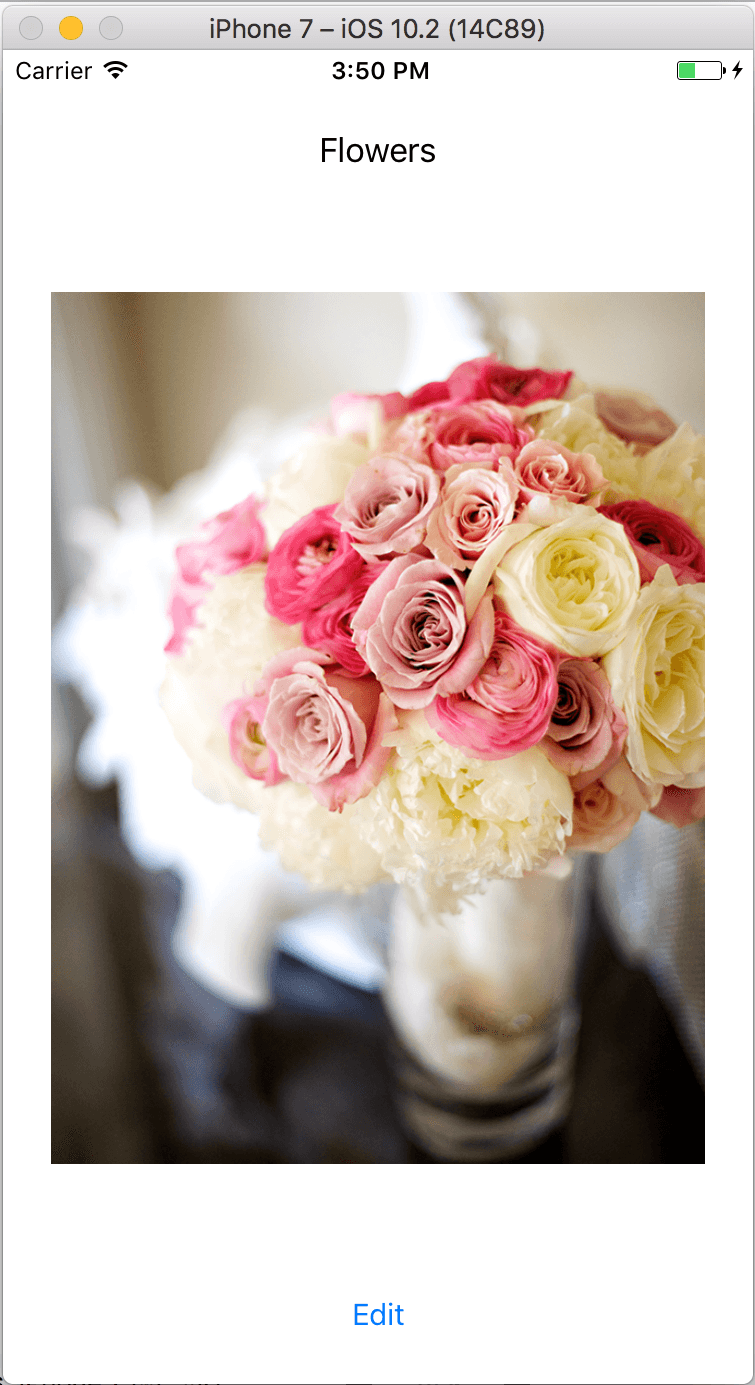
Laying Out the UI
- We need some images for our design. In the Project navigator
 , select Assets.xcassets.
 - Switch to the Desktop and navigate to yourname–iOS App Dev 1 Class > Auto Layout Images.
- Open that folder and select all four images.
- With Xcode still visible, drag the images to the Assets catalog.
- In the Project navigator, click on Main.storyboard.
- At the bottom of the Editor, set the view to iPhone 13 Pro.
- From the Object library
 drag out an Image View.
 - In the Attributes inspector, set the Image to flowers.
- Center the image on the view using the blue guides.
- In the Attributes inspector under View > Content Mode, select Aspect Fit. This will keep the proper aspect ratio (width to height) for the image.
- From the Object library, pull out a Label and put it above the image.
- Also pull out a Button and put it below the image.
- Change the label text to Flowers and make Alignment centered.
- Change the button text to Edit.
- Select all three objects: the label, image, and button.
- Click on the Embed in button
 and choose the Stack View option. The image should magically enlarge! This is because the objects are filling all available space in the stack.
 - In the Document Outline, CTRL–drag the Stack View to the View. Choose Leading Space to Safe Area. This tells it how far from the left edge of the phone to place the stack.
- Do the same thing three more times and choose the following:
- Trailing Space to Safe Area (right edge)
- Top Space to Safe Area (top edge)
- Bottom Space to Safe Area (bottom edge)
- While Stack View is still selected, in the Size inspector, next to Align Trailing to:, click Edit and change the Constant to 0.
- Press Esc to get out of that dialog.
Do the same thing to the other three constraints, changing the Constant to 0.
We just told Xcode that we want the stack to go to the very edges of any iPhone. It won’t go quite that far since there is some default margin.
- While Stack View is still selected, in the Attributes inspector, under Stack View, add the following:
- Alignment: Fill
- Distribution: Fill
- Spacing: 8
You may notice the button is floating in a large space at the bottom. We can fix that by changing the – wait for it – content hugging and compression resistance priorities.
- Select the flowers image.
- Go into the Size inspector. Scroll down, and under Content Hugging Priority add the following:
- Horizontal: 250
- Vertical: 249
- Right there under Content Compression Resistance Priority add the following:
- Horizontal: 750
- Vertical: 749
Because these vertical values are slightly less than the other objects, the image will be the first one to change size vs. the others. The image will scale while the other objects stay stuck to the outside of the stack view. (The other objects still have default values of 250 and 750.)
- At the bottom of the Editor, try different-sized phones to see how the image scales and the label and button hug the margin.
Remember when we changed the Constant to 0 for Trailing Space and the other constraints? We’re going to change them again to illustrate how that works.
- To see this effect best, click on the iPhone 4s at the bottom of your screen.
- In the Document Outline select the Stack View.
- In the Size inspector, next to Align Trailing to:, click Edit and change the Constant to 25. Watch the effect after each change.
- Do the same thing to the other three constraints, changing the Constant to 25.
- At the bottom of the Editor, set the view back to iPhone 13 Pro. Try different-sized phones to see how the margin around the outside is bigger. The major variation from phone to phone happens to the image due to the content hugging and compression resistance priorities.