What is Git and Why Should You Use it?
What Git Does
Tracks Every Change
Snapshots your project's history so you can see what changed, when, and why — and roll back when needed.
Enables Collaboration
Multiple developers work on the same code without overwriting each other, merging changes through branches and pull requests.
Distributed by Design
Every clone is a full repository — work offline, push when ready. Built by Linus Torvalds for Linux kernel development.
Powers GitHub, GitLab, Bitbucket
The open-source engine behind every major code-hosting platform and modern software workflow.
Noble Desktop's Full Stack Development Certificate covers HTML, CSS, JavaScript, React, Node, and the modern web stack employers hire for.
From web developers to app developers, Git is useful to anyone who writes code or track changes to files. So what’s it all about and why should you start using it?
What is Git?
Git is the most commonly used version control system. Git tracks the changes you make to files, so you have a record of what has been done, and you can revert to specific versions should you ever need to. Git also makes collaboration easier, allowing changes by multiple people to all be merged into one source.
So regardless of whether you write code that only you will see, or work as part of a team, Git will be useful for you.
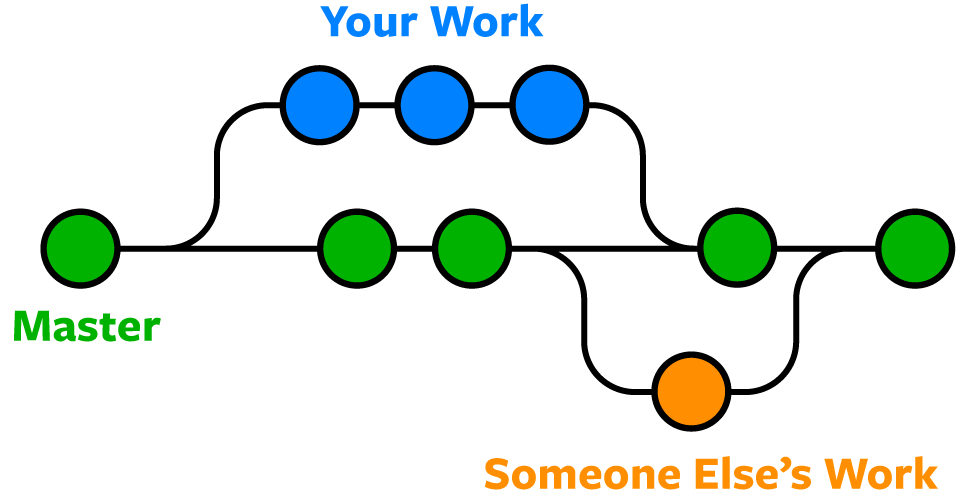
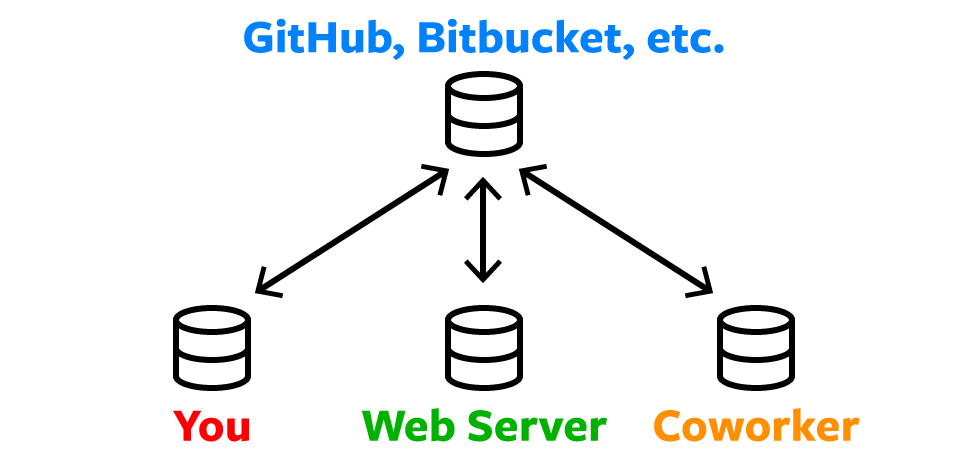
Git is software that runs locally. Your files and their history are stored on your computer. You can also use online hosts (such as GitHub or Bitbucket) to store a copy of the files and their revision history. Having a centrally located place where you can upload your changes and download changes from others, enable you to collaborate more easily with other developers. Git can automatically merge the changes, so two people can even work on different parts of the same file and later merge those changes without losing each other’s work!
Ways to Use Git
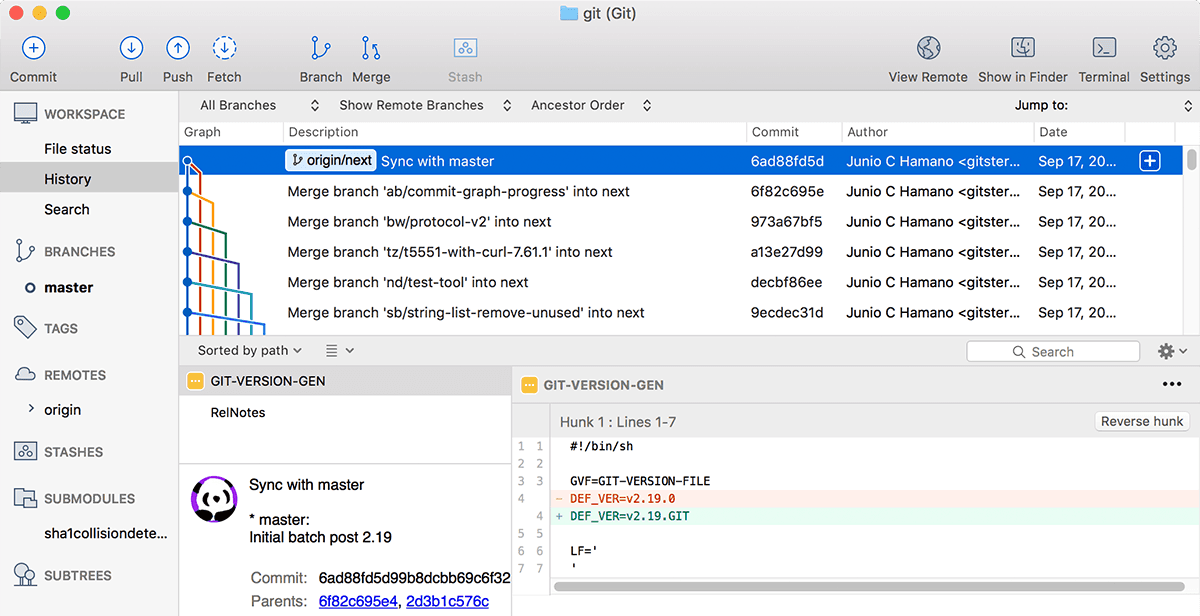
Git is software that you can access via a command line (terminal), or a desktop app that has a GUI (graphical user interface) such as Sourcetree shown below.
Pull Requests
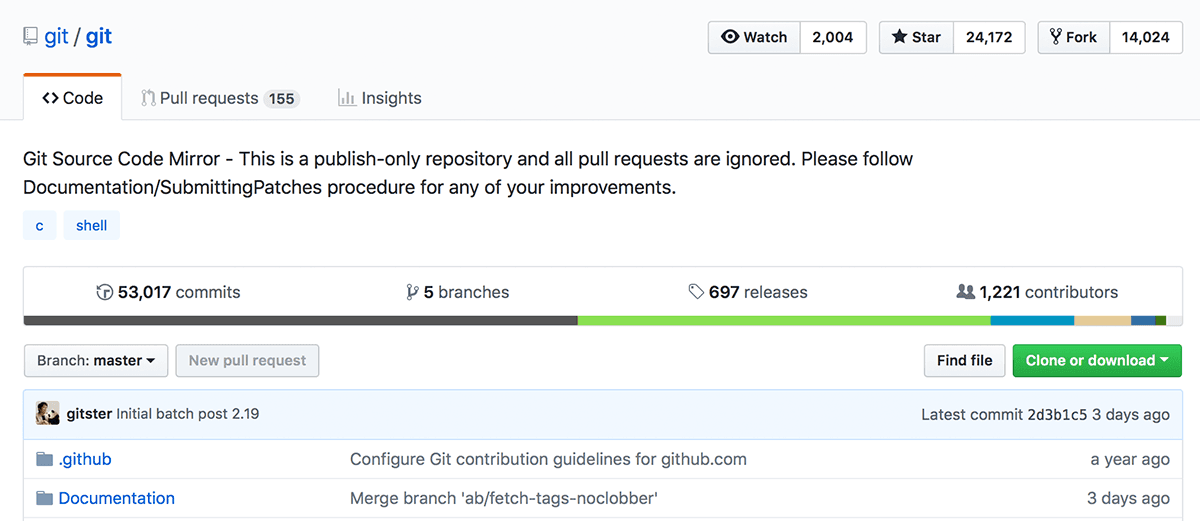
Pull requests are a way to discuss changes before merging them into your codebase. Let’s say you’re managing a project. A developer makes changes on a new branch and would like to merge that branch into the master. They can create a pull request to notify you to review their code. You can discuss the changes, and decide if you want to merge it or not.