Card War: Animating the Cards
What This Tutorial Covers
UIView Animation
Animate position, scale, and rotation with simple APIs.
Animation Timing
Curves and durations that feel natural in iOS.
Sequencing
Chain multiple animations for game flow.
Noble Desktop's Full-Stack Web Development Certificate teaches programming fundamentals that transfer across mobile, web, and desktop development.
This tutorial will guide you through the process of creating a unique animation for your iOS application that moves cards from the deck button to their respective positions, reveals card values with a flipping transition, and includes the final code into the animation, enhancing user engagement.
Exercise Preview
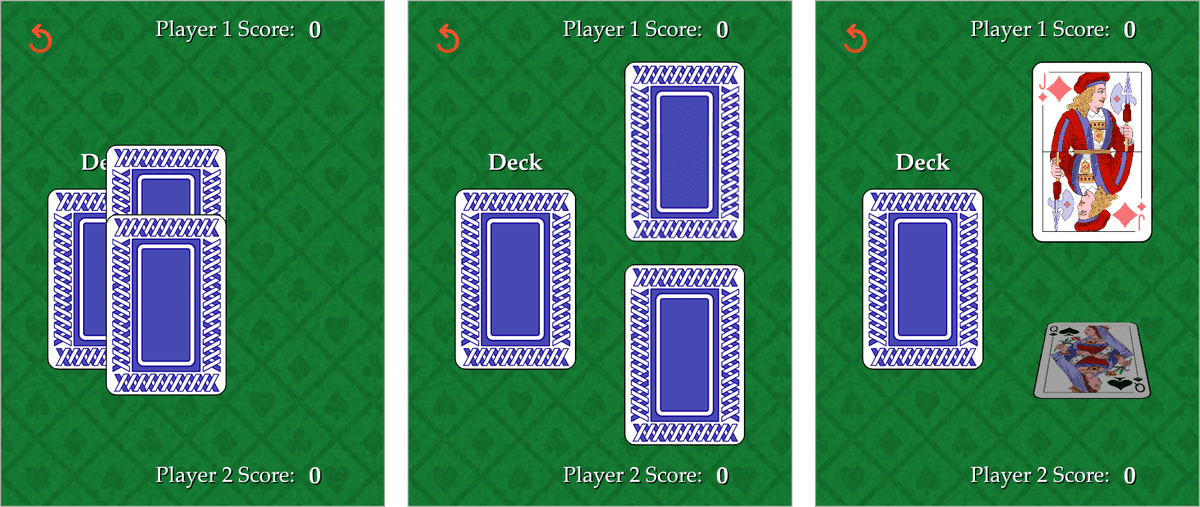
Animating the Cards’ Move from the Deck Button to Their Respective Positions
In the previous exercise, we wrote two blocks of code that do the same thing: position the set of two cards that get drawn in each round. The first chunk stacked both cards on top of the Deck button, and the second instantly moved them over from that initial location to their respective positions above or below the player’s score label.
The reason we added both of these instructions is so we can animate the change, enabling the user to see the cards move after they click the Deck button.
The last few blocks of code in the drawCards function will get incorporated into an animation. To better keep track of them while we set up the animation, find the following line and before it, create several new blank lines of code.
player1CardIV.center.X = view.center.X * 0.57 + cardLayoutDistance * CGFloat(drawNumber)To get our animation up and running, we first need to call the UIView class’s animate method. Where the code you just moved down used to be, type UIView.animate and from the dialog, select the following suggestion with a completion parameter:

The animation we’re building will happen over the course of half a second. Fill in the placeholder code as follows, pressing Tab to advance to the next placeholder:
UIView.animate(withDuration: 0.5, animations: {}, completion: { _ in })NOTE: We added the underscore (
_) before the closure’s in keyword because we don’t care about the finished boolean parameter that this closure takes.We’re going to fill in the curly braces for both the animations and completion parameters with blocks of code (some of the lines we previously wrote). In preparation for that, open both sets of curly braces as shown:
UIView.animate(withDuration: 0.5, animations: {
}, completion: { _ in
})
NOTE: Be sure to remove any lines of whitespace that get added, so your code appears as shown above.
To fill in the animations parameter’s empty set of curly braces, we want to move these four lines of code. We have a nifty trick to move them without cutting and pasting. To start, highlight them.
player1CardIV.center.X = view.center.X * 0.57 + cardLayoutDistance * CGFloat(drawNumber)
player1CardIV.center.y = view.center.y * 0.6
player2CardIV.center.X = player1CardIV.center.X
player2CardIV.center.y = view.center.y * 1.4
To move the block of code upward, press Cmd–Opt–[ (Left Bracket) until they are in the following position (the block should indent automatically):
UIView.animate(withDuration: 0.5, animations: {
   player1CardIV.center.X = view.center.X * 0.57 + cardLayoutDistance * CGFloat(drawNumber)
   player1CardIV.center.y = view.center.y * 0.6
   player2CardIV.center.X = player1CardIV.center.X
   player2CardIV.center.y = view.center.y * 1.4
}, completion: { _ in

})
NOTE: Pressing Cmd–Opt–] (Right Bracket) moves one or more lines of code down.
Yikes, three lines will have a red error! Click one of the red errors
 to see that we aren’t explicitly using the self keyword. We need to add it to the malfunctioning lines so the code knows exactly what to capture (reference).
Type the self keyword where needed, as shown in bold. Even if you see a red circle error
 (that provides a clickable Fix-it suggestion), do not click it. It’s faster just to type what you see here:
player1CardIV.center.X = self. view.center.X * 0.57 + self. cardLayoutDistance * CGFloat(self. drawNumber) player1CardIV.center.y = self. view.center.y * 0.6 player2CardIV.center.X = player1CardIV.center.X player2CardIV.center.y = self. view.center.y * 1.4We need the self keyword because this code is running within a closure instead of the View Controller proper. Remember that when we use properties defined here in the View Controller, we need to explicitly reference them using self because that’s the class we’re in.
We’ll leave the completion block empty for now, so the rest of the function will run as it did at the end of the previous exercise. To see what our animations block does, make sure the active scheme is set to iPhone 8, then go to the top left and click the Run button
 .
.When the Simulator finishes loading the app, click on the Deck button.
Our first animation is working! The cards leave their initial position on top of the Deck button, and move up or down to their resting positions over the course of half a second.
We don’t want the cards to be revealed right away. Return to Xcode so we can ensure the values of these cards are a mystery until they land in their final positions.
Revealing the Cards’ Values After They Are Done Moving
The animation block of code runs parallel to the main thread (in this case, the other drawCards code). Because our cards are moving into position over the course of half a second, our animation code takes longer to complete than the rest of the drawCards function code below it! The fix is simple: move the image changing code for each player’s card into the animation method’s completion handler.
Underneath the UIView’s animate method, highlight the following two lines:
player1CardIV.image = player1Card.image
player2CardIV.image = player2Card.image
Press Cmd–Opt–[ (Left Bracket) to move the lines up into the completion handler, so the images will get flipped after the first animation is done:
UIView.animate(withDuration: 0.5, animations: {Code Omitted To Save Space
}, completion: { _ in
   player1CardIV.image = player1Card.image
   player2CardIV.image = player2Card.image
})
Let’s fire up the Simulator to see what happens now that we’ve moved the image change code into the closure. At the top left, click the Stop button
 then click the Run button .
Click the Deck button to see that once the cards are moved into place, both cards get revealed instantaneously. That’s a bit of a letdown…
To make the reveal more exciting, we want the cards to flip over. We can add this code, go back to Xcode.
Revealing the Cards’ Values with a Flipping Transition
To create a sense of anticipation, we’ll wait until player 1’s card has flipped to then flip player 2’s card. Let’s create two more animation frames so we can sequentially flip each player’s card after our previous animation has run its course.
To give yourself more room to create the frame that will hold the image changing code, go into the completion block, place the cursor before the line that starts with player1CardIV.image and add a few lines of whitespace.
As shown, type UIView.transition and from the dialog, select the transition(with:… suggestion to get this placeholder code:
}, completion: { _ in
   UIView.transition(with: UIView, duration: TimeInterval, options: UIViewAnimationOptions, animations: (() -> Void)?, completion: ((Bool) -> Void)?)
Whitespace Between Code
player1CardIV.image = player1Card.image
   player2CardIV.image = player2Card.image
})
Fill in the placeholders as shown, making sure to separate each set of curly braces:
UIView.transition(with: player1CardIV, duration: 0.3, options: .transitionFlipFromBottom, animations: {
}, completion: { _ in
})
Move the line that starts with player1CardIV.image up into the animations block. Because this is a single line instead of a block of code, all you need to do is place the cursor anywhere in the line, then press Cmd–Opt–[ (Left Bracket) until the code is positioned as such:
UIView.transition(with: player1CardIV, duration: 0.3, options:.transitionFlipFromBottom, animations: {
   player1CardIV.image = player1Card.image
}, completion: { _ in
})
Before we make the second card flip, let’s see how the animation sequence has changed. At the top left, click the Stop button
then click Run .Click the Deck button to see the first card do some gymnastics! As you may have expected, player 1’s card flips, but the card underneath it is revealed automatically.
Click the button again and take special notice that both cards get revealed after the first animation completes. This is because the line of code that changes player 2’s card image is within the first animation’s completion block.
NOTE: If you have time, feel free to use Cmd–Opt–] (Right Bracket) to move the player2CardIV.image… line underneath the UIView’s animate method. Rerun the app and see how the sequence changes.
Let’s flip player 2’s card! Return to Xcode.
We want to add another animation frame inside the completion block for player 1. Almost all of the settings will be the same, so copy the following lines:
UIView.transition(with: player1CardIV, duration: 0.3, options:.transitionFlipFromBottom, animations: {
   player1CardIV.image = player1Card.image
}, completion: { _ in
})
Paste them inside the completion handler as shown:
UIView.transition(with: player1CardIV, duration: 0.3, options:.transitionFlipFromBottom, animations: {
   player1CardIV.image = player1Card.image
}, completion: { _ in
   UIView.transition(with: player1CardIV, duration: 0.3, options:.transitionFlipFromBottom, animations: {
      player1CardIV.image = player1Card.image
   }, completion: { _ in
   })
})
Edit the following code in the second animation frame, so it refers to player 2:
UIView.transition(with: player2CardIV, duration: 0.3, options:.transitionFlipFromBottom, animations: {
   player2CardIV.image = player2Card.image
}, completion: { _ in
If you still have the following line further down in your code, delete it now:
player2CardIV.image = player2Card.imageStop
the Simulator and Run it again.Click the Deck button. After the cards move into place, you will see both cards flip sequentially, starting with the reveal for player 1. That’s exactly what we want!
While keeping an eye on one of the player’s numeric score labels, click the Deck button a few more times.
Each time your player wins a round, notice that their score increments immediately—right after you press the Deck button! That’s not much of a surprise…
Return to Xcode.
Incorporating the Final Code into the Animation
As you’ve probably guessed, all we need to do to fix the scoring issue is to place those lines of code into the completion block that executes after player 2’s card has been flipped. We want the rest of the code under it to come along for the ride too.
Highlight the remaining code at the bottom of the drawCards function:
if player1Card.value > player2Card.value { player1Score += 1 }
if player1Card.value < player2Card.value { player2Score += 1 }

if drawNumber == 26 {
   deckButton.setImage(UIImage(named: "Game-Over"), for:.normal)
   gameOver = true
}
self.drawingCards = false
Move them up into the empty completion handler for player 2’s card image view (the final completion block that has the most indentation):
Code for player2Card & Its Image View
}, completion: { _ in
   if player1Card.value > player2Card.value { player1Score += 1 }
   if player1Card.value < player2Card.value { player2Score += 1 }

   if drawNumber == 26 {
      deckButton.setImage(UIImage(named: "Game-Over"), for:.normal)
      gameOver = true
   }
   self.drawingCards = false
})
Once again, you’ll see many red errors because we need to include the self keyword. Add it in wherever it appears in bold below:
if player1Card.value > player2Card.value { self. player1Score += 1 }
if player1Card.value < player2Card.value { self. player2Score += 1 }

if self. drawNumber == 26 {
   self. deckButton.setImage(UIImage(named: "Game-Over"), for:.normal)
   self. gameOver = true
}
self.drawingCards = false
Once the other animations you’ve seen complete, the app will make these decisions. It will update the score if it’s not a tie, and it will change the Deck button image if all the cards have been drawn. It’ll also allow the user to draw another set of cards.
Stop
the Simulator and Run it again.Click the Deck button a few times, and notice that you will need to wait a bit longer to click it again. This is because at the beginning of the drawCards function that runs when we click the button, we set up some protections that ensure the user cannot interrupt the animations by clicking too fast.
The score changes after both cards have been flipped over. Perfect!
Feel free to play the game all the way through, or click the restart button
 to see that our app is working exactly as planned. Congratulate yourself on a job well done!
Return to Xcode and Stop
the Simulator.Additionally, feel free to clean up the spacing at the bottom of your code. This will not affect how the app runs, but the project will look neater.
Save and close the project but leave Xcode open for the next exercise.