Spell Checking: Free InCopy Tutorial
Master InCopy spell checking with comprehensive tutorial guide
Two Main Spell Checking Approaches in InCopy
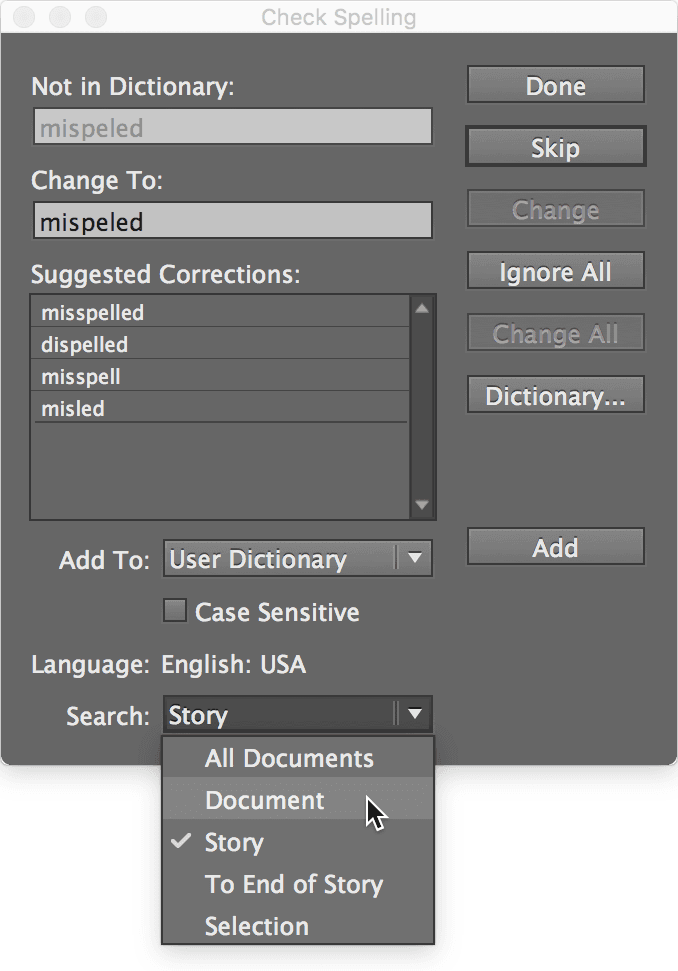
Check Spelling Panel
Traditional panel-based spell checking accessed through Edit menu. Provides comprehensive control over spell check process with detailed correction options.
Dynamic Spell Checking
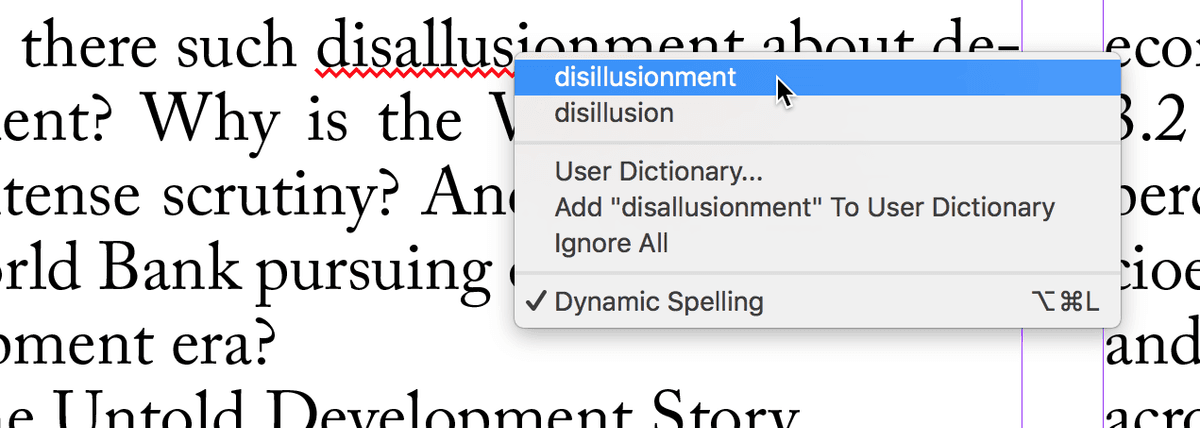
Real-time spell checking that underlines errors as you type. Similar to Microsoft Word functionality with instant visual feedback.
Check Spelling Panel vs Dynamic Spell Checking
| Feature | Check Spelling Panel | Dynamic Spell Checking |
|---|---|---|
| Activation Method | Edit > Spelling > Check Spelling | Edit > Spelling > Dynamic Spelling |
| Error Detection | On-demand scanning | Real-time underlining |
| Visual Feedback | Panel-based interface | Colored underlines in text |
| Workflow Integration | Batch processing | Continuous monitoring |
Dynamic spell checking must be manually activated through Edit > Spelling > Dynamic Spelling before it can provide real-time error detection and visual feedback.
Dynamic Spell Checking Color Coding System
Red Underlines
Indicate misspelled words that need correction. These are the most common spelling errors detected by the system.
Green Underlines
Mark capitalization errors and duplicate words. These represent formatting and repetition issues in your text.
Correcting Dynamic Spell Check Errors
Identify Underlined Words
Look for red underlines indicating misspelled words or green underlines for capitalization and duplicate word errors
Access Correction Menu
Control-click on Mac or Right-click on Windows on the underlined word to open context menu
Select Correction Option
Choose correctly spelled word from suggestions or select Add to User Dictionary for specialized terms
Spell Checking Best Practices
Provides continuous error detection throughout writing process
Choose Document or Story based on review requirements
Add industry terms and proper nouns to prevent repeated flags
Ensures comprehensive error detection before publication
Red for misspelling, green for capitalization and duplicates
Complete Check Spelling Panel Workflow
Access Check Spelling
Navigate to Edit > Spelling > Check Spelling to open the spell check panel interface
Configure Search Scope
Choose Document for entire layout or Story for current text frame from Search menu
Start Spell Check Process
Click Start button if visible, otherwise InCopy begins automatically scanning for errors
Review and Correct Errors
Select suggested corrections, type custom corrections, ignore errors, or add words to dictionary
Complete Process
Click Done when finished reviewing all detected spelling errors in selected scope
Check Spelling Panel Correction Options
Suggested Correction
Select from automatically generated suggestions and click Change to apply the recommended spelling fix.
Custom Correction
Type your own correction manually and click Change to apply personalized spelling modifications.
Ignore All
Skip correction for this instance and continue spell check without making changes to the flagged word.
Add to Dictionary
Add word to User Dictionary to prevent future spell check flags for specialized terms or names.
Check Spelling Panel vs Dynamic Spell Checking
| Feature | Check Spelling Panel | Dynamic Spell Checking |
|---|---|---|
| Activation Method | Edit > Spelling > Check Spelling | Edit > Spelling > Dynamic Spelling |
| Error Detection | On-demand scanning | Real-time underlining |
| Visual Feedback | Panel-based interface | Colored underlines in text |
| Workflow Integration | Batch processing | Continuous monitoring |
Dynamic spell checking must be manually activated through Edit > Spelling > Dynamic Spelling before it can provide real-time error detection and visual feedback.
Dynamic Spell Checking Color Coding System
Red Underlines
Indicate misspelled words that need correction. These are the most common spelling errors detected by the system.
Green Underlines
Mark capitalization errors and duplicate words. These represent formatting and repetition issues in your text.
Correcting Dynamic Spell Check Errors
Identify Underlined Words
Look for red underlines indicating misspelled words or green underlines for capitalization and duplicate word errors
Access Correction Menu
Control-click on Mac or Right-click on Windows on the underlined word to open context menu
Select Correction Option
Choose correctly spelled word from suggestions or select Add to User Dictionary for specialized terms
Spell Checking Best Practices
Provides continuous error detection throughout writing process
Choose Document or Story based on review requirements
Add industry terms and proper nouns to prevent repeated flags
Ensures comprehensive error detection before publication
Red for misspelling, green for capitalization and duplicates
Key Takeaways