April 1, 2026Dan Rodney/2 min read

Copyfitting: Free InCopy Tutorial

Master Professional Text Fitting in Adobe InCopy

What is Copyfitting?

Copyfitting is the process of adjusting text to fit within designated layout constraints while maintaining readability and design integrity.

Copyfitting

Essential InCopy Views for Copyfitting

Galley View

Shows accurate line breaks and displays copyfit information directly in the text. Best for seeing exact overflow text locations.

Layout View

Displays the final layout appearance but hides overflow text. Uses visual indicators like red plus boxes to show text overflow.

Galley View for Copyfitting

Pros
Shows accurate line breaks as they will appear in final layout
Displays copyfit information directly within the text
Allows you to see exactly which text is overflowing
Provides immediate visual feedback while editing
Cons
Does not show the actual design layout
May not reflect final typography spacing
Limited visual context of surrounding design elements
Best Practice

Use Galley View when you need to identify and edit specific overflow text. The direct visual feedback makes it easier to see exactly what needs to be adjusted.

Layout View Copyfitting Workflow

0/4

Galley View vs Layout View

FeatureGalley ViewLayout View
Overflow Text VisibilityShows exact overflow textHidden, indicated by red plus box
Line Break AccuracyAccurate line breaksFinal layout appearance
Best Use CaseDetailed text editingOverall layout assessment
Copyfit InformationEmbedded in textToolbar reference only
Recommended: Use Galley View for precise copyfitting work and Layout View for final review and context.

The Copyfit Info Toolbar

Effective copyfitting begins with monitoring your text flow as you write. InCopy's Copyfit Info Toolbar, located at the bottom of your workspace, provides real-time feedback on how well your content fits within the designated space. This essential tool displays one of three status messages, allowing you to adjust your copy length before it becomes problematic.

copyfit toolbar copyfit

copyfit toolbar over

copyfit toolbar under

Monitor Your Progress

Always keep the Copyfit Info Toolbar visible at the bottom of your screen while writing. It provides real-time feedback on how well your copy fits the available space.

Using the Copyfit Info Toolbar

1

Locate the Toolbar

Find the Copyfit Info Toolbar at the bottom of your InCopy screen while typing

2

Read the Messages

Monitor the three different status messages that indicate how well your copy fits

3

Adjust Accordingly

Use the feedback to guide your writing and editing decisions in real-time

Copyfitting in Galley View

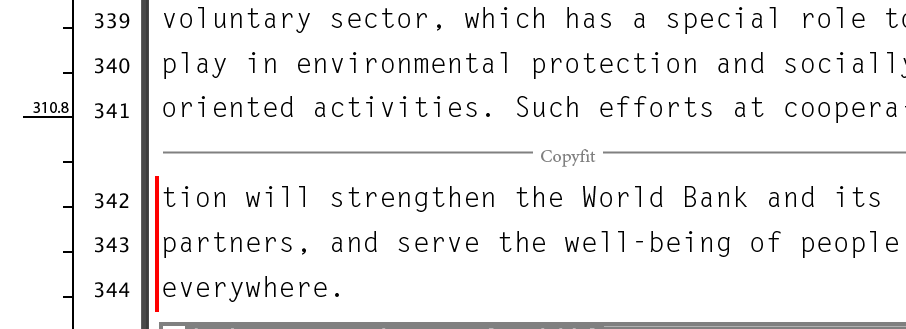
Understanding your copyfit status becomes even more precise when working in Galley view. This view mode excels at copyfitting because it displays accurate line breaks while embedding copyfit information directly within your text—a feature that proves invaluable for editorial workflows.

In Galley view, you can immediately identify which specific sentences or paragraphs are causing overflow issues. This granular visibility allows you to make targeted edits rather than guessing which sections need trimming, significantly improving your editing efficiency and accuracy.

copyfitting in galley view

Essential InCopy Views for Copyfitting

Galley View

Shows accurate line breaks and displays copyfit information directly in the text. Best for seeing exact overflow text locations.

Layout View

Displays the final layout appearance but hides overflow text. Uses visual indicators like red plus boxes to show text overflow.

Galley View for Copyfitting

Pros
Shows accurate line breaks as they will appear in final layout
Displays copyfit information directly within the text
Allows you to see exactly which text is overflowing
Provides immediate visual feedback while editing
Cons
Does not show the actual design layout
May not reflect final typography spacing
Limited visual context of surrounding design elements
Best Practice

Use Galley View when you need to identify and edit specific overflow text. The direct visual feedback makes it easier to see exactly what needs to be adjusted.

Copyfitting in Layout View

While Layout view provides the most accurate visual representation of your final output, it handles overflow text differently than Galley view. When your text exceeds the available space, Layout view conceals the overflow content entirely—a design choice that maintains the visual integrity of your layout preview.

Instead of showing overflow text, InCopy signals the issue with a red plus box red plus text overflow positioned at the bottom-right corner of the text frame. When you see this indicator, rely on the Copyfit toolbar at the bottom of your screen to gauge how much content needs adjustment. This combination of visual cues and numerical feedback enables precise copywriting that respects both creative vision and space constraints.

copyfit toolbar over

Essential InCopy Views for Copyfitting

Galley View

Shows accurate line breaks and displays copyfit information directly in the text. Best for seeing exact overflow text locations.

Layout View

Displays the final layout appearance but hides overflow text. Uses visual indicators like red plus boxes to show text overflow.

Layout View Copyfitting Workflow

0/4

Galley View vs Layout View

FeatureGalley ViewLayout View
Overflow Text VisibilityShows exact overflow textHidden, indicated by red plus box
Line Break AccuracyAccurate line breaksFinal layout appearance
Best Use CaseDetailed text editingOverall layout assessment
Copyfit InformationEmbedded in textToolbar reference only
Recommended: Use Galley View for precise copyfitting work and Layout View for final review and context.

Key Takeaways

1Monitor the Copyfit Info Toolbar at the bottom of your screen continuously while typing to track text fitting status
2Galley View shows accurate line breaks and displays overflow text directly, making it ideal for detailed copyfitting work
3Layout View hides overflow text but uses red plus boxes to indicate when text extends beyond frame boundaries
4The Copyfit toolbar provides three different status messages to guide your writing and editing decisions
5Switch between views strategically: use Galley View for editing specific overflow issues and Layout View for overall assessment
6In Layout View, rely on the bottom toolbar for copyfit guidance since overflow text is not visible
7Copyfitting requires balancing text content with layout constraints while maintaining readability and design integrity
8Real-time feedback from InCopy tools helps writers adjust content length before layout issues become problematic

RELATED ARTICLES