April 1, 2026Dan Rodney/2 min read

Shared Spelling Dictionaries

Streamline Team Workflows with Collaborative Dictionary Management

Why Shared Dictionaries Matter

When teams work with industry-specific terminology, proper names, or technical jargon, individual spell checkers often flag valid words as errors. Shared dictionaries eliminate this friction by creating a centralized vocabulary source.

Shared Spelling Dictionaries

What Are Shared Dictionaries?

InCopy's spell check engine, while robust, often flags industry-specific terminology, brand names, and technical jargon as misspellings. When you add these words to your local dictionary, they remain accessible only on your machine—a significant limitation in collaborative environments. Shared dictionaries solve this challenge by creating a centralized word repository that your entire team can access and contribute to. This approach ensures consistency across projects while eliminating the frustration of repeatedly seeing legitimate terms flagged as errors. For organizations handling specialized content—whether medical journals, technical documentation, or brand-heavy marketing materials—shared dictionaries become an essential productivity tool that streamlines the editorial workflow.

Dictionary Types Comparison

Personal Dictionary

Stores custom words locally on your computer only. Changes don't affect other team members working on the same project.

Shared Dictionary

Centralized dictionary file accessible by all team members. Updates are available to everyone using the shared resource.

Shared Dictionary Benefits vs Limitations

Pros
Consistent spell checking across team members
Centralized management of custom terminology
Reduced time spent adding same words repeatedly
Better collaboration on technical documents
Cons
Requires shared network access
Needs coordination for updates
Potential network dependency issues

Making a Shared Dictionary File

Creating a shared dictionary requires strategic placement and proper configuration to ensure seamless team adoption. Follow these steps to establish a dictionary that will serve your organization's needs:

  1. Open the Dictionary preferences by choosing the following:

    Mac: InCopy > Preferences > Dictionary
    Windows: Edit > Preferences > Dictionary
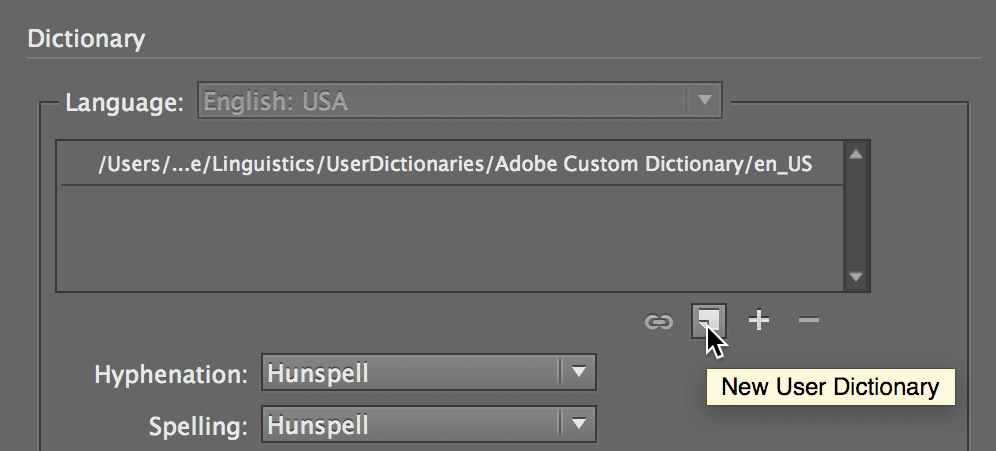
  2. As shown below, click the New User Dictionary button to initiate the creation process.

    new shared dictionary

  3. Assign a descriptive name to your dictionary that reflects its purpose and scope. Consider names like "CompanyName_Editorial" or "Project_TechnicalTerms" for easy identification and future management.

  4. Choose your storage location strategically:

    • Navigate to a network-accessible location such as a shared server folder, cloud storage directory, or team drive that all users can reach with appropriate read/write permissions.
    • Click Save to finalize the dictionary creation.
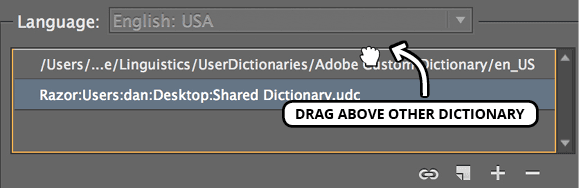
  5. As shown below, drag the new dictionary to the top of the list to establish it as the default dictionary for spell checking operations.

    shared dictionary drag to top

Creating Your Shared Dictionary

1

Access Dictionary Preferences

Navigate to InCopy Preferences and select Dictionary from the menu options based on your operating system

2

Create New User Dictionary

Click the New User Dictionary button and provide a descriptive name for your shared dictionary file

3

Save to Shared Location

Navigate to a network folder accessible by all team members and save the dictionary file there

4

Set as Default

Drag the new dictionary to the top of the list to make it the primary dictionary for spell checking

Naming Convention Best Practice

Use descriptive names for your shared dictionaries that include your company name or project identifier, such as 'TechCorp_Medical_Terms' or 'Project_Alpha_Dictionary'.

Setting InCopy to Use an Existing Shared Dictionary

If your organization has already established a shared dictionary, connecting to it ensures you benefit from the collective terminology knowledge of your team. This process integrates seamlessly with existing workflows:

  1. Open the Dictionary preferences by choosing the following:

    Mac: InCopy > Preferences > Dictionary
    Windows: Edit > Preferences > Dictionary
  2. Below the existing dictionary list, click the Add User Dictionary button add button to browse for the shared resource.

  3. Navigate to the designated shared folder where your team's dictionary resides and click Open to establish the connection. Ensure you have the correct network permissions to access this location.

  4. As shown below, drag the shared dictionary to the top of your dictionary list, making it the primary reference for all spell check operations and ensuring consistency with your team's editorial standards.

    shared dictionary drag to top

Connecting to Existing Shared Dictionary

1

Open Dictionary Preferences

Access the same Dictionary preferences menu used for creating new dictionaries

2

Add User Dictionary

Click the Add User Dictionary button located below the dictionary list

3

Navigate and Select

Browse to the shared network location and select the dictionary file, then click Open

4

Prioritize Dictionary

Move the shared dictionary to the top position to ensure it takes precedence over other dictionaries

Implementation Checklist

0/4
Network Dependency Consideration

Remember that shared dictionaries require network access. If the connection is lost, InCopy will fall back to local dictionaries until the shared resource becomes available again.

Key Takeaways

1Shared dictionaries allow teams to maintain consistent spell checking across all members working on collaborative projects
2Personal dictionaries only affect individual computers while shared dictionaries benefit entire teams through centralized vocabulary management
3Creating a shared dictionary requires saving the file to a network location accessible by all team members
4Shared dictionaries should be positioned at the top of the dictionary list to ensure they take priority during spell checking
5Both Mac and Windows users access dictionary preferences through their respective menu systems with slightly different paths
6Network connectivity is essential for shared dictionary functionality, with local dictionaries serving as backup when connections fail
7Proper naming conventions and documentation help teams efficiently manage and locate shared dictionary resources
8Testing dictionary functionality and establishing update protocols ensures smooth implementation across collaborative workflows

RELATED ARTICLES