Special Characters & the Glyphs Panel
Master Typography with Special Characters and Glyphs
Essential Character Categories in Typography
Special Characters
Copyright symbols, trademark symbols, and em dashes that add professional polish to your text. These characters convey legal and stylistic information.
White Space Characters
Nonbreaking spaces and em spaces that control text flow and prevent unwanted line breaks. Critical for maintaining professional layout integrity.
Break Characters
Column breaks and frame breaks that control document structure and layout flow. Essential tools for complex multi-column designs.
Quick Access to Special Characters
Navigate to Type Menu
Access the Type menu in your application's main menu bar to reveal character insertion options.
Select Character Category
Choose between Insert Special Character, Insert White Space, or Insert Break Character based on your needs.
Choose Your Character
Browse the submenu options to find the specific character you need for your design project.
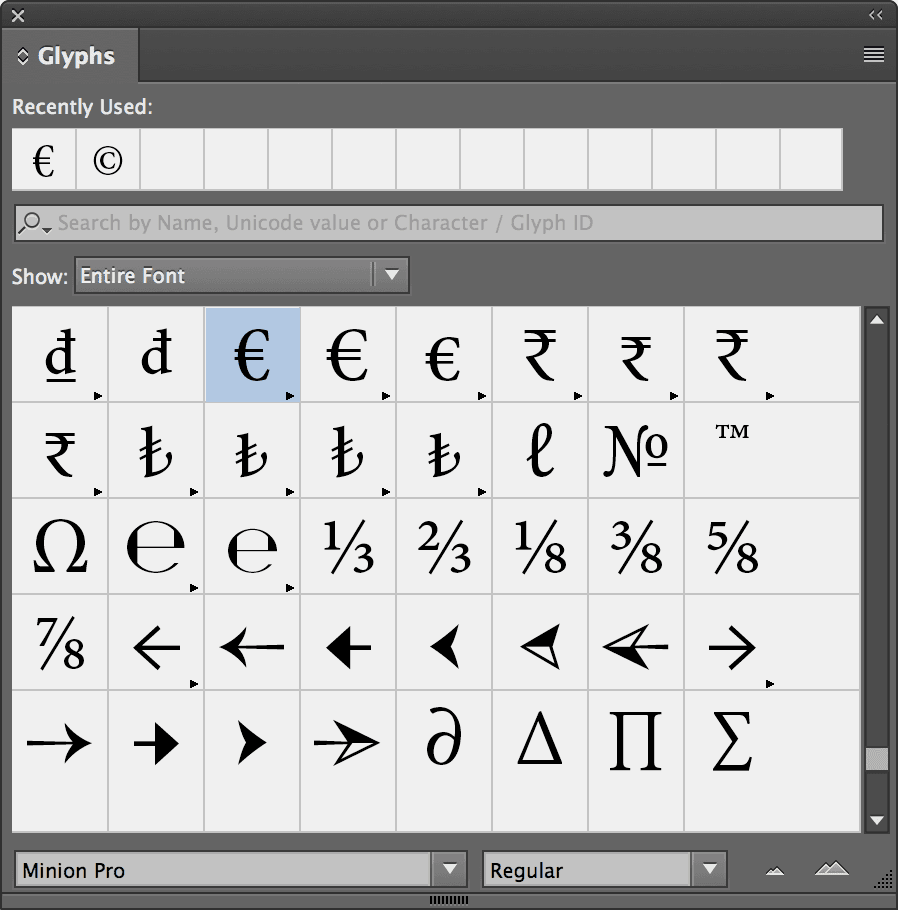
When standard menu options don't have the character you need, the Glyphs panel provides access to every character in any font, making it an essential tool for advanced typography work.
Glyphs Panel Workflow
Position Text Cursor
Place your cursor exactly where you want the special character to appear in your text.
Open Glyphs Panel
Navigate to Type menu and select Glyphs to open the comprehensive character panel.
Select Font if Needed
The panel defaults to your current font, but you can change it using the dropdown at the bottom left.
Adjust Preview Size
Use Zoom In and Zoom Out buttons at bottom right to get the perfect view of character details.
Insert Character
Double-click your desired character to instantly insert it at the cursor position.
The Glyphs panel automatically matches the font of your current text selection, ensuring typographic consistency throughout your document without manual font switching.
Glyphs Panel Best Practices
Ensures precise character placement without repositioning
Different fonts have unique character designs and availability
Prevents selecting similar-looking but incorrect characters
Ensures special characters display correctly in final output
Key Takeaways
precisely where you want to insert the special character. The character will appear exactly at this insertion point, maintaining your text flow and formatting.
and Zoom Out buttons
located at the bottom right of the panel. Larger previews help you distinguish between similar characters and ensure you're selecting exactly the right glyph—especially important when working with mathematical symbols, accented characters, or decorative elements.