Find/Change
InCopy Story Edit
Open the Assignment
Editor receives an .inca or .icma assignment file.
Check Out Story
Click the lock icon to claim editing rights.
Edit in Layout View
Galley View for distraction-free writing, Layout View for fit.
Check In When Done
Save and check in — designer's InDesign updates automatically.
Noble Desktop's Graphic Design Certificate covers InDesign — the layout app that pairs with InCopy for editorial workflows.
Discover how to use the Find/Change feature in InCopy to effectively search and edit across your entire layout or within specific text frames.
Performing a Search
Go to Edit > Find/Change.
As shown below, go into the Search menu. These are the options you’ll usually want to choose:
Document: Searches all text frames (Stories) in the entire InCopy layout Story: Searches just the current text frame (Story) you are currently in 
Fill in the Find what and Change to.
You usually won’t need to use these options, but you do the following if you need:
If you need to see formatting options, click More Options on the bottom right.
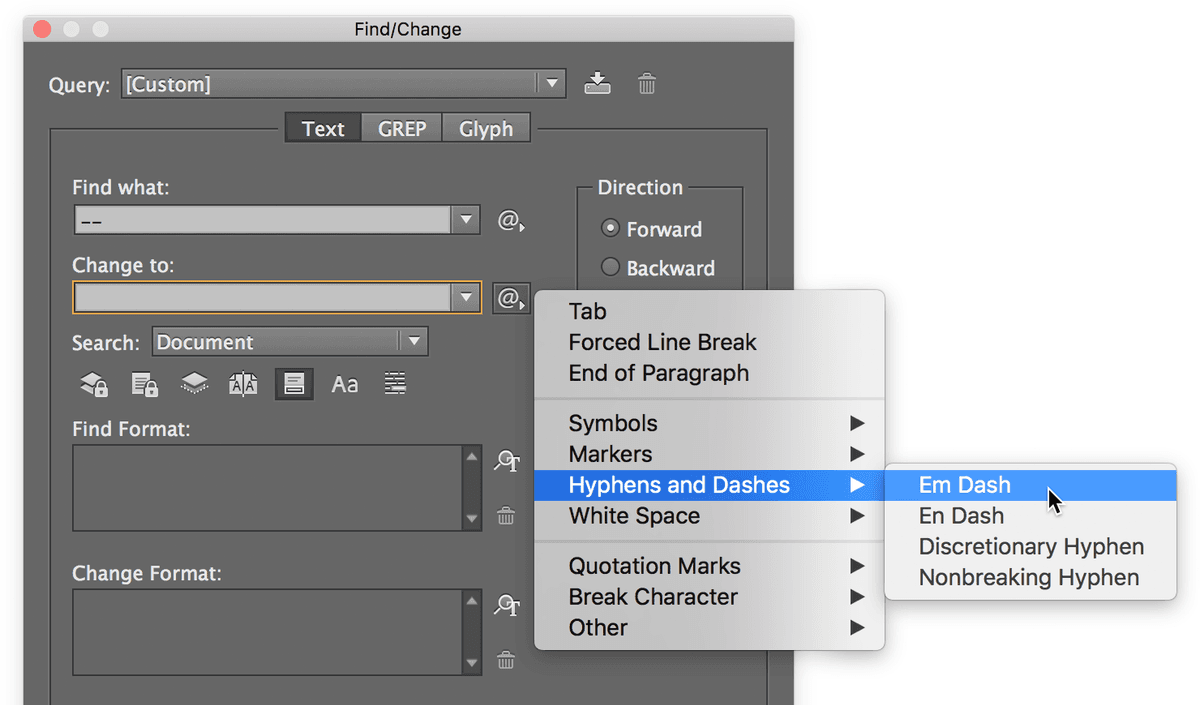
As shown below, you can use the
 arrow to access special characters.
Click Find Next (or Find Previous if you set the Direction to Backward.)
If it finds one you want to change, click Change to change just that one or click Change All to change all occurrences.
Click Done to close the panel.