April 1, 2026Dan Rodney/3 min read

Applying Paragraph & Character Styles

Master InCopy's Professional Typography Style System

Two Essential Style Systems

Paragraph Styles

Control entire paragraph formatting including alignment, spacing, indentation, and font properties. Applied to complete paragraphs or text blocks.

Character Styles

Override specific character formatting within paragraphs. Perfect for inline emphasis, special formatting, or brand-specific text treatments.

Style Consistency Benefits

Using styles instead of manual formatting ensures consistent typography across documents and enables global updates with a single click.

Applying Paragraph & Character Styles

Using the Paragraph & Character Style Panels

The most straightforward approach to applying styles is through Adobe InCopy's dedicated style panels. This traditional method gives you full visibility of all available styles and remains the preferred choice for many publishing professionals.

  1. Select the text you want to style—whether it's a single word, sentence, or entire paragraph.
  2. Choose the appropriate panel based on your styling needs:

    • Open the Paragraph Styles panel (Type > Paragraph Styles) for comprehensive paragraph formatting including alignment, spacing, and typography.
    • Open the Character Styles panel (Type > Character Styles) for targeted character-level formatting such as bold emphasis, italic text, or special typefaces.
  3. Click on the desired style name to apply it instantly. The formatting changes will be reflected immediately in your document.

While the panel method offers excellent visual control, seasoned InCopy users often prefer a faster approach when working under tight editorial deadlines.

Panel-Based Style Application Process

1

Select Target Text

Highlight the text you want to format. Selection determines which style type you'll need.

2

Open Appropriate Panel

Navigate to Type menu and choose Paragraph Styles or Character Styles based on your formatting needs.

3

Apply Style

Click on the desired style name in the panel to instantly apply all formatting properties.

When to Use Each Panel Type

FeatureParagraph StylesCharacter Styles
Best ForComplete paragraphsInline text elements
ScopeEntire paragraph blocksSelected character ranges
Menu AccessType > Paragraph StylesType > Character Styles
Typical Use CasesHeaders, body text, captionsEmphasis, inline formatting
Recommended: Use paragraph styles for structural formatting and character styles for local overrides.

Using Quick Apply to Apply Styles

Quick Apply represents one of InCopy's most powerful productivity features, allowing you to access virtually any program function through a smart search interface. For style application, this tool becomes indispensable when working with documents containing dozens of custom styles—a common scenario in professional publishing environments where brand consistency demands precise formatting control.

The beauty of Quick Apply lies in its intelligent search capabilities. Rather than scrolling through lengthy style lists, you can locate and apply styles using partial name matches, making it particularly valuable when working with complex style sheets or inherited documents from other team members.

  1. Select the text you want to style, ensuring your selection accurately captures the content requiring formatting changes.

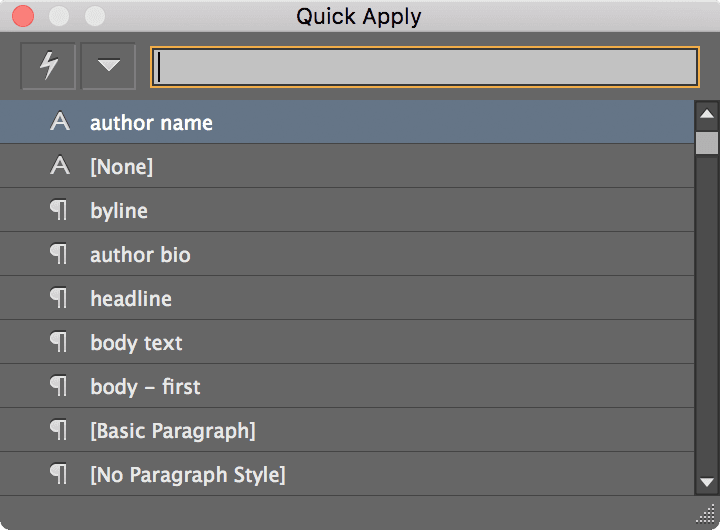
  2. Press Command–Return (Mac) or Control–Enter (Windows) to open Quick Apply. The Quick Apply panel will appear as a floating search interface.

    quick apply

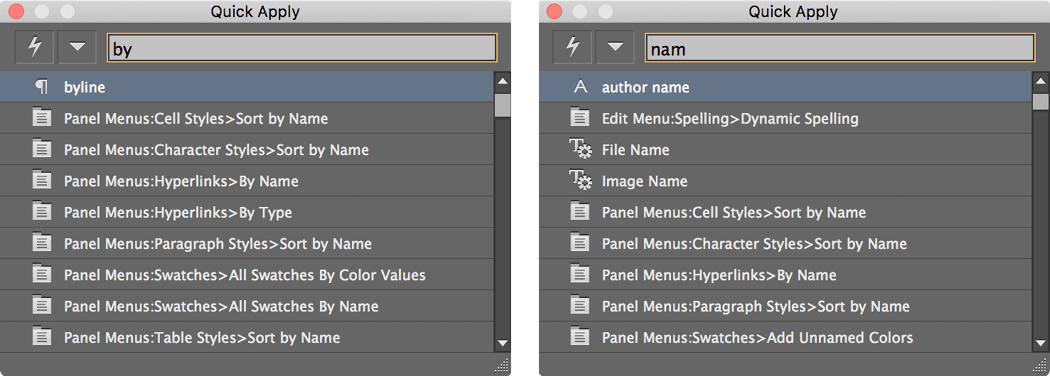
  3. Begin typing any portion of the style name. Quick Apply's fuzzy search algorithm will instantly filter results. Consider these practical examples:

    • Type by to quickly locate the byline style—essential for crediting authors in editorial workflows.

    • Type nam to find the author name style, demonstrating how searches can target any part of the style name, not just the beginning.

    quick apply searches

    NOTE: Quick Apply displays all available InCopy functions, not just styles. To streamline your search and focus exclusively on formatting options, use these prefixes: type p: before your search term to show only paragraph styles, or c: for character styles. This filtering becomes crucial when working with feature-rich documents where menu commands and styles might share similar names.

  4. Press Return (Mac) or Enter (Windows) to apply the highlighted style. The Quick Apply panel will close automatically, returning focus to your document with the new formatting applied.

Mastering Quick Apply transforms your InCopy workflow, particularly when handling multiple documents with varying style requirements—a hallmark of professional publishing operations where efficiency directly impacts deadline management and editorial quality.

Quick Apply Advantage

Quick Apply provides keyboard-driven access to styles and other InCopy features, significantly speeding up repetitive formatting tasks.

Quick Apply Workflow

1

Text Selection

Select the text you want to style before initiating Quick Apply.

2

Open Quick Apply

Press Command-Return on Mac or Control-Enter on Windows to launch the Quick Apply panel.

3

Search by Name

Type partial style names to filter results. Works with any part of the style name, not just the beginning.

4

Apply Style

Press Return or Enter to apply the highlighted style to your selected text.

Quick Apply Search Examples

Byline Style Search

Type 'by' to quickly locate and access your byline paragraph style. Partial matching makes finding styles intuitive and fast.

Author Name Search

Type 'nam' to find author name character style. Demonstrates how mid-word matching expands search flexibility beyond traditional prefix matching.

Filter by Style Type

Use prefixes to narrow results: type 'p:' before the name for paragraph styles only, or 'c:' for character styles only.

Quick Apply vs Panel Method

Pros
Keyboard-driven workflow maintains typing rhythm
Partial name matching finds styles quickly
Filters available for precise style type targeting
Accesses other InCopy features beyond styles
Cons
Requires memorizing style names
Less visual than panel browsing
Additional step to filter by style type

Key Takeaways

1InCopy provides two distinct style systems: paragraph styles for complete paragraph formatting and character styles for inline text treatments
2The traditional panel method offers visual style browsing through Type menu access to Paragraph Styles and Character Styles panels
3Quick Apply provides keyboard-driven style access using Command-Return (Mac) or Control-Enter (Windows) shortcuts
4Partial name matching in Quick Apply allows flexible style searching using any part of the style name, not just prefixes
5Style type filtering in Quick Apply uses 'p:' prefix for paragraph styles and 'c:' prefix for character styles
6Consistent style application ensures typography uniformity and enables global document formatting updates
7Quick Apply extends beyond styles to provide access to other InCopy menu items and features
8Professional workflows benefit from combining both panel-based browsing and Quick Apply keyboard shortcuts depending on the task context

RELATED ARTICLES