April 1, 2026Dan Rodney/3 min read

Removing Paragraph & Character Styles

Master text formatting control in professional design

Key Text Formatting Concepts

Paragraph Styles

Consistent formatting applied to entire paragraphs including font, size, spacing, and alignment. Forms the foundation of professional typography.

Character Styles

Formatting applied to selected text within paragraphs. Used for emphasis, links, or special text treatments without affecting paragraph structure.

Local Formatting

Manual formatting overrides applied directly to text. Creates inconsistencies and should be managed carefully in professional documents.

Removing Paragraph & Character Styles

What is Local Formatting (Also Called an Override)?

Local formatting occurs when you apply direct formatting to text that already has a paragraph or character style applied, creating what designers call an "override." This typically happens when you manually adjust text properties—such as changing font size, applying bold formatting, adjusting tracking, or modifying color—on top of an existing style. While overrides can be useful for quick adjustments, they can create consistency issues in professional documents and make style management more complex. Understanding how to identify and remove these overrides is essential for maintaining clean, professionally formatted documents.

Override Detection

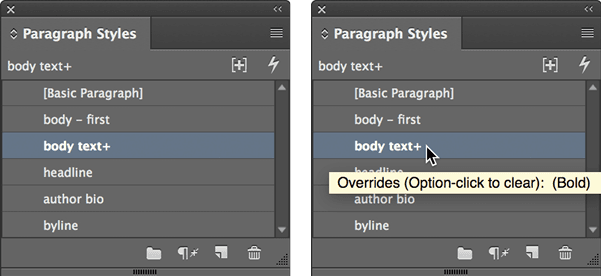
When text formatting differs from applied styles, a plus symbol (+) appears next to the style name in the Paragraph Styles panel, indicating local formatting overrides.

Common Local Formatting Examples

Text Size Changes

When font size is manually adjusted beyond what the paragraph style specifies, creating visual inconsistency.

Bold Application

Manual bold formatting applied to text that overrides the style's weight settings, often for emphasis.

Color Modifications

Text color changed from the style default, commonly used for highlighting or creating visual hierarchy.

Removing Local Formatting (Overrides)

The key to managing overrides effectively is recognizing when they exist and knowing how to remove them systematically. InCopy provides clear visual indicators and multiple methods for clearing local formatting.

  1. Select the text containing overrides, or position your cursor anywhere within the affected paragraph.

  2. Open the Paragraph Styles panel (Type > Paragraph Styles).

  3. When text contains local formatting that differs from the applied style—such as manual bold, italic, or tracking adjustments—a + symbol will appear to the right of the style name, as shown below. This plus sign is your immediate visual cue that overrides are present.

    TIP: Hover your cursor over the + symbol to reveal a tooltip that specifies exactly what formatting has been overridden, helping you make informed decisions about whether to keep or remove the changes.

    paragraph style override

  4. To remove local formatting, click the Clear overrides button clear override button located at the bottom of the panel. This action will restore the text to match the original style specifications exactly.

    NOTE: The scope of override removal depends on your selection. If you've selected specific text, only those characters will revert to the style's formatting, while the remainder of the paragraph maintains its current formatting. However, if you simply position your cursor within the paragraph without selecting text, the entire paragraph will be cleaned of all local formatting.

    HINT: For even faster workflow, you can Option–click (Mac) or ALT–click (Windows) directly on the style name to instantly remove all local formatting from the entire paragraph, regardless of text selection.

Step-by-Step Override Removal Process

1

Select Target Text

Choose specific text or click anywhere in the paragraph containing overrides you want to remove.

2

Open Paragraph Styles Panel

Navigate to Type menu and select Paragraph Styles to access the formatting controls.

3

Identify Override Indicator

Look for the plus symbol (+) next to the style name, which indicates local formatting is present.

4

Clear the Override

Click the Clear overrides button at the bottom of the panel to restore original style formatting.

Pro Tip: Hover for Details

Mouse over the plus symbol (+) to see a tooltip that reveals exactly what override formatting has been applied to your text.

Text Selection Impact on Override Removal

FeatureSelected TextNo Selection (Cursor Only)
Scope of ChangeSelected characters onlyEntire paragraph
Remaining TextKeeps existing formattingAll formatting cleared
Use CaseSelective cleanupComplete paragraph reset
Recommended: Use text selection for precise control, cursor placement for complete paragraph cleanup.

Removing a Character Style

Character styles work differently from paragraph styles and require a distinct approach for removal. Since character styles are applied to specific text selections rather than entire paragraphs, the removal process focuses on returning formatted text to its underlying paragraph style.

  1. Select the text that currently has a character style applied. You'll typically notice this text appears different from the surrounding paragraph text.

  2. Open the Character Styles panel (Type > Character Styles).

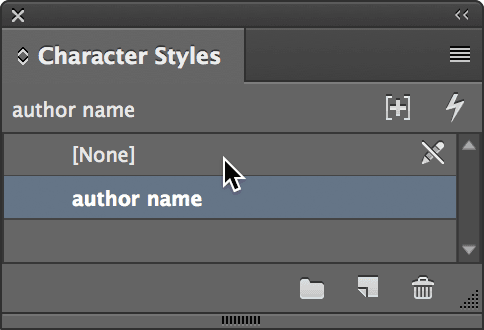
  3. The panel will display the name of the currently applied character style. To remove the character style and return the text to the underlying paragraph formatting, click on [None] at the top of the panel. This action strips away the character-level formatting while preserving the paragraph style's properties.

    character style applied

Character Style Removal Process

1

Select Styled Text

Highlight the text that has the character style you want to remove applied to it.

2

Access Character Styles Panel

Open the Character Styles panel through Type menu or use the panels dock for quick access.

3

Identify Applied Style

The panel will display the name of the character style currently applied to your selected text.

4

Select None Option

Click on [None] at the top of the Character Styles panel to remove the style completely.

Text Formatting Cleanup Checklist

0/5

Key Takeaways

1Local formatting overrides create inconsistencies in document styling and are indicated by a plus symbol (+) in the Paragraph Styles panel
2Text selection scope determines whether override removal affects only selected characters or entire paragraphs
3The Clear overrides button in the Paragraph Styles panel restores text to original style formatting
4Hovering over the plus symbol reveals specific details about what formatting overrides have been applied
5Keyboard shortcuts (Option-click on Mac, ALT-click on Windows) provide quick access to paragraph-wide override removal
6Character styles are removed by selecting [None] from the top of the Character Styles panel
7Understanding the difference between paragraph styles, character styles, and local formatting is essential for professional typography
8Proper style management prevents formatting inconsistencies and maintains document professionalism

RELATED ARTICLES