April 1, 2026Dan Rodney/3 min read

Importing Tables: Free InCopy Tutorial

Master Table Import Workflows in Adobe InCopy

Supported File Formats for Table Import

Microsoft Excel Files

Import spreadsheet tables with customizable formatting options. Choose between formatted, unformatted, or tabbed text conversion.

Microsoft Word Documents

Import tables from Word documents with full control over style preservation or removal during the import process.

Importing Tables

Importing tables from external documents into your project maintains data integrity while giving you full control over formatting. Whether you're working with Excel spreadsheets or Word documents, the import process ensures your tabular data transfers cleanly and remains editable. Here's how to handle both scenarios effectively.

Universal Table Import Process

1

Position Text Cursor

Place your text cursor at the exact location where you want the imported table to appear in your document.

2

Access Place Command

Navigate to File menu and select Place to open the import dialog window.

3

Configure Import Options

Enable Show Import Options at the bottom of the dialog to access formatting controls for your imported table.

Excel Import Format Options

FeatureFormatted TableUnformatted TableUnformatted Tabbed Text
Excel FormattingPreservedRemovedRemoved
Table StructureMaintainedClean TableTabbed Text
Best ForQuick ImportCustom StylingText Processing
Recommended: Choose Unformatted Table for maximum design control in InCopy
Import Options Access

If you don't see Show Import Options at the bottom of the Place dialog, click the Options button to reveal additional import settings.

Word Table Formatting Decisions

Pros
Preserve Styles maintains original Word formatting and design elements
Keeps complex table structures and cell formatting intact
Reduces manual reformatting work for styled tables
Cons
Remove Styles strips all formatting for consistent InCopy styling
Eliminates potential formatting conflicts between applications
Provides clean foundation for custom table design

Word Import Configuration Process

1

Select Word File

Click once on your Word document in the Place dialog to select it for import.

2

Enable Import Options

Check Show Import Options to access formatting control settings before importing.

3

Choose Formatting Strategy

Select either Remove Styles for clean import or Preserve Styles to maintain Word formatting.

Formatting Decision Impact

Your choice between removing or preserving Word formatting will significantly affect your post-import styling workflow and design consistency.

Importing Tables from an Excel Document

Excel files contain rich formatting and data structures that you'll want to preserve selectively. The import process gives you precise control over which elements to retain and which to strip away for a cleaner result.

  1. Position the text cursor type cursor edit text exactly where you want the table to appear in your document.

  2. Navigate to File > Place to open the import dialog.

  3. In the Place dialog that appears:

    • At the bottom of the window, enable Show Import Options (click the Options button if this checkbox isn't immediately visible).
    • Browse to and select your Excel file, then click Open.
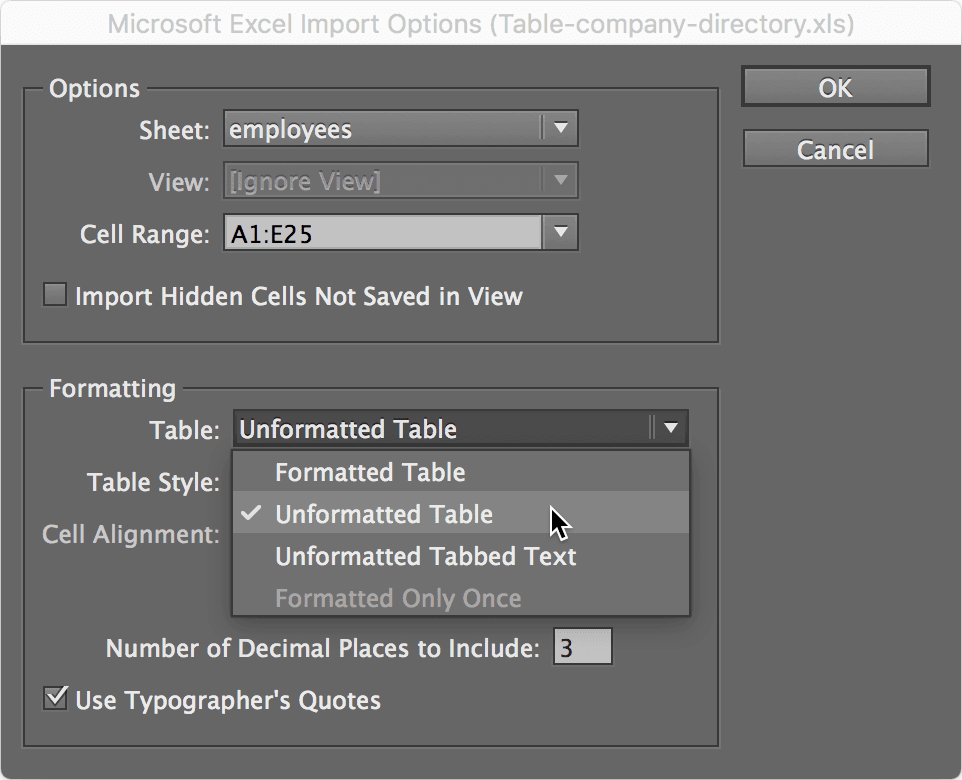
  4. The import options dialog provides three distinct formatting approaches, each serving different workflow needs:

    Formatted Table: Preserves Excel's original formatting as closely as possible, including colors, fonts, and cell styling
    Unformatted Table: Strips Excel's formatting completely, creating a clean table structure ready for your custom styling
    Unformatted Tabbed Text: Converts the table structure into tab-delimited text, useful for further text processing

    table import options

  5. Select your preferred option and click OK. Your table will import and become immediately available for styling and content editing within your document's design framework.

Universal Table Import Process

1

Position Text Cursor

Place your text cursor at the exact location where you want the imported table to appear in your document.

2

Access Place Command

Navigate to File menu and select Place to open the import dialog window.

3

Configure Import Options

Enable Show Import Options at the bottom of the dialog to access formatting controls for your imported table.

Excel Import Format Options

FeatureFormatted TableUnformatted TableUnformatted Tabbed Text
Excel FormattingPreservedRemovedRemoved
Table StructureMaintainedClean TableTabbed Text
Best ForQuick ImportCustom StylingText Processing
Recommended: Choose Unformatted Table for maximum design control in InCopy
Import Options Access

If you don't see Show Import Options at the bottom of the Place dialog, click the Options button to reveal additional import settings.

Importing Tables from a Word Document

Word documents present different challenges since they often contain mixed formatting applied by multiple users. The import process helps you decide whether to embrace this existing formatting or start with a clean slate.

  1. Place the text cursor type cursor edit text at your desired insertion point within the document.

  2. Access File > Place to begin the import process.

  3. Click once on your target Word document to select it in the file browser.

  4. To maintain control over Word's formatting decisions, check Show Import Options at the bottom of the dialog window. You may need to click the Options button first to reveal this setting.

  5. Click Open to proceed with the import.

  6. If you enabled import options in the previous step, a formatting control dialog will appear. This critical decision point determines how Word's styling integrates with your current document:

    To strip out the formatting: Choose Remove Styles and Formatting for complete control over the final appearance
    To maintain the formatting: Select Preserve Styles and Formatting to retain Word's original styling decisions
  7. Click OK to finalize your formatting choice.

  8. Your imported table is now fully integrated into your document, ready for professional styling and content refinement to match your publication standards.

Both import methods preserve the underlying table structure and data integrity while giving you the flexibility to apply consistent formatting that aligns with your document's overall design aesthetic.

Universal Table Import Process

1

Position Text Cursor

Place your text cursor at the exact location where you want the imported table to appear in your document.

2

Access Place Command

Navigate to File menu and select Place to open the import dialog window.

3

Configure Import Options

Enable Show Import Options at the bottom of the dialog to access formatting controls for your imported table.

Word Table Formatting Decisions

Pros
Preserve Styles maintains original Word formatting and design elements
Keeps complex table structures and cell formatting intact
Reduces manual reformatting work for styled tables
Cons
Remove Styles strips all formatting for consistent InCopy styling
Eliminates potential formatting conflicts between applications
Provides clean foundation for custom table design

Word Import Configuration Process

1

Select Word File

Click once on your Word document in the Place dialog to select it for import.

2

Enable Import Options

Check Show Import Options to access formatting control settings before importing.

3

Choose Formatting Strategy

Select either Remove Styles for clean import or Preserve Styles to maintain Word formatting.

Formatting Decision Impact

Your choice between removing or preserving Word formatting will significantly affect your post-import styling workflow and design consistency.

Key Takeaways

1InCopy supports importing tables from both Excel and Word documents through the File > Place command
2Always position your text cursor at the desired insertion point before initiating the import process
3Enable Show Import Options to access formatting controls and customization settings during import
4Excel imports offer three distinct formatting options: Formatted Table, Unformatted Table, and Unformatted Tabbed Text
5Word table imports require choosing between preserving original formatting or removing styles for clean import
6Unformatted table imports provide the best foundation for custom styling and design consistency
7The Options button may need to be clicked to reveal Show Import Options in the Place dialog
8All imported tables are ready for immediate styling and editing once the import process is complete

RELATED ARTICLES