Creating an Image Slider

Master Interactive Animations with GreenSock and jQuery

Core Technologies in This Tutorial

GreenSock Animation Platform

Professional-grade JavaScript animation library focused purely on performance and browser compatibility. GSAP has no dependencies and works seamlessly with other frameworks.

jQuery Library

Popular JavaScript library that simplifies DOM manipulation, event handling, and cross-browser compatibility. Pairs perfectly with GSAP for interactive animations.

CSS Transforms

Hardware-accelerated CSS properties for smooth animations. CSSPlugin automatically handles browser prefixes and performance optimizations.

Topics Covered in This GreenSock Tutorial:

This hands-on tutorial covers essential JavaScript animation techniques: leveraging jQuery and its $(document).ready() function for DOM manipulation, creating efficient variable references, implementing jQuery's click() method to trigger smooth tweens, tracking code execution in Chrome's DevTools, and using conditional logic to create seamless animation loops.

Exercise Preview

exercise preview image slider as strip

Exercise Overview

In this exercise, you'll construct a professional-grade image slider that enables seamless navigation through a series of promotional images. This project serves as your introduction to fundamental JavaScript and jQuery concepts that form the backbone of interactive web animations. You'll discover how these technologies work in harmony with GSAP to create smooth, responsive user interfaces that feel polished and intentional.

By the end of this tutorial, you'll understand not just how to build this specific slider, but the underlying principles that make modern web animations both performant and user-friendly.

Image Slider Development Process

1

Structure Analysis

Examine the DOM structure and CSS properties to understand how images are contained within a viewport wrapper

2

Viewport Creation

Configure CSS overflow properties to create a 530x375 window that displays only one image at a time

3

Interactive Controls

Implement jQuery click handlers and GSAP tweens to create smooth sliding animations

4

Logic Implementation

Add conditional statements and counter variables to handle looping and prevent animation conflicts

Previewing the Finished Animation

  1. To examine the animation we'll be building, launch Google Chrome (or your preferred modern browser).

  2. Press Cmd–O (Mac) or CTRL–O (Windows), navigate to Desktop > Class Files > yourname-GSAP Class > Image Slider, and double–click on finished.html.

    The page displays a promotional image for a Battle of the Bands event. While energetic, you might prefer something more mellow after a demanding day. Let's explore the other available events.

  3. Locate the next button at the bottom right of the graphic, positioned just below the guitar, and click it.

    Watch as a new promotional image—advertising The Blast of Valor's July 31 performance—smoothly slides into view, exactly as shown in the exercise preview above.

  4. Click the next button two additional times to navigate through the remaining promotional images.

  5. You'll notice that Low Lustre's image represents the final slide in this four-image sequence. Click next once more and observe how the animation elegantly loops back to the opening image, creating a seamless, infinite browsing experience as demonstrated below.

    image slider loops back

  6. Continue clicking next to fully appreciate the smooth animation timing and the intuitive user experience we're about to build.

Now that you've experienced the final product, let's dive into the code structure that makes this magic happen.

Examining the DOM Structure

  1. Open your preferred code editor and load start.html from the Image Slider folder.

  2. Examine the code between lines 47–54 to understand our foundational DOM architecture. The critical elements, IDs, and class names are highlighted in bold:

    <div class="sliderWrapper">
       <div id="sliderImages">
          <img src="img/scroll-battle.jpg" width="530" height="375"><img src="img/scroll-blast.jpg" width="530" height="375"><img src="img/scroll-bugs.jpg" width="530" height="375"><img src="img/scroll-lustre.jpg" width="530" height="375">
       </div>
    </div>
    <div class="nav">
       <div id="nextButton" class="button buttonRight">next</div>
    </div>
    • The sliderWrapper class serves as our viewport—a carefully sized container that acts as a "window" revealing only one image at a time while hiding the others.
    • Our animation strategy involves creating a horizontal strip of four images within sliderImages, then smoothly translating this strip left and right within the fixed boundaries of sliderWrapper.
    • The nextButton element will serve as our primary interaction trigger, initiating each slide transition.
  3. Preview start.html in your browser. Currently, all four images display as an unbroken horizontal strip, as shown below. You may need to scroll horizontally to view the complete image sequence.

    image slider every image in strip displayed in full

  4. Click the next button below the guitar in the first image. As expected, nothing happens yet.

    Our immediate tasks are clear: first, we'll modify the CSS to create a viewing window that shows only one image at a time, then we'll implement the JavaScript functionality that brings our next button to life.

The foundation is solid—now let's add the CSS magic that transforms this image strip into a proper slider.

DOM Structure Best Practice

The sliderWrapper acts as a viewport window while sliderImages becomes the movable strip. This parent-child relationship is essential for creating contained sliding animations.

Creating a 530 X 375 Window to Hide All but One Image

  1. Return to your code editor and locate the CSS section.

  2. Around line 10, find the CSS rule targeting the .sliderWrapper class. Notice that this wrapper is already configured with a width of 530px and height of 375px—dimensions that precisely match our individual image sizes.

  3. To transform this wrapper into a proper viewing window that displays only the visible 530 × 375 area, add the highlighted property to the .sliderWrapper rule:

    .sliderWrapper {
       position: relative;
       width: 530px;
       height: 375px;
       white-space: nowrap;
       margin: 50px auto 0 auto;
       overflow: hidden;
    }
  4. Save your file and refresh the page in your browser. While the next button remains non-functional for now, you'll notice we've successfully created our image viewport—only one image is visible at a time. This single CSS property has transformed our layout from a sprawling horizontal gallery into a focused, single-image display.

Excellent! With our visual foundation in place, it's time to bring this slider to life with JavaScript and jQuery.

Image Slider Dimensions

Viewport Width
530
Viewport Height
375
Total Strip Width
2,120
Single Image Width
530

Using jQuery

Throughout this course, we'll leverage the robust jQuery library because it dramatically simplifies JavaScript development and enjoys widespread adoption in the professional development community. While GSAP operates independently of jQuery, combining these two technologies creates a powerful, streamlined workflow for building interactive animations.

  1. GSAP maintains zero dependencies on jQuery, yet integrating them proves invaluable for animation projects. jQuery excels in several critical areas that complement GSAP's animation prowess:

    • DOM Manipulation: Effortlessly create, modify, and reposition DOM elements
    • Element Calculations: Dynamically measure dimensions, positions, and other properties
    • Event Handling: Manage user interactions (click, mousedown, mouseup) and browser events (ready, load, resize) with consistent, cross-browser reliability

    jQuery's battle-tested codebase ensures your animations work flawlessly across diverse browser environments, while GSAP focuses exclusively on delivering buttery-smooth animation performance. This division of labor creates an exceptionally powerful development stack.

    For your convenience, jQuery is already integrated into your project files.

  2. Scroll to the bottom of your HTML file and locate the jQuery script tag:

    <script src="js/jquery/jquery-1.10.1.min.js"></script>

    You can explore jQuery's extensive capabilities and updated documentation at jQuery.com.

    Note: While this tutorial uses jQuery 1.10.1 for maximum browser compatibility (including legacy Internet Explorer versions), modern projects in 2026 typically use jQuery 3.x or have migrated to vanilla JavaScript with modern browser APIs. The principles you'll learn here translate directly to contemporary development approaches.

Now let's implement the JavaScript foundation that will power our slider's interactivity.

Why jQuery Complements GSAP

Pros
Excellent DOM manipulation and element selection
Robust cross-browser event handling system
Simplified calculations on DOM elements
Battle-tested compatibility across browsers
Large developer community and documentation
Cons
Additional library dependency and file size
Older versions required for IE8 support
Some performance overhead for simple tasks

jQuery's $(document).ready() Function & Creating Variable References

  1. With jQuery loaded, we'll implement a fundamental coding pattern that ensures reliable script execution. Within the script tag at the bottom of your document (around line 67), add the following code:

    <script>
    $(document).ready(function() {
    
    });
    </script>

    The $(document).ready() function serves two critical purposes in professional web development:

    • Execution Timing: Guarantees that our code executes only after the DOM is fully constructed, preventing errors from attempting to manipulate non-existent elements
    • Scope Protection: Creates an isolated scope for our variables and functions, preventing conflicts with other scripts that might be running on the same page

    For comprehensive documentation on this essential function, visit: api.jQuery.com/ready

  2. Inside the $(document).ready() function, declare the following variables. Note that each variable ends with a comma, indicating we'll be adding more variables:

    $(document).ready(function() {
    
       var $slider = $("#sliderImages"), 
           $nextButton = $("#nextButton"), 
    
    });

    This code creates jQuery objects for DOM elements we'll be manipulating. The $slider variable references the element with ID "sliderImages," while $nextButton targets the element with ID "nextButton."

    Creating variables as references to frequently-used elements represents a performance best practice—the DOM is queried only once rather than repeatedly searching for the same elements. The dollar sign prefix ($) serves as a naming convention to remind us these variables contain jQuery objects.

  3. We need to add a reference to our slider container. Position your cursor before the $ in $slider and press Return or Enter to create a new line. Your code should look like this:

    var 
        $slider = $("#sliderImages"), 
  4. jQuery can dynamically retrieve CSS properties from elements, eliminating hard-coded values that become maintenance nightmares. Add this variable above your existing declarations:

    var slideWidth = $(".sliderWrapper").width(), 
        $slider = $("#sliderImages"), 
        $nextButton = $("#nextButton"), 

    The expression $(".sliderWrapper").width() dynamically retrieves the current width of our slider wrapper. This approach creates resilient code—if the CSS controlling .sliderWrapper's width changes, our JavaScript automatically adapts without requiring manual updates.

  5. Complete your variable declarations by adding a counter to track the user's position within the image sequence:

    var slideWidth = $(".sliderWrapper").width(), 
        $slider = $("#sliderImages"), 
        $nextButton = $("#nextButton"), 
        clickCount = 0;

    The clickCount variable will serve as our navigation tracker, helping us determine which image should display and when to loop back to the beginning of our sequence.

With our variables properly initialized, we're ready to implement the click functionality that will drive our slider's animation.

Variable Naming Convention

Prefixing jQuery variables with a dollar sign ($slider, $nextButton) serves as a visual reminder that these variables contain jQuery objects, making code more readable and maintainable.

Variable Creation Best Practices

0/4

Using jQuery's Click() Method to Trigger a Tween

  1. Let's configure our next button to execute an animation when clicked. After the clickCount variable declaration (around line 72), press Return (Mac) or Enter (Windows) to create space and add the following event handler:

    clickCount = 0;
    
       $nextButton.click(function() {
    
       });
    
    });
  2. The click() method is a cornerstone jQuery function that executes code whenever a user clicks the specified DOM element. Inside the curly braces, add the following tween that will slide our images horizontally:

    $nextButton.click(function() {
       TweenLite.to($slider, 2, {X:-530});
    });

    For initial testing purposes, we're using an extended two-second duration to clearly observe the animation behavior. This tween targets the $slider element and moves it -530 pixels along the X (horizontal) axis. The negative value is crucial—it pulls the image strip leftward, revealing the next image in sequence.

  3. Note our use of the X property rather than the traditional left CSS property. CSS transforms (X and y) deliver significantly better performance than positional properties (top and left) because they leverage hardware acceleration in modern browsers. Throughout this course, we'll consistently use X and y for optimal animation performance.

    GSAP's CSSPlugin offers substantial convenience when working with CSS transforms. Instead of writing verbose transform strings like "transform:translateX()", you can simply specify X. Similarly, use y instead of "transform:translateY()".

    Why jQuery Complements GSAP

    Pros
    Excellent DOM manipulation and element selection
    Robust cross-browser event handling system
    Simplified calculations on DOM elements
    Battle-tested compatibility across browsers
    Large developer community and documentation
    Cons
    Additional library dependency and file size
    Older versions required for IE8 support
    Some performance overhead for simple tasks

CSSPlugin & CSS Transforms

When animating CSS transforms (rotation, scale, skew, X, y, rotationX, etc.), CSSPlugin performs extensive optimization behind the scenes. To streamline your development workflow, CSSPlugin provides intuitive property names for CSS transforms:

CSS Property CSSPlugin Equivalent
transform: translateX() X
transform: translateY() y
transform: rotate() rotation
transform: scale() scale
transform: scaleX() scaleX
transform: scaleY() scaleY
transform: skewX() skewX
transform: skewY() skewY
transform: rotateX() rotationX
transform: rotateY() rotationY

Consider this traditional CSS transition approach:

#id {
   transform: translateX(20px) rotate(45deg) scale(2);
   transition: 2s all;
}

GSAP transforms this into clean, readable code:

TweenLite.to("#id", 2, {scale:2, X:20, rotation:45});

While browser support for CSS3 properties has matured significantly since 2026, CSSPlugin continues to handle vendor prefixes automatically where needed. You never need to worry about adding ­-moz­-, -ms­-, ­-webkit­-, or ­-o­- prefixes in your GSAP code.

Note: For detailed information about CSSPlugin's performance optimizations and cross-browser compatibility features, consult the CSSPlugin reference at the end of this book.

  • Save your file and preview the page in your browser.

  • Click the next button. Excellent! The second image slides smoothly into view.

  • Click next again. Nothing happens this time. Since we used an absolute value of -530, the animation has already completed its transition to that specific position. Subsequent clicks have no effect because the slider is already at X: -530.

    Each click should advance the slider by an additional 530 pixels. This calls for relative values that adjust the position relative to the current location rather than targeting an absolute coordinate.

  • Let's implement relative positioning. In your code editor, modify the X value in the TweenLite.to() method as shown:

    TweenLite.to($slider, 2, {X:"-=530"});

    The relative value "-=530" instructs GSAP to subtract 530 pixels from the current X position with each button click, creating the continuous sliding effect we need.

  • Save your file and test it in the browser.

  • Click next and wait for the two-second animation to complete before clicking again. The functionality appears improved—we can now navigate through multiple images.

  • Continue clicking next until the final image (Low Lustre) appears. The progression works well through all four images.

  • However, our solution reveals a critical flaw. Once Low Lustre is displayed, click next once more. The slider moves beyond our image content, displaying only the background—clearly not the professional user experience we're aiming for.

  • Refresh your browser by pressing Cmd–R (Mac) or F5 (Windows) to reset the slider.

  • To simulate impatient user behavior, click next and immediately click it again before the animation completes. The slider becomes stuck between images, creating an unprofessional appearance like the screenshot below:

    image slider relative value screw up

  • These issues demonstrate why we need a more sophisticated approach. Let's implement the proper solution using our clickCount variable to ensure precise positioning and seamless looping.

  • It's time to build a robust solution that handles rapid clicking and provides smooth looping functionality.

    CSS vs CSSPlugin Transform Syntax

    FeatureStandard CSSCSSPlugin
    Horizontal Movementtransform: translateX(20px)X: 20
    Vertical Movementtransform: translateY(20px)y: 20
    Rotationtransform: rotate(45deg)rotation: 45
    Scalingtransform: scale(2)scale: 2
    Browser PrefixesManual -webkit-, -moz- etcAutomatic
    Recommended: CSSPlugin simplifies syntax and handles browser compatibility automatically

    Incrementing & Tracking ClickCount in Chrome's DevTools

    1. Before we can ensure our tweens land precisely on 530-pixel increments, we need to track each button click by incrementing our clickCount variable. Inside the $nextButton.click function, add the following code before the tween:

      $nextButton.click(function() {
         clickCount++;
         console.log(clickCount);
         TweenLite.to($slider, 2, {X:"-=530"});
      This code implements two essential functions:
      • clickCount++ increments the variable by 1 with each click, creating our navigation counter
      • console.log(clickCount) outputs the current value to the browser's JavaScript Console, allowing us to monitor the counting behavior in real-time
    2. Save your file and prepare to use Chrome's powerful debugging tools.

    3. In Chrome, open start.html using Cmd–O (Mac) or CTRL–O (Windows) if it's not already loaded.

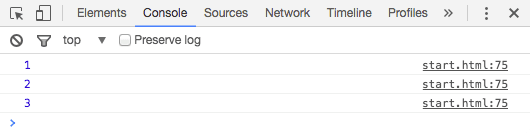
    4. Launch Chrome's DevTools Console by pressing Cmd–Opt–J (Mac) or CTRL–Shift–J (Windows). This opens the Console tab, an indispensable tool for JavaScript debugging and monitoring.

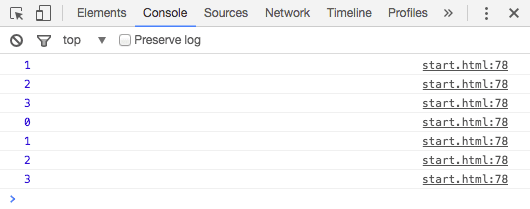
    5. Click the next button three times while observing the Console below your slider. You'll see the clickCount value increase with each interaction, providing real-time feedback about our counter mechanism:

      chrome devtools console

    6. Now we'll leverage these precise counter values to create perfectly positioned slide transitions. Return to your code editor.

    7. Replace the X value in your TweenLite.to() method (around line 77) with this calculated approach:

      console.log(clickCount);
      TweenLite.to($slider, 2, {X:-clickCount * slideWidth});

      This calculation multiplies the current clickCount by our slideWidth (530 pixels) to generate precise end positions. The negative value ensures leftward movement. For example: click 1 = -530px, click 2 = -1060px, click 3 = -1590px, and so forth.

    8. The current two-second duration feels sluggish for a professional interface. Let's optimize the timing for a more responsive user experience:

      TweenLite.to($slider, 0.5, {X:-clickCount * slideWidth});
    9. Save your file and test the enhanced slider. The animation now feels snappy and responsive, maintaining perfect positioning regardless of how rapidly you click the next button. However, we still encounter the empty space issue after the final image—it's time to implement seamless looping.

    Excellent progress! Now let's add the conditional logic that will create a seamless, infinite browsing experience.

    Animation Timing Issues

    Fast clicking can cause animations to pause between images when using relative values. Absolute positioning with calculated end values prevents this problem.

    Click Count Calculation Process

    Step 1

    Click Event Triggered

    User clicks next button

    Step 2

    Increment Counter

    clickCount++ increases value by 1

    Step 3

    Calculate Position

    -clickCount * slideWidth determines end X value

    Step 4

    Execute Tween

    GSAP animates to calculated position

    Using Conditional Logic to Loop a Tween

    We need to implement smart bounds checking to ensure clickCount never exceeds our image count. Since we have four images, users should only be able to advance three times before the slider loops back to the beginning, creating an infinite, seamless browsing experience.

    Click Count Values and Positions

    Click 1 (Position 0)
    0
    Click 2 (Position -530)
    530
    Click 3 (Position -1060)
    1,060
    Click 4 (Position -1590)
    1,590
    Seamless Looping Solution

    The conditional statement if (clickCount > 3) { clickCount = 0; } ensures the slider loops back to the first image after reaching the last one, creating an infinite carousel effect.

    Key Takeaways

    1GSAP and jQuery work together seamlessly - GSAP handles animation performance while jQuery manages DOM manipulation and event handling
    2CSS transforms (X, y, rotation, scale) perform better than positional properties (left, top) and CSSPlugin simplifies the syntax significantly
    3Creating DOM element references as variables once improves performance by avoiding repeated DOM searches throughout the application
    4The document.ready() function ensures code execution only after DOM construction and protects variables from conflicts with other scripts
    5Using absolute positioning with calculated end values prevents animation timing issues that occur with relative positioning during rapid user interactions
    6Conditional logic with counter variables enables seamless looping animations and prevents users from breaking the intended flow
    7Chrome's DevTools Console provides essential debugging capabilities for tracking variable values and testing animation logic in real-time
    8Proper viewport creation using overflow:hidden creates clean container effects that hide content outside designated boundaries

    RELATED ARTICLES