April 1, 2026Bob Umlas/6 min read

Making Magic Dynamic Arrays

Master Excel's Revolutionary Dynamic Array Functions

What Are Dynamic Arrays?

Dynamic arrays are Excel's new feature where entering a formula in one cell automatically generates results across multiple cells in a spill range, eliminating the need for array formulas.

Key Dynamic Array Functions

SEQUENCE

Generates sequences of numbers with customizable rows, columns, start values, and step increments. Perfect for creating numbered lists and patterns.

SORT & SORTBY

Dynamically sorts data ranges with automatic updates when source data changes. SORTBY allows sorting by external criteria values.

FILTER & UNIQUE

FILTER creates dynamic filtered lists based on criteria. UNIQUE extracts distinct values from ranges automatically.

Understanding Spill Range Behavior

1

Formula Entry

Enter the dynamic array formula in the top-left cell where you want results to begin appearing

2

Automatic Expansion

Excel automatically fills adjacent cells with results and displays a light border around the spill range

3

Reference Handling

Cells in the spill range show greyed-out formulas and can be referenced using the # operator for the entire range

Spill Error Prevention

If cells in the intended spill range contain data, Excel returns a #SPILL! error. Clear the target area before entering dynamic array formulas.

Old vs New Array Behavior

FeatureLegacy ExcelDynamic Arrays
Array Formula EntryCtrl+Shift+Enter requiredSimple Enter key
Range ReferencesImplicit intersection (single value)Full array returned
Formula UpdatesManual recalculation neededAutomatic dynamic updates
Reference SyntaxStandard range notation# operator for spill ranges
Recommended: Dynamic arrays eliminate complex array formula syntax while providing more powerful functionality

SORT Function Benefits and Limitations

Pros
Automatically updates when source data changes
Supports multi-level sorting with nested formulas
Can sort by rows or columns with flexible parameters
No need to reapply sorting commands manually
Cons
Only the first cell retains original formatting
Requires empty cells for spill range expansion
Complex nested sorts can be difficult to troubleshoot
Multi-Level Sorting Technique

Create sophisticated sorts by nesting SORT functions. The inner SORT handles secondary criteria, while the outer SORT applies primary sorting logic.

Implementing Dynamic Filters

1

Define Source Range

Specify the complete data range including headers that will be filtered dynamically

2

Create Filter Criteria

Build logical expressions that return TRUE/FALSE arrays to determine which rows to include

3

Handle Empty Results

Specify custom messages or values to display when no records match the filter criteria

Filter Logic Operators

AND Conditions

Use multiplication (*) between criteria arrays to require all conditions to be true simultaneously for record inclusion.

OR Conditions

Use addition (+) between criteria arrays to include records where any of the specified conditions evaluate to true.

Dynamic Array Best Practices

0/5
Dynamic Arrays Transform Excel Workflows

These functions eliminate manual data manipulation tasks, automatically update results when source data changes, and replace complex array formulas with intuitive syntax.

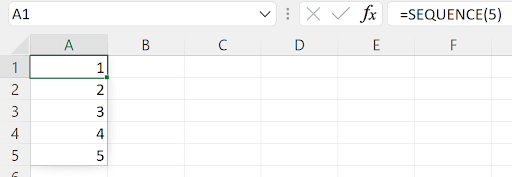
In this comprehensive guide, we'll explore Excel's revolutionary dynamic arrays feature—a game-changing capability that has fundamentally transformed how formulas work in modern Excel. At its core, dynamic arrays allow you to enter a single formula in one cell and automatically populate results across multiple cells. This range where the results appear is called the spill range, and it represents one of the most significant advances in Excel functionality in recent years. Let's examine this powerful feature using the innovative SEQUENCE function:Unname

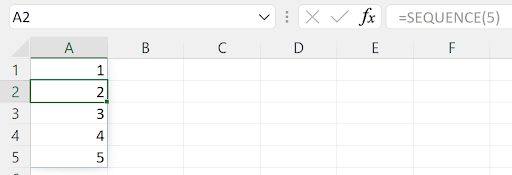
Notice how the formula was entered only in cell A1, yet the results automatically populate cells A1:A5. The subtle border around A1:A5 indicates the spill range. This visual cue helps you identify which cells are controlled by the dynamic array formula. When you click on any of the dependent cells (like A2), observe the distinctive change in the formula bar:

2

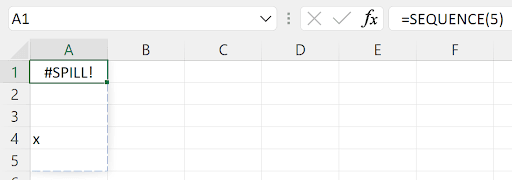
The formula bar appears greyed out and disabled, indicating these cells are controlled by the parent formula in A1. This behavior is consistent across all cells in the spill range (A2:A5). But what happens when there's a conflict? If there's existing data in the spill range—say an "X" in cell A4 before entering the formula—Excel cannot complete the spill operation:

3

Excel displays the #SPILL! error, clearly indicating there's insufficient space for the results. This error protection prevents accidental data overwriting and maintains spreadsheet integrity.

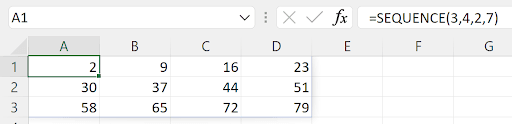
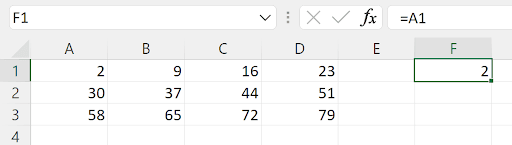
The SEQUENCE function offers remarkable flexibility with its syntax: =SEQUENCE(rows, columns, start, step). Each parameter allows precise control over the generated sequence. For instance, =SEQUENCE(3,4,2,7) creates a 3-row by 4-column array, starting with 2 and incrementing by 7 for each subsequent value:

4

Referencing dynamic arrays follows intuitive patterns. When you reference the source cell (A1) in another formula, it behaves exactly as you'd expect, returning only the first value:

5

However, Excel introduces a powerful new reference operator: the spill range operator (#). By appending "#" to the cell reference (A1#), you can reference the entire spill range, not just the source cell:

14

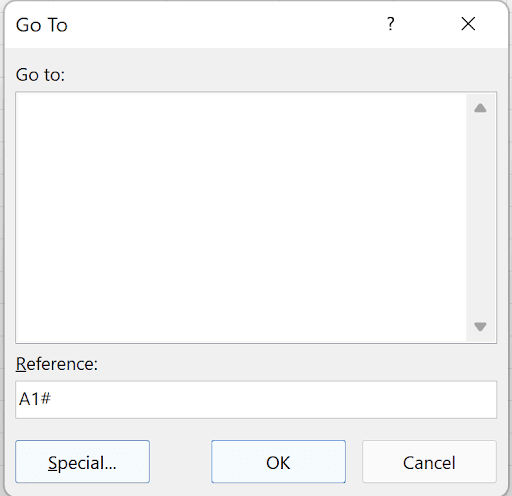
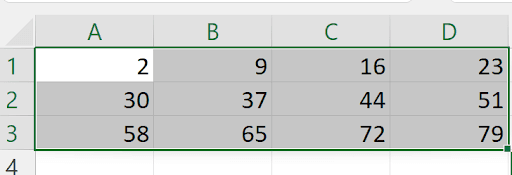
For advanced users, Excel's Go To function (F5) provides direct navigation to spill ranges, making it easier to work with large dynamic arrays:

14 8

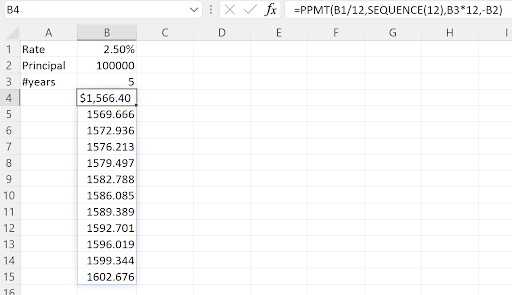
The true power of dynamic arrays emerges when combining functions. SEQUENCE works seamlessly within other Excel functions, enabling sophisticated calculations with minimal formula complexity. Here's a practical example calculating the first 12 principal payments using nested functions:

9

While only the source cell inherits formatting initially, applying consistent formatting across the spill range remains straightforward using Excel's standard formatting tools.

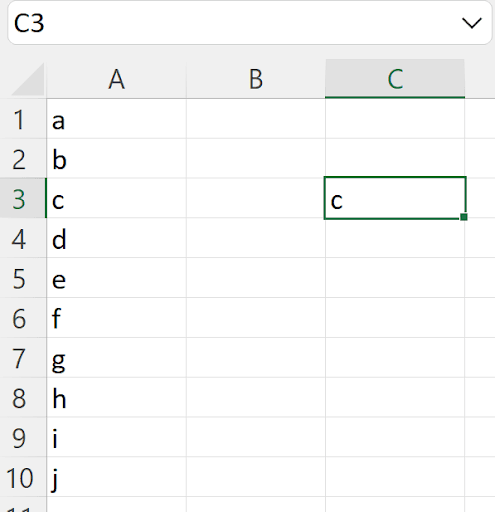
Understanding how dynamic arrays changed Excel's behavior is crucial for users transitioning from earlier versions. Previously, entering =A1:A10 in cell C3 would trigger implicit intersection, displaying only the value corresponding to the formula's row:

10

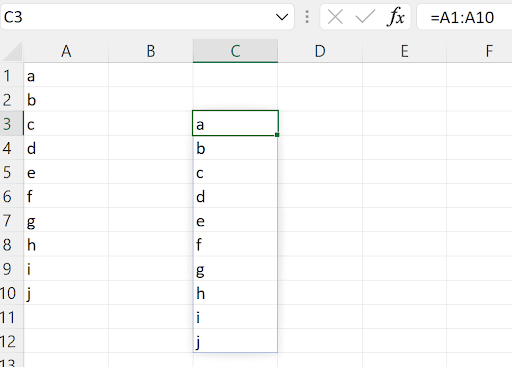
In modern Excel with dynamic arrays enabled, the same formula now spills the entire range. To replicate the old implicit intersection behavior, use the intersection operator (@): =@A1:A10. This maintains backward compatibility while embracing the new dynamic functionality:


11

This behavior mirrors entering =A1#, demonstrating Excel's consistent approach to dynamic array handling.

Beyond SEQUENCE, Excel introduces five additional dynamic array functions that revolutionize data manipulation: SORT, FILTER, UNIQUE, SORTBY, and RANDARRAY. Each function addresses common business scenarios with unprecedented efficiency and automatic updating capabilities.

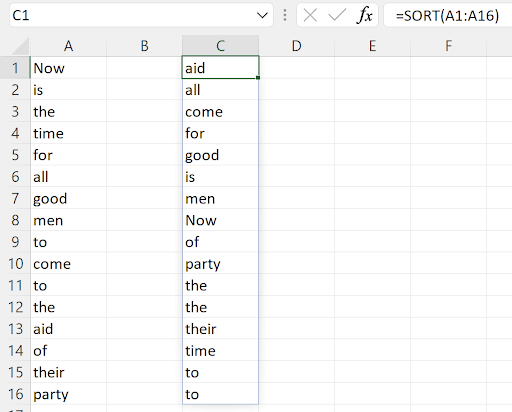
The SORT function transforms static sorting into a dynamic, self-updating solution. Unlike the traditional ribbon-based Sort command, SORT automatically recalculates when source data changes, eliminating the need for manual intervention:

12

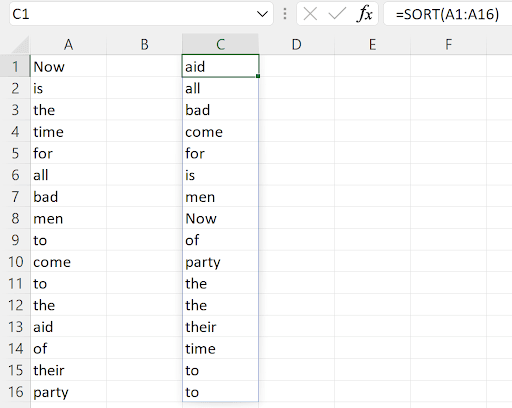
The dynamic nature becomes apparent when you modify source data. Changing cell A7 from "good" to "bad" immediately triggers automatic re-sorting, maintaining data organization without manual intervention:

13

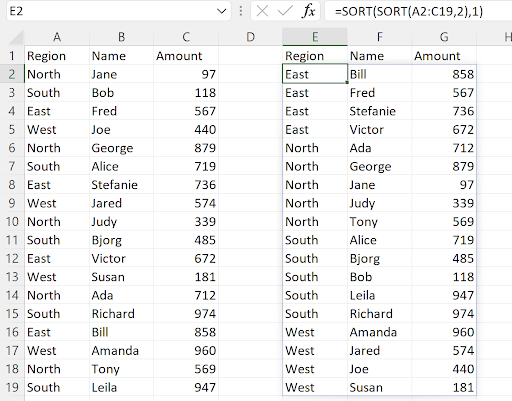
SORT's comprehensive syntax offers granular control: =SORT(array, sort_index, sort_order, by_col). The array parameter defines the range to sort; sort_index specifies which column to sort by; sort_order uses 1 for ascending and -1 for descending; and by_col determines whether to sort by rows (FALSE, default) or columns (TRUE). For complex data analysis, you can create multi-level sorts by nesting SORT functions, as demonstrated in this example sorting names within regions:

14

The nested structure =SORT(SORT(A2:C19,2),1) first sorts by name (column 2), then sorts the result by region (column 1), creating a hierarchical organization that updates automatically with data changes.

For more complex sorting scenarios, SORTBY enables sorting based on values outside the primary range. Its syntax =SORTBY(array, by_array1, sort_order1, [by_array2], [sort_order2], …) accommodates multiple sort criteria with external references:
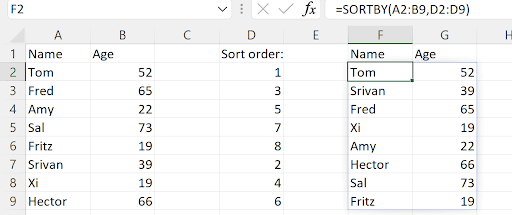
14

In this example, column D contains priority values (1, 2, etc.) that determine the sort order for the names in columns A:B, providing precise control over data arrangement based on business logic or user preferences.

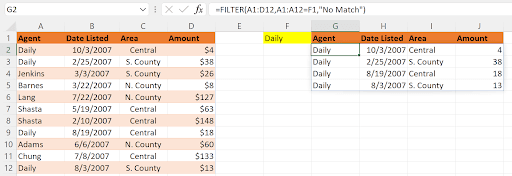
The FILTER function revolutionizes data filtering by creating dynamic, formula-based filters that update automatically. Its syntax =FILTER(array, include, if_empty) requires three parameters: the range to filter, the Boolean criteria determining which records to display, and an optional message for empty results:

16

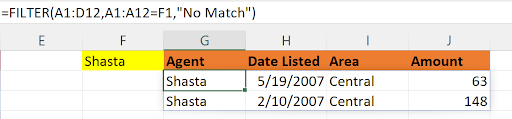
The beauty of FILTER lies in its dynamic responsiveness. The include argument (A1:A12=F1) creates an array of TRUE/FALSE values, displaying only rows where the condition is TRUE. Simply changing the criteria in cell F1 instantly updates the filtered results:

Unnamed

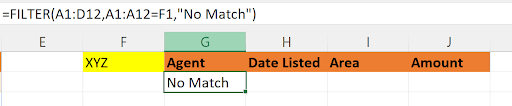
When no records match the criteria, the if_empty parameter displays a custom message instead of an error:


17

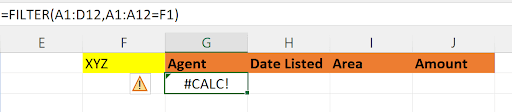
Without the if_empty parameter, Excel returns a #CALC! error for empty filter results:

18

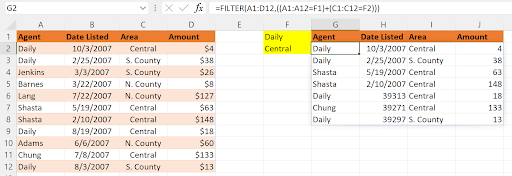
Advanced filtering supports multiple criteria using mathematical operators. For OR conditions, use addition (+); for AND conditions, use multiplication (*). Here's an OR filter showing records where column A equals "Daily" OR column C equals "Central":

19

The formula (A1:A12=F1)+(C1:C12=F2) creates two Boolean arrays that, when added, produce a numeric array where any value greater than 0 (representing TRUE conditions) displays in the filter. Notice the critical importance of parentheses in maintaining logical grouping.

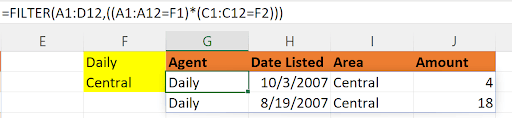
For AND conditions, simply replace the + with *, requiring both conditions to be TRUE for a record to appear:

20

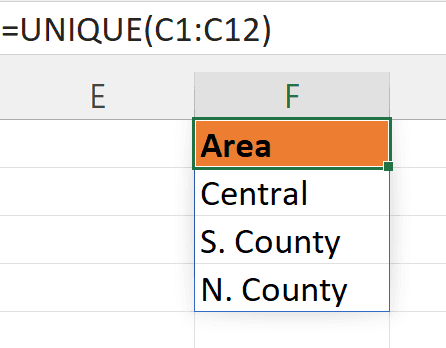
The UNIQUE function addresses one of the most common data analysis needs: extracting distinct values from datasets. This function proves invaluable for creating dropdown lists, summary reports, and data validation scenarios:

21

The formula automatically extracts all unique values from column C, creating a dynamic list that updates as source data changes. This eliminates the manual process of identifying and copying distinct values.

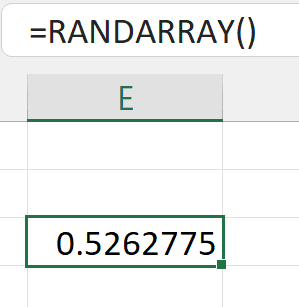
Finally, RANDARRAY provides sophisticated random number generation capabilities far beyond the traditional RAND() function. Its complete syntax =RANDARRAY(rows, columns, min, max, integer) offers comprehensive control over random data generation. Called without parameters, =RANDARRAY() behaves identically to RAND():

22

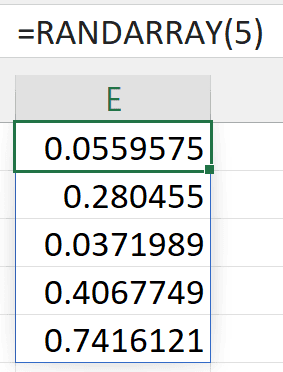
Specifying dimensions creates arrays of random values. For example, =RANDARRAY(5) generates a column of 5 random numbers:

23

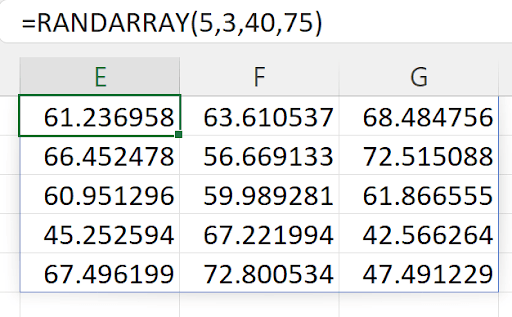
Adding column count and value ranges provides precise control. =RANDARRAY(5,3,40,75) creates a 5×3 array with values between 40 and 75:

24

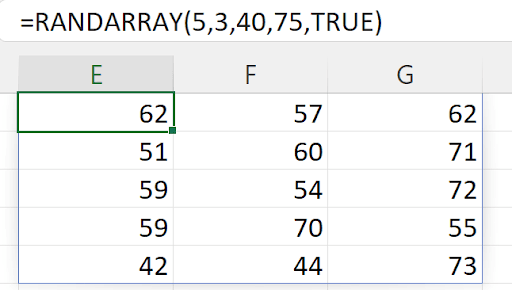
The integer parameter (TRUE/FALSE) determines whether to generate whole numbers or decimals, perfect for simulation scenarios requiring specific data types:

Screenshot of a Microsoft Excel worksheet using the formula =RANDARRAY(5,3,40,75, TRUE), displaying random integer values in columns E, F, and G.

Dynamic arrays represent a fundamental shift in Excel's capabilities, transforming it from a static calculation tool into a truly dynamic data analysis platform. These functions—SEQUENCE, SORT, FILTER, UNIQUE, SORTBY, and RANDARRAY—provide the foundation for building sophisticated, self-updating models that adapt to changing data without manual intervention. As Excel continues to evolve in 2026 and beyond, mastering dynamic arrays has become essential for professionals seeking to maximize their spreadsheet efficiency and analytical capabilities.


Key Takeaways

1Dynamic arrays allow single formulas to automatically populate multiple cells with results in spill ranges
2The # operator references entire spill ranges, while individual cells show greyed-out formulas
3SEQUENCE generates customizable number patterns with specified rows, columns, start values, and increments
4SORT and SORTBY functions provide dynamic sorting that automatically updates when source data changes
5FILTER enables dynamic data filtering with AND (*) and OR (+) logic operators for multiple criteria
6UNIQUE extracts distinct values from ranges without manual duplicate removal processes
7Legacy implicit intersection behavior now requires the @ operator in modern Excel versions
8Dynamic arrays eliminate the need for Ctrl+Shift+Enter array formula entry methods

RELATED ARTICLES