April 1, 2026Bob Umlas/5 min read

Introduction to Excel’s Page Layout Tab: Setting Margins, Page Orientation, Size, Print Area, & Breaks in Excel

Master Excel Page Layout for Professional Document Formatting

Page Layout Tab Overview

This comprehensive guide covers essential Page Layout features including Margins, Orientation, Size, Print Area, and Breaks - foundational tools for professional Excel document formatting.

The Page Layout tab in Excel remains one of the most underutilized features, despite its critical importance for professional document presentation. This comprehensive guide explores the essential commands from Margins through Breaks—foundational tools that separate amateur spreadsheets from polished business documents. In subsequent parts of this series, we'll examine the remaining Page Layout features, including Background settings and the powerful Page Setup command suite. Excel Page Layout tab showing various formatting options including Margins, Orientation, Size, Print Area, and Breaks

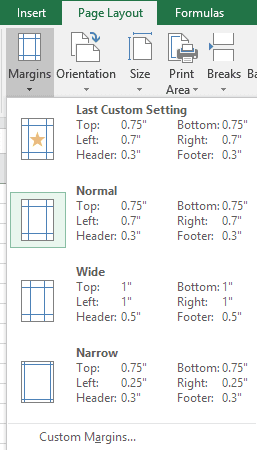
Professional document formatting begins with proper margin control. When you click the dropdown arrow below the Margins icon, Excel reveals a carefully curated selection of industry-standard margin presets:

Excel Margins dropdown menu showing preset options including Normal, Wide, Narrow, and Custom Margins

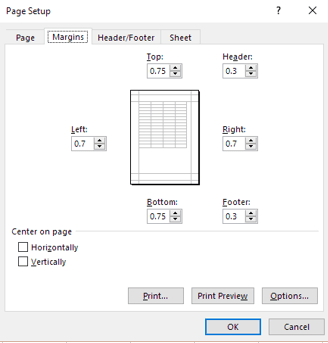
These preset options serve most professional needs, but Excel's true power lies in customization. While the first two options may appear identical initially, the "Last Custom Setting" dynamically updates to reflect your most recent configuration—a thoughtful feature that streamlines workflow for users with consistent formatting requirements. Selecting "Custom Margins..." opens the comprehensive Page Setup dialog:

Page Setup dialog box showing custom margin settings with input fields for top, bottom, left, and right margins

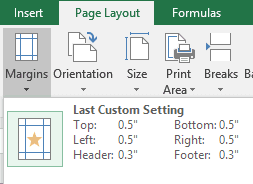
This dialog provides granular control over every aspect of your document's spacing. For instance, setting uniform 0.5-inch margins creates a balanced, professional appearance suitable for most business documents. Excel intelligently remembers these preferences, elevating your custom setting to the top of the dropdown menu for immediate access:

Updated Margins dropdown menu showing the custom 0.5 inch setting at the top as Last Custom Setting

This intelligent memory system ensures your preferred formatting standards remain easily accessible across multiple worksheets and projects.

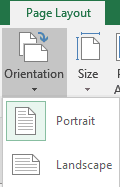
Page orientation represents another fundamental formatting decision that significantly impacts document readability and professional presentation. The Orientation control offers the expected Portrait and Landscape options:

Orientation dropdown menu showing Portrait and Landscape options

While seemingly straightforward, orientation choice dramatically affects data presentation. Portrait orientation suits traditional reports and financial statements, while landscape orientation accommodates wider datasets and comprehensive dashboards more effectively.

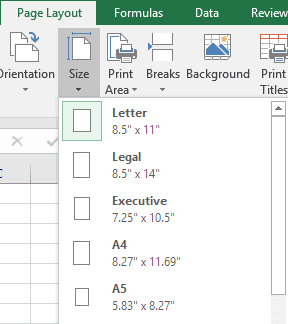
Paper size selection through the Size menu ensures compatibility with your organization's printing infrastructure and document standards. The dropdown prioritizes common U.S. paper formats:

Paper Size dropdown menu displaying common paper sizes including Letter, Legal, and Tabloid formats

Selecting the appropriate paper size before finalizing your layout prevents formatting disruptions and ensures consistent output across different printing environments—a crucial consideration for documents shared across multiple departments or organizations.


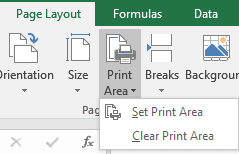
The Print Area feature provides surgical control over document output, allowing you to isolate specific data ranges for targeted printing:

Print Area dropdown menu showing Set Print Area, Clear Print Area, and Add to Print Area options

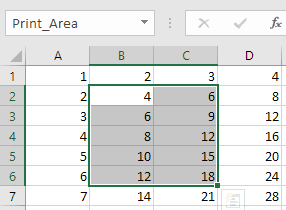
This functionality proves invaluable when working with large datasets where only specific sections require physical documentation. Setting a print area creates a defined boundary—only the selected range will print, regardless of additional data elsewhere on the worksheet. The "Clear Print Area" command doesn't delete data; instead, it removes printing restrictions, reverting to the default behavior of printing all worksheet content. When you establish a print area, Excel automatically creates or updates a named range called "Print_Area," visible in the Name Box:

Excel worksheet showing Print_Area selected in the Name Box with a highlighted cell range B2:C6

In this example, selecting range B2:C6 and applying "Set Print Area" restricts printing to only those cells. This named range approach provides programmatic access to print settings and enables advanced automation scenarios for power users.

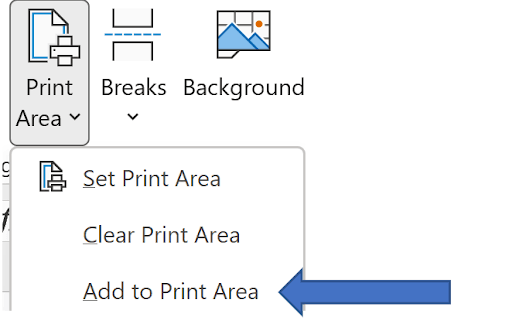
Excel's print area functionality extends beyond single ranges. Once a print area exists, the menu dynamically adds an "Add to Print Area" option:

Updated Print Area menu showing the additional Add to Print Area option

This capability allows you to include multiple non-contiguous sections within a single print job—particularly useful for executive summaries that combine data from various worksheet regions.

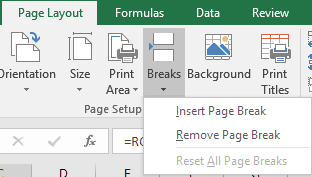
Page break management through the Breaks command provides precise control over document pagination, essential for maintaining professional presentation standards:

Page Breaks dropdown menu showing Insert Page Break, Remove Page Break, and Reset All Page Breaks options

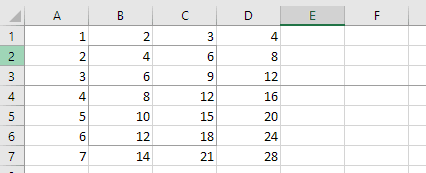
Strategic page break placement prevents awkward data splits and ensures logical document flow. When you select an entire row and insert a page break, Excel displays a visual indicator showing the break location. For example, with row 4 selected:

Excel worksheet showing a page break line between rows 3 and 4

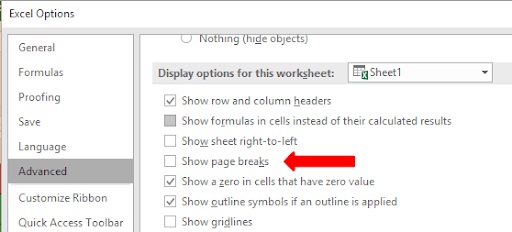
The subtle line between rows 3 and 4 indicates the page break boundary. These visual cues can be toggled through File > Options > Advanced settings. Scroll approximately three-quarters down to locate the page break display checkbox:


Excel Options Advanced settings showing the Show page breaks checkbox option

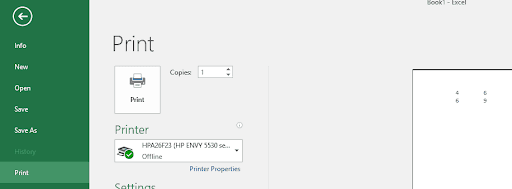
Print preview functionality demonstrates how these settings translate to final output. With our configured print area and page breaks, File > Print reveals:

Excel Print Preview showing the first page of a document with formatted data

Navigation between multiple pages occurs through the page selector at the bottom of the print preview pane:

Print preview navigation controls showing page 1 of 2 with forward arrow

Clicking the forward arrow reveals the second page, allowing complete preview of the final document structure:

Print preview showing the second page of the document

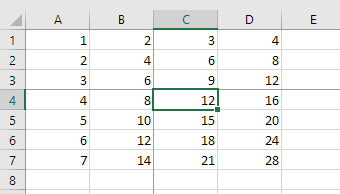
Advanced page break control emerges when selecting individual cells rather than entire rows or columns. Selecting a single cell and inserting a page break creates both horizontal and vertical breaks, resulting in crosshair-pattern page divisions. In the following example, cell C4 was selected when the Insert Page Break command was executed:

Excel worksheet showing crosshair page breaks at cell C4, creating four distinct print sections

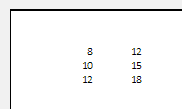
This configuration creates four distinct printing sections: A1:B3 prints on page one, while C1:D3, A4:B7, and C4:D7 each occupy separate pages. This granular control enables sophisticated document layouts for complex reporting scenarios.

The "Remove Page Break" command becomes active only when positioned on an existing break line, providing targeted removal of specific breaks without affecting the overall document structure. Meanwhile, "Reset All Page Breaks" offers comprehensive cleanup, removing all manual page breaks while simultaneously resetting any scaling modifications (such as 80% print scaling) back to 100%—a behavior we'll explore in detail during our upcoming Page Setup discussion.

These Page Layout fundamentals form the foundation of professional Excel document presentation, ensuring your spreadsheets meet the exacting standards expected in today's business environment.

Key Takeaways

1Custom margin settings are automatically saved as 'Last Custom Setting' for convenient reuse in future documents
2Print Area feature allows selective printing of specific ranges while preserving all worksheet data
3Page orientation choice between Portrait and Landscape should match your data layout and presentation needs
4Excel automatically creates a 'Print_Area' range name that appears in the Name Box when print areas are set
5Page breaks can be inserted at row level for horizontal divisions or cell level for both horizontal and vertical divisions
6Visual indicators including light lines and crosshairs help identify where page breaks will occur during printing
7Reset All Page Breaks command removes custom breaks and also resets any print scaling back to 100%
8Multiple print areas can be configured to create complex printing layouts for different sections of your worksheet

RELATED ARTICLES