April 1, 2026Bob Umlas/6 min read

Advanced Filtering in Excel

Master complex data filtering beyond basic Excel functions

Standard Filter vs Advanced Filter Capabilities

FeatureStandard FilterAdvanced Filter
Column relationshipsNot supportedFull support
Computed criteriaLimitedCustom formulas
Copy resultsIn-place onlyAny location
Complex conditionsBasic AND/ORMulti-level logic
Recommended: Use Advanced Filter when you need to analyze relationships between columns or create complex filtering conditions.
When Advanced Filtering is Essential

Advanced filtering becomes necessary when you need to filter based on calculations between columns, such as finding records where Sales times Units exceeds a threshold, or when you need to copy filtered results to different locations while preserving the original data structure.

Advanced Filter Configuration Options

Filter in Place

Maintains the original list location with filtered rows hidden from view. This method preserves the original data structure while showing only matching records.

Copy to Location

Creates a filtered copy at a specified location while leaving the original data untouched. This allows for multiple filtered views of the same dataset.

Unique Records Only

Eliminates duplicate values from the filtered results. Particularly useful when analyzing distinct categories or creating summary lists from detailed data.

Setting Up Criteria Ranges

1

Create Header Row

Set up the top row of your criteria range to match the column headers from your data table exactly as they appear in the original list.

2

Define Filter Values

Enter the specific values or conditions in the second row beneath each relevant header. Multiple columns create AND conditions, while multiple rows create OR conditions.

3

Reference in Dialog

Select the entire criteria range including headers when specifying the criteria range in the Advanced Filter dialog box.

Understanding AND vs OR Logic

Two columns in the same row create an AND condition (both must be true). Multiple rows create OR conditions (any row can be true). This fundamental concept is crucial for building effective advanced filters.

If there are more than 2 rows, it's considered an OR condition. For example, regions of North or West would show records matching either criterion.
Understanding how Excel interprets multiple rows in criteria ranges is essential for creating the logical conditions you actually need rather than unintended results.

Multi-Column Multi-Row Criteria

Pros
Enables complex logical combinations
Supports both AND and OR conditions
Allows multiple filter criteria simultaneously
Provides precise control over result sets
Cons
Can create unintended logical combinations
Requires careful planning of criteria layout
May produce unexpected results without proper understanding
Complex to troubleshoot when criteria are extensive
Computed Criteria Setup Requirements

For computed criteria to work correctly, the header cell must be blank or contain text that does not match any column header from your data. The formula in the second row must reference the first data row using relative references so Excel can apply it to all rows.

Creating Computed Criteria

1

Prepare Header Cell

Leave the top cell blank or use a label that differs from any column header in your data table to signal this is a computed criteria.

2

Write Formula

Create a formula in the second row that references the first data row using relative references. For example, use =C2*D2>30000000 to find records where column C times column D exceeds 30 million.

3

Apply Filter

Use this two-cell range as your criteria range in the Advanced Filter dialog. Excel will automatically apply your formula logic to every row in the dataset.

FILTER Function Syntax Components

Array (data range)
40
Include (filter logic)
35
If_empty (fallback)
25

Advanced Filter vs FILTER Function

FeatureAdvanced FilterFILTER Function
Setup complexityMulti-step dialogSingle formula
Dynamic updatesManual refreshAutomatic
Criteria flexibilitySeparate criteria rangeInline logic
Result locationUser-specifiedFormula cell location
Recommended: Choose FILTER function for dynamic, automatically-updating results and Advanced Filter for complex multi-criteria scenarios requiring separate criteria ranges.

FILTER Function Logical Operators

AND Conditions (*)

Use multiplication operator to require multiple conditions to be true simultaneously. Both criteria must be met for records to appear in results.

OR Conditions (+)

Use addition operator to show records meeting any of the specified conditions. Either criterion can be true for records to be included.

Parentheses Are Critical

When using multiple conditions with the FILTER function, proper parentheses placement is essential. Each condition should be wrapped in parentheses before applying the logical operators to ensure correct evaluation order.

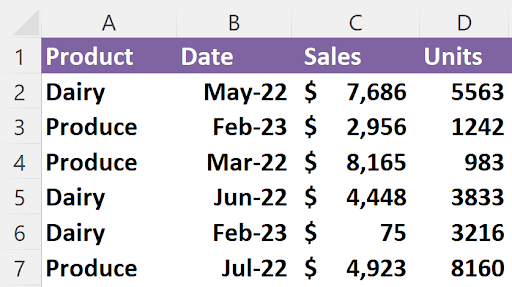
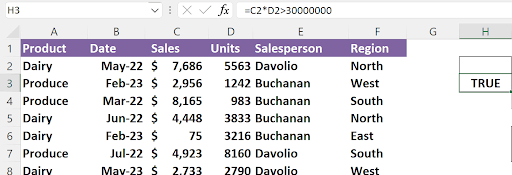
While you've learned about standard filtering in Excel, that basic functionality can't handle complex filtering scenarios that professionals often encounter. For instance, standard filtering falls short when you need to filter data based on relationships between columns—such as identifying all records where Sales multiplied by Units exceeds 30,000,000:1

In the dataset above, only rows 2 and 7 satisfy this calculated criterion—a filtering requirement that goes beyond simple value matching.

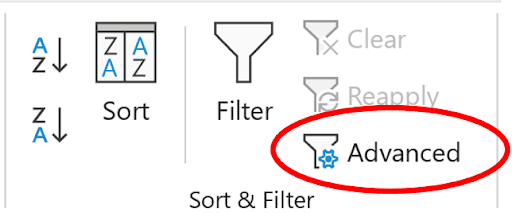
While you could create an additional column to multiply sales and units, then filter on that helper column, Excel's Advanced Filter feature offers a more elegant solution. You'll find this powerful tool on the Data tab within the Sort & Filter group:

2

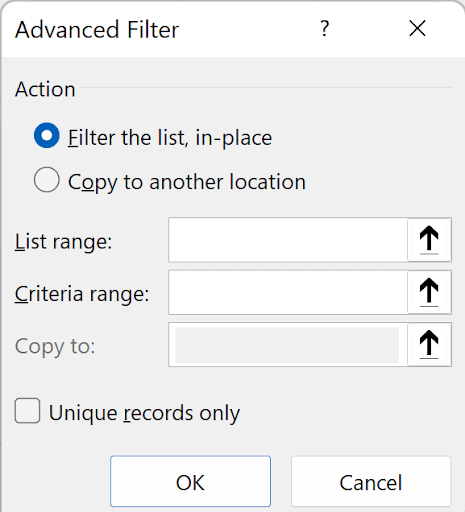
Clicking Advanced Filter opens a comprehensive dialog box that unlocks sophisticated filtering capabilities:

3

Understanding each option in this dialog is crucial for mastering advanced filtering techniques:

  • Filter the list, in-place: Maintains your data in its original location while hiding rows that don't meet your criteria—ideal when you want to preserve your worksheet layout
  • Copy to another location: Creates a filtered copy of your data in a separate area, leaving the original dataset untouched—perfect for comparative analysis or reporting
  • List range: Specifies the address of the dataset you're filtering. Excel intelligently auto-populates this field when you select a cell within your data range
  • Criteria range: Defines where you've set up your filtering conditions—this is where the real power lies, as we'll explore in detail
  • Copy to: Designates the destination for your filtered results when using the copy option
  • Unique records only: Eliminates duplicate entries from your filtered results, essentially combining filtering with deduplication

The criteria range represents the heart of Advanced Filter's power. This range requires at minimum two rows and one column, though it can expand to accommodate complex filtering scenarios. The top cell must contain the column header you're referencing from your original dataset. Here's a basic example:

4This simple criteria range filters the Salesperson column for records containing "Buchanan"—functionality that admittedly overlaps with standard filtering. However, Advanced Filter's true strength emerges with multi-column criteria like this:

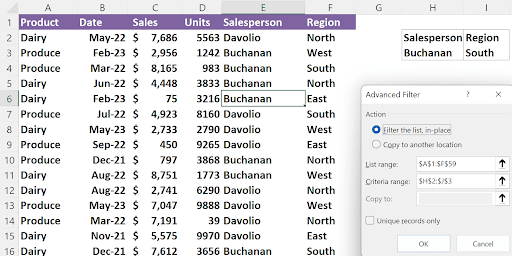
5This two-column criteria range simultaneously filters by both salesperson and region, demonstrating how Advanced Filter handles complex AND conditions.

Let's examine this filtering operation in practice:

6

After executing the filter, you'll see the refined results:

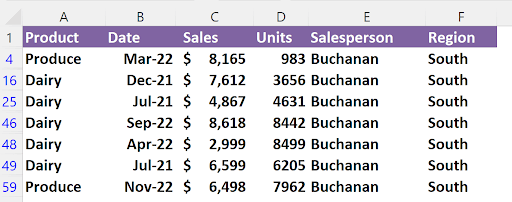
7

Notice that only records matching both "Buchanan" AND "South" appear. The blue row numbers indicate filtered results, and importantly, there are no dropdown arrows in row 1—a key visual difference from standard filtering that confirms Advanced Filter is active.

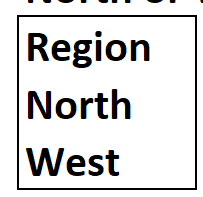
Understanding Excel's logical operators in Advanced Filter is essential for professional data analysis. When criteria appear in multiple columns on the same row, Excel applies an AND condition. Conversely, criteria in multiple rows create OR conditions. Consider this criteria setup:

8

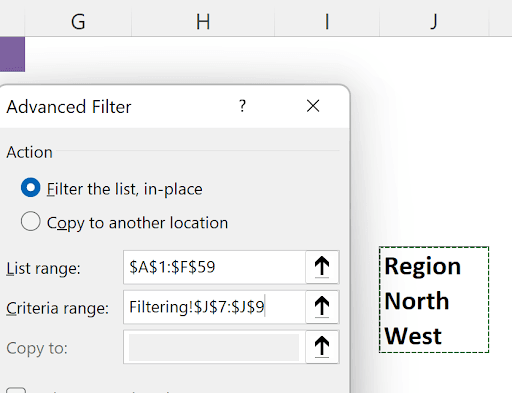
This configuration displays regions of North OR West. While colloquially we might say "North and West," Excel recognizes that a single region cannot simultaneously be both, making this inherently an OR operation.


9

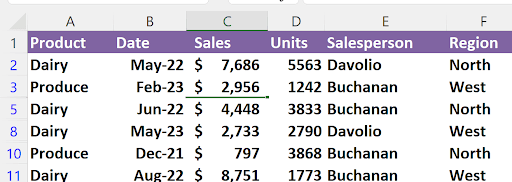
The results confirm this OR logic in action:

10

Advanced Filter allows you to combine multiple columns and rows within the same criteria range, though this requires careful consideration of logical precedence. In this example:

11

This criteria translates to: "(Salesperson = Buchanan AND Region = South) OR (Region = North)"—which would include any salesperson from the North region, not just Buchanan. If you intended to find Buchanan from either South OR North regions, you need this structure instead:

12

For truly advanced filtering scenarios, Excel offers "computed criteria"—a sophisticated feature that enables formula-based filtering conditions. Computed criteria requires either a blank top cell or a header that doesn't match any column in your original dataset. The second row contains a formula referencing the first data row using relative references, which Excel then applies to every row in your dataset.

Here's how you'd implement the original challenge of finding records where sales times units exceeds 30 million:

13

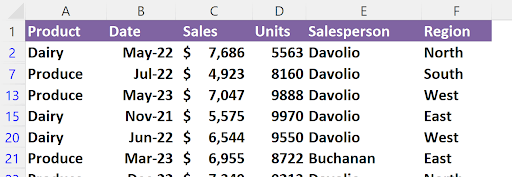
Cell H2 remains blank, while H3 contains the formula =C2*D2>30000000. Using these cells as your criteria range produces precisely the results you need:

14

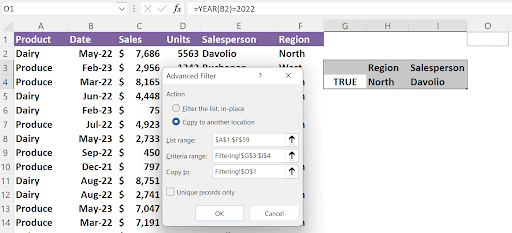
When utilizing the copy-to-another-location option, Excel simplifies the process by requiring only the top-left cell reference of your destination range—the software automatically determines the appropriate size based on your filtered results:

15

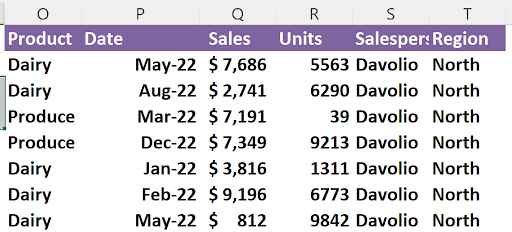
This example demonstrates the powerful combination of computed and standard criteria. Cell G2 contains the formula =YEAR(B2)=2022, filtering for records from 2022 while simultaneously requiring Region = "North" and Salesperson = "Davolio". The filtered results will populate starting at cell O1:

16

The "Unique records only" checkbox deserves special attention as it transforms Advanced Filter into a powerful data deduplication tool.

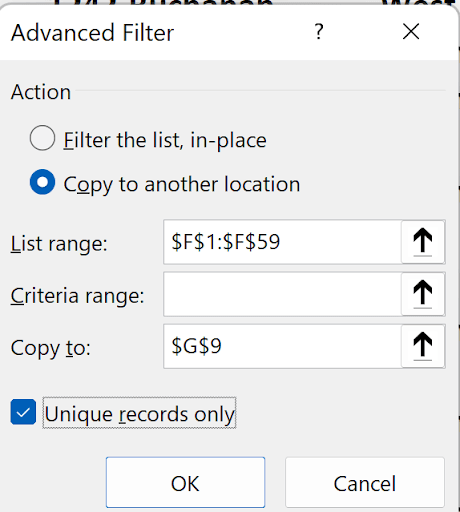
Examine this configuration:

17

Notice that the List range targets only column F, with results directed to cell G9. With "Unique records only" enabled, Excel produces this deduplicated list in G9:G13:

18

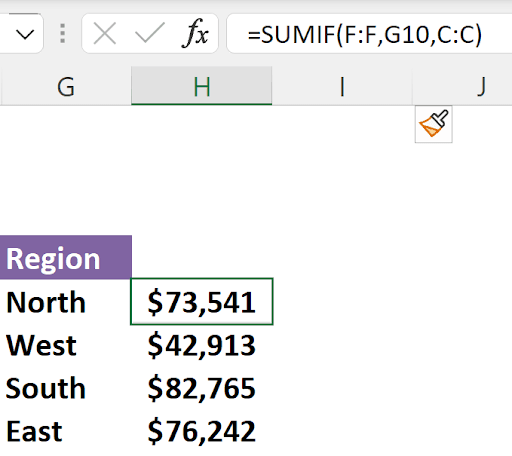
This unique list becomes the foundation for sophisticated analysis. You could now employ SUMIF functions in cells H9:H13 to create regional sales summaries:


19

For modern Excel users working with Microsoft 365 or Excel 2021, the FILTER function provides a dynamic alternative to the Advanced Filter dialog. Unlike the static Advanced Filter, the FILTER function updates automatically when your source data changes—a crucial advantage in today's real-time business environment.

The FILTER function syntax is straightforward: =FILTER(array, include, if_empty). You specify the range you're filtering, the logical condition determining what to display, and an optional message for scenarios where no records match your criteria.

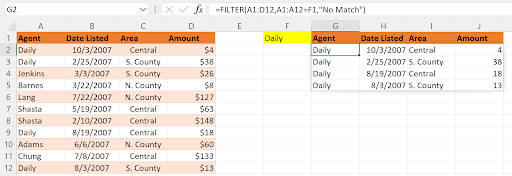
Here's a practical implementation:

20

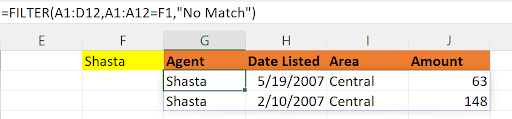
The formula filters the range A1:D12 based on the condition A1:A12=F1, which creates an array of TRUE and FALSE values. Excel displays rows where the condition evaluates to TRUE. The beauty of this approach lies in its dynamic nature—neither range requires absolute references, and simply changing the value in F1 instantly generates a new filtered list:

21

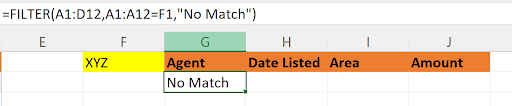
When no matches exist, the optional third parameter prevents error messages by displaying custom text:

22

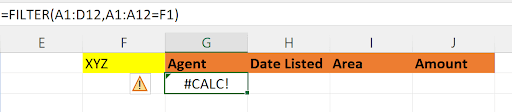
Without this parameter, Excel displays a #CALC! error:

23

The FILTER function excels at handling multiple criteria through mathematical operators. Use addition (+) for OR conditions and multiplication (*) for AND conditions. These operations leverage Excel's treatment of TRUE/FALSE as 1/0 in mathematical contexts.

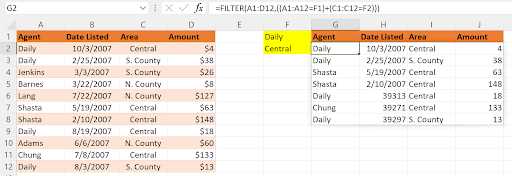
Here's an OR condition in practice:

24

This formula displays records where column A equals "Daily" OR column C equals "Central". The parentheses are crucial—they ensure each condition creates its own TRUE/FALSE array before the addition operation combines them into a final array of 1s and 0s.

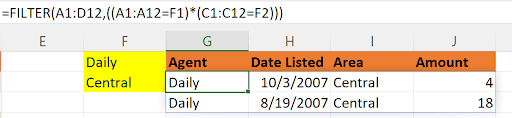
Converting to an AND condition requires only changing the operator from + to *:

Screenshot of an Excel spreadsheet using a FILTER function formula (=FILTER(A1:D12, (A1:A12=F1)*(C1:C12=F2))) to display rows matching 'Daily' and 'Central,' with highlighted columns for Agent, Date Listed, Area, and Amount.

Key Takeaways

1Advanced Filter enables complex filtering scenarios impossible with standard filters, including relationships between columns and computed criteria based on formulas
2Criteria ranges use column layout for AND conditions and row layout for OR conditions, requiring careful planning to achieve desired logical combinations
3Computed criteria must use blank or non-matching headers with formulas that reference the first data row using relative references
4The copy-to-location feature allows creating filtered datasets in new locations while preserving original data integrity
5FILTER function provides dynamic, automatically-updating alternatives to Advanced Filter with inline logical conditions
6Unique records only option eliminates duplicates and works effectively when combined with SUMIF functions for data summarization
7Proper parentheses usage is critical when combining multiple conditions in FILTER function formulas to ensure correct logical evaluation
8Advanced filtering techniques become essential for complex data analysis tasks that require sophisticated filtering logic beyond basic dropdown filters

RELATED ARTICLES