Functions Built to Work with a Database
What This Tutorial Covers
DSUM, DCOUNT, DAVERAGE
Aggregate functions that operate on filtered table data.
Criteria Ranges
Define complex multi-condition filters in cells.
Dynamic Tables
Excel Tables that work seamlessly with database functions.
Noble Desktop's Excel Bootcamp teaches advanced Excel — formulas, pivot tables, Power Query, and more.
In this article, we are going to look at how to build functions to work with a database in Microsoft Excel.
Wait. What Exactly Do We Mean by “a Database”?
Good question, and something important to clarify from the start. Database nerds, please bear with me – not everyone reading this is steeped in fields and records every day, so we need to set the foundation.
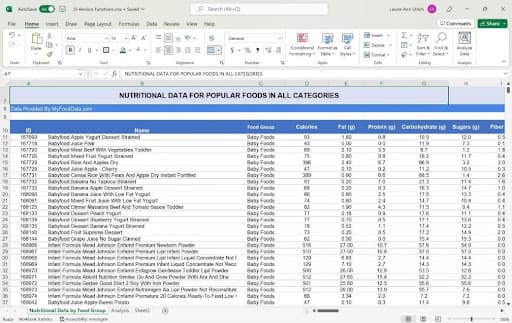
A database is a series of rows (records) and columns (the fields, or pieces of those records) that contain information you want to store, sort, filter, and otherwise use to track values, chart your progress, and make decisions. It could be a list of all of your customers, your products, your transactions, or values stored about the outcomes of medical treatments, student test scores, a farmer’s crop yields, or rows and rows of weather data. Like I said, a database can be set up to store virtually any kind of information. Here’s the data we’ll be using in this article, a database of foods organized by type/group, with each item’s nutritional values in a series of separate fields.
And What About Tables?
For users of Microsoft Access – and other database applications – data is stored in what are known as tables, which is just another word for a block of rows and columns. In recent versions of Excel, however, the ability to formally classify a range of rows and columns as a table has been added, and you can apply database functions to those designated tables. But you don’t have to. Your data can remain in a simple range or block of cells, and it will work just fine, allowing you to sort, filter, and use database functions to fully analyze that data.
And, for the purposes of the D-versions of the functions we’ll cover in this article, the data will not be converted to a table. But, if your data is already set up as an Excel table, you can still do everything I’m doing in the instructions and videos in this article. You can also check out Excel’s Table tools if you want to. The bottom line?
All that needs to be in place for these functions to work is:
- A range of cells containing your data, with no blank rows or columns within it (blank cells are fine)
- A row of field names directly above the first row of the aforementioned cells
- A range of cells, separate from the database range, designated for the values required by the D-Function’s arguments: Database, Field, and Criteria (this range is known as the arguments range)
And that’s it. That’s all that you need to use database functions, so you’re probably good to go. And if you don’t have a database to work with yet? You can download mine to play with, by clicking here:
Https://docs.Google.com/spreadsheets/d/1ZBekyZMHUHt6gQI0grHVd-MfSjSNlfTL/edit?usp=sharing&ouid=109458182170120820541&rtpof=true&sd=true
So back to the database setup. Most people place the aforementioned arguments range above their database title and field names, so all of that might start on row 6 or 7, with your title row (“Names & Addresses, ” for example) and then below that, your fields (First Name, Last Name, Address, City, State, Zip, etc.…), and then your records. Shown here, providing the arguments range above the database makes it easy to edit that range and see the criteria, the results of your function, and the database all in one place.

The argument range in the image here, which contains a DCOUNTA function, would allow you to count the number of people living in New York, NY. The State field is used to confine the count to just those records with “NY” as the state, and as cell D11 fulfills the “field” argument, people who live in Buffalo, NY are not included – just people in the city of New York.
TIP— Did you find all that table talk intriguing? Turn your database into a table by clicking within the data and then going to theInsert tab and clicking theTable button. This, after confirming the range of cells containing your data, converts your data to a table. To reverse the process? ClickConvert to Range on theTable Design tab.Either way, you can use all of the D-version functions in this article.
Want to learn much, much more about storing your lists in Excel – and converting them to tables? Check out this in-depth video.
Setting up Your Arguments Range
The first thing you want to do for a database that you want to analyze using the D-versions of the functions we’ll cover here is to build the range that I like to call the “Argument Range.” I call it that because it’s where we store the values for the three (3) arguments that every D-version function requires:
- Database – the range of cells containing your field names and rows of records
- Field – the field name for the data you want to use for the purposes of your function
- Criteria – the variable or condition/s you want Excel to consider in performing your function
Shown here, the setup is pretty simple, you just need to create a space for the cells that will contain the values for those three (3) arguments. Using the foods database, we’re asking to average the calories for all the Snacks that have more than 50 calories. So the function (DAVERAGE, in cell E4) is citing the 4th column in the database (which is Calories), and in cells D3 and D4, we specify we only want Snacks and in cells C3 and C4, we’re setting the value to look for in the Calorie field.

It’s essential that the field names and field values (Calories, >50) are set up as shown – the field in one cell and directly in the cell below that, the value to look for in that field. You can have as many of these pairs as you want, in columns across the argument range, and just drag through them when satisfying the Criteria argument in the function. In the sample shown, the range of C3:D4 includes the Calories and Food Group field’s criteria.
TIP— You can have as many columns as you want, in addition to the one I’m showing in the image for Calories. I could also have a pair of cells for the Protein field, and/or one for Carbohydrates, and enter ranges into the cells beneath the field names. I can also enter a specific value below the field name. So, thinking of a Names & Addresses database, you could have a Last Name, City, and State column, each with a value to look for beneath them – as in Smith, Philadelphia, PA – in that order. Then only the people with that last name, living in that city. And in that state would be the records used in my database function.
With your Argument Range set up above your database, it’s time to dig in and start using the D-versions of the 12 data analysis functions we’re covering here. Ready? Set? Go!
Counting in a Database with DCOUNT and DCOUNTA
Assuming you’re reading this article serially, you just read about using the very simple functions, SUM and AVERAGE, in their D- or database versions. That coverage should put you in good stead to create DCOUNT and DCOUNTA functions.
If not, if you zeroed in on this section specifically to learn about counting records using a database function, below are the steps you’ll need. Bear in mind that the COUNT function (as well as DCOUNT) counts cells containing numbers, so the field you choose should be one that contains number values, rather than text.
- In the argument range above your database, follow these steps:
- Click in the cell that should contain the DCOUNT or DCOUNTA function.
- Type =DCOUNT (or DCOUNTA) and press TAB to insert the opening parentheses.
- Enter the first argument – the range that makes your database – by clicking in the cell containing your first field name, and then press the CTRL + SHIFT keys. With those two keys pressed, tap the right arrow key (to gather all of your columns) and then the down arrow key (to gather all of your rows). Release the keys.
- Type a comma, and then enter the number of the field you want to count. Starting with the first column, count across and the number of the column containing that field is the number to enter.
- Type another comma, and drag through the cells containing the criteria for your counting. For example, if we’re counting the number of Snacks in our database, select the cell into which you previously typed that field name.

So, in the example, we’ve discovered that there are 30 Baked Foods with more than 500 calories and also more than 50 grams of carbohydrates. We’ve used column 6, Protein, to further verify that none of the records meeting that criteria are missing their Protein value.
Take the High Road (or the Low Road) with DMAX and DMIN
What was the highest test score received in the Biology 101 final exam? Which widget from Vendor A has the highest cost? Use DMAX to find out. Conversely, the lowest score on the same exam would be revealed by the DMIN function, as would the lowest price for a widget from Vendor A.
Using my food and nutrition database, to find out how many calories are in the highest-calorie Beverage, I would use the following DMAX function:
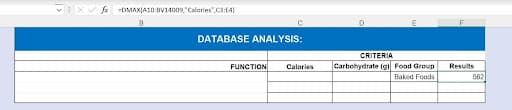
As shown, the function itself tells Excel what to look for (the highest value) and the column number says to look at the Food Group field when viewing the Calorie values, which I indicate in my entry for the Criteria argument.
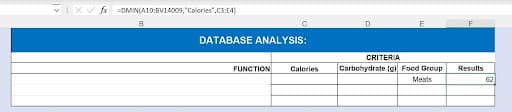
To find out how few calories are in the lowest-calorie food from the Meats Food Group, I’d use the following DMIN function:
Multiplication with DPRODUCT
DPRODUCT is based on the PRODUCT function, which exists only to multiply values in cells specified as the arguments in the function. That’s really it – multiply this cell by that cell and put the result here.
In the D-version PRODUCT, DPRODUCT, Excel will go a bit deeper, and multiply values found by the function and have them appear as the function’s result.

Shown here, the DPRODUCT function calculates total protein all Meats with more than 250 Calories per serving.
Again, the beauty of using DPRODUCT for this result is that by simply changing the field and criteria, you can instantly get a result for any value in the database, for any group of records, based on any standard. So changing Meats to Snacks would give you a new result, for that Food Group.
Calculating Standard Deviations with DSTDEV and DSTDEVP
Using the DSTDEV function (and DSTDEVP) requires first understanding what the term standard deviation means.
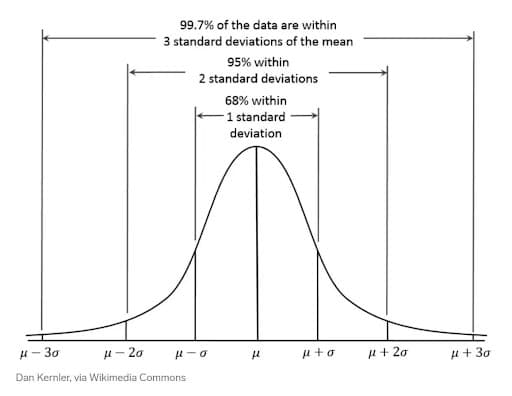
A standard deviation calculation tells you how spread out your data is – how far the values in a given field spread out across a spectrum of values with the mean at its center. Here’s a visual to help you see what I, um, mean:
TIP— Wait – what’s the mean mean? The term mean, or arithmetic mean, to be exact, is just another word for theaverage. It is the sum of all the values in a range of cells, divided by the number of values on the list. To find the mean, add up all the values in a range of cells, and then divide that total by the number of values included.
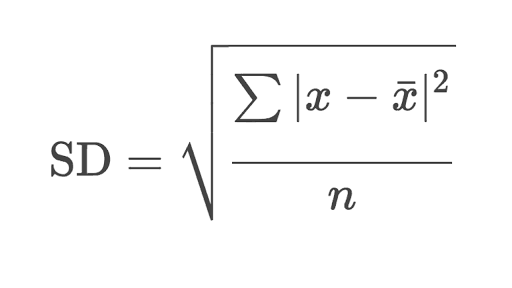
Now, for those of you who can do serious math, here’s the actual formula that’s going on behind the scenes when Excel is performing the DSTDEV function – as you can see, it’s not something the average person can whip up on their calculator or build from scratch with ease.
Using our food and nutrition worksheet, we can calculate the standard deviation for one of our food groups – using any of the fields we might be interested in for analysis purposes. For demonstration, I’ll use the Calories and Carbohydrates fields with only records designated as Baked Goods in the Food Group field to distill the list of foods to analyze in terms of their protein levels.
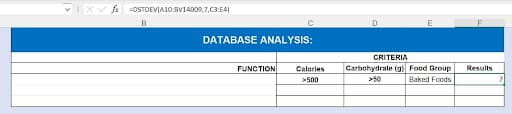
So, as shown, there is a standard deviation of 7 across the Protein values for the foods that meet my criteria of being a Baked Food with more than 500 calories and more than 50 grams of carbohydrates.
But What About DSTDEVP?
The DSTDEVP function works the same way, but takes the entire population into account – and by population, I mean the entirety of the field you choose to analyze. It’s a broader evaluation you can use when you don’t want to isolate just one group of records within a database. Here’s the DSTDEVP for the same data but for all of the foods groups in the database, and we see that without confining the records to high calorie, high carb foods, there is only a standard deviation of 5 for protein levels across the whole database.

Determine the Variance Across Your Data with DVAR and DVARP
Many people – understandably – confuse the concepts of standard deviation and variance. And you may still be confused after this, because I’ve looked out at glazed eyes after issuing the following explanation in classrooms many, many times:
“Standard deviation measures how far apart numbers are in a dataset. Variance, on the other hand, gives an actual value to how much the numbers in a dataset vary from the mean.”
So, to simplify even further, standard deviation is how much spread you’d see between all the values in a given field, measured against that mean, or average value. Kind of like seeing the MAX and MIN values along with that AVERAGE, all at once. Variance measures the difference between the numbers – cumulatively – along that spectrum from the lowest to the highest, with the mean in the middle.
Using the same subset of data again, we’ll calculate the Variance for the Protein values for a group of foods – using the same three arguments all D-version functions: Database, Field, and Criteria. Here’s the function in place, showing I used the same Criteria for Calories and Carbohydrates, and the same Food Group.
