Designing Impressive Reports with Excel
Transform Excel Data into Professional Business Reports
Excel's simple grid is perfect for organizing data, but when you need to share information with stakeholders, clients, or use it as a sales tool, you need a more polished, professional appearance that hides the grid entirely.
Creating Professional Reports in Excel That Command Attention
Excel's clean, organized grid structure makes it an unparalleled tool for data organization—whether you're analyzing market performance metrics, tracking complex product development cycles, or presenting scientific research findings. Its systematic approach to data storage and correlation has made it the backbone of business intelligence across industries.
However, when it's time to present that data to stakeholders—whether they're board members, clients, or potential investors—the basic spreadsheet format often falls short of expectations. Today's business environment demands reports that not only communicate data effectively but also reflect the professionalism and attention to detail that builds confidence in your findings. Your audience expects polished presentations that seamlessly integrate charts, eliminate visual clutter, and guide them through your insights with clarity and impact.
The excellent news is that Excel provides all the tools necessary to transform your functional worksheets into compelling, publication-ready reports. Even better, you can export these enhanced reports in formats that completely mask their spreadsheet origins, delivering professional documents that rival those created in dedicated design software.
Defining Professional Excellence in Excel Reports
Before diving into techniques, it's crucial to establish what separates amateur-looking spreadsheets from professional reports that earn respect and drive decision-making. Modern business reports should incorporate these essential elements:
- Strategic grid visibility—showing gridlines only when they enhance data readability across multiple columns
- Purposeful color schemes that create visual hierarchy and separate data sections without overwhelming the content
- Strategic chart placement that supports and amplifies the narrative told by your data
- Clear, scannable headings that allow busy executives to quickly navigate to relevant sections
- Context-appropriate number formatting that immediately communicates data types (currency, percentages, statistical significance)
- Thoughtful use of visual elements—shapes, lines, and callouts—that direct attention without creating distraction
- Brand-consistent graphics and imagery that reinforce organizational identity and report credibility
These elements work together to create reports that can be confidently exported as PDFs and shared across all levels of your organization, from technical teams to C-suite executives.

The Strategic Formatting Sequence
Professional report creation requires a methodical approach that builds complexity gradually. Attempting to format visual elements before establishing your data foundation inevitably leads to rework and inconsistencies that undermine your report's credibility.
The exception to this rule is number formatting—establishing currency, percentage, and decimal formatting early in your data entry process actually improves accuracy and prevents calculation errors. However, all other cosmetic formatting should follow this proven sequence, starting with your complete dataset:
- Header architecture—creating and positioning primary titles and section headers through merging and centering
- Typography hierarchy—establishing font weights, sizes, and styles that create clear information levels
- Data presentation—sizing and formatting the content within your data ranges
- Numerical precision—applying appropriate number formats that match industry standards
- Content positioning—optimizing both vertical and horizontal alignment for professional appearance
- Text optimization—implementing text wrapping for lengthy headers and complex cell values
- Visual segmentation—applying background colors to create logical data groupings
- Grid enhancement—adding strategic borders to improve readability, particularly in wide data sets or when highlighting calculated results
Following this sequence ensures that each formatting layer builds upon a solid foundation, reducing the need for revisions and creating more consistent results.
Beyond Basic Formatting: Advanced Report Elements
Once your fundamental formatting establishes a professional foundation, you can layer on the sophisticated elements that transform good reports into exceptional ones. These advanced components serve specific purposes: they clarify complex relationships, highlight key insights, and provide the visual guidance that helps readers extract maximum value from your data.
The advanced formatting phase should follow this strategic progression:
- Data visualization—creating, sizing, and positioning charts and diagrams that support your narrative
- Visual guidance—inserting shapes, text boxes, lines, and directional arrows that control reader attention
- Content boundaries—defining print areas to ensure only relevant data appears in final exports
- Quality assurance—previewing the print layout to identify formatting issues before distribution
- Iterative refinement—adjusting content, formatting, and visual element placement based on preview results
- Distribution preparation—exporting to PDF format for universal accessibility
This systematic approach ensures that every visual element serves a purpose and contributes to your report's overall effectiveness.
Mastering Title and Section Header Design
Your report's hierarchy begins with thoughtfully designed titles and section headers—these elements serve as the roadmap that helps readers navigate complex information efficiently. In today's fast-paced business environment, executives often scan reports for key sections before diving into details, making clear visual hierarchy essential for report adoption and impact.
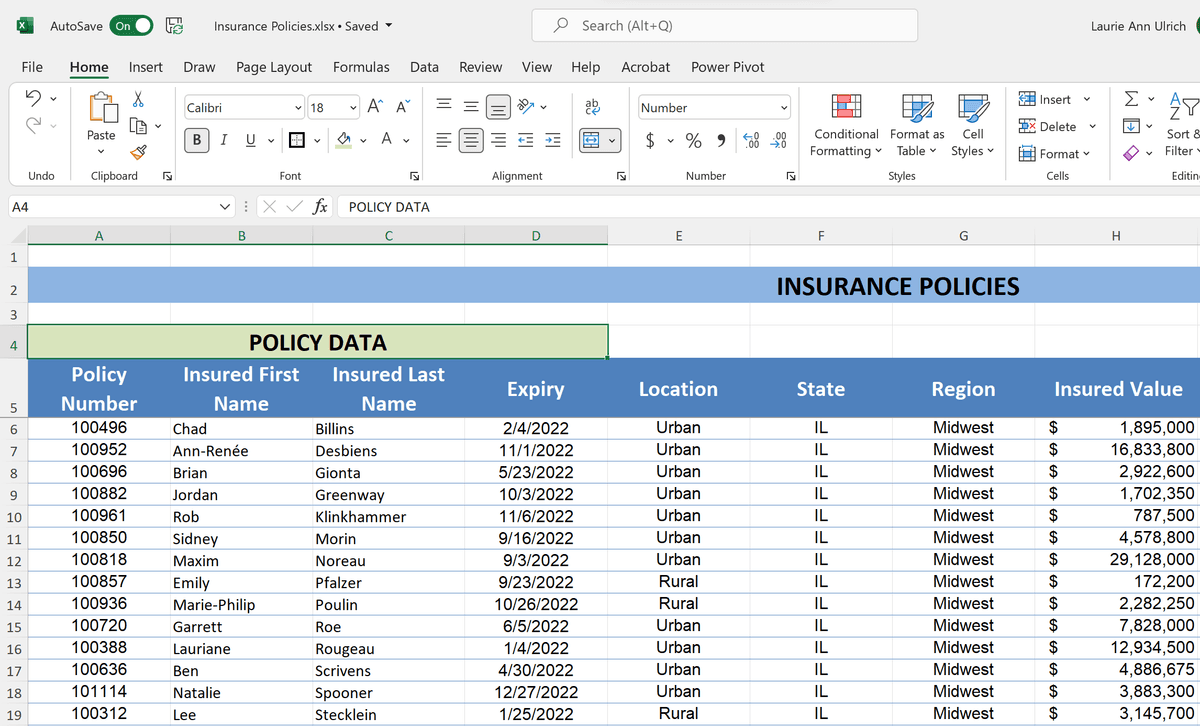
The merge-and-center technique remains the gold standard for creating professional headers that span logical data groupings. When a section encompasses four columns of related data, the header should visibly unify those columns through a single, merged cell that clearly delineates the content boundary. This approach creates visual cohesion and helps readers understand which data points relate to specific analytical themes.

Beyond basic merging, consider implementing a three-tier hierarchy: primary report titles that establish overall context, secondary section headers that define major analytical themes, and tertiary labels that identify specific data categories. This structure mirrors the organization of professional publications and makes your reports feel familiar to business readers.
For comprehensive guidance on implementing merge-and-center techniques and advanced title formatting, reference this detailed tutorial:
Https://www.youtube.com/watch?v=Zg0w_fy76uA&list=PL_eVGUXO7Anha4lv9dp_Nk96KP1WuBpKi&index=53
Advanced Text and Numeric Data Presentation
The devil is in the details when it comes to professional data presentation. While basic bold and italic formatting (accessible through the Bold and Italic buttons in the Font group on the Home tab) provides essential emphasis, sophisticated reports require nuanced typography that guides readers through complex information hierarchies.
Font selection should align with your organization's brand guidelines while prioritizing readability across different viewing contexts—from printed documents to laptop screens to mobile devices. Size variations should be meaningful: primary headers commanding attention, secondary headers providing clear section breaks, and body text maintaining consistency throughout your data ranges.
For advanced font customization, color application, and typography best practices, explore this comprehensive resource:
Https://www.youtube.com/watch?v=tWBjWamK9OE&list=PL_eVGUXO7Anha4lv9dp_Nk96KP1WuBpKi&index=56
Number formatting deserves special attention in business reports, as inconsistent or inappropriate formatting immediately signals amateur presentation. The Number group tools on the Home tab provide quick access to standard formats, but professional reports often require custom formatting that matches industry conventions and stakeholder expectations.
Master professional number formatting techniques through this detailed guide:
Https://www.youtube.com/watch?v=XnOc07hag2Y&list=PL_eVGUXO7Anha4lv9dp_Nk96KP1WuBpKi&index=55
Date and time formatting presents particular challenges in global business environments. While the Number dropdown list provides basic options, international collaborations often require custom formatting that accommodates different regional conventions while maintaining clarity for all stakeholders.
Explore advanced date and time formatting options in this specialized tutorial:
Https://www.youtube.com/watch?v=MeIaZui-5nc&list=PL_eVGUXO7Anha4lv9dp_Nk96KP1WuBpKi&index=52
Strategic Content Alignment for Maximum Impact
Content positioning within cells significantly impacts both readability and professional appearance. Poor alignment immediately signals lack of attention to detail, while thoughtful positioning demonstrates the care and precision that builds stakeholder confidence in your analysis.
The difference is particularly noticeable in wrapped text scenarios, where default top alignment can create awkward white space and make headers appear disconnected from their associated data. Vertical centering transforms these potential weak points into polished design elements that enhance rather than detract from your message.


The Home tab's Alignment group provides comprehensive control over both vertical and horizontal positioning, along with indentation options that can create subtle visual hierarchies within complex data sets. Strategic indentation can guide readers through nested information without requiring additional formatting elements.
Master these essential alignment techniques with this comprehensive tutorial:
Https://www.youtube.com/watch?v=sugRLJZbkyQ&list=PL_eVGUXO7Anha4lv9dp_Nk96KP1WuBpKi&index=50
Creating Visual Sections with Strategic Color Application
Color serves as one of your most powerful tools for creating logical groupings and visual hierarchy in complex reports. When applied strategically, colored backgrounds transform overwhelming data grids into scannable, professional documents that guide readers naturally through your analytical narrative.
The selection process is straightforward but requires planning. For compact ranges, simple click-and-drag selection suffices. However, for extensive data sets, use the click-first-cell-then-Shift-click-last-cell technique to select large ranges efficiently without the risk of accidentally including unintended areas.
Once your range is selected, navigate to the Home tab's Font group and access the Fill Color dropdown. While the location might seem counterintuitive, this grouping reflects Excel's treatment of background color as a text formatting attribute.

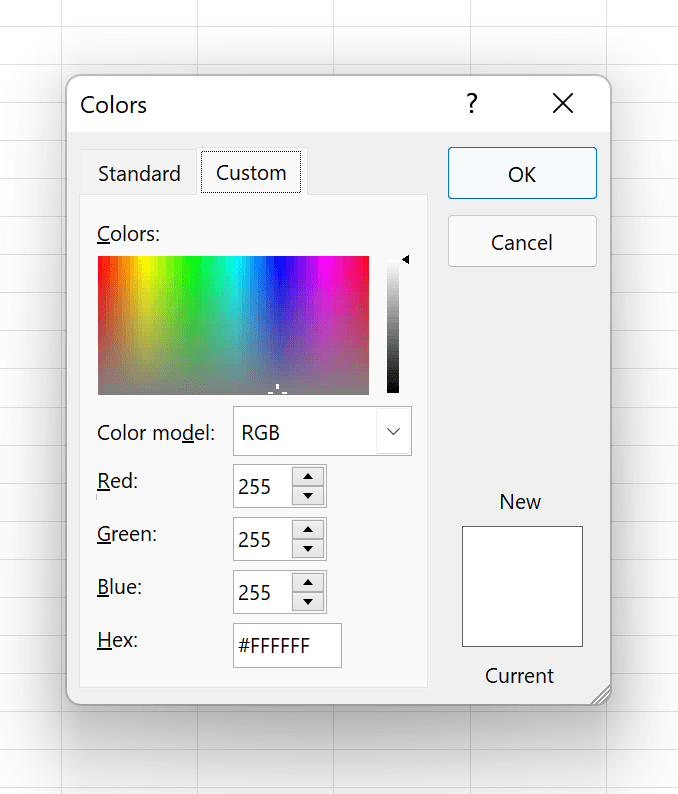
The color selection interface offers multiple approaches: Theme colors maintain consistency with your organization's branding, Standard colors provide reliable classics, and Recent colors streamline repeated formatting tasks. For precise brand matching, the More Colors option opens advanced selection tools, including hexadecimal input for exact corporate color matching.
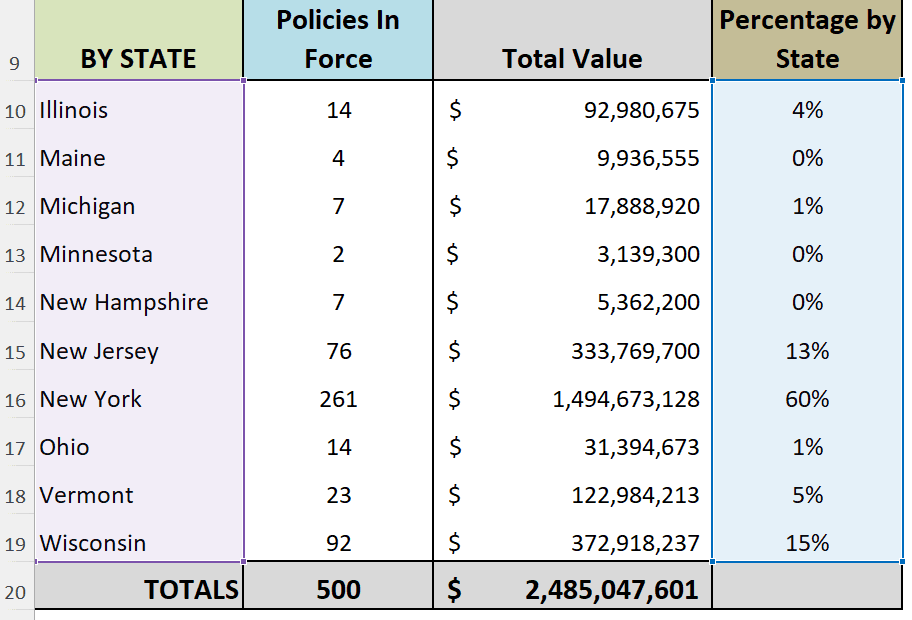
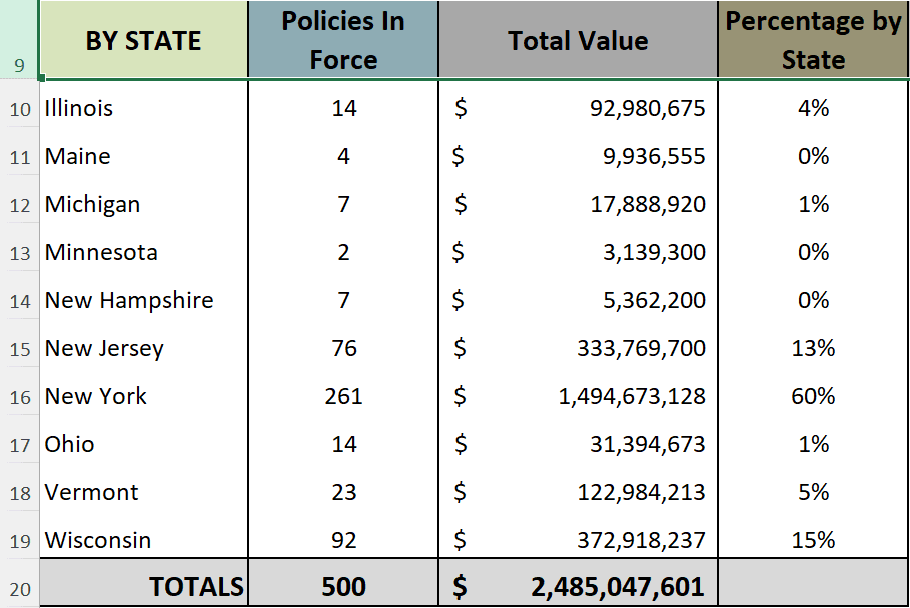
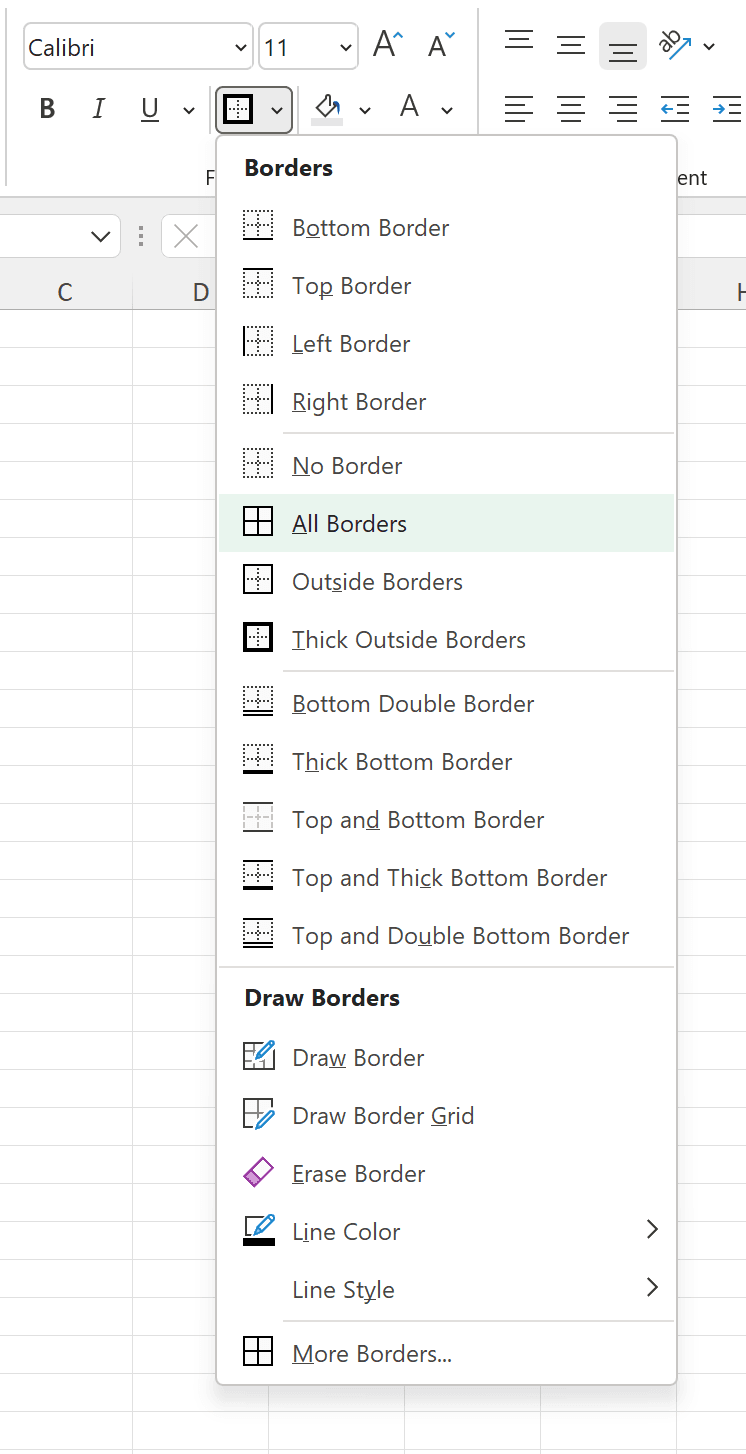
Remember that colored backgrounds hide gridlines, which may actually be your intention for cleaner appearance. However, if your data spans numerous columns or includes complex calculations where row-by-row reading is essential, restore gridlines using the Borders button and selecting All Borders while your range remains selected.

Strategic Border Application for Enhanced Readability
Borders serve multiple purposes in professional reports: they can emphasize section boundaries, highlight critical data points, and restore functional gridlines where needed for complex data sets. The key is applying them purposefully rather than automatically.
For maximum impact, consider the heavier border options: Thick Outside Border creates dramatic section boundaries, while Thick Bottom Border effectively separates headers from data or highlights totals and conclusions. These bold formatting choices command attention and create clear visual breaks that improve document navigation.
Apply borders by selecting your target range first, then clicking the Borders button on the Home tab to access the full menu of options. The preview functionality helps ensure your border choices enhance rather than clutter your design.
Data Visualization: Making Complex Information Accessible
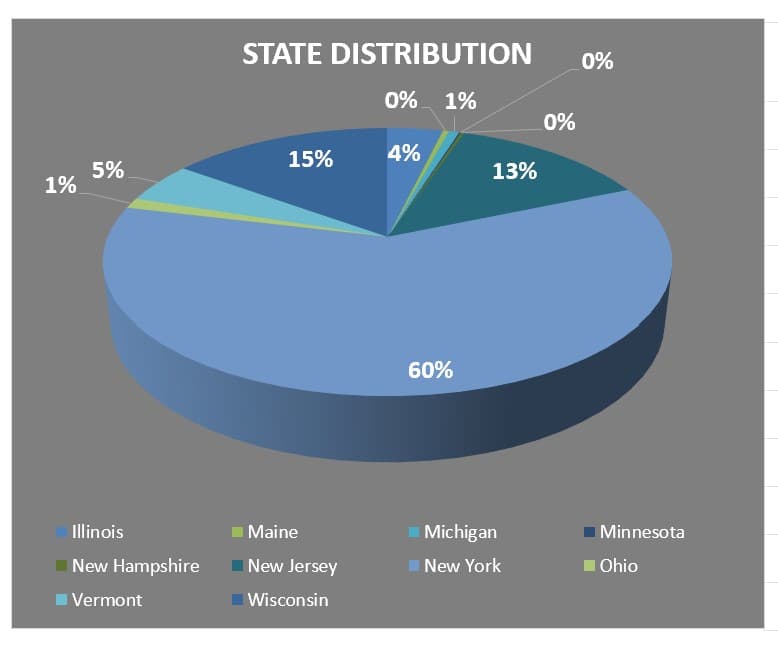
In our data-driven business environment, the ability to distill complex information into immediately understandable visuals has become a core professional competency. Charts and diagrams don't just supplement your data—they often become the primary vehicle through which busy stakeholders absorb and remember your key insights.

The cardinal rule of business data visualization is clarity over comprehensiveness. Resist the temptation to create complex, multi-layered charts that attempt to show everything at once. Instead, develop a series of focused visualizations that each tell one clear story. This approach not only improves comprehension but also allows you to control the narrative flow of your presentation.
Every chart should stand alone as a communication tool. This means including descriptive titles that immediately convey the insight, axis labels that eliminate ambiguity, and legends that require no external explanation. Your goal is creating visualizations that retain their impact even when extracted from the larger report context.
Learn comprehensive chart creation techniques through this foundational tutorial:
Https://www.youtube.com/watch?v=NFAa8lPY50c&list=PL_eVGUXO7Anha4lv9dp_Nk96KP1WuBpKi&index=8
Creating visually cohesive reports requires attention to chart formatting that aligns with your overall design scheme. Inconsistent fonts, colors, or styling between your data tables and visualizations immediately signals amateur presentation and undermines credibility.
Master advanced chart formatting and editing techniques with this specialized guide:
Https://www.youtube.com/watch?v=xx4QtLnUW4U&list=PL_eVGUXO7Anha4lv9dp_Nk96KP1WuBpKi&index=6
When your reports need to communicate organizational relationships, process flows, or conceptual frameworks, SmartArt diagrams provide professional-quality solutions that integrate seamlessly with your Excel environment. These tools excel at showing hierarchies, workflows, and interconnections that would be difficult to convey through traditional charts or text descriptions.

Explore SmartArt creation and customization through this comprehensive resource:
Https://www.youtube.com/watch?v=NqpvF6dPaNE&list=PL_eVGUXO7Anha4lv9dp_Nk96KP1WuBpKi&index=7
Guiding Reader Attention with Strategic Visual Elements
Even well-organized reports can benefit from visual guidance that directs reader attention to critical insights and key takeaways. Shapes, lines, and arrows function as a sophisticated visual vocabulary that helps readers navigate complex information efficiently.
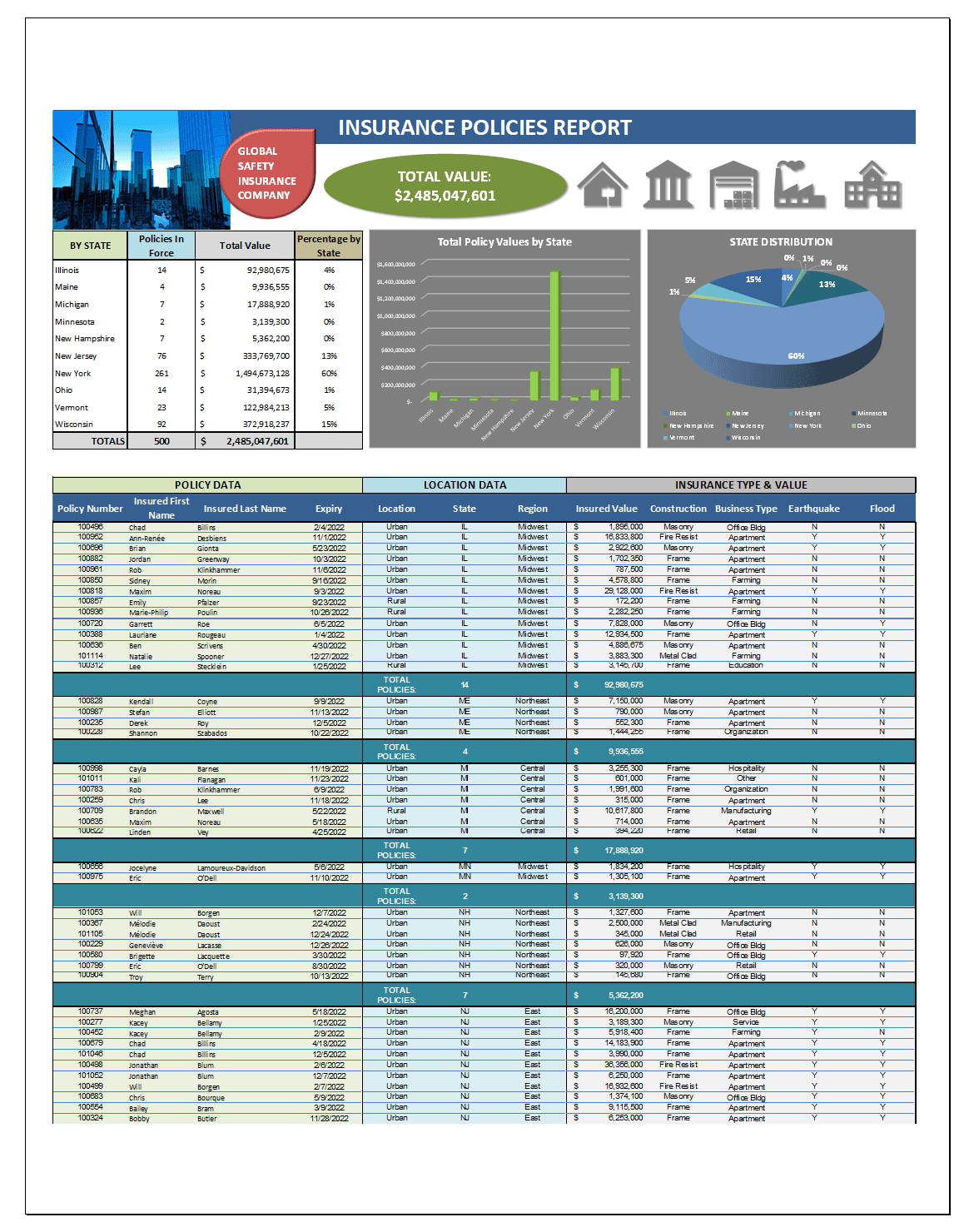
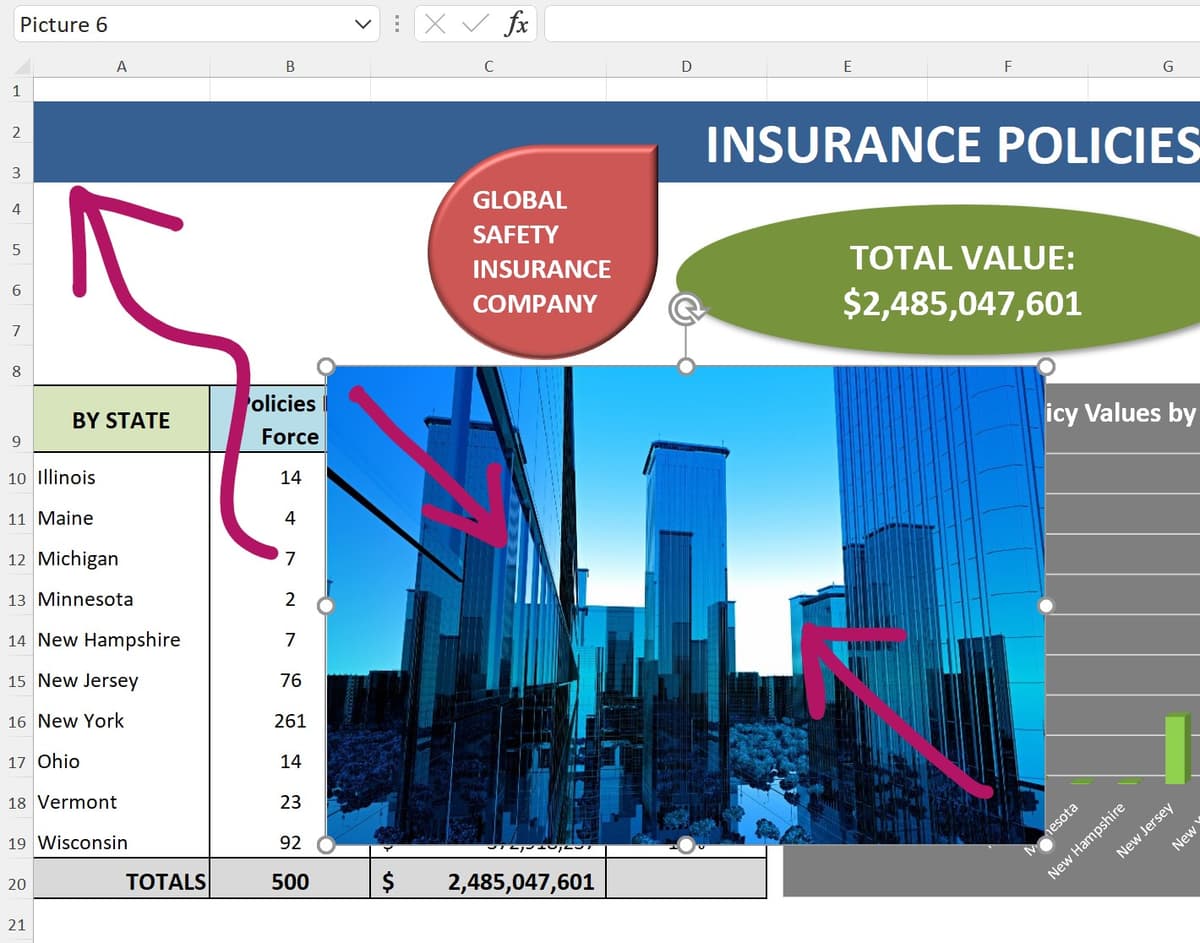
The example shown here demonstrates professional implementation of these elements: an oval shape serves as a prominent callout for crucial totals, while carefully chosen icons provide immediate visual context about the subject matter. This approach creates focal points without overwhelming the underlying data structure.
![]()
The insertion process begins with the Illustrations button on the Insert tab, where the Shapes menu provides access to comprehensive drawing tools. The key to professional application lies not just in insertion, but in thoughtful sizing, positioning, and formatting that enhances rather than distracts from your core message.
When shapes serve as text containers, they become powerful tools for highlighting critical data, providing contextual explanations, or offering guidance to report users. This dual function—visual emphasis combined with informational content—makes shapes particularly valuable in executive-level reports where clarity and impact are paramount.
Master the complete process of shape insertion, customization, and text integration through this detailed tutorial:
Https://www.youtube.com/watch?v=72XhCmKqZ_4&list=PL_eVGUXO7Anha4lv9dp_Nk96KP1WuBpKi&index=5
These sophisticated visual elements represent the final transformation from basic spreadsheet to professional business communication tool, creating reports that command attention and respect in any organizational context.
The Strategic Value of Visual Imagery in Business Reports
While charts and diagrams handle data visualization, photographs and graphics serve a different but equally important function in professional reports. They provide context, establish credibility, and create emotional connections that pure data cannot achieve. In today's visual business culture, the strategic inclusion of relevant imagery can significantly impact how your reports are received and remembered.
Consider the scenarios where photography adds substantial value: product development reports gain immediate clarity when they include images of prototypes or production processes. Real estate analyses become more compelling with property photographs. Team performance reports feel more personal and engaging when they include professional team photos. The key is ensuring that every image serves a clear purpose and enhances rather than decorates your analytical content.
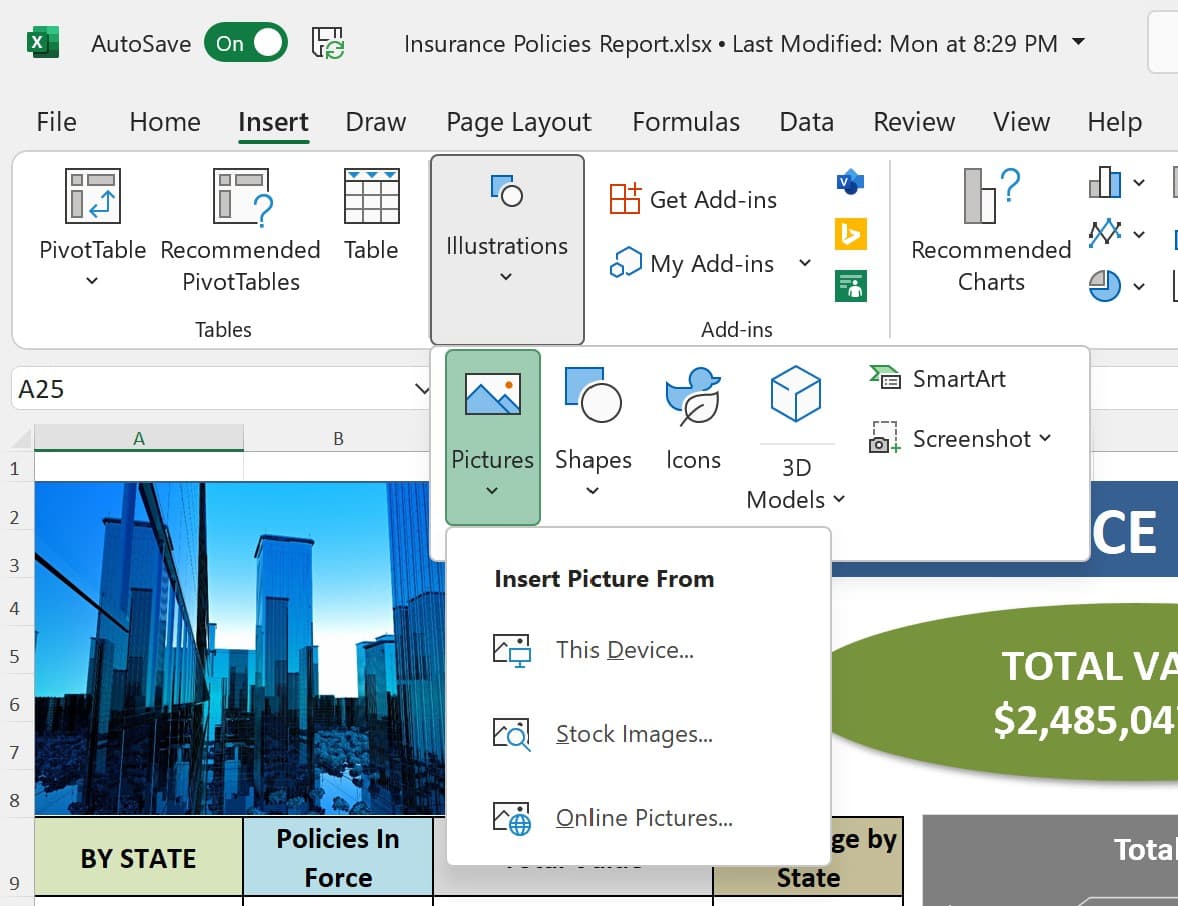
The insertion process has evolved significantly in recent Excel versions, providing seamless integration with cloud storage and professional image libraries:
- Navigate to the Insert tab and select the Illustrations button
- Choose Pictures, then specify your image source—this might be local device storage, network drives, cloud storage services, or professional stock photography platforms
- Note that This Device encompasses all accessible storage, including networked and cloud-based drives, not just local hard drive storage
- Select your desired image through the interface specific to your chosen source, then position and resize as needed to integrate seamlessly with your report layout
The flexibility of modern image sourcing means you can incorporate professional-quality photography even when working with limited local resources, maintaining high presentation standards regardless of your immediate asset library.
Professional Distribution Strategies for Maximum Impact
Creating an exceptional report is only valuable when paired with effective distribution that ensures your insights reach the right audiences in accessible formats. In 2026's hybrid work environment, this means optimizing for multiple viewing contexts—from high-resolution desktop monitors to mobile devices used by executives traveling between meetings.
Strategic Printing Considerations
While digital distribution dominates modern business communication, certain contexts still require high-quality printed reports. Board meetings, client presentations, and regulatory submissions often benefit from or require physical documents that stakeholders can reference, annotate, and retain.
Excel's printing capabilities extend far beyond basic output, offering sophisticated controls over page layout, content inclusion, and visual optimization. Professional printing requires understanding how your carefully crafted digital formatting translates to physical pages, ensuring that your visual hierarchy and data relationships remain clear in print format.
Master comprehensive printing techniques and optimization strategies through this detailed guide:
Https://www.youtube.com/watch?v=BU05l2YMhek&list=PL_eVGUXO7Anha4lv9dp_Nk96KP1WuBpKi&index=70
PDF Export: The Universal Standard for Professional Distribution
PDF distribution has become the gold standard for business reports, offering guaranteed formatting consistency across all devices and platforms while ensuring universal accessibility. Unlike native Excel files, PDFs preserve your exact formatting intentions while protecting your data from inadvertent modifications.
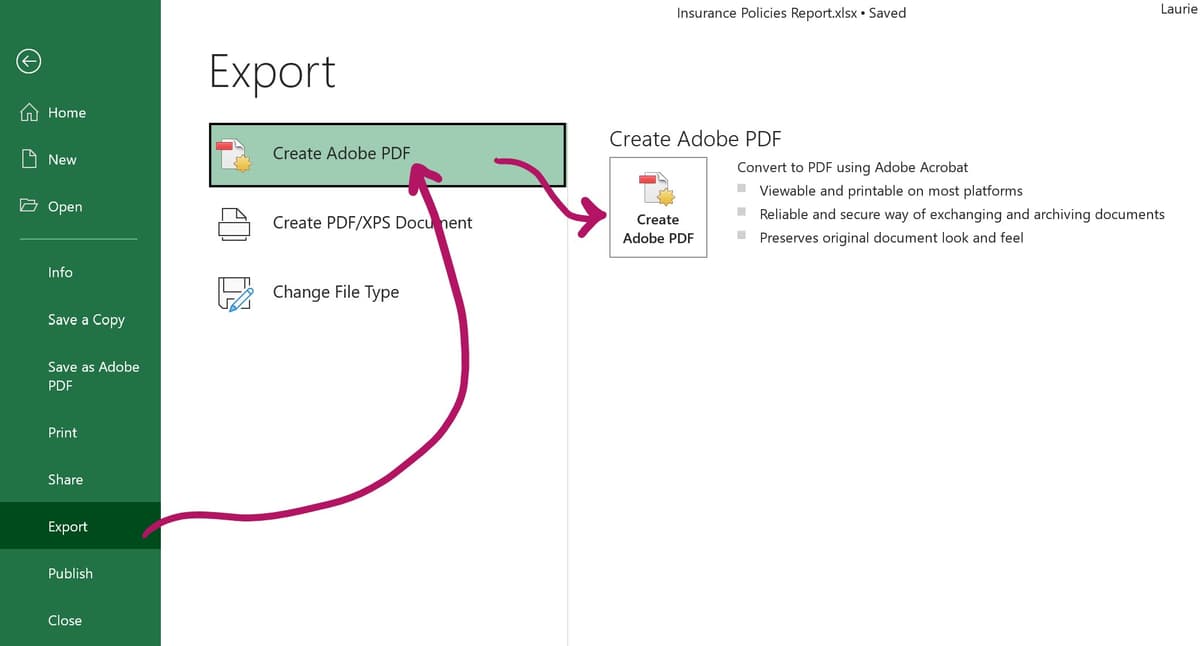
The export process begins in the File tab with the Export option, followed by Create PDF/XPS document. This built-in functionality provides reliable PDF generation that maintains your careful formatting work. Users with Adobe Acrobat installations will also see the enhanced Create Adobe PDF option, which offers additional control over compression and metadata settings.
The resulting save dialog functions identically to standard file operations, allowing you to name your PDF meaningfully and store it in accessible locations for easy distribution. Whether you're attaching to emails, uploading to collaboration platforms, or sharing via secure file sharing services, PDF format ensures your professional presentation reaches recipients exactly as intended.

This comprehensive approach to Excel report creation transforms functional data analysis into powerful business communication tools that build credibility, support decision-making, and demonstrate the professional excellence that advances careers and drives organizational success.
Key Takeaways