April 1, 2026Bob Umlas/5 min read

Working with Rows & Columns in Excel: How to Hide Them, Show Them, & Change the Height or Width

Master Excel Row and Column Management Techniques

Universal Techniques

Most column manipulation techniques discussed in this guide apply equally to rows, making these skills doubly valuable for Excel users.

Core Excel Column Operations

Resize Columns

Drag column separators or use width commands to adjust column dimensions. Double-click separators for auto-fit functionality.

Hide/Show Columns

Use drag-to-zero, keyboard shortcuts, or Format menu options to hide columns. Multiple unhiding methods available.

Auto-Fit Content

Excel can automatically adjust column width to fit the longest content using best-fit algorithms.

Manual Column Width Adjustment

1

Locate Column Separator

Find the thin line between column headers (e.g., between columns D and E)

2

Click and Hold

Click on the separator line and notice the cursor shape change to a resize indicator

3

Drag to Resize

Drag left to narrow the column or right to widen it to your desired width

Column Width Range

Minimum Width
0
Default Width
8.43
Maximum Width
255
Hidden Column Indicator

When column headings are visible, Excel shows a double-line indicator where hidden columns exist. Without headings, there's no visual indication of missing columns.

Hide Column Methods Comparison

FeatureDrag MethodFormat MenuKeyboard Shortcut
SpeedFastMediumFastest
PrecisionLowHighMedium
Multiple ColumnsYesYesYes
Skill RequiredBasicBasicIntermediate
Recommended: Use keyboard shortcuts for speed, Format menu for precision control.

Keyboard Shortcuts for Efficiency

Hide Column

Press CTRL+0 to instantly hide the selected column. Works with multiple selected columns simultaneously.

Hide Row

Press CTRL+9 to hide the selected row. Similar functionality to column hiding but for horizontal data.

Unhide Operations

Use CTRL+Shift+9 for columns and CTRL+Shift+0 for rows to reveal hidden elements quickly.

Unhiding Hidden Columns

1

Navigate to Hidden Column

Use the name box or press F5 to go to a cell in the hidden column (e.g., type D1)

2

Select Adjacent Columns

Alternatively, select the columns before and after the hidden column (e.g., C through E)

3

Apply Unhide Method

Use Format menu Unhide option, set column width to non-zero value, or drag the column separator

Auto-Fit vs Manual Width Adjustment

Pros
Auto-fit ensures all content is visible without guesswork
Double-click column separator provides instant best-fit sizing
AutoFit Column Width command works on multiple selections
Eliminates need for visual estimation of required width
Cons
May create inconsistent column widths across spreadsheet
Auto-fit might make columns too wide for layout preferences
Manual adjustment offers more precise control over appearance
Best-fit may not account for future data entry needs

Excel Column Management Best Practices

0/5

Mastering column and row visibility in Excel is essential for creating clean, professional spreadsheets and managing complex datasets. Whether you're presenting financial reports to executives or organizing project data for your team, knowing how to efficiently hide, show, and resize columns and rows will streamline your workflow. While we'll focus primarily on column manipulation in this guide, these techniques apply equally to rows unless specifically noted otherwise.

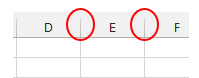
The most intuitive method for adjusting column width is the direct drag approach. Simply position your cursor on the column separator—the thin vertical line between column headers—and drag left to narrow or right to widen. For example, to modify column D's width, locate the separator between columns D and E and drag accordingly:

Excel spreadsheet showing column separators between columns C, D, and E

Notice how the cursor transforms into a resize icon when properly positioned. Click and hold while dragging to adjust the width in real-time:

Excel cursor positioned on column separator ready to resize

Here's where it gets interesting: dragging the separator far enough to the left will progressively narrow the column until it disappears entirely. When the column width reaches zero, Excel automatically hides the column—a quick way to temporarily remove data from view without deleting it:

Excel column being dragged to hide it

As you continue dragging, the column becomes increasingly narrow:

Excel column nearly completely hidden

Once you release the mouse, Excel provides a visual cue—a double-line separator—indicating that column D is now hidden. This indicator style may vary slightly depending on your Excel version, but the functionality remains consistent across all modern versions:

Excel spreadsheet showing double-line indicator for hidden column D

However, there's an important caveat for professional users: when column and row headings are disabled (accessible via the View tab), hidden columns become completely invisible with no visual indication. This can create confusion during data analysis, as what appears to be cell D3 is actually E3 due to the hidden column D. This is particularly problematic when sharing spreadsheets with colleagues who may not realize columns are missing:

Excel spreadsheet with headings turned off showing hidden column confusion


For more precise control over column dimensions, Excel offers a menu-driven approach that's particularly useful when working with exact measurements. Select any cell within the target column (such as D1), then navigate to the Home tab's Cells group and click the Format dropdown. Here you'll find the Column Width option:

Screenshot of Microsoft Excel's Home tab with the Format drop-down under Cell Size visible, showing options like Row Height, AutoFit Row Height, Column Width (highlighted by a red arrow), and AutoFit Column Width.

This method opens a dialog box displaying the current width value, allowing for precise numeric input:

Excel Column Width dialog box showing current width value

Excel accepts any value from 0 to 255 units in this dialog. Setting the value to 0 instantly hides the column, making this method ideal when you need to hide multiple columns with identical precision.

Alternatively, you can access the hiding function directly through Home/Format/Hide & Unhide/Hide Columns—a straightforward approach that clearly communicates your intent to hide rather than resize.

Power users will appreciate Excel's keyboard shortcuts for rapid column and row manipulation. Press Ctrl+0 (zero) to instantly hide the selected column, or Ctrl+9 to hide the selected row. To reverse these actions, use Ctrl+Shift+0 to unhide columns and Ctrl+Shift+9 to unhide rows. These shortcuts become invaluable when working with large datasets where mouse navigation becomes cumbersome.

All these techniques scale beautifully for multiple columns. Select a range like A1:E1 and apply any hiding method—all five columns will hide simultaneously, making it efficient to manage entire sections of your spreadsheet.

Now, let's address the trickier aspect: unhiding columns. Since hidden columns are invisible by definition, you'll need strategic approaches to select them. The most reliable method involves using the name box (located to the left of the formula bar) to navigate directly to a cell within the hidden column. Simply type the cell address, such as D1:

Excel name box with D1 entered to select hidden column

Alternatively, press F5 to open the Go To dialog and enter the cell address there. Once you've selected a cell in the hidden column, you have several unhiding options. You can use the Column Width dialog (which will show 0) and enter a new width value—though note that this sets a new width rather than restoring the original. For true unhiding that preserves the original column width, use Home/Format/Hide & Unhide/Unhide Columns:

Excel Format menu showing Hide & Unhide options with Unhide Columns highlighted


Another effective technique involves selecting the columns immediately before and after the hidden column. In this example, selecting columns C through E will allow the unhide command to affect only the hidden column D:

Excel spreadsheet with columns C through E selected to unhide column D

For those who prefer direct manipulation, there's a precise cursor technique that requires some practice but offers immediate results. Carefully position your cursor slightly to the right of where the hidden column separator should be. When positioned correctly, your cursor will change to the resize icon:

Excel cursor positioned to unhide hidden column by dragging

Simply drag to the right, and Excel will reveal the hidden column, restoring it to a visible width.

Let's conclude with a productivity feature that addresses a common workplace scenario. Consider this situation where text overflows beyond the column boundary:

Excel spreadsheet showing text that overflows column boundaries

Rather than manually estimating the required width, Excel provides three sophisticated auto-sizing solutions. First, you can double-click the column separator to trigger an automatic "best-fit" adjustment based on the longest content in that column—a time-saving technique that ensures optimal readability. Second, you can select the relevant cells (or entire column) and use Home/Format/AutoFit Column Width for the same result with menu precision:

Screenshot of the Excel 'Format' dropdown under the Home tab, displaying cell size options including Row Height, AutoFit Row Height, Column Width, and AutoFit Column Width.

These column and row management techniques form the foundation of professional spreadsheet design. Master them, and you'll find yourself creating more polished, efficient workbooks that communicate data clearly and professionally. Whether you're preparing quarterly reports, managing project timelines, or analyzing complex datasets, these skills will enhance both your productivity and the quality of your Excel deliverables.

Key Takeaways

1Column width can be adjusted by dragging separators, using Format menu commands, or setting specific numerical values from 0 to 255
2Multiple methods exist for hiding columns including drag-to-zero width, CTRL+0 keyboard shortcut, and Format menu options
3Hidden columns show double-line indicators when column headings are visible, but no indication appears when headings are turned off
4Unhiding requires navigating to hidden columns via name box or F5 key, then using width adjustment or Format menu unhide commands
5Auto-fit functionality automatically adjusts column width to accommodate the longest content using double-click or AutoFit commands
6All column manipulation techniques apply equally to rows using similar methods with different keyboard shortcuts (CTRL+9 for hiding rows)
7Multiple columns can be selected and manipulated simultaneously for efficient bulk operations across large datasets
8Column management skills are essential for creating professional, well-formatted Excel spreadsheets with optimized data presentation

RELATED ARTICLES