April 1, 2026Bob Umlas/5 min read

Working with Shapes in Excel

Master Excel shapes for professional visual presentations

Shape Frustration Solution

Learn to set default shape properties once instead of reformatting every single shape you create. This simple technique will save hours of repetitive work.

Creating Custom Default Shapes

1

Insert Shape

Draw your oval or rectangle using the Insert/Shapes command

2

Format Properties

Use Format tab to set Shape Fill to 'No Fill' and customize outline color and weight

3

Set as Default

Right-click the formatted shape and select 'Set as Default Shape' to save these properties

4

Apply to Future Shapes

All new shapes of this type will now use your custom default formatting

Shape Drawing Shortcuts

Perfect Circles and Squares

Hold Shift while drawing ovals to create perfect circles. Hold Shift while drawing rectangles to create perfect squares.

Constrained Lines

Hold Shift while drawing lines to constrain them to multiples of 45 degrees for precise alignment.

Advanced Point Editing Workflow

1

Access Edit Mode

Right-click your shape and select 'Edit Points' to see black manipulation handles

2

Move Points

Click and drag any black handle to reshape your figure dynamically

3

Delete Points

Ctrl+click on any point to delete it and simplify your shape

4

Add Points

Ctrl+click anywhere on a line segment to add new manipulation points

Shape Rotation Feature

Every shape includes a rotation icon at the top. Click and drag left or right for full 360-degree rotation control, enabling precise positioning for your designs.

Z-Order Management Methods

FeatureRibbon CommandsSelection Pane
Access MethodShape Format tab when selectedHome tab > Find & Select > Selection Pane
Precision ControlMove one level or all levelsDrag to exact position in stack
Visibility ControlNot availableHide/show with eye icon
Visual FeedbackImmediate shape movementClear hierarchical list view
Recommended: Use Selection Pane for complex multi-shape arrangements requiring precise layering control

Z-Order Control Options

Send Backward vs Send to Back

Send Backward moves shape one layer down. Send to Back moves shape behind all other shapes in the selection.

Bring Forward vs Bring to Front

Bring Forward moves shape one layer up. Bring to Front moves shape in front of all other shapes.

Selection Pane Method

Use drag and drop in Selection Pane for precise positioning. Higher in list means on top visually.

Shape Mastery Practice Guide

0/5

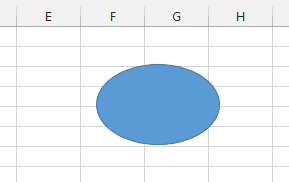
Mastering shape formatting in Microsoft Office applications represents a surprisingly complex topic that many professionals struggle with daily. Let me guide you through some fundamental concepts and advanced techniques that will transform your workflow. For years, I found myself frustrated when drawing ovals that would invariably appear as solid blue shapes like this:

Solid blue oval shape

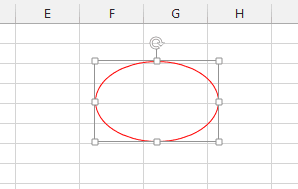
What I actually needed was a transparent circle with a colored outline—perfect for highlighting key elements in presentations and documentation:

Transparent circle with colored outline

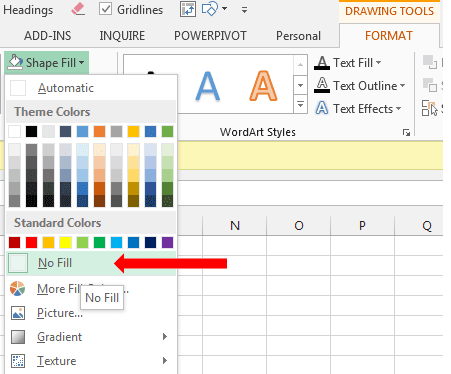
The traditional approach required a tedious multi-step process for every single shape. First, I had to navigate to the Format tab (which only appears when a shape is selected), then click Shape Fill, and select No Fill:

Shape Fill menu showing No Fill option

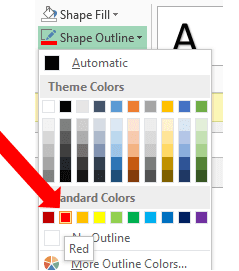
Next, I had to modify the Shape Outline settings to change the color to red:

Shape Outline menu with red color selection

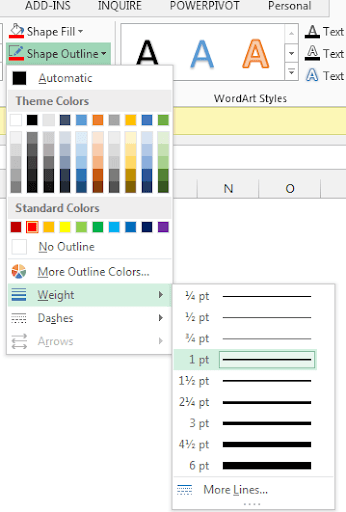
Finally, I had to increase the line weight to make the outline more visible and professional:

Line weight options for shape outline

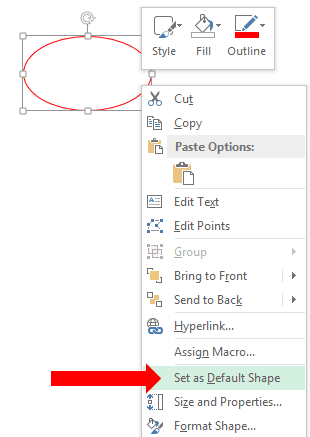
This repetitive workflow was killing my productivity until I discovered a game-changing feature. After configuring a shape with your preferred settings, right-click it and select "Set as Default Shape." This option (which Microsoft could have named more intuitively as "Set as Default Properties") eliminates the need for future formatting:

Context menu showing Set as Default Shape option

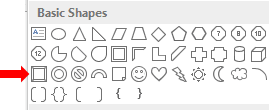
Once you've established these default properties, every subsequent oval you insert will automatically inherit your formatting preferences. This time-saving technique works across different shape types as well. For instance, if you select a Bevel shape (located in the third row on the left within the Basic Shapes section of Insert/Shapes):

Shapes gallery showing Bevel shape selection

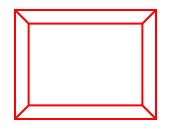
You'll see that it automatically adopts the formatting properties you established earlier:

Bevel shape with applied default formatting

Here's a professional tip that will enhance your precision: when drawing ovals, rectangles, or other shapes, hold the Shift key to maintain perfect proportions. This constraint forces ovals to become perfect circles, rectangles to become squares, and restricts line angles to 45-degree increments—essential for creating polished, professional-looking graphics.

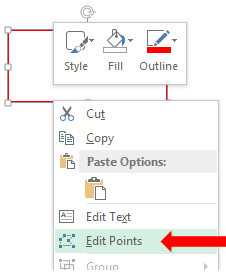
Now let's explore a more advanced feature that gives you unprecedented control over shape geometry: point editing. When you select any shape and right-click, you'll discover the "Edit Points" command:

Context menu showing Edit Points option

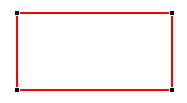
Activating Edit Points on a simple rectangle reveals the shape's underlying structure through black control handles positioned at each corner:

Rectangle in Edit Points mode showing black control handles


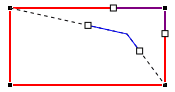
These control points are fully interactive. You can click and drag them to reshape your object dynamically. In this example, I've selected the top-right handle and repositioned it down and to the left:

Dragging a control point to reshape the rectangle

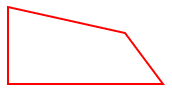
Releasing the mouse button reveals the transformed shape, demonstrating how point editing enables you to create custom geometries that would be impossible with standard shape tools:

Reshaped rectangle after point editing

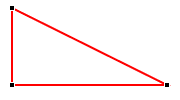
Point editing becomes even more powerful when you learn to add and remove control points. To delete a point, re-enter Edit Points mode, hold Ctrl while clicking the target point—the cursor transforms into an "X"—then click to remove it:

Shape after deleting a control point

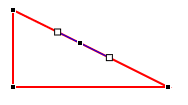
Conversely, you can add new control points by Ctrl-clicking anywhere along a shape's edge (not on existing points). Adding a point to the middle of our modified shape creates this result:

Shape with new control point added to middle edge

Positioning the new point closer to the top creates additional design possibilities:

Shape with control point added near the top

Notice how the new control point (positioned between the white squares) can be dragged to create entirely new shape profiles:

Shape after dragging the new control point

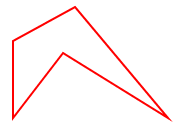
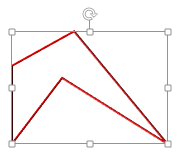
This technique scales infinitely—you can continue adding points to create increasingly complex shapes. This example shows the result of adding a control point to the bottom edge and dragging it upward to create an even more sophisticated form:

Complex shape created through multiple point editing operations

Beyond point manipulation, Office provides comprehensive rotation capabilities. Every selected shape displays a rotation handle at its top, as visible in this screenshot:

Shape with rotation handle visible at the top

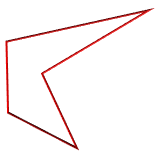
Click and drag this rotation handle left or right to achieve precise angular positioning. The rotation system provides complete 360-degree freedom, enabling you to orient shapes at any angle required for your design. Here's our complex shape after rotation:

The complex shape rotated to a new angle

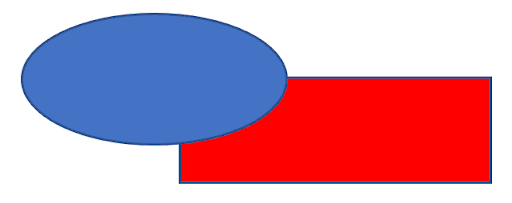
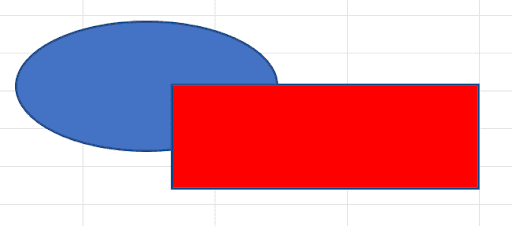
When working with multiple overlapping elements, understanding Z-order management becomes crucial for professional results. Z-order determines the layering hierarchy—which shapes appear in front of or behind others in your composition. Consider this example with an overlapping oval and red rectangle:

Red rectangle overlapping a blue oval


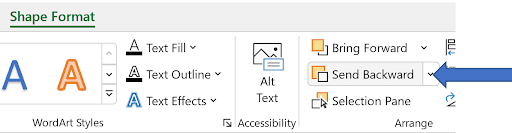
The red rectangle clearly sits above the blue oval in the visual hierarchy. You can modify this layering by selecting the rectangle and accessing "Send Backward" from the Shape Format tab (which appears contextually when shapes are selected):

Shape Format tab showing Send Backward option

Executing this command reverses the layering order, positioning the blue oval in front:

Blue oval now in front of the red rectangle

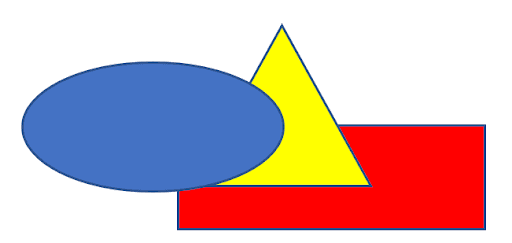
With three or more overlapping objects, Z-order management becomes more nuanced. After adding a yellow triangle and sending it backward, we can see how multiple layers interact:

Three overlapping shapes showing layering hierarchy

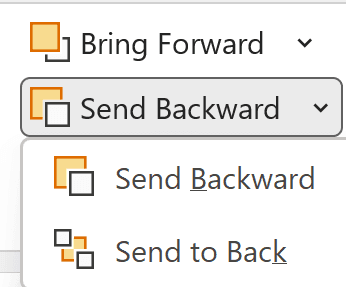
For precise layering control, the dropdown arrow next to "Send Backward" (or "Bring Forward") reveals granular options that distinguish between single-level adjustments and complete repositioning:

Dropdown menu showing Send Backward vs Send to Back options

You can choose to move an object back by one layer ("Send Backward") or move it behind all other objects ("Send to Back"). This distinction becomes invaluable when managing complex compositions with multiple overlapping elements.

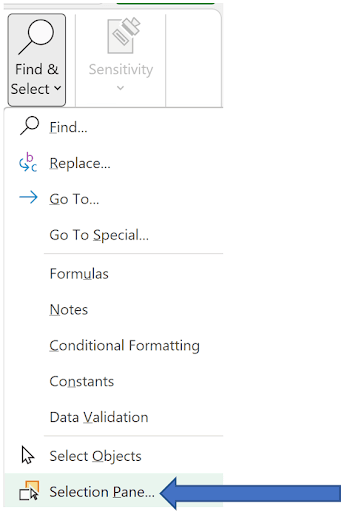
For advanced layer management, Office provides a comprehensive Selection Pane accessible through the Home tab. Navigate to Find & Select at the far right, then choose "Selection Pane" from the dropdown menu:

Find & Select menu showing Selection Pane option

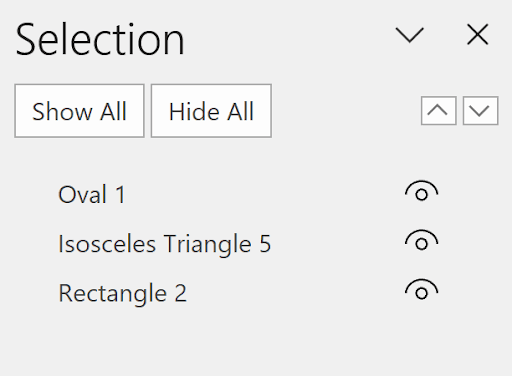
The Selection Pane opens a powerful layer management interface that provides comprehensive control over your shape hierarchy:

Selection Pane interface showing shape hierarchy

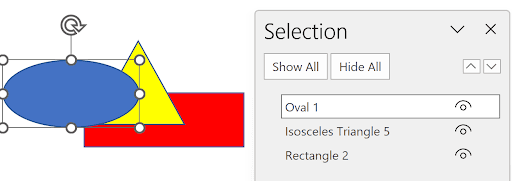
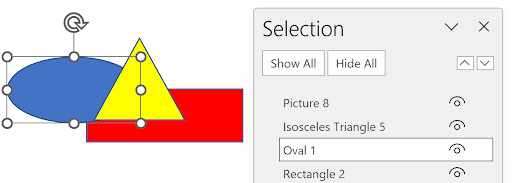
This interface offers several professional-grade features: you can toggle shape visibility by clicking the eye icon next to each object—perfect for temporarily hiding elements while working on others. More importantly, clicking on any shape name (such as "Oval 1") and then using the directional arrows in this interface allows you to reorder both the list hierarchy and the visual Z-order simultaneously:

Selection Pane reordering controls

Watch how the reordering affects both the panel hierarchy and the visual composition. Before reordering:

Shape arrangement before reordering

After applying the reordering:

Shape arrangement after reordering

These techniques form the foundation of professional shape manipulation in Microsoft Office applications. Master them, and you'll find yourself creating more sophisticated, polished documents while dramatically reducing the time spent on formatting tasks. Now it's time to put these powerful techniques to work in your own projects—your colleagues will definitely notice the difference in quality and precision.


Key Takeaways

1Set custom default shape properties once using 'Set as Default Shape' to eliminate repetitive formatting tasks
2Hold Shift while drawing to create perfect circles, squares, and lines constrained to 45-degree angles
3Use Edit Points to transform basic shapes into custom figures by adding, deleting, and moving control points
4Master Z-order management through both ribbon commands and Selection Pane for professional layering
5Send Backward moves shapes one level while Send to Back moves them behind all other shapes
6Selection Pane provides precise drag-and-drop control over shape layering and visibility
7Shape rotation handles enable full 360-degree positioning for optimal design placement
8Custom point editing allows unlimited shape modification from standard geometric forms

RELATED ARTICLES