April 1, 2026Jerron Smith/7 min read

Setting Preferences: Free Cinema 4D Tutorial

Master Cinema 4D and After Effects setup fundamentals

Prerequisites Required

Complete this setup exercise before beginning any other tutorials. Skipping this step will cause functionality issues in later exercises.

Complete the following setup before beginning any exercises. These configurations are critical for ensuring your software behaves predictably throughout this course.

Exercise Preview

preview1a

Exercise Overview

In this foundational exercise, you'll configure essential preferences in Cinema4D and After Effects to ensure optimal performance and compatibility. These settings align your software environment with industry standards and create a stable foundation for all subsequent exercises. Skip this step at your peril—incorrect preferences can cause mysterious issues that will frustrate you later in the course.

Think of this as calibrating your instruments before conducting an experiment. Professional motion graphics artists know that consistent, predictable software behavior starts with proper configuration.

Software Configuration Overview

After Effects Setup

Reset preferences to default state and configure optimal settings for shape layers, previews, and auto-save functionality.

Cinema 4D Configuration

Establish proper file handling, animation units, and memory settings for seamless workflow integration.

Resetting After Effects Preferences

We'll begin by resetting After Effects to factory defaults, eliminating any custom settings that might interfere with the exercises ahead. This ensures a clean slate and consistent behavior across different systems.

  1. If After Effects is currently running, quit the application completely.

    NOTE: This course material has been thoroughly tested with After Effects 2024 and remains compatible with After Effects 2025. While older versions (2022-2023) should work similarly, you may encounter minor interface differences or missing features. For the best experience, we recommend using the latest available version.

  2. Launch After Effects and immediately hold Cmd–Shift–Option (Mac) or Ctrl–Shift–Alt (Windows) until the reset preferences dialog appears.

    Timing is crucial here—you must press and hold these keys as soon as you see the application begin to load. If no dialog appears, you weren't quick enough. Quit the app and try again, this time holding the keys before clicking the application icon. If you continue having trouble, use the manual method described in the sidebar below.

  3. Click OK to reset your preferences. After Effects will continue its launch sequence with fresh, default settings.

  4. If you receive a disk cache warning dialog, click OK to dismiss it.

Preference Reset Process

1

Quit After Effects

Close the application completely before attempting to reset preferences

2

Launch with Key Combination

Hold Cmd-Shift-Option (Mac) or CTRL-Shift-ALT (Windows) immediately after launch

3

Confirm Reset

Click OK when the reset preferences dialog appears

Essential After Effects Settings

0/5

Auto-Save Configuration

10 min
minutes save interval
20 files
maximum project versions

Manually Deleting Preferences

If the keyboard shortcut method fails, you can manually locate and delete the preferences files. This method is more reliable but requires a few extra steps:

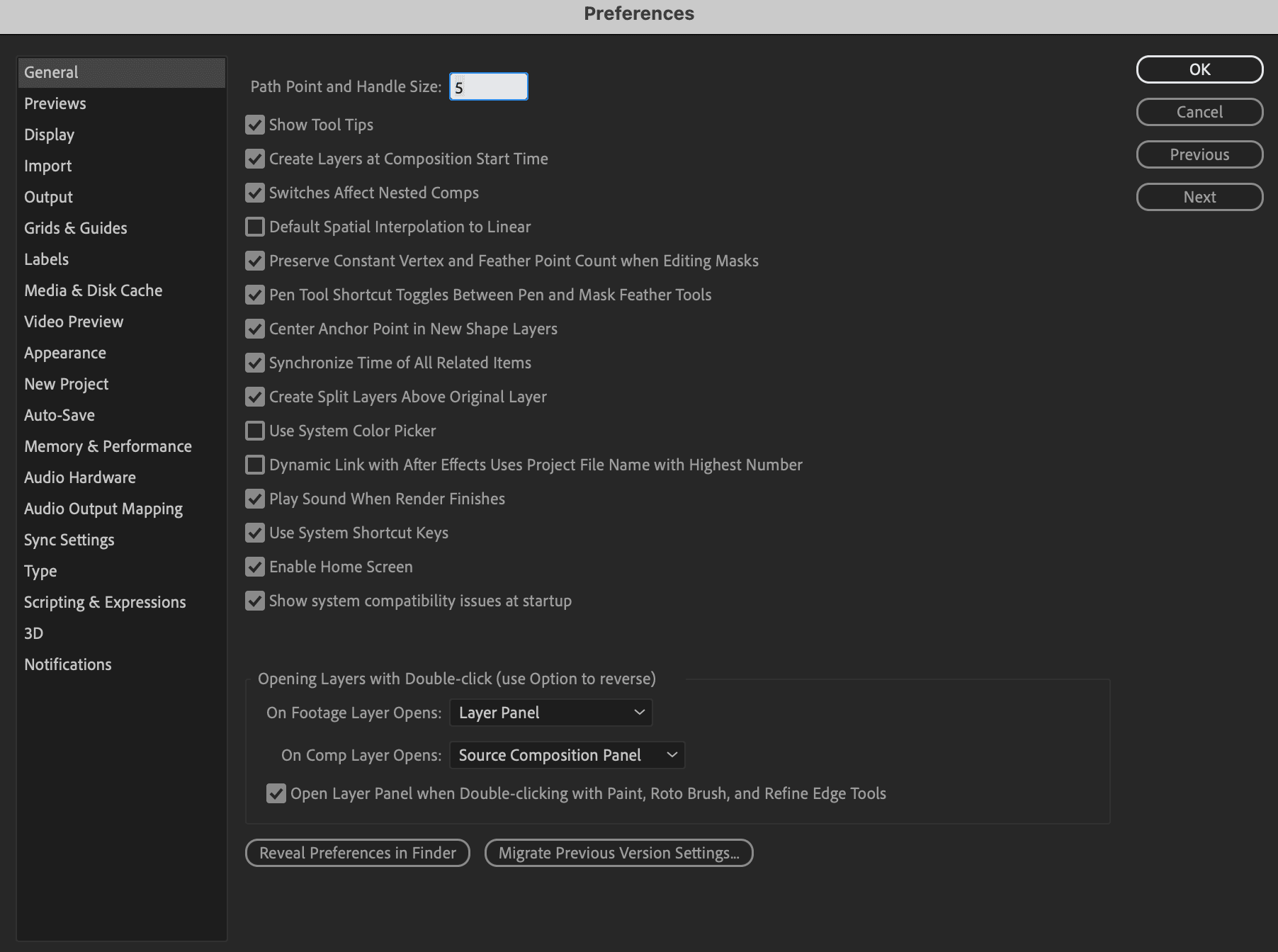
  1. Launch After Effects and navigate to the After Effects menu (Mac) or Edit menu (Windows), then choose Preferences > General.
  2. At the bottom of the preferences window, click Reveal Preferences in Finder (Mac) or Reveal Preferences in Explorer (Windows).
  3. Delete the highlighted preferences file, then restart After Effects. The application will automatically generate new default preferences on launch.
Alternative Method

If the keyboard shortcut method fails, use the manual deletion approach through Preferences > General > Reveal Preferences in Finder/Explorer.

Setting After Effects Preferences

Now we'll configure specific settings that optimize After Effects for professional motion graphics work. These preferences reflect industry best practices and will significantly improve your workflow efficiency.

  1. Launch After Effects if it's not already running.

  2. If the Home screen appears, dismiss it by clicking the X or pressing Escape.

  3. Navigate to the After Effects menu (Mac) or Edit menu (Windows) and choose Preferences > General.

  4. Enable Center Anchor Point in New Shape Layers by clicking the checkbox.

    This seemingly small change makes a significant difference when working with shape layers. By default, After Effects places anchor points at the composition center, which can make transformations feel unpredictable. Centering anchor points on the actual shape creates more intuitive animation behavior and reduces the need for manual anchor point adjustments.

  5. Uncheck Enable Home Screen to disable the startup screen.

    While Adobe's Home screen aims to streamline project access, most professionals find it adds unnecessary steps to their workflow. All Home screen functions—creating projects, opening recent files, accessing tutorials—can be accomplished more efficiently through traditional menus and keyboard shortcuts.

  6. Click on Previews in the left sidebar to access preview settings.

  7. Under the Audio section, check Mute Audio When Preview is Not Real-time.

    After Effects builds previews by rendering individual frames into RAM before playback. During this process, audio plays back frame-by-frame, creating distorted, choppy sound that's not only annoying but can mask actual audio issues in your project. This setting ensures you only hear audio when it's playing at the correct speed and pitch.

  8. Select Display from the left sidebar.

  9. Under Motion Path, select All Keyframes.

    Motion paths provide visual feedback about layer movement over time, showing the trajectory an object follows during animation. By displaying all keyframes, you get complete visibility into your animation timing and spacing, making it easier to create smooth, professional motion graphics and identify potential issues before rendering.

  10. Navigate to the Output section in the left sidebar.

  11. Uncheck Use Default File Name and Folder.

    This forces After Effects to prompt you for export location and filename every time you render. While this adds a step to the render process, it prevents files from being saved to unexpected locations and helps maintain organized project structures—essential for professional workflows where files must be easily located by other team members.

  12. Click on Auto-Save in the left sidebar.

  13. Ensure Save every is enabled and set to 10 minutes.

  14. Set Maximum Project Versions to 20.

    Auto-save creates timestamped backup files in a dedicated folder alongside your main project file. These backups are invaluable when After Effects crashes, files become corrupted, or you need to revert to an earlier version. Twenty versions provide roughly three hours of backup history with 10-minute intervals, balancing storage usage with comprehensive protection.

  15. Select Memory & Performance from the left sidebar.

  16. Locate RAM reserved for other applications and hover your cursor over the blue number value.

    Click and drag left to reduce this number to its minimum possible value (it may already be optimally set). The minimum depends on your system's total RAM—typically 2GB on systems with 16GB or more.

    NOTE: This setting persists between preference resets. Allocating maximum RAM to After Effects significantly improves preview performance and reduces render times, especially on RAM-intensive projects with multiple high-resolution layers.

  17. Click OK to save all preference changes.

Preference Reset Process

1

Quit After Effects

Close the application completely before attempting to reset preferences

2

Launch with Key Combination

Hold Cmd-Shift-Option (Mac) or CTRL-Shift-ALT (Windows) immediately after launch

3

Confirm Reset

Click OK when the reset preferences dialog appears

Essential After Effects Settings

0/5

Auto-Save Configuration

10 min
minutes save interval
20 files
maximum project versions

Learn More About After Effects Preferences

For comprehensive documentation on all After Effects preferences, consult Adobe's official reference at helpx.adobe.com/after-effects/using/preferences.html. This resource covers advanced settings beyond our essential configurations.

Additional Resources

Adobe provides comprehensive preference documentation at helpx.adobe.com/After Effects/using/preferences.html for advanced customization options.

Resetting Cinema 4D Preferences

Next, we'll configure Cinema 4D to work seamlessly with After Effects. Unlike After Effects, Cinema 4D requires manual preference file deletion, but the process is straightforward and can be done from within the application.

  1. With Cinema 4D open, navigate to the Cinema 4D menu (Mac) or Edit menu (Windows) and select Preferences.

  2. Click Open Preferences Folder at the bottom of the preferences dialog.

  3. When the file browser opens, Ctrl-click (Mac) or right-click (Windows) on the highlighted preferences folder and choose Move to Trash (Mac) or Delete (Windows).

    Note: Windows may display a confirmation dialog—click yes to proceed with deletion.

  4. Quit Cinema 4D completely and restart the application.

    NOTE: This course has been tested with Cinema 4D 2024 (Release 2024) and Cinema 4D Lite S26. The Lite version, included with After Effects, contains all features needed for these exercises. If you're using older versions (S24-S25), most functionality remains identical, though some interface elements may appear slightly different.

Cinema 4D Preference Reset

1

Open Preferences Dialog

Navigate to Cinema 4D menu (Mac) or Edit menu (Windows) and select Preferences

2

Access Preferences Folder

Click Open Preferences Folder at the bottom of the dialog box

3

Delete Preference Files

CTRL-click (Mac) or Right-click (Windows) the highlighted folder and delete it

4

Restart Application

Close and relaunch Cinema 4D to initialize fresh preferences

Cinema 4D Configuration Tasks

0/3

Default Auto-Save Settings

5 min
minute backup intervals
10 files
backup file copies
50 steps
undo operation depth

Setting Cinema 4D Preferences

These Cinema 4D preferences optimize the application for motion graphics work and ensure compatibility with After Effects workflows. We'll focus on essential settings that affect file management, animation timing, and system performance.

  1. With Cinema 4D open, navigate to the Cinema 4D menu (Mac) or Edit menu (Windows) and choose Preferences.

  2. Select Files from the left menu and configure auto-save settings:

    • In the Auto-Save group, click the switch next to Save to enable automatic backups.

    The default 5-minute interval with 10 backup copies provides excellent protection without excessive file proliferation. Cinema 4D's auto-save creates incremental backups, preserving your work history and providing multiple recovery points if problems arise.

  3. Click the Units category and change Animation Units to SMPTE.

    SMPTE timecode provides frame-accurate timing display that matches After Effects' default timeline format. This consistency eliminates confusion when moving between applications and ensures precise timing alignment when importing Cinema 4D projects into After Effects.

  4. Select the Memory group and locate the Project category:

    • Change Undo Depth to 50.

    Increasing the undo depth from the default provides more flexibility during modeling, animation, and scene setup. With 50 undo steps, you can experiment more freely without fear of losing previous work, encouraging creative exploration and iteration.

  5. Close the preferences dialog to save your changes.

Cinema 4D Preference Reset

1

Open Preferences Dialog

Navigate to Cinema 4D menu (Mac) or Edit menu (Windows) and select Preferences

2

Access Preferences Folder

Click Open Preferences Folder at the bottom of the dialog box

3

Delete Preference Files

CTRL-click (Mac) or Right-click (Windows) the highlighted folder and delete it

4

Restart Application

Close and relaunch Cinema 4D to initialize fresh preferences

Cinema 4D Configuration Tasks

0/3

Default Auto-Save Settings

5 min
minute backup intervals
10 files
backup file copies
50 steps
undo operation depth

Key Takeaways

1Proper preference configuration is essential before starting any Cinema 4D and After Effects projects to ensure expected functionality
2Resetting preferences to default settings eliminates potential conflicts and provides a consistent starting point for all users
3After Effects anchor point centering improves shape layer positioning control and overall animation workflow efficiency
4Auto-save settings with 10-minute intervals and 20 project versions provide comprehensive backup protection against data loss
5Muting audio during non-real-time previews prevents distorted sound output while frames render into system memory
6Cinema 4D SMPTE timecode units create consistency with After Effects default timeline display for integrated workflows
7Memory optimization through reduced RAM allocation for other applications maximizes After Effects performance capabilities
8Manual preference deletion serves as reliable backup method when keyboard shortcuts fail during application reset procedures

RELATED ARTICLES