April 1, 2026Jerron Smith/16 min read

An Introduction to Cinema 4D Lite

Master 3D Animation with Cinema 4D Integration

What You'll Learn in This Tutorial

After Effects Integration

Learn how to seamlessly connect Cinema 4D Lite with After Effects using the Cineware effect for enhanced 3D workflows.

Interface Mastery

Navigate the Cinema 4D Lite interface with confidence, understanding tools, viewports, and essential 3D terminology.

Animation Fundamentals

Create compelling 3D animations using keyframes, transform properties, and object manipulation techniques.

Topics Covered in This Cinema 4D Tutorial:

AE to C4D Integration, the Cineware Effect, the C4D Interface, C4D Tools

Exercise Preview

Preview1b

Exercise Overview

This comprehensive exercise introduces you to the essential workflow for integrating Cinema 4D with After Effects—a powerful combination that has become the industry standard for professional motion graphics production. You'll gain hands-on experience with the Cinema 4D interface, master its core tools, and understand fundamental 3D terminology that forms the foundation of modern 3D motion design. By the end of this tutorial, you'll have the confidence to navigate between both applications seamlessly and understand how they work together to create compelling 3D content.

Previewing the Final Video

This foundational project focuses on interface familiarity and workflow setup rather than producing a final rendered video. The skills you develop here will be essential for all subsequent Cinema 4D projects.

Getting Started

  1. In Adobe After Effects, if you have a project open, choose File > Save to preserve your current work.

  2. Choose File > Close All Projects to start with a clean workspace.

  3. Choose File > Open Project and:

    • Navigate to Desktop > Class Files > C4D in AE Class > Intro to C4d
    • Double–click on Intro to C4D.aep to open it.
  4. Choose File > Save As and:

    • Name the file Your Name—Intro to C4D
    • Save it into Desktop > Class Files > C4D in AE Class > Intro to C4D.

Now that your project is properly set up, let's dive into the powerful world of Cinema 4D integration.

Opening C4D Lite for the First Time

After Effects includes a complimentary license for Cinema 4D Lite—a significant value add that has made 3D motion graphics more accessible to creative professionals. To activate this license, Maxon requires both your Adobe Creative Cloud credentials and a Maxon ID. The initial activation must be performed through After Effects to properly link your licenses, but once completed, you'll have direct access to Cinema 4D Lite as a standalone application.

  1. In After Effects, press the spacebar to preview the Noble Soda composition.

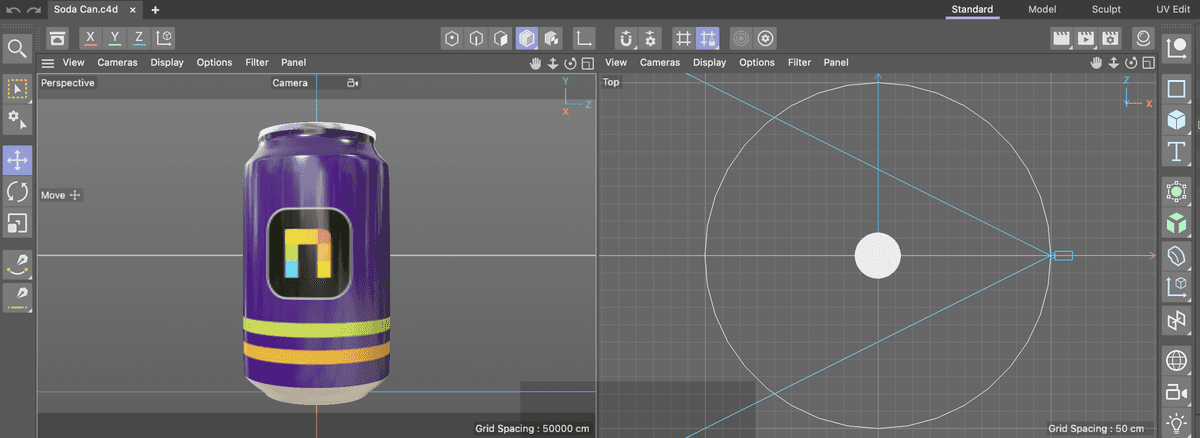
    Notice that the can is a sophisticated 3D model that rotates dynamically in front of an animated background—this showcases the seamless integration possible between 2D and 3D elements.

  2. With the Noble Soda Composition active, click on the Soda Can Animation layer to select it.

  3. Choose Edit > Edit Original or press Cmd–E (Mac) or CTRL–E (Windows) to launch the 3D model in Cinema 4D Lite.

    NOTE: You can also select the C4D file in the Project panel and use the same command for direct access.

  4. If this is your first time opening C4D Lite, you'll be prompted to enter or create a Maxon ID and activate your complimentary license. This one-time setup ensures your access to ongoing updates and support.

  5. Complete the activation or sign-up process to proceed to Cinema 4D.

    Once activated, Cinema 4D Lite becomes a fully accessible application on your system, launching independently like any other professional software tool.

With Cinema 4D Lite now activated, let's explore what makes this application so valuable for motion graphics professionals.

What is Cinema 4D Lite?

Cinema 4D (C4D) is a comprehensive 3D modeling and animation platform developed by Maxon Corporation, renowned for its intuitive interface and powerful capabilities. This industry-leading application serves diverse sectors including technical and medical visualizations, explainer videos, advertising campaigns, and game development. However, its greatest strength lies in motion graphics production, thanks to its exceptional After Effects integration and specialized MoGraph toolset that has revolutionized how designers approach 3D motion design.

Cinema 4D Lite represents a carefully curated version of the full application, included complimentary with your After Effects subscription. While it operates with certain limitations compared to the complete Cinema 4D Studio version, it remains remarkably feature-rich and capable. Many After Effects users discover that Cinema 4D Lite provides more than sufficient tools for creating impressive 3D work, making it an excellent entry point into professional 3D motion graphics without additional investment.

The strategic partnership between Adobe and Maxon ensures that Cinema 4D Lite receives regular updates and maintains compatibility with the latest After Effects features. This means you're working with current, professional-grade 3D tools rather than a limited demo version.

NOTE: Cinema 4D's built-in help system is exceptionally comprehensive. When in doubt, right-click (or CTRL-click) on virtually any object or menu and choose "Show Help"—Cinema 4D will direct you to relevant, clearly written documentation that explains features in practical terms.

Beyond its native modeling capabilities, Cinema 4D Lite serves as a powerful intermediary application, enabling you to import and work with various 3D file formats in After Effects that wouldn't otherwise be supported. This expands your workflow possibilities significantly, whether you're working with assets from other 3D applications or collaborating with specialists using different tools.

Cineware is the sophisticated plugin that powers the seamless integration between Cinema 4D and After Effects. This technology allows you to work with Cinema 4D files directly within your After Effects projects, eliminating the traditional render-and-import workflow that once created bottlenecks in 3D motion graphics production. With Cineware, you can import complete 3D scenes, individual objects, and complex animations created in Cinema 4D, then combine them with 2D elements and leverage After Effects' world-class compositing tools to create compelling visual effects and animations. This real-time integration has transformed how motion graphics artists approach 3D work, enabling rapid iteration and creative experimentation.

Cinema 4D Lite vs Full Version

Pros
Completely free with After Effects installation
Feature-rich for motion graphics creation
Strong integration with After Effects workflow
Supports 3D file imports as intermediary
Built-in help system with right-click access
Cons
Limited features compared to full Cinema 4D
Requires Maxon ID for activation
Must be initially opened through After Effects

The Cinema 4D Lite Interface

For newcomers to 3D applications, Cinema 4D's interface may initially appear complex, but it follows logical design principles that become intuitive with practice. Unlike many 3D applications that can feel overwhelming, Cinema 4D's interface is thoughtfully organized to support efficient workflows, with each panel serving specific functions that complement professional production needs.

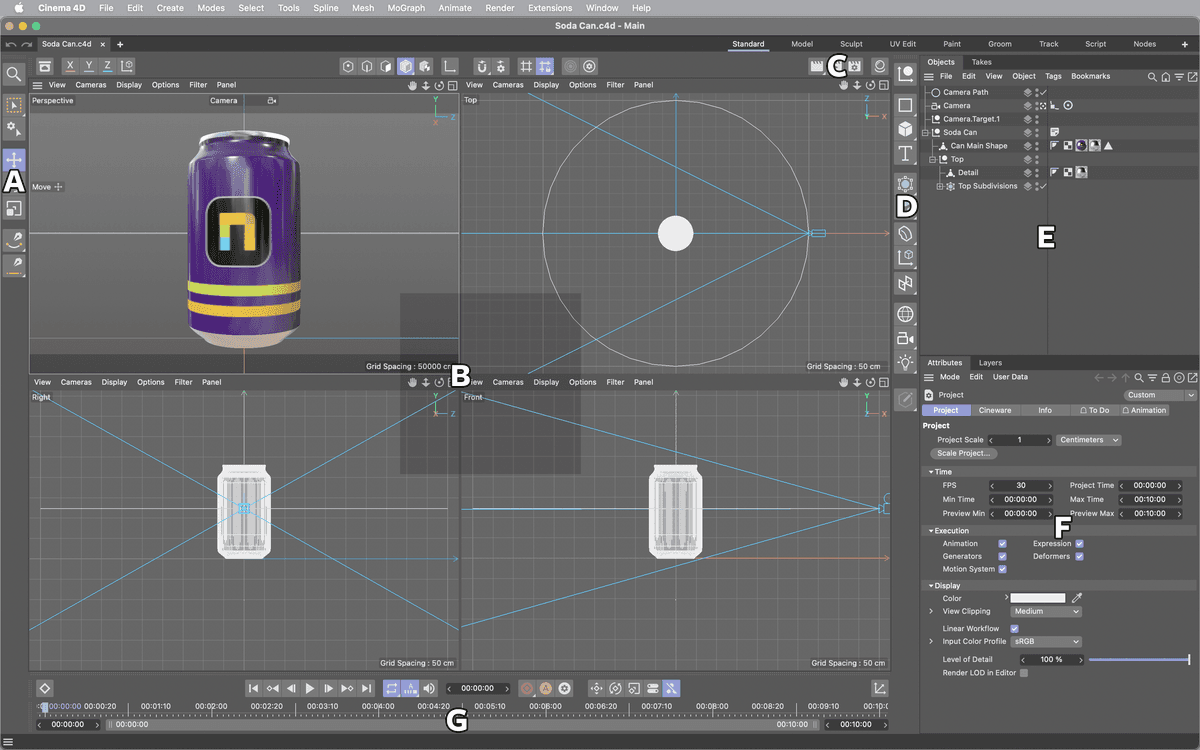
Interface C4DLite

A: Tools Menu, B: Views & Viewports, C: Render Menu, D: Create Menu, E: Object & Take Managers, F: Attribute & Layer Managers, G: The Animation Palette

Tools Menu: This essential palette houses your primary interaction tools, including the fundamental Move, Rotate, and Scale tools familiar from other Adobe applications. Additionally, you'll find sophisticated selection tools and spline drawing capabilities that enable precise object manipulation and curve creation for advanced animations.

Views & Viewports: Cinema 4D's flexible viewport system allows you to open multiple view panels simultaneously, each with independent display settings optimized for different tasks. A single view panel can display up to four synchronized viewports, providing comprehensive scene visualization from multiple angles—essential for professional 3D work where spatial relationships are critical.

Render Menu: This comprehensive rendering control center contains all options needed to generate both preview images and final production renders. You can create multiple render presets tailored for different purposes—such as quick previews during creative development and high-quality finals for client delivery. Advanced features like Multi-Pass rendering enable sophisticated compositing workflows that integrate seamlessly with After Effects.

Create Menu: The foundation of all Cinema 4D projects begins here, where you'll find parametric primitives, polygon objects, and specialized 3D elements. This menu provides access to both basic geometric shapes and complex helper objects that can form, duplicate, or transform your primary objects. Many objects share common properties accessible through the Basic tab, streamlining your learning curve as you explore different object types.

Object Manager: Serving as mission control for your 3D scene, the Object Manager provides hierarchical organization of all scene elements, including their associated tags and properties. This panel becomes increasingly valuable as your scenes grow in complexity, enabling efficient organization and manipulation of multiple objects and their relationships.

Take Manager: This powerful feature allows you to store multiple variations of animations, render settings, camera perspectives, and other scene parameters within a single project file. For motion graphics professionals working with clients who request multiple versions or iterations, the Take system provides invaluable project management capabilities.

Attribute Manager: Your gateway to Cinema 4D's extensive parameter system, the Attribute Manager provides immediate access to virtually every adjustable setting for objects, tools, tags, materials, and more. A particularly powerful feature allows direct animation within the Attribute Manager itself—any parameter displaying a circle next to its name can be keyframed without opening the Timeline, streamlining the animation process significantly.

Layer Manager: Essential for managing complex projects, particularly when working with imported CAD files or scenes containing hundreds or thousands of objects, the layer system enables you to group and control scene elements collectively. Layers function as organizational groups that can be controlled, hidden, or modified together, maintaining project organization as complexity increases.

The Animation Palette: This streamlined interface consolidates the most frequently used navigation and recording tools from Cinema 4D's full Timeline. The palette's three core components—Timeline Ruler, Powerslider, and Navigation & Mode icons—provide immediate access to animation controls without requiring the full Timeline interface, optimizing screen real estate for other essential panels.

Essential Interface Components

Tools Menu

Contains Move, Rotate, Scale, Selection and Spline Drawing tools for object manipulation and creation.

Views & Viewports

Customizable view panels displaying up to four viewports each with independent display settings for scene visualization.

Object Manager

Central control hub for all scene objects and their tags, providing hierarchical organization and selection.

Attribute Manager

Quick access to parameters for objects, tools, tags, and materials with direct animation capabilities.

Navigate Around the Viewport with 123

Efficient viewport navigation is crucial for productive 3D work. Cinema 4D Lite offers intuitive navigation using mouse controls combined with the 1, 2, and 3 keys—a system that becomes second nature with practice. Alternatively, on-screen navigation controls provide the same functionality through visual interface elements.

The onscreen Navigation button allViewNav buttons are located in the upper right corner of any viewport for users who prefer visual controls.

  • 1 key + left mouse button: Translates the view, enabling left, right, up, and down movement. This functions similarly to the Hand tool in Adobe applications, allowing you to reposition your view of the scene without affecting objects.

  • 1 key + right mouse button or 2 key + left mouse button: Controls zoom functionality, bringing you closer to or further from scene elements. This operates like the Zoom tool in Adobe applications, essential for detailed work and overview perspectives.

  • 3 key + left mouse button or 3 key + right mouse button: Rotates the view around the scene's visual axis, providing different angles and perspectives crucial for understanding spatial relationships in 3D space.

    NOTE: When using keyboard shortcuts with mouse controls, zoom and rotation operations center on your mouse cursor position, providing precise control. The on-screen viewport icons always center operations within the viewport, offering consistent but less precise control.

  1. In the Top viewport, experiment with the 1, 2, & 3 keys combined with mouse movements to familiarize yourself with viewport navigation. Practice moving, zooming, and rotating until the controls feel natural.

  2. Choose View > Frame Default from the viewport menu to reset the view to its original position.

    NOTE: Cmd–Shift–Z (Mac) or CTRL–Shift–Z (Windows) provides quick keyboard access to undo viewport changes, allowing you to quickly return to previous view states during navigation.

Viewport Navigation Shortcuts

1

Translate View

Use 1 key + left mouse button to move left, right, up and down like the Hand tool in Adobe programs

2

Zoom In/Out

Use 1 key + right mouse button or 2 key + left mouse button to zoom in and out of the view

3

Rotate Around Axis

Use 3 key + left or right mouse button to rotate around the visual axis for different perspectives

Move-Rotate-Scale with ERT

The E, R, and T keyboard shortcuts activate Cinema 4D's fundamental transformation tools—Move, Rotation, and Scale respectively. These hotkeys mirror industry standards and provide immediate access to the most frequently used object manipulation tools, significantly accelerating your workflow once memorized.

  1. Drag (scrub) the playhead along the Timeline to observe this scene's animation. The camera orbits around the soda can in a smooth circular motion—we'll examine the technique behind this movement shortly.

  2. Ensure the playhead is positioned at the timeline's beginning: 00:00:00

  3. In the Object Manager, Cmd-click (Mac) or Ctrl-click (Windows) the plus or minus icons beside the Soda Can object to expand its hierarchy and reveal all child objects.

  4. Still in the Object Manager, click the Soda Can null object to select it.

  5. In the Attribute Manager, click the Coord. tab to view the object's Position, Rotation, and Scale attributes—the fundamental properties that define any object's transformation in 3D space.

  6. Press R on your keyboard or click the Rotate tool in the Tools menu to activate rotation mode.

  7. In the Top viewport, position your cursor over the circular rotation handle surrounding the Soda Can object.

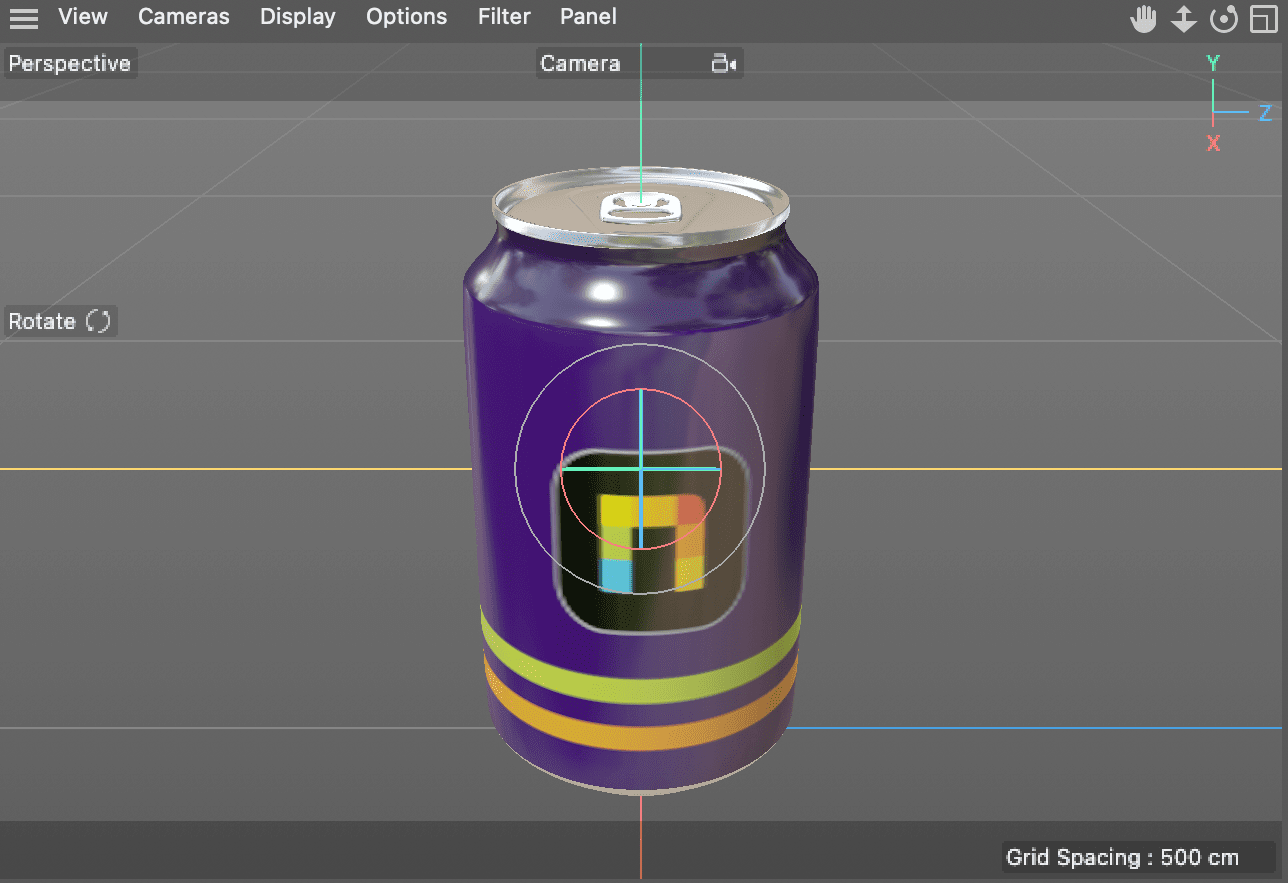
  8. Drag the rotation handle until the Noble Desktop logo faces directly toward the camera in the Perspective view.

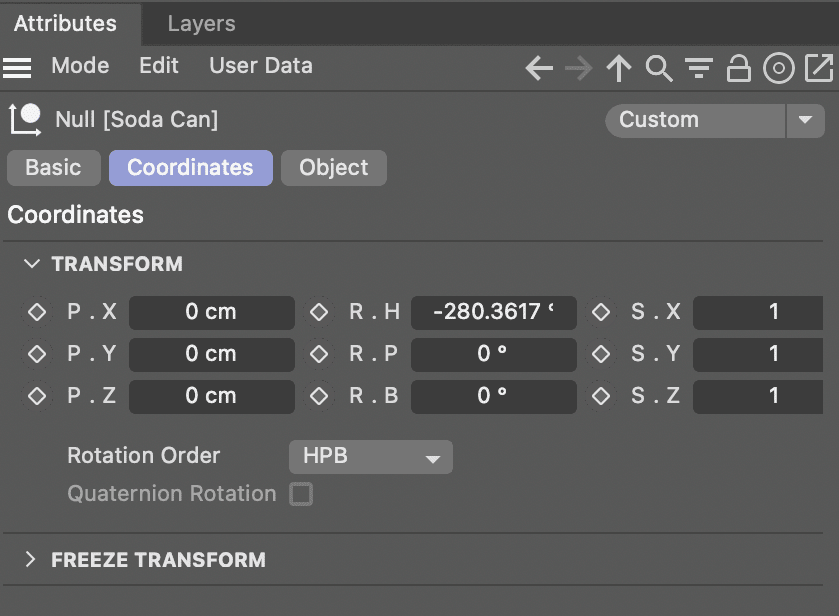
    NOTE: Cinema 4D uses H, P, and B notation for rotation (Heading, Pitch & Bank). H represents rotation around the Y axis, P around the X axis, and B around the Z axis. This aviation-based terminology is standard in professional 3D applications.

Essential Transform Shortcuts

Remember ERT: E for Move tool, R for Rotate tool, T for Scale tool. These keyboard shortcuts provide instant access to the most commonly used transformation tools.

Changing Position, Rotation or Scale

This scene demonstrates Cinema 4D's "Align to Spline" feature, which constrains the camera to follow a predefined path around the scene. This technique is commonly used in product visualization and motion graphics to create smooth, professional camera movements. While this constraint prevents manual camera adjustment in this particular scene, all other scene objects remain fully manipulable.

  1. In the Object Manager, click the Camera Path spline to select it—this curved path defines the camera's orbital movement.

  2. Press R on your keyboard or click the Rotate tool to activate rotation mode.

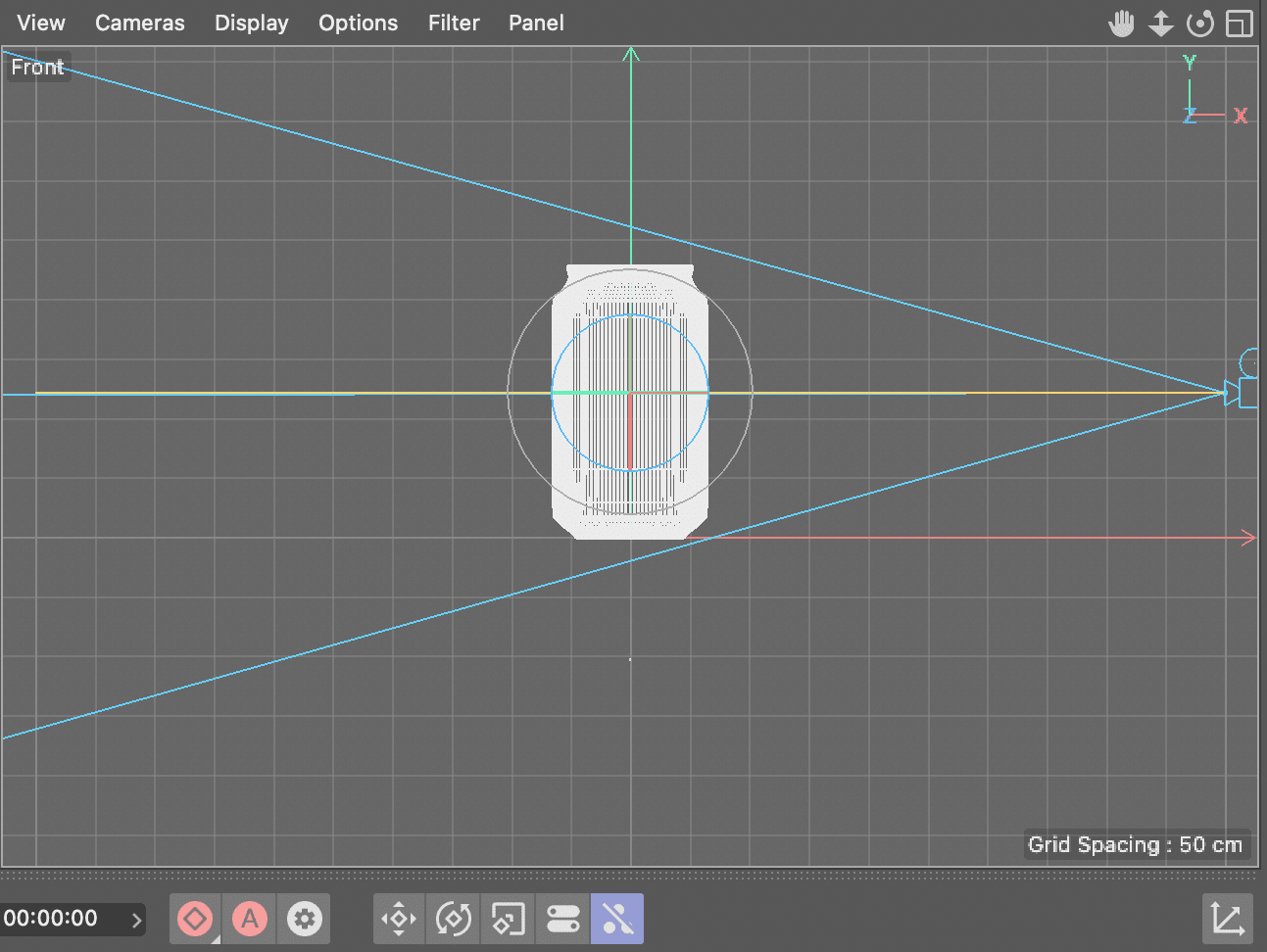
  3. In the Right viewport, hover your cursor over the blue rotation circle until it highlights in white, indicating it's ready for interaction.

    adjustCamMov01

  4. Drag the circle to adjust the camera path angle until you achieve a top-down view of the can in the Perspective viewport. In our example, an R.B value of -25 degrees produces the desired angle.

    adjustCamMov02

  5. Drag (scrub) the playhead across the Timeline to preview how your adjustment affects the camera animation throughout the sequence.

  6. Return the playhead to the timeline's beginning: 00:00:00

Understanding keyframe location and management is essential for controlling animations effectively. Let's explore how Cinema 4D organizes and displays animation data.

Locating Keyframes

Cinema 4D's Timeline displays keyframes only for currently selected objects, keeping the interface clean and focused. Keyframes appear as white rectangular indicators, and understanding their location helps you identify which elements control specific animations—essential knowledge for editing and troubleshooting animated scenes.

  1. In the Object Manager, click the Camera Path object to select it.

  2. Observe the Timeline—notice there are no visible keyframes (which would appear as white rectangles) because this spline object itself isn't directly animated.

  3. Let's check if the keyframes are stored on the camera itself. Click the Camera object to select it.

    • Again, no keyframes are visible here either, indicating the animation data is stored elsewhere.
  4. In the Object Manager, hover your cursor over the small icons positioned to the right of the Camera object. Helpful tooltips will appear, identifying each tag's specific function.

  5. Locate and click the icon labeled Align to Spline Expression. This reveals two white keyframe indicators on the timeline—one at 00:00:00 and another at 00:05:00—showing where the animation data is actually stored.

    NOTE: Similar to After Effects, keyframes can be repositioned by dragging them along the Timeline to adjust animation timing. They can also be copied, pasted, or deleted using Ctrl-click (Mac) or right-click (Windows) context menus.

  6. Now that we've identified the keyframe locations, we can modify or remove them as needed. For this exercise, we'll delete them entirely to create a different animation approach.

    Ensure the playhead is positioned at the timeline's beginning.

  7. In the Object Manager, click the Align to Spline Expression tag next to the Camera object to select it.

    Press Delete (Mac) or Backspace (Windows) to remove this animation constraint.

  8. In the Object Manager, click the Camera Path spline object to select it, then press Delete (Mac) or Backspace (Windows) to remove the path entirely.

  9. Press Cmd–S (Mac) or CTRL–S (Windows) or choose File > Save Project to preserve your progress.

With the camera constraint removed, we can now create a more dynamic animation by animating the soda can itself, which often produces more visually engaging results than camera movements.

Finding Animation Keyframes

1

Select Object

Click on an object in the Object Manager to reveal its keyframes as white rectangles on the Timeline

2

Check Tags

Hover over tag icons next to objects to find tooltips and locate expression tags that contain keyframes

3

Select Expression Tag

Click on tags like Align to Spline Expression to reveal their associated keyframes on the timeline

Animating Transform Properties

The previous camera-based animation was functional, but animating the product itself often creates more compelling and visually engaging results. Since the soda can is already positioned, scaled, and rotated appropriately for our animation's end state, we'll work backwards, creating the final keyframe first and then defining the starting position—a common professional technique for ensuring precise end results.

  1. Move the playhead to your desired ending keyframe position. For this exercise, position it at 1:00 (one second).

    NOTE: In Cinema 4D, typing 1 into the time field and pressing Return (Mac) or Enter (Windows) instantly moves the time indicator to the 1-second mark—a quick navigation technique for precise timing.

  2. In the Object Manager, click the Soda Can to select it.

    The Soda Can is a null object serving as the parent for the entire soda can model hierarchy, allowing unified control over all child elements.

    Animation Values Used in Exercise

    R.X Rotation
    360
    R.Z Rotation
    240
    Scale Start
    0
    Animation Duration
    1

What is a Null Object

A null object in Cinema 4D functions as an invisible organizational and control point within your 3D scene. These versatile elements serve as parent objects for grouping multiple scene elements, enabling simultaneous control of position, rotation, and scale across complex object hierarchies. Null objects are also invaluable as reference points for cameras and lights, simplifying the creation of sophisticated animations and lighting setups. They remain invisible in final renders, serving purely organizational and control purposes—think of them as invisible handles that allow you to manipulate multiple objects as unified groups, essential for maintaining organized, professional workflows in complex scenes.

  • In the Attribute Manager, click the Coordinates tab to access the object's transformation properties.

    sodaCan Attributes01

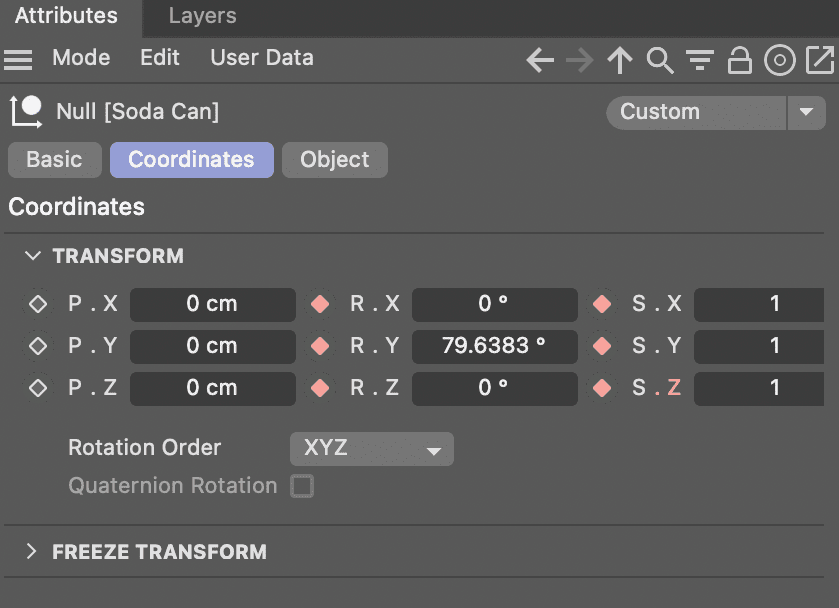
  • Change the Rotation Order menu to XYZ. While this doesn't affect the animation itself, it switches to a coordinate system more familiar to After Effects users, reducing confusion during the learning process.

  • Click the gray diamond keyframe gray icons next to the three Rotation attributes (R.X, R.Y, R.Z) and all three Scale attributes (S.X, S.Y, S.Z) to establish keyframes for the animation's end state.

    sodaCan Attributes02

  • Move the Time Indicator (equivalent to a playhead in video applications) to the timeline's beginning.

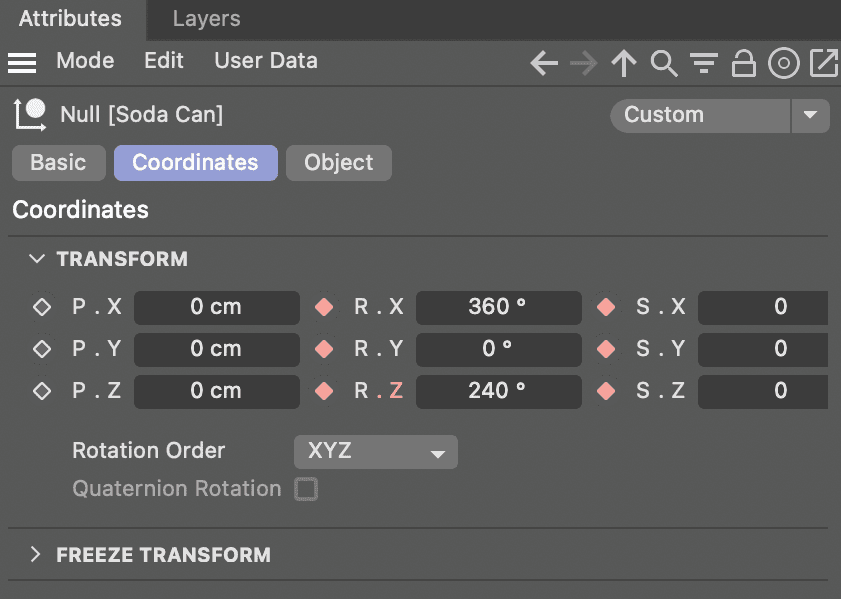
  • Enter the following attribute values to define the animation's dramatic starting state:

    Rotation Value Scale Value
    R.X 360 S.X 0
    R.Y 0 S.Y 0
    R.Z 240 S.Z 0
  • Click the diamond icons keyframe redOutline (red outlines indicate no keyframe exists at the current time) next to each modified attribute to create starting keyframes.

    sodaCan Attributes03

  • Press the Play Forwards button or F8 to preview your animation.

    Press Pause or F8 again to stop playback. Notice the can rotates and scales from its bottom edge—this occurs because the object's axis (equivalent to an anchor point in After Effects) is positioned at the base of the can.

  • Press Cmd–S (Mac) or CTRL–S (Windows) or choose File > Save Project to save your animation progress.

  • The animation looks dynamic, but the scaling behavior might not be ideal for all projects. Let's explore how to modify an object's axis to achieve different animation results.

    Understanding Null Objects

    Null objects are invisible placeholders that serve as control centers for organizing and manipulating multiple objects simultaneously. They act as parent objects without affecting the final render.

    Changing the Axis of an Object

    In Cinema 4D, an object's axis represents the fundamental point that determines how transformations affect the object. This pivot point controls the center of rotation, scaling, and serves as the origin for all transformational operations. Understanding and controlling axis placement is crucial for achieving professional animation results. The axis can be repositioned using Cinema 4D's Axis Modification mode, providing precise control over how objects behave during animation.

    1. Position the time indicator at any point after the can's animation completes to clearly see the fully formed object.

    2. Click the tool enableAxis button to enter axis modification mode, which allows you to reposition the object's pivot point.

    Modifying Object Axis

    1

    Enter Axis Mode

    Click the Enable Axis button to enter axis modification mode for precise pivot point control

    2

    Move Axis Point

    Use the Move tool to drag the axis point from its current location to the desired pivot position

    3

    Exit Axis Mode

    Click off the Enable Axis button to return to normal object manipulation mode

    Key Takeaways

    1Cinema 4D Lite is included free with After Effects and requires a Maxon ID for initial activation through the host application
    2The interface consists of six main areas: Tools Menu, Views & Viewports, Render Menu, Create Menu, Object & Take Managers, and Attribute & Layer Managers
    3Navigate viewports using 1-2-3 keys with mouse or on-screen controls for translate, zoom, and rotate functions
    4Transform objects using ERT shortcuts: E for Move, R for Rotate, T for Scale tools with immediate keyboard access
    5Keyframes appear as white rectangles on the Timeline and can be found on objects, tags, or expression elements
    6Null objects serve as invisible organizational tools and parent containers for controlling multiple objects simultaneously
    7Object axis points determine transformation pivot locations and can be modified in Axis Modification mode
    8External texture files like Photoshop documents can be edited live and reloaded for real-time material updates

    RELATED ARTICLES