Working with Imported Vector Layers
InDesign Layout Essentials
Master Pages
Recurring layout elements like page numbers, headers, footers.
Paragraph Styles
Reusable type formatting that scales across long documents.
Frames & Threading
Text flows between frames — the heart of multi-column layout.
Object Styles
Reusable formatting for image frames, callout boxes, sidebars.
Noble Desktop's Graphic Design Certificate covers InDesign alongside Photoshop and Illustrator.
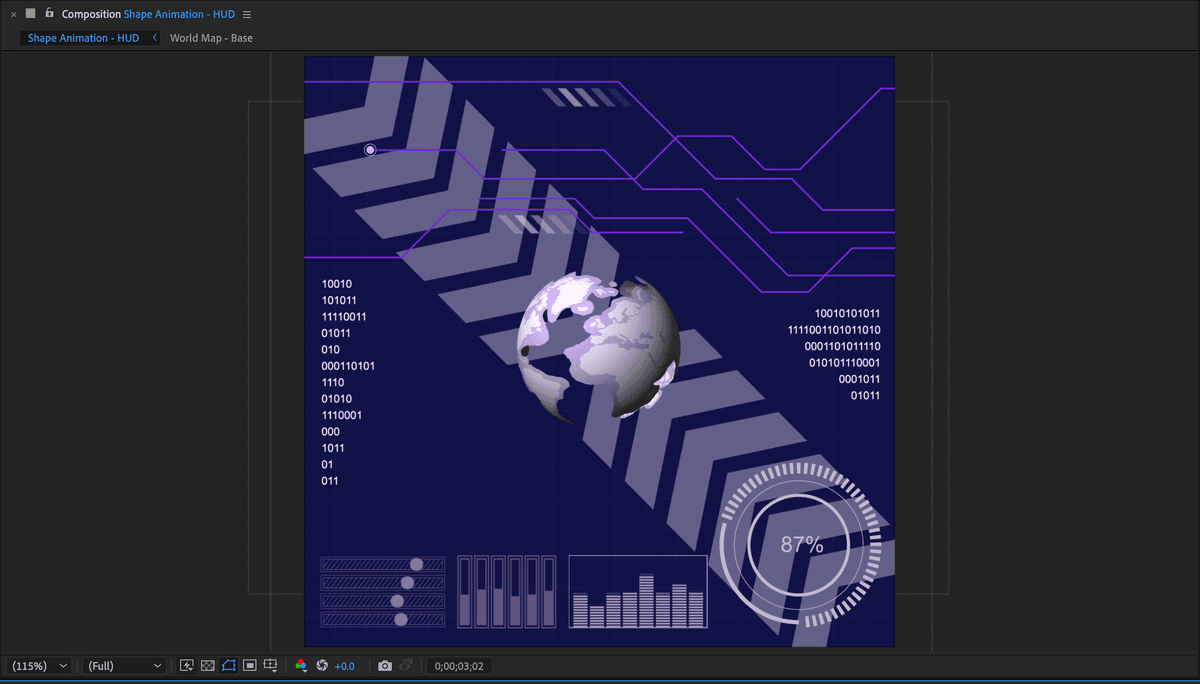
This tutorial provides an in-depth guide on how to animate imported vector layers in After Effects, including step-by-step instructions on creating shape layers, applying shape layer effects, and using the CC Sphere effect to turn a flat Adobe Illustrator file into a 3D sphere.
Exercise Preview
Animating Imported Vector Layers
In this part of the lesson, we are going to use the CC Sphere effect to turn a flat imported Adobe Illustrator file into a 3D sphere.
With the Shape Animation—HUD composition active, click off the eye
 icon next to the Chevron layer.
Click on the World Map layer and press Cmd–Shift–C (Mac) or CTRL–Shift–C (Windows) and in the Precompose dialog box:
- Change the name to World Map—Base
- Click on the radio button for Leave all attributes in ‘Shape Animation—HUD’
- Confirm all other switches are disabled.
- Click OK.
NOTE: You can also precompose a layer by right–clicking and choosing Pre–compose from the menu that appears or choosing Layer > Pre-compose.
Now with the World Map—Base composition layer selected go to the Effects & Presets panel and:
- Type Sphere into the Search field.
- Double–Click on the CC Sphere effect to apply it to the selected layer.
Lets adjust some of the effect’s properties. In the Effect Controls panel change the Radius to 150.
Click on the reveal arrow
 next to Light and:
- Change Light Intensity to 150
- Change Light Height to 55
- Change Light Direction to 0x+-45º
Click on the reveal arrow
next to Shading and:- Change Ambient to 20
- Change Diffuse to 70
Before you go any further, make sure the playhead is at the beginning of the Timeline.
We’re going to animate the CC Sphere effect and we want the animation to start at the beginning of the timeline.
In the Effect Controls panel, click on the reveal arrow
next to Rotation.We’re going to animate the Rotation Y property.
Make sure the Rotation Y property is 0x+0º and press its Time–vary stopwatch
 to create a keyframe.
Press U on the keyboard to reveal the new keyframe on the timeline.
NOTE: While keyframes can be created in the Effect Controls panel, they are only visible on the Timeline.
On the Timeline move the playhead to 02;00 (2 seconds).
In the Timeline, or in the Effect Controls panel change the Rotation Y value to 1x+0º
Hold Option (Mac) or ALT (Windows) and click on Rotation Y’s stopwatch to add an expression.
NOTE: Don’t forget to hold down the modifier key when clicking on the stopwatch. If you forget you will delete your existing keyframes.
Type loopOut(); into the Expression text field below the keyframes.
Press Cmd ~ (Mac) or CTRL ~ (Windows) to collapse the visible properties of the selected layer.
Press Spacebar to preview the Timeline.
- Press Spacebar again at any time to stop the preview.
In the Timeline, double–click on the World Map composition layer.
The CC Sphere effect is pinching the top and bottom of the map graphic. We can correct this by adjusting the dimensions of the nested comp.
With the World Map—Base composition now open, press Cmd–K (Mac) or CTRL–K (Windows) to open the Composition Settings dialog.
NOTE: You can also access Composition Settings by choosing Composition > Composition Settings.
Make sure the Lock Aspect Ratio switch is disabled and:
- Change the width to 1280
- Change the height to 900
- Click OK
Close the World Map—Base composition and return to the Shape Animation—HUD composition to see the change in the sphere.
NOTE: Depending on the effect you want, you may need to adjust the nested comp a few times until you are satisfied.
Save the project by choosing File > Save or pressing Cmd–S (Mac) or CTRL–S (Windows).
Shape Layers: Converting to AE Shapes and Animating
In this part of the lesson, we will convert an imported Illustrator vector layer into a native AE shape layer. This will give us access to each individual path in the graphic and also allow us to use some shape layer specific effects in AE. Then we will animate it using the Trim Path effect, which is exclusive to shape layers. The trim path effect allows us to “write on” a stroked path without having to create extra masks.
If You Did Not Do the Previous Exercise
If a project is open in After Effects, go to File > Save, then File > Close Project.
Choose File > Open Project and:
- Navigate to Desktop > Class Files > After Effects Advanced Class > Shape and Text Animation > Finished Projects.
- Double–click on HUD—Converting Imported.aep to open it.
Choose File > Save As > Save As and:
- Name the file Your Name—HUD.aep and
- Save it into Desktop > Class Files > After Effects Advanced Class > Shape Animation.
With the HUD—Your Name.aep file open, click on the Marker—Solid layer to select it and:
- Hold down Cmd (Mac) or CTRL (Windows)
- Click on Marker—Outline and Line Bundle to select them as well
Press Cmd–Shift–C (Mac) or CTRL–Shift–C (Windows) and in the Precompose dialog box:
- Change the name to Line Bundle—Animated
- Confirm all other switches are disabled.
- Click OK.
NOTE: The Leave all… option is disabled when precomposing multiple layers.
Double–click on the [Line Bundle—Animated] composition layer to open it.
Click off the eye
icons for the Marker—Solid and Marker—Outline layers to hide them.CTRL–click (Mac) or Right–click (Windows) on the Line Bundle layer and choose Create > Create Shapes from Vector Layers.
Click the reveal arrow
for the new Line Bundle Outlines layer and then:- Click the reveal arrow for the Contents group.
- Click the reveal arrow
Click the Add button across from Contents and choose Trim Paths, and then:
- Click the reveal arrow next to Trim Paths 1
- Click the reveal arrow
Move the playhead to the beginning of the Timeline and:
- Change the End property to 0
- Click the stopwatch for the End property to enable animation.
Move the playhead to 01;00 and change the End property to 100
CTRL–click (Mac) or Right–click (Windows) on the second keyframe and choose Keyframe Assistant > Easy Ease In.
Press Spacebar to preview the Timeline. All of the lines were created so that they start offscreen. But they don’t seem to be animating that way.
Choose View > Show Layer Controls to disable the bounding box and path previews in the composition.
Scrub the playhead back and forth to see which lines start in the wrong place.
- Click the eye icons for the various groups on and off until you can identify which lines don’t start their animation off screen.
HINT: Its Group 1 and Group 5
- Click the eye icons for the various groups on and off until you can identify which lines don’t start their animation off screen.
Click the reveal arrow
for Group 1 and:- Click the Reverse Path Direction On
 button.
- Click the Reverse Path Direction On
- Click the reveal arrow for Group 5 and:
- Click the Reverse Path Direction On button.
- Click the Reverse Path Direction On
Press Spacebar to preview the Timeline.
- Press Spacebar again at any time to stop the preview.
Doesn’t that look better with all the lines starting their animations off screen.
With the Line Bundle Outlines layer selected press Cmd~ (Mac) or CTRL~ (Windows) to collapse the visible properties.
Choose View > Show Layer Controls to reenable the bounding box and path previews in the composition.
Close the Line Bundle—Animated composition and return to the Shape Animation—HUD composition to see the change in the sphere.
Press Spacebar to preview the Timeline.
- Press Spacebar again at any time to stop the preview.
Save the project by choosing File > Save or pressing Cmd–S (Mac) or CTRL–S (Windows).
Shape Layers: the Bar Graphs
In this part of the lesson we will use imported graphics as a reference to create a native After Effects shape layers for the bar graph animation.
If You Did Not Do the Previous Exercise
If a project is open in After Effects, go to File > Save, then File > Close Project.
Choose File > Open Project and:
- Navigate to Desktop > Class Files > After Effects Advanced Class > Shape and Text Animation > Finished Projects.
- Double–click on HUD—Bar Graphs.aep to open it.
Choose File > Save As > Save As and:
- Name the file Your Name—HUD.aep and
- Save it into Desktop > Class Files > After Effects Advanced Class> Shape and Text Animation.
Click on the Graph—bar graphs layer and press Cmd–Shift–C (Mac) or CTRL–Shift–C (Windows) and in the Precompose dialog box:
- Change the name to Graph—bar graphs—Animated
- Click on the radio button for Leave all attributes in ‘Shape Animation—HUD’
- Turn on the Open New Composition switch.
- Click OK.
NOTE: You can also precompose a layer by right–clicking and choosing Pre–compose from the menu that appears or choosing Layer > Pre-compose.
In the Graph—bar graphs Animated timeline, right–click on the single layer there, choose Rename from the menu and:
- Change the layer name to Bar Graphs—Template
- Click Return (Mac) or Enter (Windows) to finalize the change.
- Press T to reveal the layers Opacity property and change it to 50
- Press T again to hide the Opacity property
- Click the lock switch
 located to the left of the layer name to on.
With the Timeline active, press .(period) on the keyboard a few times until you can easily see the template layer.
NOTE: You may have to switch the Resolution / Down Sample Factor popup to either Auto or Full to see the layer clearly.
In the Toolbar, click on the Rectangle
 tool to activate it and:
- Hold down Option (Mac) or ALT (Windows) and click on the Fill color box until it has the red none slash.
- Click on the Stroke color box and set the color to 62537E in the dialog box.
- Click OK to close the dialog.
- If necessary, set the stroke width to 2.
In the Composition panel drag a rectangle around the outline of the first bar graph.
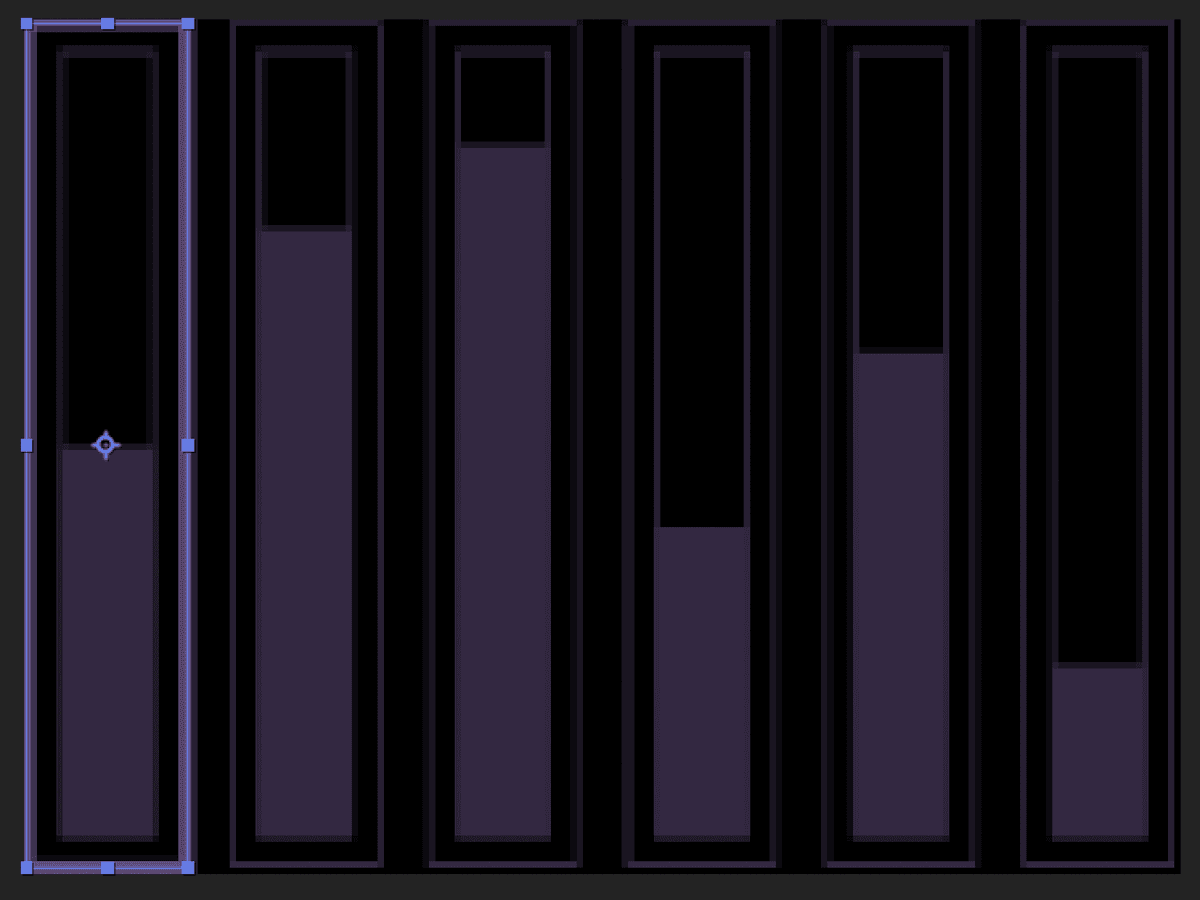
- In the Timeline, click on Rectangle 1 in the new shape layer’s Contents group and:
- Press Return (Mac) or Enter (Windows) and rename the shape Outline.
- Press Return (Mac) or Enter (Windows) again to finalize the change.
With the Outline shape selected press Cmd–D (Mac) or CTRL–D (Windows) to duplicate it and:
- Press Return (Mac) or Enter (Windows) and rename the new shape Inline.
- Press Return (Mac) or Enter (Windows) again to finalize the change.
Click the reveal arrow
for the Inline shape and then click the reveal arrow for Rectangle Path 1Click off the Constrain Proportions
 switch for Size and:
- Adjust the Width and height values until the shape matches the inline box. We used 16,120
- Collapse the Inline shapes properties when done.
With the Inline shape selected press Cmd–D (Mac) or CTRL–D (Windows) to duplicate it and:
- Press Return (Mac) or Enter (Windows) and rename the new shape Bar.
- Press Return (Mac) or Enter (Windows) again to finalize the change.
With the Bar shape selected change the Fill in the Tool bar to 62537E and set the Stroke to None.
In the Timeline, change the shape layer’s label color to Yellow. This will make it easier to complete the next couple steps.
Press Y or click on the Pan Behind
 tool in the Tools panel to activate it.
Back in the Timeline, locate the Transform:Bar property group. This is the transform properties of the individual shape and not the shape layer.
This will make the shapes Anchor Point, rather than the layer’s Anchor Point visible.
Use the Pan Behind tool to move the anchor point to the base of the shape.
NOTE: You may need to zoom in to see the bottom of the shape well enough to move the Anchor Point.
Open the Transform:Bar property group and:
- Click off the Constrain Proportions switch for Scale.
- Adjust the vertical Scale (that’s the second value) until the bar’s height matches the template. We used 50
- Do not collapse the properties, we will need to see them in the next step.
- Click off the Constrain Proportions
Save the project by choosing File > Save or pressing Cmd–S (Mac) or CTRL–S (Windows).
Randomizing Motion with an Expression
Now that we have the initial bar graph drawn out and set up the way we like, we’ll use the Wiggle() expression to randomize just the vertical scale. The Wiggle() expression allows us to vary any property value and is a great option when you want to create a semi–randomized or frenetic motion effect.
The Wiggle() Expression
The wiggle expression allows you to add randomness to any property. It can be applied to properties with or without keyframes and is a good way of having a property oscillate within a set range. The expression is written as; wiggle(X, y); where the first numerical value is the frequency (number of times per second to wiggle) and the second is the amplitude (the amount to vary by). So a wiggle expression that said wiggle(4,20), would wiggle 4 times per second within a range of 20 units from the starting value of the property.
In the Timeline you should be able to see the Transform:Bar property group.
Hold Option (Mac) or ALT (Windows) and click on Scale’s stopwatch to add an expression.
NOTE: Don’t forget to hold down the modifier key when clicking on the stopwatch. If you forget you will delete your existing keyframes.
In the Expression text field type:
myWig = wiggle(4,20);
[value[0], myWig[1]];- Click anywhere outside the Expression text field to finalize the expression.
NOTE: Since the scale property has two values and we only want to animate one of them we can’t just type in the wiggle() expression. We need to hold the expression in a variable, in this case myWig. The second line is used to assiggn the variable to only the vertical scale.
Collapse the properties of Shape Layer 1 by clicking it’s reveal arrow and:
- Rename the layer Bar 01
Make sure the Bar 01 layer is selected and press Cmd–D (Mac) or CTRL–D (Windows) to duplicate it, creating Bar 02.
Hold Shift and press the Right Arrow Key on the keyboard to move Bar 02 over until it lines up with the second bar in the template image.
It doesn’t have to be perfect, we’ll align it later.
Make sure the Bar 02 layer is selected and press Cmd–D (Mac) or CTRL–D (Windows) to duplicate it, creating Bar 03.
- Hold Shift and press the Right Arrow Key on the keyboard to move Bar 03 over until it lines up with the next bar in the template image.
- Complete this process until you have all six bars.
NOTE: We are going to use the distribute command to even out the spacing between the layers so only the position of the first and last bar really matter.
Turn off the eye
icon for the Bar Graphs—Template layer.Click on Bar 01 hold down Shift and click on Bar 06 to highlight all of the bar layers.
Choose Window > Align to open the Align panel and:
- Click the Distribute Horizontally
 button located in the second row of buttons.
- Click the Distribute Horizontally
Choose Window > Workspace > Reset “Standard” to Saved Layout
Press Cmd–K (Mac) or CTRL–K (Windows) to open the Composition Setting dialog and:
- Click on the Lock Aspect Ratio… button.
- Change the Comp with to 185
- Click OK to close the dialog.
This will give the bar graphic a little extra padding.
Close the Graph—bar graphs Animated composition and return to the Shape Animation—HUD.
- Press Spacebar to preview the Timeline.
- Press Spacebar again at any time to stop the preview.
Save the project by choosing File > Save or pressing Cmd–S (Mac) or CTRL–S (Windows).
Shape Layers: the Equalizer Graphs
In this part of the lesson we will use imported graphics as a reference to create a native After Effects shape layers for the equalizer graph animation. In addition to creating a base shape you will use a shape layer effect called Repeater. This effect allows you to make and animate multiple copies of a shape or shapes on a layer so you don’t have to draw them over and over again.
If You Did Not Do the Previous Exercise
If a project is open in After Effects, go to File > Save, then File > Close Project.
Choose File > Open Project and:
- Navigate to Desktop > Class Files > After Effects Advanced Class > Shape and Text Animation > Finished Projects.
- Double–click on HUD—Equalizer Graphs.aep to open it.
Choose File > Save As > Save As and:
- Name the file Your Name—HUD.aep and
- Save it into Desktop > Class Files > After Effects Advanced Class> Shape and Text Animation.
Click on the Graph—Equalizer layer and press Cmd–Shift–C (Mac) or CTRL–Shift–C (Windows) and in the Precompose dialog box:
- Change the name to Graph—Equalizer—Animated
- Click on the radio button for Leave all attributes in ‘Shape Animation—HUD’
- Confirm the Open New Composition switch is enabled.
- Click OK.
- In the Graph—Equalizer—Animated timeline, right–click on the single layer there, choose Rename from the menu and:
- Change the layer name to Equalizer—Template
- Click Return (Mac) or Enter (Windows) to finalize the change.
- Press T to reveal the layers Opacity property and change it to 50
- Press T again to hide the Opacity property
- Click the lock switch located to the left of the layer name to on.
With the Timeline active, press .(period) on the keyboard a few times until you can easily see the template layer.
NOTE: You may have to switch the Resolution / Down Sample Factor popup to either Auto or Full to see the layer clearly.
- In the Toolbar, click on the Rectangle tool to activate it and:
- Hold down Option (Mac) or ALT (Windows) and click on the Fill color box until it has the red none slash.
- Click on the Stroke color box and set the color to A198B2 in the dialog box.
- Click OK to close the dialog.
- If necessary, set the stroke width to 2.
In the Composition panel drag a rectangle around the outline around the entire graph.
- In the Timeline, click on the Shape Layer 1 layer and:
- Press Return (Mac) or Enter (Windows) and rename the layer Outline.
- Press Return (Mac) or Enter (Windows) again to finalize the change.
- If necessary hide any visible properties of the Outline layer.
- Click on the lock icon for this layer.
With the Rectangle tool active, set the Fill color to A198B2 and the Stroke to None.
Draw a rectangle at the base of the first column of bars.
Click on the Shape layer’s name and then:
- Press Return (Mac) or Enter (Windows) on the keyboard and rename the layer Column 1.
- Press Return (Mac) or Enter (Windows) again to finalize the name change.
Click on the Add button across from the Contents group and choose Repeater.
- Click the reveal arrow for the Repeater and:
- Click the reveal arrow for Transform: Repeater 1
- Change the Position so that the first value (horizontal) is 0
- Change the second position value (vertical) to a negative number so that the bars approximate the template. We used -5
Hold Option (Mac) or ALT (Windows) and click on the stopwatch
next to the Copies property in the Repeater.We are going to randomize the number of repeated copies to get the bar to animate.
Type the following expression into the text field:
random(10,14);
Click outside the text field to finalize the expression.
The first value in the function is the minimum value to use while the second is the maximum. The random function will assign a number between the two listed inside its parenthesis on each frame of the animation.
- Press Spacebar to preview the Timeline.
- Press Spacebar again at any time to stop the preview.
The random line animation is a little too fast.
Click back into the text field and type the following above the current expression line:
posterizeTime(6);
Click outside the text field to finalize the expression.
The posterizeTime() function sets the frame rate for an expression. It is very helpful for controlling the speed of randomized animations like this.
Click the reveal arrow for the Column 1 layer to hide all it’s visible properties and:
- Press Cmd–D (Mac) or CTRL–D (Windows) to duplicate it.
With the Column 2 layer active, hold Shift and press the Right Arrow key on the keyboard to move Column 02 over until it lines up with the second column in the template.
It doesn’t have to be perfect, we’ll align it later.
- Repeat the duplication process until you have all 8 columns.
- When you have all 8 column layers created select them all by pressing Cmd–A (Mac) or CTRL–A (Windows) and:
- Choose Window > Align
- Press the Distribute Horizontally button located in the second row of buttons.
- Press Cmd–Shift–A (Mac) or CTRL–Shift–A (Windows) to deselect the layers and:
- Choose Window > Workspace > Reset “Standard” to Saved Layout
- Click on the Column 2 layer and press EE to reveal the layer’s expressions and:
- With your Selection tool, drag the bottom of the expression text field down until you can see both lines.
- Change the two numbers in the random() function to 8 and 16
- Click outside the text field to finalize the expression.
- Repeat this process or any of the other layers you want to adjust. We don’t suggest you exceed 20 with the maximum value in the function.
- You can also vary the posterizeTime() value if you want to change the speed of one of the columns.
Click off the eye for the template layer.
Hide any visible properties of the layers.
- Press Spacebar to preview the Timeline.
- Press Spacebar again at any time to stop the preview.
Close the Graph—Equalizer—Animated composition and return to the Shape Animation—HUD composition to see the change in the sphere.
- Press Spacebar to preview the main Timeline.
- Press Spacebar again at any time to stop the preview.
Save the project by choosing File > Save or pressing Cmd–S (Mac) or CTRL–S (Windows).
Shape Layers: Animating Repeated Shapes
In this exercise you will convert an imported vector layer, clean it up and animate the shape layer using the repeater effect.
If You Did Not Do the Previous Exercise
If a project is open in After Effects, go to File > Save, then File > Close Project.
Choose File > Open Project and:
- Navigate to Desktop > Class Files > After Effects Advanced Class > Shape and Text Animation > Finished Projects.
- Double–click on HUD—Slanted Lines.aep to open it.
Choose File > Save As > Save As and:
- Name the file Your Name—HUD.aep and
- Save it into Desktop > Class Files > After Effects Advanced Class> Shape and Text Animation.
Click on the Hatched Lines 01 layer and press Cmd–Shift–C (Mac) or CTRL–Shift–C (Windows) and in the Precompose dialog box:
- Change the name to Hatched Lines—Animated
- Click on the radio button for Leave all attributes in ‘Shape Animation—HUD’
- Confirm the Open New Composition switch is enabled.
- Click OK.
In the Hatched Lines—Animated timeline, press .(period) on the keyboard a few times until you can easily see the template layer.
NOTE: You may have to switch the Resolution / Down Sample Factor popup to either Auto or Full to see the layer clearly.
- Press Cmd–K (Mac) or CTRL–K (Windows) and in the Composition Settings dialog:
- Confirm the Lock Aspect Ration… switch is enabled.
- Change the Comp width to 275
- Click OK
CTRL–click (Mac) or Right–click (Windows) on the layer and choose Create > Create Shapes from Vector Layer
- CTRL–click (Mac) or Right–click (Windows) on the shape layer and choose Rename from the menu and:
- Change the layer name to Slanted Lines
- Click Return (Mac) or Enter (Windows) to finalize the change.
Click the reveal arrow
on the Slanted Lines layer and then click the reveal arrow for the Contents group. NOTE: There were 8 graphics in the original Illustrator layer. They have been converted into 8 After Effects shapes here and named Group 1 to Group 8.- Click on the different shapes (the ones named group) to see which one is which in the Composition panel. We want to keep the one furthest to the right and get rid of the rest.
- Click on Group 2
- Hold Shift and click on Group 8 to select them all.
- Press Delete (Mac) or Backspace (Windows) on your keyboard to delete them.
Hold Cmd (Mac) or CTRL (Windows) and double–click on the Pan Behind
tool to center the layer’s anchor point to the layer’s content.Click the Add button across from Content and choose Repeater from the list.
Click the reveal triangle for Repeater 1 and then change the number of copies to 8.
- Click the reveal for the Transform:Repeater 1 group and:
- Change the first position value until all 8 copies are spread across the composition. We used -30
- Change the Start Opacity to 10
- Move the playhead to 01;00 on the Timeline and:
- Click the Stopwatch next to Copies to create a keyframe.
- Move the playhead back the beginning of the Timeline.
- Change the Copies property to 0
- Click the Stopwatch
- Hold Option (Mac) or ALT (Windows) and press the Stopwatch for Copies to add an expression and:
- Add loopOut(“cycle”); into the expression text field.
- Click outside of the text field to finalize the expression.
NOTE: The O in Out is capitalized.
Click the reveal arrow for Slanted lines to hide its visible properties.
- Press Spacebar to preview the Timeline.
- Press Spacebar again at any time to stop the preview.
Close the Hatched Lines—Animated composition and return to the Shape Animation—HUD composition to see the change in the sphere.
- Press Spacebar to preview the main Timeline.
- Press Spacebar again at any time to stop the preview.
The lines are a little too fast, we’ll fix that in the nested comp.
- Press Spacebar again at any time to stop the preview.
Double–click on the Hatched Lines 01 comp layer to open it.
In the Hatched Lines—Animated comp, click on any empty are of the timeline to make sure notion is selected and press U to reveal all keyframes.
- Move the playhead to 02;00 and:
- Drag the second keyframe to the playhead.
NOTE: As the keyframes gets close to the playhead, press and hold Shift to activate snapping.
- Select both keyframes by clicking on the property name Copies and then:
- Right–click on one of the keyframes and choose Keyframe Assistant > Easy Ease or press F9.
- Hide the layer’s properties.
Close the Hatched Lines—Animated composition and return to the Shape Animation—HUD composition to see the change in the sphere.
- Press Spacebar to preview the main Timeline.
- Press Spacebar again at any time to stop the preview.
Move the playhead to 02;00 on the main timeline so you can see all of the hatched lines.
Lets rename this layer.
- Press Cmd–D (Mac) or CTRL–D (Windows) to duplicate the layer and:
- With the Selection tool, drag the new Hatched Lines 03 layer so it lines up the Hatched Lines 02 illustrator layer.
NOTE: You can use the arrow keys on the keyboard to nudge a layer one pixel at a time.
- Select the Hatched Liens 02 and delete it and then:
- Click on the Hatched Lines 03 layer and rename it Hatched Lines 02
Save the project by choosing File > Save or pressing Cmd–S (Mac) or CTRL–S (Windows).