April 1, 2026Jerron Smith/12 min read

Creating an Infographic Animation

Master Infographic Animation with Adobe After Effects

What You'll Learn

Adobe Integration

Seamlessly import and work with Adobe Illustrator files in After Effects while preserving layer structure and layouts.

Animation Techniques

Master scale, position, and effect-based animations to create professional infographic presentations.

Workflow Optimization

Learn efficient timeline organization and keyframe management for complex multi-element animations.

Topics Covered in This After Effects Tutorial:

Working with Adobe Illustrator Files, Converting Illustrator Layers into Native Shape Layers, Trim Paths

Exercise Preview

preview infographic

Animation Sequence Breakdown

Phase 1

Scale Animation

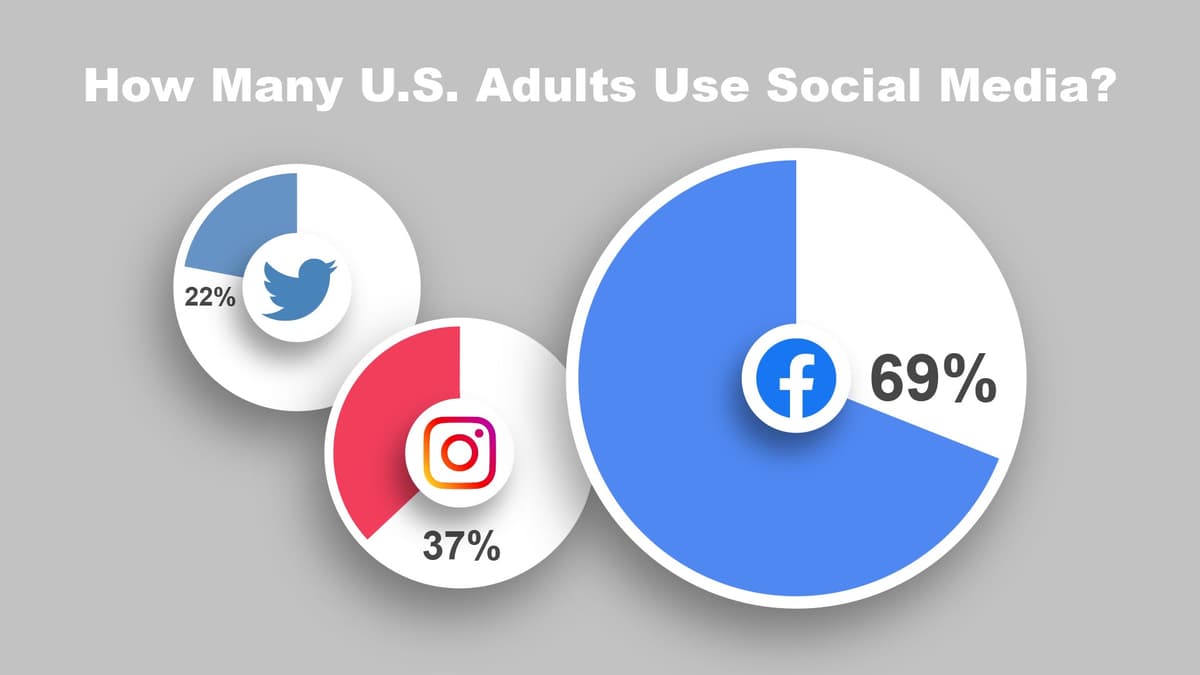
Circle and logo scale up with overshoot for dynamic effect

Phase 2

Path Drawing

Colored area draws along predefined path using radial wipe

Phase 3

Text Reveal

Percentage text slides out from behind logo with position animation

Exercise Overview

In this comprehensive exercise, you'll master the art of animating an infographic using a professionally designed Adobe Illustrator file. This multi-scene animation project focuses specifically on bringing the second scene to life with dynamic motion graphics that capture and retain viewer attention.

Adobe Illustrator maintains a powerful, seamless integration with After Effects that motion graphics professionals rely on daily. Layered Illustrator files import directly into After Effects as fully-structured compositions, automatically preserving layer hierarchy, naming conventions, and spatial relationships. This workflow eliminates tedious reconstruction work and allows you to focus entirely on what matters most: creating compelling animations that communicate effectively.

Previewing the Final Video

  1. Let's examine the final result you'll create. If After Effects is currently open, keep it running but navigate to your Desktop.

  2. On the Desktop, navigate to Class Files > After Effects Class > Infographic Animation > Preview Movie and double–click infographic screen 2.mp4.

  3. Study how each social media chart employs consistent animation principles:

    • The circle and logo elements scale up with deliberate overshoot, creating engaging bounce effects that draw attention without feeling amateurish.
    • The colored progress areas draw smoothly along their paths, creating satisfying reveal animations that guide the viewer's eye.
    • The percentage text slides out from behind the logo using precise position animation, creating layered reveal effects.
  4. Review the video multiple times to internalize the timing and sequencing, then close it when you're ready to proceed.

Setting up the Workspace

Establishing a consistent workspace configuration ensures predictable tool placement and optimal productivity throughout your animation workflow.

  1. Launch Adobe After Effects.

  2. Go to Window > Workspace > Standard.

  3. To ensure interface consistency across different systems, go to Window > Workspace > Reset "Standard" to Saved Layout.

  4. If the After Effects window doesn't fill your screen, maximize it for optimal viewing:

    Mac: At the top left of the window, click the green button (the third button).
    Windows: At to the top right of the window, click the Maximize button (the middle button).

Workspace Configuration

1

Launch After Effects

Open Adobe After Effects and navigate to Window > Workspace > Standard

2

Reset Layout

Go to Window > Workspace > Reset Standard to Saved Layout for consistency

3

Maximize Window

Click green button on Mac or maximize button on Windows for full screen view

Creating a Dummy Comp & Importing an Illustrator File

When importing Illustrator and Photoshop files as compositions, After Effects inherits dimensions from the source AI or PSD file while applying composition settings (duration, frame rate, etc.) from your most recent project. Creating a dummy composition first ensures your imported files use the correct specifications from the start, eliminating tedious adjustments later.

  1. Choose Composition > New Composition, press Cmd–N (Mac) or CTRL–N (Windows), or click the New Composition button in the Composition panel.

  2. Configure the following settings before clicking OK:

    • From the Preset menu choose HD • 1920x1080 • 29.97 fps
    • Verify Resolution is set to Full.
    • For Duration type 1500 and hit Tab to set it to 0;00;15;00 (15 seconds).
    • Click OK to create the composition.
  3. In the Project panel, click on Comp 1 and hit Delete (Mac) or Backspace (Windows) to delete it.

    This dummy composition has served its purpose by establishing the frame rate and duration settings for our upcoming Illustrator import.

  4. Choose File > Import > File or hit Cmd–I (Mac) or CTRL–I (Windows).

  5. Navigate to Desktop > Class Files > After Effects Class > Infographic Animation > Media > images.

  6. Click once on infographic screen 2.ai to select it and configure the import settings:

    • Set Import As to Composition—Retain Layer Sizes.
    • Uncheck the Illustrator/PDF/EPS Sequence switch.
    • Click Open (Mac) or Import (Windows).

    NOTE: Importing Illustrator or Photoshop documents as compositions transforms static design files into dynamic After Effects compositions, preserving sophisticated layer structures, naming conventions, and positioning so you can concentrate entirely on crafting compelling animation.

  7. In the Project panel, double–click on the infographic screen 2 comp to open it.

  8. Choose File > Save As > Save As and:

    • Navigate to Desktop > Class Files > After Effects Class > Infographic Animation.
    • Name the file Your Name—Infographic Animation.aep
    • Click Save.
Import Settings Configuration

Create a dummy composition first to establish proper duration, framerate, and resolution settings before importing Illustrator files. This ensures your imported composition inherits the correct project specifications.

Recommended Composition Settings

Resolution
1,920
Height
1,080
Frame Rate
30
Duration (seconds)
15

Organizing the Timeline

Proper layer organization transforms chaotic timelines into manageable, professional workflows. Color-coding and strategic visibility controls allow you to focus on specific elements while maintaining awareness of the overall composition structure.

  1. In the Timeline click on the Facebook Logo layer.

    • Hold Shift and click on the Facebook Circle layer to select all layers in the Facebook group.

    • Click the color box in the Label column label color next to any highlighted layer and choose Blue.

  2. Select the Instagram Logo layer.

    • Hold Shift and click on the Instagram Circle layer to select all Instagram-related layers.

    • Apply the Red label color using the same method.

  3. Select the X (formerly known as Twitter) Logo layer.

    • Hold Shift and click on the X Circle layer to select all X platform layers.

    • Apply the Purple label color.

  4. Select the Headline layer and apply the Yellow label color.
  5. Select the X Logo layer and extend the selection down to the background layer.

    • Locate the Solo switch column solo switch (positioned between the eye eye icon and layer name) and click to activate solo mode for these layers.
  6. Press Cmd–Shift–A (Mac) or CTRL–Shift–A (Windows) to deselect all layers.
  7. Turn OFF the Solo switches for the 22% and X Wedge layers specifically.

    This configuration isolates the primary elements we'll animate first, reducing visual clutter and improving focus.

Layer Organization System

Facebook Elements

Logo and circle layers labeled with blue color coding for easy identification and grouping.

Instagram Elements

Logo and circle layers labeled with red color coding to distinguish from other social platforms.

X (Twitter) Elements

Logo and circle layers labeled with purple color coding for clear visual separation.

Animating Scale & Position

Scale animations with strategic overshoot create engaging, professional motion that captures attention without overwhelming the message. This fundamental technique appears throughout high-end motion graphics work.

  1. Select the X Circle layer.
  2. Press S to reveal the layer's Scale property.
  3. Move the playhead to 0;15 and:

    • Click the stopwatch stopwatch next to Scale to enable keyframe animation.
  4. Move the playhead to the beginning of the timeline and:

    • Set the Scale value to 0 to create the starting state.
  5. Move the playhead to 0;09 and:

    • Change Scale to 125 to create the overshoot effect.
  6. Locate the Preview panel on the right side of your interface.

    If the panel appears collapsed, expand it by dragging the bottom divider downward to reveal all preview options.

  7. In the Preview panel, set Play From to Start of Range for consistent playback behavior.
  8. Return the Preview panel to an appropriate size by adjusting the dividers.

  9. Press Spacebar to preview the animation and observe the circle's motion characteristics.

    The current overshoot may feel mechanically harsh. Press Spacebar again to stop playback.

  10. CTRL–click (Mac) or Right–click (Windows) on the middle keyframe and choose Keyframe Assistant > Easy Ease. Alternatively, press F9 or fn–F9.

  11. Use Spacebar to preview again. The Easy Ease creates more natural, appealing motion curves.
  12. Click directly on the X Circle layer's Scale property name to select all associated keyframes (they'll appear as highlighted blue diamonds).
  13. Copy the keyframes using Edit > Copy or Cmd–C (Mac) / CTRL–C (Windows).

  14. Move the playhead to 0;09 (the middle keyframe position).

    TIP: Use J and K keys for efficient keyframe navigation—J moves to the previous keyframe, K advances to the next.

  15. Select the X Logo layer.
  16. Paste the animation using Edit > Paste or Cmd–V (Mac) / CTRL–V (Windows).

    The keyframes will position themselves starting at your current playhead location.

  17. Press U to reveal all keyframed properties on the selected X Logo layer.

  18. Preview the complete animation using Spacebar.

    The staggered timing between circle and logo creates sophisticated layered motion that feels intentional and polished rather than coincidental.

Scale Animation Workflow

1

Set Initial Keyframe

Move playhead to 0:15 and click stopwatch next to Scale property to enable animation

2

Create Starting State

Move to timeline beginning and change scale value to 0 for invisible start state

3

Add Overshoot

Move to 0:09 and set scale to 125% to create dynamic overshoot effect

4

Apply Easing

Right-click middle keyframe and choose Easy Ease for smoother animation curve

Animating with Effects: Radial Wipe

Effects in After Effects extend far beyond simple visual enhancements—they're powerful animation tools that can create entirely new layer behaviors. The Radial Wipe effect transforms static graphics into dynamic progress indicators that communicate data clearly and engagingly.

  1. Select the X Wedge layer.

  2. Click the layer's solo switch solo switch to make it visible again.

  3. Position the playhead at the timeline beginning 00;00.

  4. In the Effects & Presets panel, type radial wipe in the search field.

    IMPORTANT: Select the effect listed under Transition category. Avoid similarly-named presets which may have different behaviors.

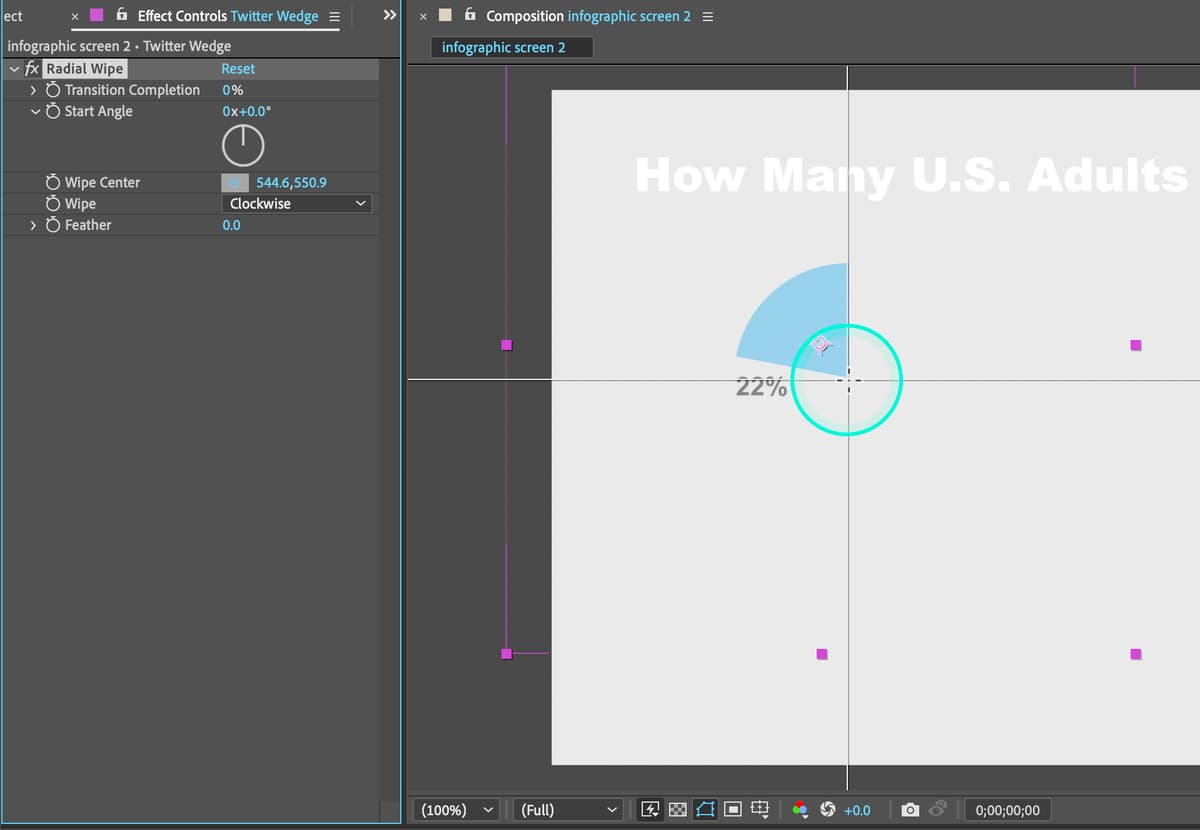
  5. Double–click Radial Wipe (Transition > Radial Wipe) to apply it to the selected layer.

    This should automatically open the Effect Controls panel. If it doesn't appear, manually open it via Window > Effect Controls.

  6. In the Effect Controls panel, configure the Wipe Center property:

    • Click the Point Selector tool pointSelector effect.
    • In the Composition panel, click precisely at the base of the wedge shape.

      radialWipe01

  7. Set Transition Completion to 100% and click its stopwatch stopwatch to create the ending keyframe.

  8. Press U to reveal the Transition Completion property directly in the Timeline panel.

    The U key is invaluable for quickly displaying all animated properties on selected layers.

  9. Change Transition Completion to 0 to establish the starting state.

    If the preview shows the wedge wiping in multiple directions, fine-tune the Wipe Center position for cleaner directional animation.

  10. Move the playhead to 00;15 (15 frames).

  11. With the X Wedge layer selected, press the left bracket [ key to slide the layer's In Point to the current playhead position.

  12. Save your progress with File > Save or Cmd–S (Mac) / CTRL–S (Windows).

Radial Wipe Effect

The Radial Wipe effect creates smooth path-drawing animations by transitioning from 0% to 100% completion. Set the wipe center at the base of your wedge for natural drawing motion.

Radial Wipe Setup

0/4

Animating Transform Properties: Position

Position animation creates dynamic reveal effects that add sophisticated layering to your motion graphics. This technique simulates elements emerging from behind other objects, creating depth and visual hierarchy that guides viewer attention strategically.

  1. Move the playhead to 0;25.
  2. Activate the solo switch for the 22% layer to make it visible.
  3. Select the 22% layer.
  4. Press P to reveal the Position property.
  5. Click the Position stopwatch stopwatch to create the ending position keyframe.

    This establishes where the text will finish its animation journey.

  6. Move the playhead to 0;20.

  7. Drag the first Position value rightward until the percentage text disappears behind the X logo.

    A value around 430 typically works well, but prioritize visual positioning over exact numbers.

  8. Press Option–[ (Mac) or ALT–[ (Windows) to trim the layer's start point to the current playhead position.

    This prevents the percentage from appearing prematurely, maintaining the illusion of emergence from behind the logo.

  9. Preview the complete X platform animation using Spacebar.

    You've now created a sophisticated, multi-layered animation sequence with professional timing and appeal.

  10. Save your work with File > Save or Cmd–S (Mac) / CTRL–S (Windows).

Optional Bonus Exercises

The following sections demonstrate advanced workflow techniques for efficiently replicating animations across multiple elements. These bonus exercises showcase industry-standard approaches to scaling animation work without compromising quality or consistency. Complete these if you finish early or want to master professional After Effects productivity techniques.

Optional Bonus: Copying Animations to Other Layers

Professional motion graphics workflows rely heavily on intelligent reuse of successful animation patterns. Rather than recreating identical movements manually, experienced animators leverage copy-paste techniques to maintain consistency while maximizing efficiency. This approach ensures visual cohesion across complex compositions.

  1. Disable all solo switches solo column for the X layers to restore full composition visibility.

  2. Select all X layers (purple-labeled elements) and:

    • Press Cmd ~ (Mac) or CTRL ~ (Windows) to collapse all property displays.
    • Press U to reveal only the animated keyframes across all selected layers.
  3. Turn off solo mode for the Headline and background layers to ensure complete composition visibility.

  4. On the X Circle layer, click directly on the Scale property name to select all associated keyframes.

  5. Copy the keyframes using Cmd–C (Mac) or CTRL–C (Windows).
  6. Select the Instagram Circle layer.
  7. Add the Facebook Circle layer to your selection by holding Cmd (Mac) or CTRL (Windows) while clicking.
  8. Position the playhead at the timeline beginning.
  9. Paste the animation using Cmd–V (Mac) or CTRL–V (Windows).

    The keyframes will automatically position themselves starting at your current playhead location.

  10. Move the playhead to 0;09 to align with the logo animation timing.
  11. Select both the Instagram Logo and Facebook Logo layers using the same multi-select technique.
  12. Paste the scale animation to these logo layers.
  13. Preview the animation using Spacebar.

    All circles and logos should now animate with perfect synchronization, creating a cohesive, professional presentation. Only the colored wedge animations and percentage text remain to complete the full sequence.

Animation Replication Process

1

Select Source Keyframes

Click on Scale property name to highlight all keyframes for the animated element

2

Copy Animation Data

Use Cmd+C (Mac) or Ctrl+C (Windows) to copy the selected keyframe information

3

Position Playhead

Move playhead to desired start time for the new animation sequence

4

Paste to Target Layers

Select target layers and paste keyframes to apply identical animation timing

Optional Bonus: Animating the Remaining Colored Wedges

Effect-based animations can be efficiently replicated across multiple layers, maintaining consistent behavior while adapting to different graphic elements. This technique demonstrates how professional animators maintain visual consistency across complex, multi-element compositions.

  1. Select the X Wedge layer in the Timeline.

  2. Press E to reveal all applied Effects on the selected layer.

  3. Click directly on the Radial Wipe effect name and copy it using Edit > Copy or Cmd–C (Mac) / CTRL–C (Windows).

  4. Ensure the playhead is positioned at the timeline beginning 00;00.

  5. Select the Instagram Wedge layer and paste the effect using Cmd–V (Mac) or CTRL–V (Windows).

    The Radial Wipe effect will apply with identical settings, though you may need to adjust the Wipe Center position for optimal results on this specific graphic.

  6. Repeat the pasting process for the Facebook Wedge layer.

  7. For each wedge layer, fine-tune the Wipe Center position using the Point Selector tool to ensure the animation originates from the appropriate location on each graphic.

  8. Adjust the timing of each wedge layer's In Point using the bracket keys to create subtle staggering effects if desired.

  9. Copy and paste the position animation from the 22% layer to the corresponding percentage text layers for Instagram and Facebook, adjusting start positions as needed to create proper behind-logo emergence effects.

  10. Preview your complete infographic animation.

    You should now have a fully animated, professional-quality infographic with synchronized scaling, coordinated radial wipes, and smooth text reveals across all three social media platforms. This represents the kind of polished motion graphics work that effectively communicates data while maintaining viewer engagement throughout the entire sequence.

Key Takeaways

1Adobe Illustrator files can be imported as compositions in After Effects while preserving layer structure and layout automatically
2Creating dummy compositions before importing establishes proper framerate, duration, and resolution settings for your project
3Color-coding layers by category significantly improves timeline organization and workflow efficiency during animation
4Scale animations with overshoot values like 125% create more dynamic and appealing motion graphics effects
5Easy Ease keyframe interpolation smooths animation transitions and creates more professional-looking motion
6Radial Wipe effects enable path-drawing animations by animating transition completion from 0% to 100%
7Copying and pasting keyframes between layers maintains consistent timing across multiple animated elements
8Solo switches allow focused work on specific layer groups while hiding unnecessary elements during animation

RELATED ARTICLES