April 1, 2026Jerron Smith/10 min read

Social Media Ad: Video Layers & Parenting

Master After Effects Video Layers and Parenting Techniques

Key Skills You'll Master

Video Integration

Learn to seamlessly blend real video footage with motion graphics for more realistic atmospheric effects. Master the art of transforming raw footage into compelling visual elements.

Advanced Animation Control

Discover parenting techniques to animate multiple layers simultaneously. Create complex movements with precision while maintaining individual layer properties.

Professional Effects

Apply color correction, blending modes, and time manipulation to achieve cinematic quality results. Transform simple footage into polished visual effects.

Topics Covered in This After Effects Tutorial:

Adding Video Elements, Creating Slow Motion Effects, and Orchestrating Multiple Layer Animations with Parenting

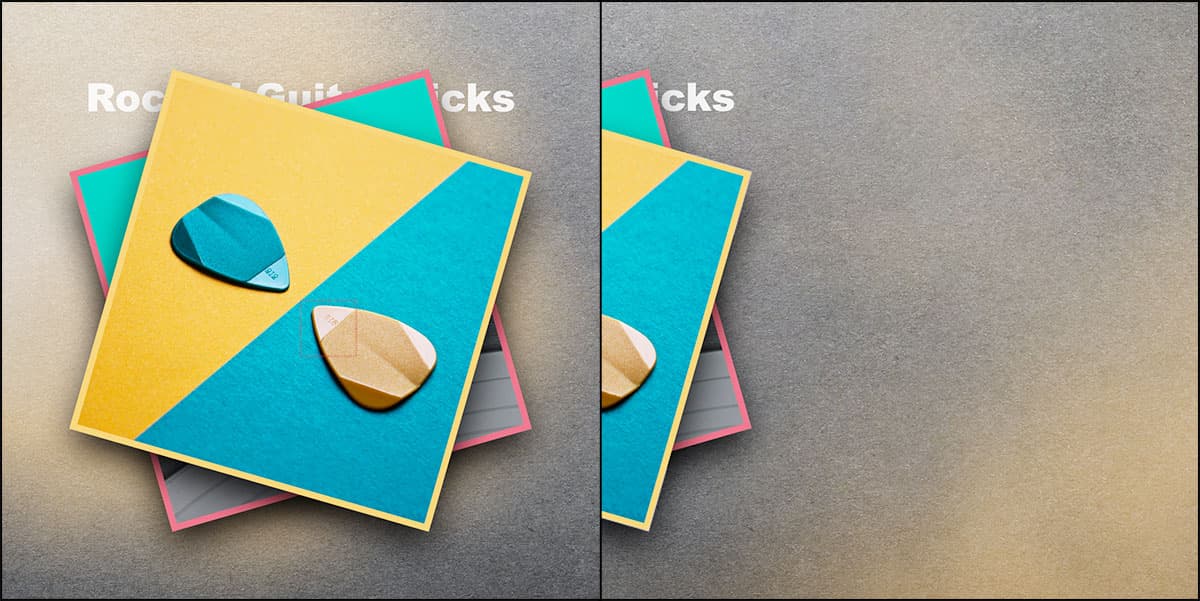
Exercise Preview

preview video layers

Prerequisites

This tutorial builds on exercises 1B-1D. If you haven't completed them, you'll need to start with the provided 'Guitar Picks—Ready For Video.aep' file to follow along effectively.

Exercise Overview

In this exercise, you'll integrate real video footage into your animation and master the art of animating multiple layers simultaneously using After Effects' powerful parenting feature. These techniques form the foundation of professional motion graphics workflows, allowing you to create complex, coordinated movements with precise control.

Getting Started

  1. You should still have Your Name—Guitar Picks.aep open in After Effects. If you closed it, re-open it now by going to File > Open Project then Desktop > Class Files > After Effects Class > Guitar Picks. We strongly recommend completing the previous exercises (1B–1D) before proceeding, as this exercise builds directly on those foundational skills. If you haven't finished them, follow the sidebar instructions below.

    Project Setup Process

    1

    Open Your Project

    Navigate to File > Open Project, then locate Desktop > Class Files > After Effects Class > Guitar Picks to open your existing work.

    2

    Verify Prerequisites

    Ensure you have completed exercises 1B-1D, or follow the alternative setup instructions to use the provided ready-to-go project file.

    3

    Prepare Timeline

    Position your playhead at the beginning and prepare to work with the video assets in the 03—Video folder.

If You Did Not Do the Previous Exercises (1B–1D)

  1. If a project is open in After Effects, go to File > Save, then File > Close Project.
  2. Go to File > Open Project and navigate to Desktop > Class Files > After Effects Class > Guitar Picks > Finished Projects.
  3. Double–click on Guitar Picks—Ready For Video.aep.
  4. Go to File > Save As > Save As. Name the file Your Name—Guitar Picks.aep and save it to Desktop > Class Files > After Effects Class > Guitar Picks (replacing the file if it's already there).

Adding a Smoke Effect with a Video Layer

While After Effects offers sophisticated particle systems and procedural effects, incorporating real-world video footage often produces more authentic and visually compelling results. This hybrid approach—combining live-action elements with motion graphics—is a hallmark of professional post-production workflows. In this section, we'll transform simple particle footage into dynamic atmospheric effects that enhance your composition's visual impact.

  1. Move the playhead to the beginning of the Timeline.

  2. In the Project panel, expand the 03—Video folder to reveal its contents.

  3. Drag Blowing Particles.mp4 into the Timeline above the Rockin' Guitar Picks layer. This placement ensures our smoke effect will render in front of the existing elements.

  4. Press Return (Mac) or Enter (Windows) and rename the layer smoke
  5. Press Return (Mac) or Enter (Windows) to finalize the change.

    All subsequent steps in this section will modify this layer, so keep it selected throughout the process.

  6. In the Timeline, CTRL–click (Mac) or Right–click (Windows) on the smoke layer and choose Transform > Fit to Comp Height.

    This command intelligently resizes the video to fill the available vertical space while maintaining its original aspect ratio, preventing unwanted distortion.

  7. Choose Window > Align to access the alignment tools.

  8. In the Align panel:

    • Confirm that Align Layers to is set to Composition
    • Click the Align Left button horizontal left align.
  9. Click on the panel menu panel menu button next to Align and choose Close Panel to declutter your workspace.

  10. Preview the timeline by pressing Spacebar to examine the raw video footage.

  11. Move the playhead to 0;05 by typing 5 into the timecode field.

    This timestamp provides an optimal view of the particle movement entering the frame—actually flour being blown across the camera, which we'll transform into ethereal smoke.

  12. In the Timeline, locate the Mode menu to the right of the smoke layer name, which currently displays Normal. If you don't see it and instead see layer switches timeline switches, click the Toggle Switches / Modes button at the bottom of the Timeline.

  13. Change the blending mode from Normal to Screen.

    Blending modes are mathematical operations that determine how layers interact with underlying content. The Screen mode is particularly effective for atmospheric effects because it makes dark areas transparent while preserving bright details, creating natural-looking integration with background elements.

  14. Navigate to Effect > Color Correction > Levels.

    The Levels effect provides precise control over tonal values, allowing us to enhance contrast and eliminate unwanted dark areas from our footage.

  15. In the Effect Controls panel (located at the top left of the interface):

    • Set Input Black to 85
    • Set Input White to 225
  16. In any empty area of the Effect Controls panel, CTRL–click (Mac) or Right–click (Windows) and choose Blur & Sharpen > Gaussian Blur.

    • Set Blurriness to 80
    • Check on Repeat Edge Pixels to prevent edge artifacts

Video Layer Setup Checklist

0/5
Why Use Real Video Over Generated Effects

While software can create atmospheric effects, real video footage often produces more visually appealing and convincing results with natural randomness and authentic light interaction.

Coloring the Smoke

Now we'll color-match our smoke effect to the design palette, creating visual cohesion across all elements. This technique demonstrates how to dynamically sample colors from your composition to maintain design consistency.

  1. Move the Timeline playhead to 3;25 to view the pink guitar pick photograph.
  2. In any empty area of the Effect Controls panel, CTRL–click (Mac) or Right–click (Windows) and choose Color Correction > Tritone.
  3. Click on the Midtones eyedropper eyedropper to activate the sampling tool.
  4. Click directly on the pink guitar pick in the composition to sample its color and apply it to the smoke's midtone values.
  5. Press Spacebar to preview the timeline and observe the results:

    • The smoke now displays the sampled pink coloration.
    • Notice the smoke movement appears too rapid for the overall pacing of our composition.

Color Matching Workflow

1

Position Timeline

Move playhead to 3:25 to see the pink guitar pick photo that will serve as your color reference.

2

Apply Tritone Effect

Add Color Correction > Tritone from the Effect Controls panel to enable selective color replacement.

3

Sample Color

Use the Midtones eyedropper to click directly on the pink guitar pick, automatically matching the smoke color to your design.

Slowing Down the Smoke Video (Slowmo)

Creating convincing slow-motion effects requires more than simply stretching footage duration. We'll implement time remapping and frame blending to achieve smooth, professional-quality slow motion that integrates seamlessly with our animation timing.

  1. In the Timeline, CTRL–click (Mac) or Right–click (Windows) on the smoke layer and choose Time > Time Stretch.

  2. Configure the following settings:

    • Set Stretch Factor to 300 (reducing playback speed to one-third of original)
    • Under Hold in Place choose Layer In–point to maintain synchronization
    • Click OK.
  3. Press Spacebar to preview the modified footage:

    • Initial playback may appear stuttered while After Effects renders and caches frames. Allow one complete playback cycle for optimal caching.

    • The slowed footage may exhibit frame stuttering—a common artifact when stretching standard frame rate video.

    When working with standard 24-30fps footage, dramatic speed reduction can produce choppy motion. Frame blending technology addresses this limitation by creating interpolated frames.

  4. CTRL–click (Mac) or Right–click (Windows) on the smoke layer and choose Frame Blending > Frame Mix.

    Frame Mix blending analyzes adjacent frames and creates transitional frames through pixel interpolation, producing fluid motion that mimics higher frame rate capture.

    NOTE: You can also enable this feature by clicking the Frame Blending switch frame blending button to the right of the layer name. If these controls aren't visible, click the Toggle Switches / Modes button at the Timeline's bottom.

    frame blending location

  5. Press Spacebar to preview the enhanced slow-motion effect. The smoke should now display significantly smoother movement.

  6. The smoke's opacity requires adjustment for proper integration. Press T to reveal the smoke layer's Opacity property.

  7. Adjust Opacity to 70 for a more subtle, atmospheric presence.
  8. Press T again to collapse the property.
  9. Press Spacebar to preview the finalized smoke effect.

Time Stretch Settings

FeatureSettingValue
Stretch Factor300%Creates 1/3 original speed
Hold in PlaceLayer In-pointMaintains start position
Frame BlendingFrame MixSmooths choppy motion
Recommended: Use Frame Mix blending to eliminate stuttering in slow motion video
Slow Motion Quality Considerations

Unless working with high frame rate source video, slow motion effects can appear jerky. Frame blending is essential to create smooth, professional-looking results.

Adding More Smoke

Professional compositions often benefit from layered atmospheric effects that build complexity over time. We'll duplicate our smoke effect and customize it to complement different sections of the animation while maintaining visual variety.

  1. With the smoke layer selected, press Cmd–D (Mac) or CTRL–D (Windows) to create a duplicate layer.
  2. Position the Timeline playhead at 4;10
  3. Press [ to trim the smoke 2 layer's in-point to the current playhead position.

    This timing synchronizes the second smoke element with the photograph animation sequence.

  4. Advance the playhead to 5;00

  5. With the smoke 2 layer selected, navigate to the Effect Controls panel and click the Midtones eyedropper eyedropper under the Tritone effect.

  6. Click on the yellow background area of the dual guitar pick photograph to sample and apply this color to the second smoke layer.

  7. Press Spacebar to preview the complete sequence.

    The initial portion of your composition should now feature dynamic, color-coordinated smoke effects. Next, we'll prepare for the logo animation by moving these elements off-screen at the appropriate timing.

  8. Press Spacebar again to stop playback.

  9. Save your progress with File > Save or the keyboard shortcut Cmd–S (Mac) or CTRL–S (Windows).

Second Smoke Layer Timeline

4:10

Duplicate Layer

Press Cmd-D (Mac) or Ctrl-D (Windows) to create smoke 2 layer

4:10

Align with Animation

Use bracket key to move layer start point to match photo animation timing

5:00

Apply Yellow Color

Use Tritone eyedropper to sample yellow background from 2 guitar picks photo

Animating Multiple Layers Simultaneously with Parenting

Parenting represents one of After Effects' most powerful organizational tools, enabling complex multi-layer animations while maintaining individual layer properties. This hierarchical system allows you to create sophisticated coordinated movements that would be nearly impossible to synchronize manually. Understanding parenting is essential for professional motion graphics workflows, particularly when managing complex compositions with dozens of animated elements.

  1. In the Timeline, select the topmost layer (photo2) by clicking on it.

  2. Create a new Null Object by choosing Layer > New > Null Object or using the keyboard shortcut Cmd–Opt–Shift–Y (Mac) or CTRL–ALT–Shift–Y (Windows).

    NOTE: Null Objects appear as hollow squares in the Composition panel but remain invisible in final renders. They possess all standard transform properties (position, scale, rotation, opacity) without visual content, making them ideal control mechanisms for complex animations. Think of them as invisible puppet masters controlling visible elements.

  3. With the [Null 1] layer selected, press Return (Mac) or Enter (Windows) and rename it controller

    Press Return (Mac) or Enter (Windows) again to confirm the change.

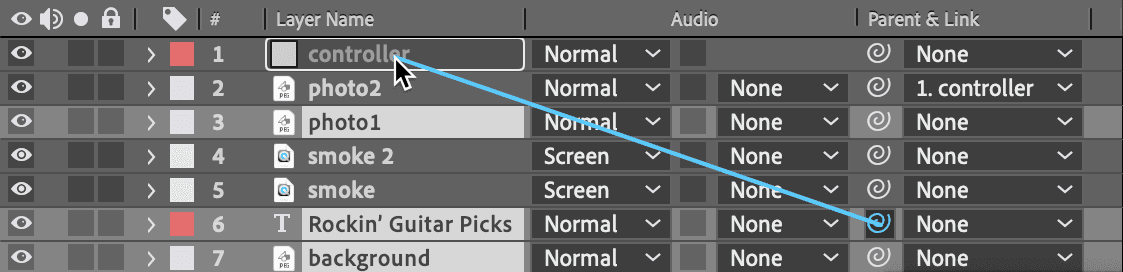
  4. Locate the Parent & Link column to the far right of the photo2 layer (currently displaying None). Click this dropdown menu and select 1.controller
  5. Select the photo1 layer.

  6. Hold Cmd (Mac) or CTRL (Windows) while clicking the following layers to create a multi-selection:

    • Rockin' Guitar Picks

    • background

  7. Now we'll demonstrate the pick whip method for establishing parent relationships. In any selected layer's Parent & Link column, drag the pick whip icon pick whip icon directly to the controller layer name:

    pick whip drag to controller

  8. Upon release, observe that all three selected layers now display 1.controller in their Parent & Link columns.
  9. Select the controller layer to begin animating the entire group.
  10. Press P to reveal the Position property for keyframe animation.
  11. Navigate the playhead to 6;00 on the Timeline.
  12. Click the stopwatch icon stopwatch next to Position to establish the first keyframe at the current position.

  13. Advance the playhead to 7;00

  14. Click on the first position value (X-coordinate) and change it to -900

    Watch as all child layers move in unison with the controller, demonstrating the power of hierarchical animation control.

  15. Press Spacebar to preview the group animation.

    The movement likely appears mechanical and uniform—lacking the natural acceleration and deceleration that characterizes realistic motion. This is where keyframe interpolation becomes crucial.

  16. Stop playback by pressing Spacebar again.

  17. Select both position keyframes by dragging a selection box around the controller layer's keyframes.

  18. CTRL–click (Mac) or Right–click (Windows) on either selected keyframe and choose Keyframe Assistant > Easy Ease.

  19. Press Spacebar to preview the refined animation.

    Easy Ease applies Bézier curve interpolation, creating natural acceleration and deceleration that mimics real-world physics and significantly improves the perceived quality of motion.

  20. Stop preview playback with Spacebar.

  21. With the controller layer selected, press P to collapse the Position property.

  22. Save your work using File > Save or Cmd–S (Mac) or CTRL–S (Windows).

The Challenge of Multi-Layer Animation

Animating multiple layers individually becomes complex when they need to move together, especially when some layers already have existing keyframes. Parenting solves this elegantly.

Null Object Benefits

Invisible Control

Null objects appear as hollow squares in the composition but don't render in final output, serving as invisible animation controllers.

Transform Properties

Possess all the same transform properties as visual layers, making them perfect parent objects for complex animations.

Parent & Child Layer Relationships

Understanding parenting hierarchy is fundamental to efficient After Effects workflows. Think of parent-child relationships like a dancer and their shadow—the shadow (child) follows the dancer's (parent's) movements while maintaining its own characteristics.

  • Child layers inherit Position, Scale, and Rotation transformations from their parent layers, creating coordinated movement.
  • Child layers maintain independent Opacity and Effects properties, allowing for individual visual treatments while sharing positional behavior.

Key Takeaways

1Real video footage often produces more convincing atmospheric effects than software-generated alternatives, providing natural randomness and authentic lighting interactions.
2Screen blending mode is essential for integrating video layers, as it brightens content while making black areas transparent for seamless compositing.
3Time stretching to 300% creates slow motion at one-third original speed, but Frame Mix blending is crucial to eliminate choppy playback in stretched footage.
4Color matching using the Tritone effect with eyedropper sampling ensures video elements integrate harmoniously with existing design color schemes.
5Null objects serve as invisible parent controllers that don't render but possess all transform properties, making them ideal for complex multi-layer animation control.
6Parent-child relationships allow grouped movement while preserving individual layer animations, with children inheriting Position, Scale, and Rotation but not Opacity or Effects.
7Easy Ease keyframe interpolation transforms mechanical linear movement into natural motion with realistic acceleration and deceleration curves.
8Proper layer organization and naming conventions become critical when working with multiple video layers, effects, and parenting relationships in complex compositions.

RELATED ARTICLES