Shape Animation – Converting to Shape Layers
InDesign Layout Essentials
Master Pages
Recurring layout elements like page numbers, headers, footers.
Paragraph Styles
Reusable type formatting that scales across long documents.
Frames & Threading
Text flows between frames — the heart of multi-column layout.
Object Styles
Reusable formatting for image frames, callout boxes, sidebars.
Noble Desktop's Graphic Design Certificate covers InDesign alongside Photoshop and Illustrator.
Discover the intricacies of text animation using After Effects in this comprehensive tutorial that covers everything from converting an AI layer to a Shape Layer, cleaning up Shape Layers, to animating Layers to follow a path.
Exercise Preview
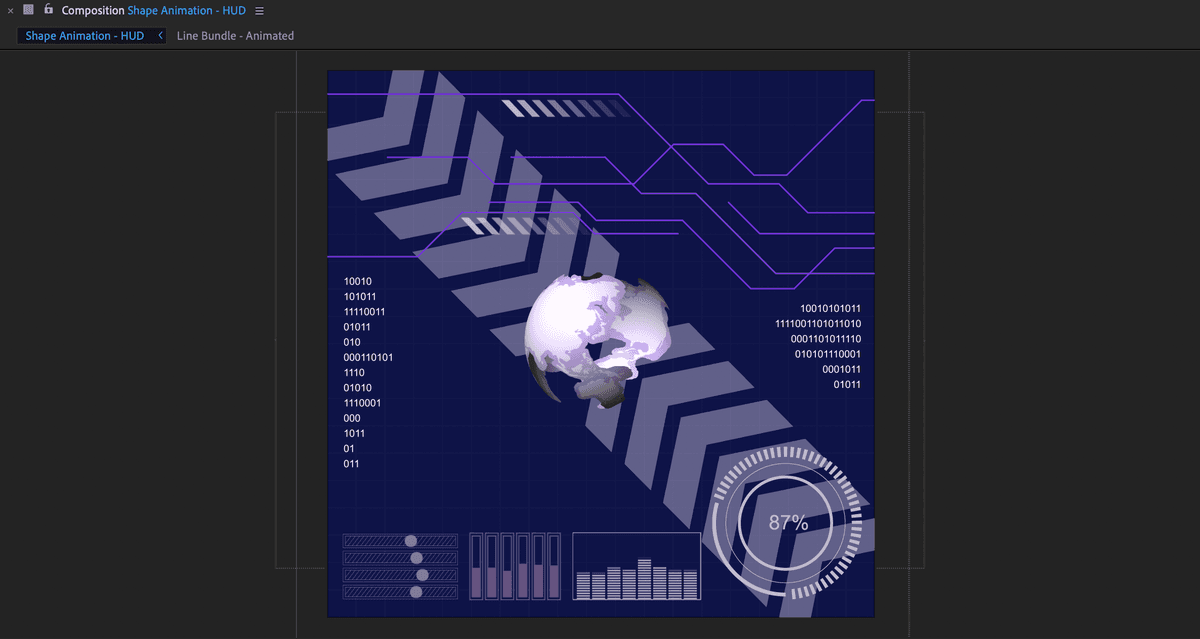
Shape Layers: Animating the Slider Graphs
In this part of the lesson, we will again convert an imported Illustrator vector into a native AE shape layer. This time however we will see how this process can sometimes create very complex shape layers and how to deal with them.
- With the HUD—Your Name.aep file open, click on the Graph—Sliders layer to select it and:
- Press Cmd–Shift–C (Mac) or CTRL–Shift–C (Windows).
- Change the name to Graph—Sliders—Animated
- Confirm the Open New Composition switch is enabled.
- Click OK.
- CTRL–click (Mac) or Right–click (Windows) on the layer and choose Create > Create Shapes from Vector Layer and then:
- Press Return (Mac) or Enter (Windows) and rename it Slider 01
- Press Return (Mac) or Enter (Windows) again or click on any empty area of the timeline to finalize the change.
Click the reveal arrow for Slider 01 and then click the reveal arrow for Contents.
This reveals 116 separate groups. Each of the diagonal lines along the two outlines and the circle for each slider is what makes up the content of all these different groups.
- Click on the label color for the Slider 01 layer and change it to Yellow and then:
- Click on Group 1 to see which shape highlights.
- Repeat this selection process for Group 3 and Group 10.
Notice how they seem to be created in a specific order? By continuing click on the different groups we can figue out which shapes makes up each slider graphic. Don’t worry, we’ve gone through the trouble of doing this for you.
- Click on Group 30:
- Hold Shift
- Click on Group 116 to select every group in-between.
- Press Delete (Mac) or Backspace (Windows) to delete all the highlighted shapes.
- Click on Group 2:
- Hold Shift
- Click on Group 29 to select every group in-between.
- CTRL–click (Mac) or Right–click (Windows) on any of the highlighted shapes and choose Group Shapes.
- Press Return (Mac) or Enter (Windows) and rename the new group Other Assets.
- Press Return (Mac) or Enter (Windows) again or click on any empty area of the Timeline to finalize the change.
- Click on Group 1:
- Press Return (Mac) or Enter (Windows) and rename the new group Ball.
- Click the reveal arrow
 for the Ball shape and then:
- Press the reveal arrow for Transform: Ball.
Change Scale to 125
Hold Option (Mac) or ALT (Windows) and click on the stopwatch
 for Position.
Add the following two lines of code to the expression text field:
myWig = wiggle(3,30);
[myWig[0], value[1]];Click the reveal arrow for the layer to hide the visible properties.
NOTE: You can click anywhere outside the text field to finalize the expression.
- Press Spacebar to preview the Timeline.
- Press Spacebar again at any time to stop the preview.
- Click on Slider 01 and press Cmd–D (Mac) or CTRL–D (Windows) to duplicate the layer and:
- Hold Shift and press the Up Arrow on the keyboard until the new layer is above the first slider.
- Repeat this step until you have 4 sliders
NOTE: Make sure the top slider is positioned at the top of the comp.
- Select all 4 sliders and choose Window > Align and:
- Click the Distribute Vertically
 button.
 - Choose Window > Workspace > Reset “Standard” to Saved layout
- Click the Distribute Vertically
- Press Spacebar to preview the Timeline.
- Press Spacebar again at any time to stop the preview.
Even though the initial position for each ball is the same, the wiggle expression guarantees they are each positioned differently horizontally.
- Press Cmd–K (Mac) or CTRL–K (Windows) or choose Composition > Composition Settings and:
- Confirm the Lock Aspect Ratio switch is enabled.
- Change the Width to 235
- Click OK to close the dialog.
Close the Graph—Sliders—Animated composition and return to the Shape Animation—HUD composition to see the change in the sphere.
- Press Spacebar to preview the Timeline.
- Press Spacebar again at any time to stop the preview.
Save the project by choosing File > Save or pressing Cmd–S (Mac) or CTRL–S (Windows).
Shape Animation: Making a Layer Follow a Custom Motion Path
For simple animations like basic curves and arcs you can adjust a layer’s motion path directly. But what do you do if you need to make a layer follow a very specific path. This is where Create Nulls from Paths comes in. This panel in After Effects allows you to create Null Object layers that can either follow or control paths. You’ll find this helpful for a wide variety of animation tasks.
If You Did Not Do the Previous Exercise
If a project is open in After Effects, go to File > Save, then File > Close Project.
Choose File > Open Project and:
- Navigate to Desktop > Class Files > After Effects Advanced Class > Shape and Text Animation > Finished Projects.
- Double–click on HUD—Custom Motion Paths.aep to open it.
Choose File > Save As > Save As and:
- Name the file Your Name—HUD.aep and
- Save it into Desktop > Class Files > After Effects Advanced Class> Shape Animation.
- In the Shape Animation—HUD comp, select the [Line Bundle—Animated] layer and:
- Press Return (Mac) or Enter (Windows) and rename the layer Circuitry Animation.
- Press Return (Mac) or Enter (Windows) again to finalize the name change.
Double–click the Circuitry Animation comp layer to open it. NOTE: If any layers are expanded click on them and press CTRL ~ to collapse their properties.
Move the playhead to 02;00 on the Timeline, (this is after the line animations end) and click on the eye
 icon for the Marker—Outline layer to reveal it.
We need to find which line the marker is attached to and make a copy of it to use s the marker’s motion path.
Click the reveal arrow
next to the Line Bundle Outlines layer and:- Click on the various groups until the one that is aligned with the Marker—Outline layer highlights. Hint, it’s Group 6
- With Group 6 selected:
- Choose Edit > Copy or press Cmd–C (Mac) or CTRL–C (Windows) to copy the shape.
- Press CTRL ~ to hide the layer properties.
- Choose Layer > New > Shape Layer.
- Choose Edit > Paste or press Cmd–V (Mac) or CTRL–V (Windows).
- With the new Shape Layer 1 selected press Return (Mac) or Enter (Windows) and rename the layer Outline—Path
- Press Return (Mac) or Enter (Windows) again to finalize the name change.
- Click the reveal arrow for Outline—Path and then:
- Click the reveal arrow for Contents.
- Click the reveal arrow for Group 6
- Click the reveal arrow for Transform: Group 6
Locate the Position property inside Transform: Group 6 and set it to 0,0
Activate the Selection Tool by pressing V on the keyboard and drag the Outline—Path layer to line it up with source path on Line Bundle Outlines.
NOTE: You can zoom in and use the arrow keys on the keyboard to align the paths as precisely as possible.
With Outline—Path selected click the reveal arrow
next to Path 1 to reveal the Path property.Choose Window > Create Nulls From Path.jsx. It is towards the bottom of the Window menu.
You’ll probably need to move the Create Nulls From Paths panel to the side and make it smaller so you can still see the Comp panel.
Click the Trace Path button. The program creates a new null object layer with a position that is coded to link with the shape of the selected path.
- Close the Create Nulls From Paths panel.
NOTE: Whatever you do, don’t delete the source path that you traced. The connection between the null object layer and traced path is a live effect created by a fairly complex expression. Deleting the source path would cause the entire effect to fail.
- Click on the Trace Outline—Path: Path 1 [1.1] layer and:
- Press Return (Mac) or Enter (Windows) and rename it Controller—Outline—Path.
- Return (Mac) or Enter (Windows) again to finalize the name change.
- Select the Controller—Outline—Path layer and press E to see its effects and:
- Click the reveal triangle next to Trace Path.
- Change the Loop property to Off.
- Move the playhead to the position of the second Progress keyframe.
Notice that the null object is at the same position as the Marker—Outline graphic.
- Click the reveal triangle
Turn off the visibility of the Outline—Path layer by click off its eye
switch.NOTE: The only point for the Outline—Path layer was as target for the Trace Path command. Now that we’ve done that we can hide it.
Use Marker—Outline’s parent pick whip
 to make it the child of Controller—Outline—Path.
Press Spacebar to preview the Timeline.
- Press Spacebar again at any time to stop the preview.
Notice that the marker does follow the path of the line, but they don’t match speeds. This is because the Trim Path effect has some easing.
Click on the Line Bundle Outlines layer and press U to see its keyframes. The second keyframe has an Easy Ease In.
On the Controller—Outline—Path layer CTRL–click (Mac) or Right–click (Windows) on second keyframe and choose Keyframe Assistant > Easy Ease In.
Hide the properties of the Controller—Outline—Path and Line Bundle Outlines layers.
Save the project by choosing File > Save or pressing Cmd–S (Mac) or CTRL–S (Windows).
NOTE: If you would like to practice this technique some more, you can repeat this same process for the Marker—Solid layer or create your own.